How to Update My Cpu Drivers: Easy Steps for Peak Performance
Are you noticing your computer running slower or facing unexpected crashes? The problem might be your CPU drivers.
Keeping your CPU drivers up to date is crucial for your system’s performance and stability. But how exactly do you update them without breaking a sweat? You’ll discover simple, step-by-step instructions to update your CPU drivers quickly and safely. By the end, you’ll have the power to boost your PC’s speed and avoid annoying glitches.
Ready to make your computer run like new again? Let’s dive in!
Why Update Cpu Drivers
Updating CPU drivers helps your computer work better. It keeps your processor running smoothly. Drivers are small software that connect the CPU with the operating system. When these drivers are current, your system performs well and stays stable.
Old drivers can slow down your PC. They may cause errors or crashes. Keeping drivers updated ensures your computer stays safe and efficient.
Benefits Of Updated Drivers
Updated CPU drivers improve system speed. They fix bugs that cause problems. Your computer can handle new software better. Updates add support for new features. They reduce crashes and freezes. The CPU works more efficiently with fresh drivers.
Risks Of Outdated Drivers
Outdated drivers can cause slow performance. Your computer may freeze or crash often. Some software may not work right. Security holes in old drivers allow threats. The CPU may overheat or use more power. These risks make updating drivers very important.
Identifying Your Cpu Model
Before updating your CPU drivers, you must know your CPU model. This helps you find the correct driver version. Identifying your CPU model is easy and takes only a few steps. You can use tools within your system or check settings during startup.
Using System Information Tools
Windows has built-in tools that show your CPU model. Press Windows + R, type msinfo32, and hit Enter. The System Information window opens. Look for “Processor” under the System Summary. It displays your CPU name and model number.
You can also use the Task Manager. Press Ctrl + Shift + Esc to open it. Click the Performance tab. Select CPU on the left side. The CPU name and speed appear at the top right.
Checking Bios Or Uefi
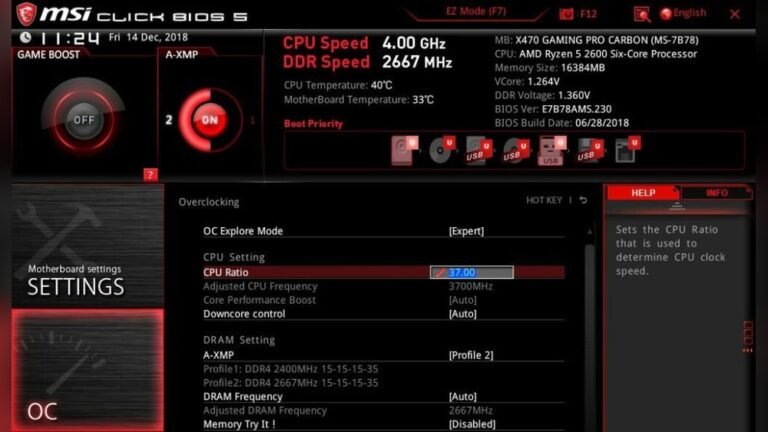
Another way to identify your CPU model is through BIOS or UEFI settings. Restart your computer and press the key that opens BIOS/UEFI during startup. This key is often Delete, F2, or Esc.
Inside the BIOS/UEFI menu, find the system summary or main tab. Your CPU model is usually listed there. Note it down before exiting. This method works even if your operating system is not working properly.
Finding The Right Drivers
Finding the right CPU drivers is important for your computer’s performance. Drivers help your CPU talk to the operating system. Without the correct drivers, your system may slow down or face errors. Knowing where to find these drivers saves time and avoids mistakes.
Two common ways to find the correct CPU drivers are visiting manufacturer websites and using driver update software. Both methods have clear steps and benefits. Choose the one that fits your needs and skills.
Visiting Manufacturer Websites
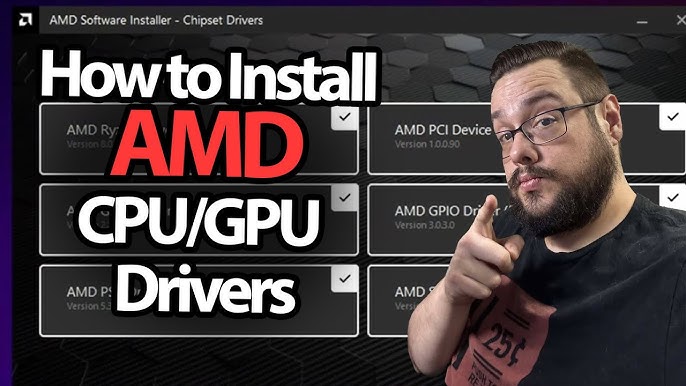
Start by identifying your CPU brand and model. This information is usually in your system settings or on the CPU itself. Then, go to the official website of the CPU manufacturer. Common brands include Intel, AMD, and others.
Look for the support or downloads section on the site. Enter your CPU model to find the latest drivers. Download the driver that matches your operating system and system type. Installing drivers directly from the manufacturer ensures reliability and security.
Using Driver Update Software
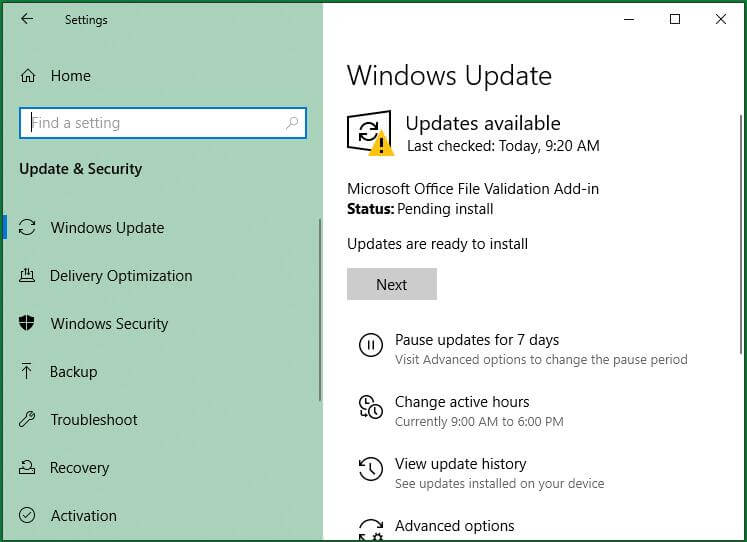
Driver update software scans your computer automatically. It finds outdated or missing drivers quickly. This method is faster for beginners or those with multiple devices.
Choose trusted software with good reviews. After installation, run the scan and follow the prompts to update your CPU drivers. This tool reduces the risk of downloading wrong drivers. It also keeps other device drivers up to date.
Credit: www.partitionwizard.com
Backing Up Current Drivers
Backing up your current CPU drivers is important before updating. It helps avoid problems if the new drivers cause issues. Save a copy of your drivers to restore them later if needed. This step protects your system and ensures smooth performance. Two simple methods to back up drivers are creating a system restore point and exporting drivers.
Creating A System Restore Point
A system restore point saves your computer’s current state. It includes system files, installed programs, and drivers. To create one, open the Control Panel and find “System.” Click “System Protection” on the left side. Then, click “Create” under the System Protection tab. Name your restore point and click “Create” again. Wait a moment for the process to finish. This method lets you roll back your system to this exact state if needed.
Exporting Drivers
Exporting drivers means saving them as files on your computer. You can do this using the Command Prompt or third-party tools. To use Command Prompt, open it as an administrator. Type dism /online /export-driver /destination:C:DriverBackup. Replace C:DriverBackup with your preferred folder path. Press Enter, and the system saves all current drivers there. This way, you keep a copy of your CPU drivers outside the system. It helps reinstall them if the update fails.
Installing Cpu Drivers
Installing CPU drivers is essential for your computer to run smoothly. These drivers help the operating system communicate with the CPU. Without updated drivers, your system may face slowdowns or errors. Keeping them current improves performance and stability.
There are two main ways to install CPU drivers: manually and using automated tools. Both methods ensure your CPU works at its best. Choose the one that suits your skill level and needs.
Manual Installation Steps
Start by identifying your CPU model. Visit the official website of your CPU manufacturer. Search for the latest driver for your specific CPU model. Download the driver file to your computer.
Next, open the downloaded file. Follow the on-screen instructions to install the driver. Restart your computer after installation. This step ensures the new driver loads correctly.
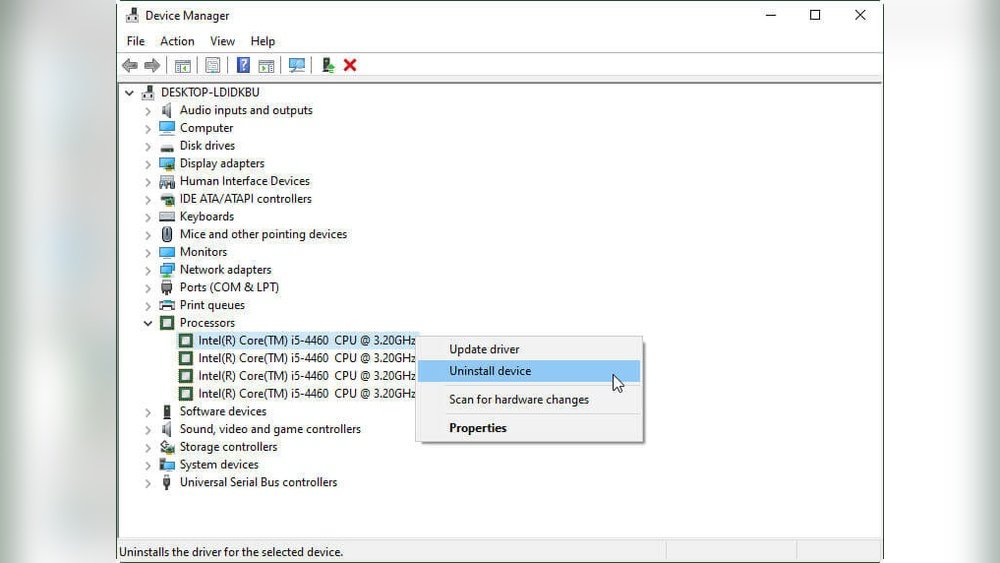
Check the Device Manager to confirm the driver update. Look under “Processors” to see if the new driver appears. Manual updates give you control over the process.
Using Automated Tools
Automated tools simplify the CPU driver update process. These programs scan your system for outdated drivers. They then find and install the correct updates automatically.
Download a trusted driver update tool from a reliable source. Run the tool and allow it to scan your computer. Review the results and select the CPU driver update.
Start the update and wait for the tool to finish. Restart your computer to apply changes. Automated tools save time and reduce errors during installation.
Credit: us.norton.com
Verifying Driver Installation
After updating your CPU drivers, verifying their installation is vital. This step confirms the drivers work correctly. It helps avoid performance issues or errors later. Follow simple methods to check and test your drivers.
Checking Device Manager
Device Manager shows hardware status and driver details. Open it by typing “Device Manager” in the search bar. Expand the “Processors” section to find your CPU. Right-click your CPU and select “Properties”.
Look under the “Driver” tab for the driver version and date. Check for any warning signs like yellow triangles. These symbols indicate driver problems. No warnings mean the driver is installed properly.
Running Performance Tests
Performance tests help verify driver efficiency. Use built-in tools like Windows Performance Monitor or third-party apps. Run a simple CPU stress test to check stability.
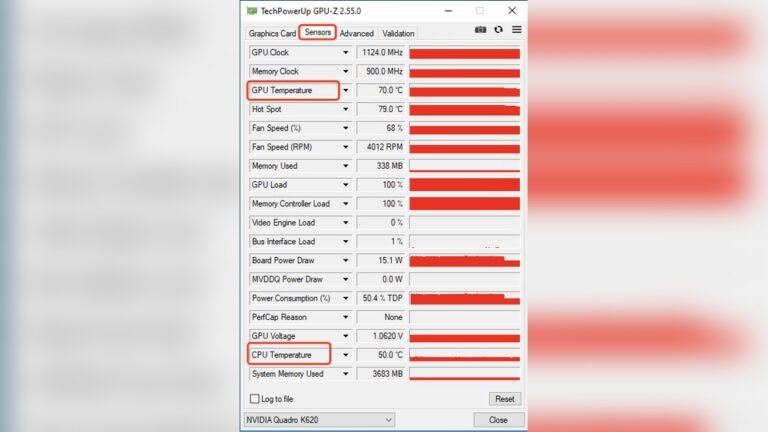
Monitor temperatures, clock speeds, and system responsiveness. No crashes or slowdowns confirm the driver update is successful. Repeat tests after some use to ensure ongoing stability.
Troubleshooting Common Issues
Updating CPU drivers can sometimes cause issues on your computer. Problems like crashes, slow performance, or hardware errors may occur. Troubleshooting helps fix these problems quickly. Simple steps often solve common driver issues.
Driver Conflicts
Driver conflicts happen when two drivers try to control the same hardware. This causes errors or system crashes. Check the Device Manager for yellow warning signs. Uninstall the conflicting driver or update both drivers to the latest version. Restart your PC to apply changes.
Rollback And Reinstall
If a new driver causes problems, rollback to the previous version. Go to Device Manager, select the CPU device, and open Properties. Choose the Roll Back Driver option if available. Reinstall the driver by downloading it from the official website. This can fix bugs or compatibility issues.
Credit: www.youtube.com
Keeping Drivers Updated
Keeping your CPU drivers updated ensures your computer runs smoothly and stays secure. Drivers help your operating system communicate with the CPU. Outdated drivers can cause slowdowns, crashes, or errors. Regular updates fix bugs and improve performance. It is easy to keep track of updates with the right methods.
Setting Update Reminders
Set reminders to check for driver updates regularly. Use calendar apps or task managers to schedule these alerts. Choose a frequency that fits your usage, like once a month. This helps avoid missing important updates. Staying consistent keeps your system stable and fast.
Using Automatic Updates
Automatic updates save time and effort. Many operating systems and software offer this feature. Enable automatic updates to download and install drivers without manual work. This ensures you always have the latest version. It reduces the risk of running outdated drivers unknowingly.
Frequently Asked Questions
How Do I Check If My Cpu Drivers Need Updating?
You can check CPU driver status via Device Manager on Windows. Look under “Processors” or “System devices. ” An outdated driver may show a warning icon. Alternatively, use manufacturer tools like Intel Driver & Support Assistant for automatic checks.
Can Outdated Cpu Drivers Affect Computer Performance?
Yes, outdated CPU drivers can cause slow performance, crashes, or overheating. Updated drivers improve system stability, compatibility, and speed. Keeping drivers current ensures your CPU runs efficiently and prevents software conflicts.
Is It Safe To Update Cpu Drivers Manually?
Yes, manual updates are safe if you download drivers from official manufacturer websites only. Avoid third-party sites to prevent malware risks. Follow installation instructions carefully to avoid system errors or driver conflicts.
How Often Should I Update My Cpu Drivers?
Update CPU drivers when you experience issues or every 6 to 12 months. Check manufacturer updates regularly, especially after major OS upgrades. Frequent updates ensure compatibility and optimal CPU performance.
Conclusion
Updating your CPU drivers keeps your computer running smoothly. It helps fix bugs and improve performance. Check your device manager or visit the CPU maker’s website. Always back up important files before updating. Regular updates protect your system from errors.
Don’t skip this simple step to avoid problems later. Stay patient and follow instructions carefully. Your PC will thank you with better speed and stability. Keep your drivers current for a hassle-free experience. Easy, quick, and worth the effort.