How to Know If Cpu is Overheating: Easy Signs to Watch For
Is your computer acting slow or shutting down unexpectedly? These could be signs that your CPU is overheating.
But how do you know for sure? Understanding if your CPU is running too hot is crucial to keeping your device running smoothly and avoiding costly damage. You’ll discover simple ways to check your CPU temperature, recognize warning signs, and learn easy steps to prevent overheating.
Keep reading to protect your computer and boost its performance before it’s too late.
Common Overheating Symptoms
CPU overheating can cause many problems with your computer. It is important to know the common symptoms. These signs help you detect overheating early. Acting fast can protect your CPU and improve your computer’s health.
Unexpected Shutdowns
One sign of CPU overheating is sudden shutdowns. Your computer may turn off without warning. This protects the CPU from damage. If shutdowns happen often, check your CPU temperature.
Frequent System Crashes
Overheating can cause your system to crash frequently. Programs may freeze or close unexpectedly. You might see a blue screen error. These crashes indicate the CPU is struggling with heat.
Slow Performance
Your computer may slow down if the CPU is hot. Tasks take longer to complete. Applications respond slowly or lag. This happens because the CPU lowers its speed to cool down.
Unusual Fan Noise
The CPU fan may make loud or strange noises. Fans spin faster to cool the overheating CPU. Noise levels increase as heat rises. Strange fan sounds often mean your CPU is too hot.
Credit: www.reddit.com
Checking Cpu Temperature
Checking your CPU temperature helps you know if it is too hot. High temperatures can cause your computer to slow down or shut off. It is important to check the temperature often. You can check the CPU temperature using built-in tools or software. Knowing the ideal temperature range keeps your CPU safe and working well.
Using Built-in Bios Tools
BIOS has a simple tool to check CPU temperature. Restart your computer and enter BIOS by pressing a key like F2 or Delete. Inside BIOS, find the hardware or PC health section. You will see your CPU temperature listed there. BIOS shows the real-time temperature before the operating system starts. This method is easy and does not need extra software.
Third-party Monitoring Software
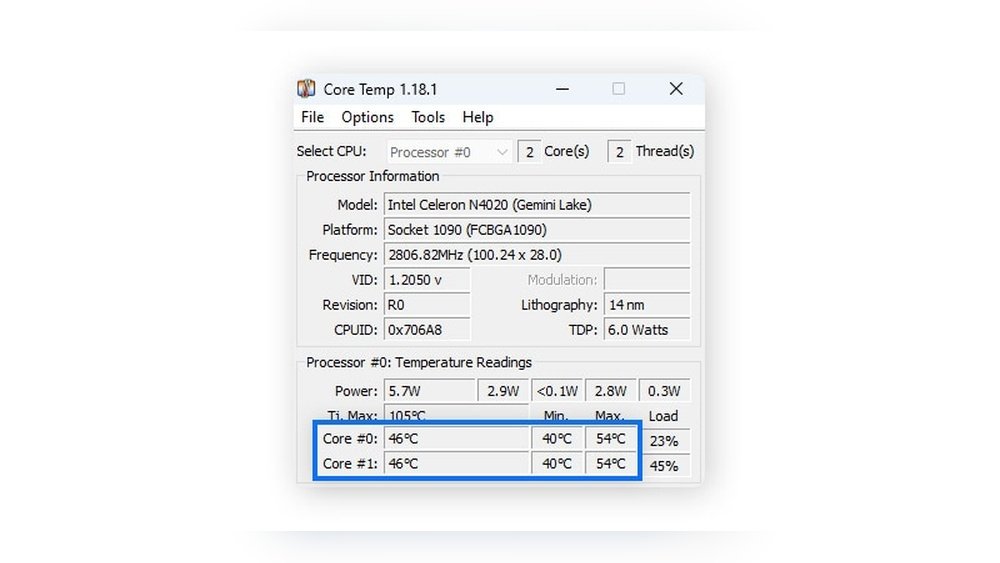
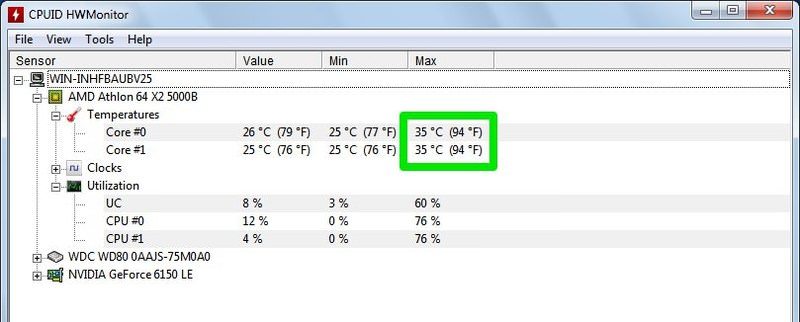
Many free programs monitor CPU temperature while using Windows. Tools like HWMonitor, Core Temp, or Speccy give detailed temperature data. These programs show temperature changes during different tasks. They also report other important hardware info. You can download and install these tools quickly. They help track your CPU temperature over time.
Ideal Temperature Ranges
Most CPUs work best between 30°C and 50°C when idle. During heavy use, temperatures up to 70°C or 80°C are normal. Temperatures above 85°C can cause damage or crashes. Keep your CPU below 80°C for safety. Watch for sudden spikes or constant high temperatures. Proper cooling keeps your CPU in the ideal range.
Physical Signs Of Heat Issues
Physical signs of heat issues in a CPU are easy to notice. They show the computer is working too hard or cooling poorly. Paying attention to these signs helps avoid damage and keeps the computer running well.
Hot Case Surface
Touch the computer case carefully. If it feels very hot, the CPU may be overheating. The heat moves from inside to the outside. A hot case means the cooling system might not work well.
Warm Airflow From Vents
Check the air coming out of the vents. It should feel cool or slightly warm. If the air is very warm or hot, the CPU temperature is high. This means the fan or cooling system struggles to lower the heat.
Dust And Debris Build-up
Look inside the vents and fans for dust or dirt. Dust blocks airflow and traps heat. This makes the CPU hotter. Cleaning dust regularly helps keep the CPU cool and the computer fast.
Credit: support.punchtechnology.co.uk
Preventing Overheating
Preventing CPU overheating is key to keeping your computer running smoothly. Overheating can slow down your system and cause hardware damage. Taking simple steps helps maintain a safe temperature for your CPU. It also extends your computer’s life and performance.
Improving Airflow
Good airflow inside the computer case moves hot air out. Arrange cables neatly to avoid blocking fans and vents. Use cases with vents and fan mounts for better air movement. Place the computer in an open space, not in a tight corner.
Cleaning Dust Regularly
Dust buildup traps heat and blocks fans. Clean dust from fans, vents, and heat sinks often. Use compressed air or a soft brush for cleaning. Avoid using a vacuum that may cause static damage.
Applying Thermal Paste
Thermal paste helps transfer heat from the CPU to the cooler. Old or dried paste reduces cooling efficiency. Remove the old paste carefully and apply a fresh, thin layer. Use quality thermal paste for better heat transfer.
Upgrading Cooling Solutions
Stock coolers may not be enough for high-performance CPUs. Consider upgrading to a better air cooler with larger fans. Liquid cooling systems offer efficient heat removal for powerful CPUs. Check compatibility with your CPU and case before upgrading.
When To Seek Professional Help
Knowing when to seek professional help for CPU overheating is important. Some problems need expert care to avoid damage. Early action can save your computer and data.
Persistent Overheating Despite Fixes
If your CPU keeps overheating after cleaning fans and reapplying thermal paste, it signals deeper issues. Constant shutdowns or slow performance may follow. These problems need a technician’s diagnosis. They can check your cooling system and motherboard thoroughly. Trying more fixes without success may cause harm.
Hardware Replacement Signs
Unusual noises from fans or unusual smells from the computer indicate hardware trouble. Burn marks or melted plastic near the CPU area are serious warnings. If your computer fails to start or shows error codes related to temperature, get professional help. These signs often mean parts need replacing. A technician can safely handle hardware replacement and testing.
Credit: www.hongkiat.com
Frequently Asked Questions
How To Check If Cpu Is Overheating?
You can monitor CPU temperature using software like HWMonitor or Core Temp. High temperatures above 80°C indicate overheating risks.
What Are Common Signs Of Cpu Overheating?
Common signs include random shutdowns, slow performance, loud fan noise, and system crashes. These symptoms often signal thermal issues.
Can Cpu Overheating Damage My Computer?
Yes, prolonged overheating can reduce CPU lifespan and cause hardware failure. It’s vital to maintain proper cooling and ventilation.
How Often Should I Clean My Cpu Fan?
Clean your CPU fan every 3-6 months to remove dust buildup. Dust blocks airflow, causing higher temperatures and overheating risks.
Conclusion
Knowing if your CPU is overheating helps protect your computer. Watch for slow speed, crashes, or strange noises. Use simple tools to check the temperature. Keep your computer clean and cool to avoid damage. Acting fast can save you money and stress.
Stay aware and keep your system running smoothly. Simple steps can prevent bigger problems. Your CPU’s health matters for better performance every day.