How to Overclock a Ryzen Cpu: Ultimate Guide for Maximum Speed
Want to get more power from your Ryzen CPU without spending extra on new hardware? Overclocking is the key.
By pushing your processor beyond its default speed, you can boost performance in games, video editing, and everyday tasks. But if you’re worried about making mistakes or damaging your system, don’t be. This guide will walk you through simple, clear steps to safely overclock your Ryzen CPU.
Keep reading to unlock your PC’s full potential and experience faster, smoother performance like never before.
Credit: www.amd.com
Ryzen Overclocking Basics
Overclocking a Ryzen CPU means running it faster than its base speed. This can boost your computer’s performance. Before starting, understanding the basics is important. You need to know why to overclock, some key terms, and the tools required.
These basics help you overclock safely and get the best results. Let’s break down the essential parts of Ryzen overclocking.
Why Overclock Your Ryzen Cpu
Overclocking makes your CPU perform faster. It helps with tasks like gaming, video editing, and software development. You can get better speed without buying new hardware. It also allows you to customize your system for your needs. Overclocking can improve your PC’s value and extend its usefulness.
Key Overclocking Terms
Understanding terms helps you follow guides and adjust settings. Core clock is the CPU speed, measured in MHz or GHz. Voltage controls power to the CPU; more voltage can improve stability but raises heat. Temperature is crucial; too high can damage your CPU. BIOS is the system menu where you change settings. Stability means the CPU runs smoothly at the new speed.
Required Tools And Software
Basic tools include a good cooling system like a fan or liquid cooler. Overclocking increases heat, so cooling is key. You need software to test stability and monitor temperatures. Ryzen Master is a popular tool made by AMD. CPU-Z shows CPU details. Prime95 or Cinebench helps stress test your CPU. Monitoring tools keep your PC safe during overclocking.

Credit: www.pcmag.com
Preparing Your System
Preparing your system is the first step to safely overclock your Ryzen CPU. It helps avoid damage and keeps your computer stable. You need to adjust settings, improve cooling, and check power supply strength.
Bios Setup Tips
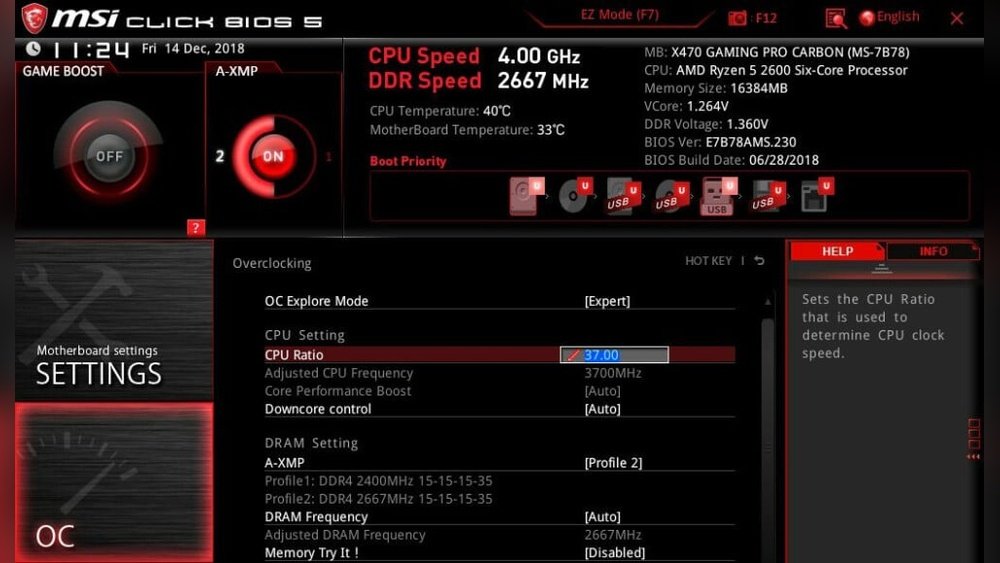
Start by entering the BIOS menu during boot. Update your BIOS to the latest version for better support. Reset BIOS settings to default before making changes. Change CPU multiplier step by step for steady progress. Monitor CPU voltage carefully to avoid overheating. Save changes and reboot to test stability.
Cooling Solutions For Overclocking
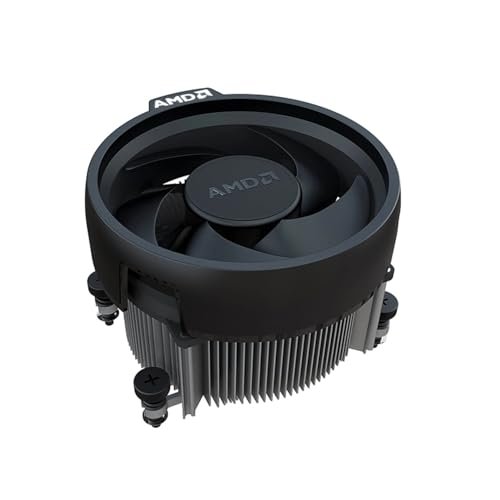
Overclocking increases CPU heat. Stock coolers often cannot handle this extra heat. Use a high-quality air cooler or liquid cooling system. Make sure your case has good airflow. Clean dust from fans and vents regularly. Keep room temperature low to help cooling.
Ensuring Power Supply Stability
Overclocking requires more power from your PSU. Use a power supply with enough wattage for your system. Check the PSU’s efficiency rating to ensure stable power delivery. Avoid cheap or old power supplies that may fail under load. Use a power supply with good connectors and cables. A stable power source prevents crashes and hardware damage.
Step-by-step Overclocking Process
Overclocking a Ryzen CPU can boost your computer’s speed and performance. The process needs care and patience. Follow each step closely to avoid damage. Start slow and check results often.
Adjusting Cpu Clock Speeds
Enter your BIOS by restarting the PC and pressing the setup key. Find the CPU clock speed or multiplier setting. Increase the clock speed a little bit at a time. Save changes and restart the PC. Check if the system boots and runs smoothly. Repeat until you reach a balance between speed and stability.
Modifying Voltage Settings
Raising clock speeds often needs higher voltage. In BIOS, locate the CPU core voltage option. Increase voltage in small steps to keep the CPU stable. Avoid setting voltage too high; it causes heat and damage. Always monitor CPU temperature after changes. Keep the voltage at the lowest stable level for safety.
Testing Stability With Stress Tests
Use stress test software like Prime95 or AIDA64. Run tests for at least 30 minutes to check stability. Watch for crashes, freezes, or errors during the test. If problems occur, reduce clock speeds or increase voltage slightly. Repeat stress tests until your system runs without issues. Stable tests mean your overclock is safe for daily use.
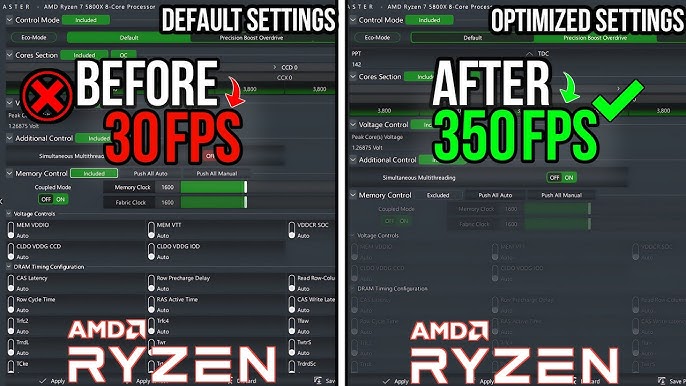
Credit: www.youtube.com
Optimizing Performance
Optimizing performance is key to getting the best from your Ryzen CPU. It means adjusting settings carefully for higher speed without harm. Small changes can improve how your computer runs daily tasks and games. Focus on memory, clock speed, and tools that help manage your CPU.
Fine-tuning Memory Settings
Memory settings impact Ryzen CPU speed a lot. Increase memory frequency to boost data flow between CPU and RAM. Check your RAM’s rated speed and try to match or exceed it. Adjust timings to lower numbers for faster access. Test changes step-by-step to keep system stable. Use BIOS or Ryzen Master for these tweaks.
Balancing Clock Speed And Temperature
Higher clock speeds make your CPU faster but cause more heat. Watch your CPU temperature closely while overclocking. Keep temps under 85°C to avoid damage. Use better cooling like fans or liquid coolers to control heat. Lower voltage if temperatures rise too high. A balance keeps your CPU safe and fast.
Using Ryzen Master Software
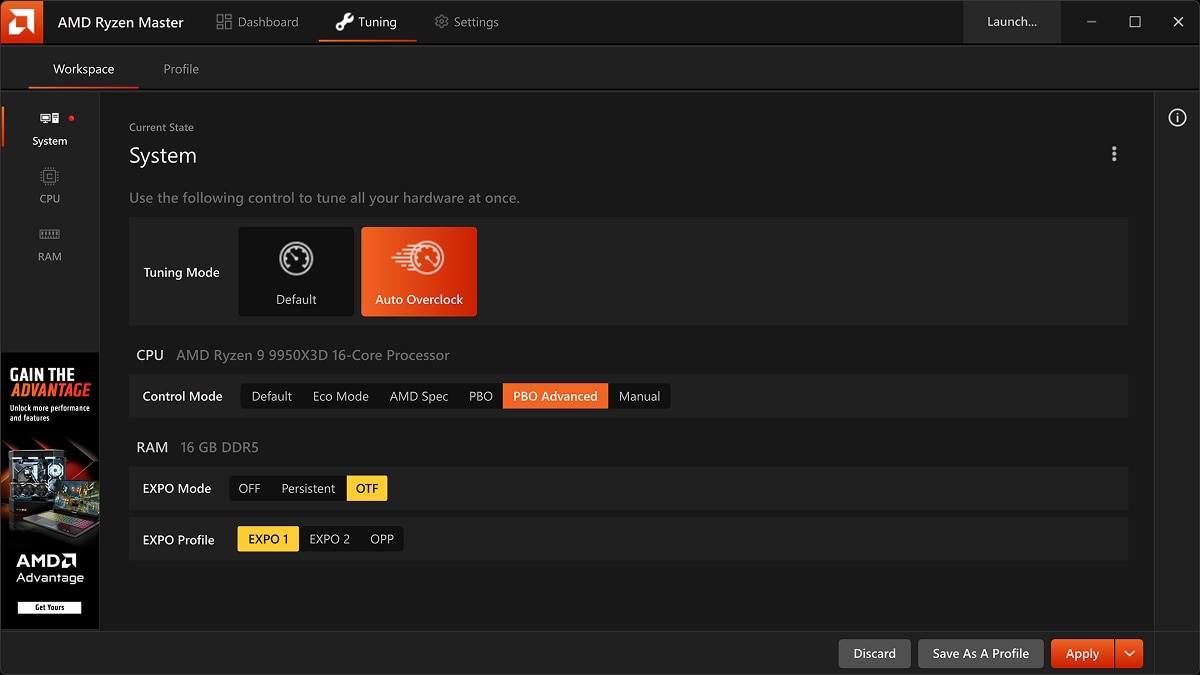
Ryzen Master is an easy tool to adjust CPU settings in Windows. It lets you change clock speed, voltage, and memory settings quickly. You can save profiles for different uses, like gaming or work. The software shows real-time temperature and speed data. Use Ryzen Master to test changes without entering BIOS.
Troubleshooting Common Issues
Troubleshooting is a key part of Ryzen CPU overclocking. Many users face issues that stop the system from running smoothly. Knowing how to fix these problems saves time and effort. This section covers common issues and ways to solve them.
Identifying Overclocking Instability
Instability shows as random crashes or freezes. The system might restart without warning. Applications may close suddenly. Watch for error messages or blue screens. Use stress tests to check stability. Lower the clock speed if crashes happen often. Increase voltage carefully to improve stability. Test changes slowly to avoid damage.
Fixing Boot Failures
Boot failures mean the PC won’t start properly. The screen may stay black or show error codes. Reset BIOS settings to default if stuck. Clear CMOS by removing the battery or using a jumper. Reduce clock speed or voltage in BIOS. Save changes and restart. Repeat these steps until the PC boots normally.
Handling Thermal Throttling
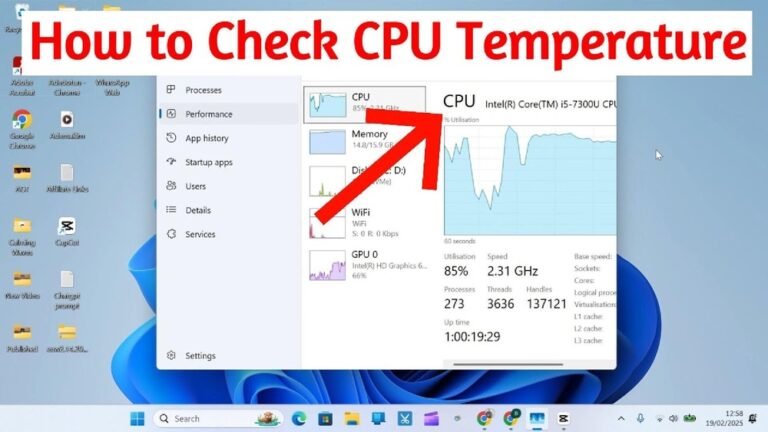
Thermal throttling happens when the CPU gets too hot. The processor slows down to cool off. Check CPU temperature with monitoring software. Clean dust from fans and heatsinks. Apply new thermal paste for better heat transfer. Use a better cooler if temperatures stay high. Keep the PC case ventilated to improve airflow.
Safety And Longevity Tips
Overclocking a Ryzen CPU can boost performance but risks damage if done carelessly. Following safety and longevity tips helps protect your processor and system. Proper care keeps your CPU stable and extends its life.
Monitoring Cpu Temperatures
Keep an eye on your CPU temperature during overclocking. High heat can cause damage and reduce lifespan. Use software tools to check temperatures regularly. Aim to keep temps below 85°C for safe operation. Good cooling, like quality fans or liquid cooling, helps manage heat effectively.
Avoiding Excessive Voltage
Voltage controls how much power the CPU uses. Too much voltage causes overheating and damage. Increase voltage slowly and test stability after each step. Stay within safe voltage limits recommended by Ryzen specifications. Lower voltage with good cooling can improve performance safely.
Maintaining System Health
Clean your PC regularly to avoid dust buildup on components. Dust can block airflow and raise temperatures. Use good thermal paste between the CPU and cooler for better heat transfer. Update your motherboard BIOS and drivers for better overclocking support. Stable power supply units protect your CPU from power spikes.
Frequently Asked Questions
What Is The Best Ryzen Cpu For Overclocking?
The Ryzen 5 and Ryzen 7 series offer great overclocking potential. They balance performance and thermal output efficiently. Higher-end models like Ryzen 9 also overclock well but need better cooling solutions.
How Do I Safely Overclock My Ryzen Cpu?
Start by increasing clock speeds gradually. Monitor temperatures and system stability closely. Use reliable software like Ryzen Master or BIOS settings. Always ensure proper cooling to avoid overheating.
Will Overclocking Void My Ryzen Cpu Warranty?
Yes, overclocking typically voids the official AMD warranty. It increases the risk of hardware damage. Proceed only if you accept this risk and understand potential consequences.
What Cooling Solutions Work Best For Ryzen Overclocking?
High-quality air coolers or liquid cooling systems are ideal. They maintain safe temperatures during intense overclocking sessions. Stock coolers often aren’t sufficient for stable overclocking.
Conclusion
Overclocking your Ryzen CPU can boost its speed and performance. Start slow and test your settings carefully. Watch your CPU temperature to avoid damage. Use reliable software tools to monitor changes. Remember, patience is key for safe overclocking. Enjoy the improved performance in your tasks.
Keep learning to refine your overclock skills. This process can make your PC feel faster. Stay safe and have fun with your Ryzen CPU.