How to Find My Cpu Temp: Easy Steps to Monitor and Protect Your PC
Are you worried that your computer might be overheating? Knowing your CPU temperature is one of the easiest ways to keep your device running smoothly and avoid unexpected shutdowns or damage.
But how do you find your CPU temp quickly and accurately? You’ll discover simple steps and tools that anyone can use to check their CPU temperature right now. Keep reading to protect your computer and boost its performance with just a few clicks!
Why Cpu Temp Matters
Knowing your CPU temperature is important for your computer’s health. The CPU works hard to run programs and apps. Too much heat can cause trouble. Understanding why CPU temperature matters helps you keep your computer safe and fast.
Impact On Performance
High CPU temperature can slow down your computer. The CPU lowers its speed to cool down. This makes programs run slower. Keeping the CPU cool means your computer works better and faster.
Risks Of Overheating
Overheating can damage your CPU and other parts. It may cause sudden shutdowns to protect the system. Long-term heat can shorten your computer’s life. Avoiding high temperatures helps keep your computer safe.
Signs Of High Temperature
Watch out for loud fan noise or strange smells. Your computer might freeze or shut down often. Programs may crash without warning. These signs show your CPU might be too hot and needs attention.
Credit: www.youtube.com
Tools To Check Cpu Temperature
Checking your CPU temperature helps keep your computer safe. Too much heat can damage parts and slow down your system. Several tools let you monitor CPU temperature easily. Each option has its own way of showing the data. Choose one that fits your needs and skill level.
Built-in System Utilities
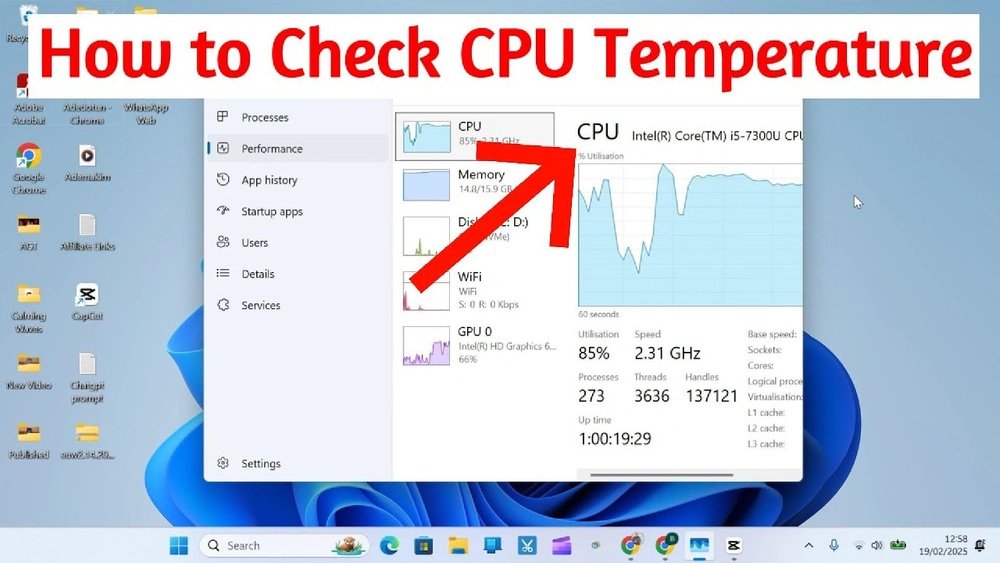
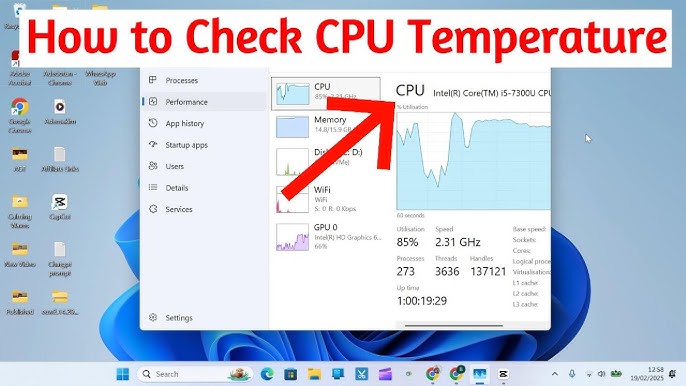
Many computers include tools to check CPU temperature. Windows offers Task Manager and Performance Monitor, but they show limited info. Macs have Activity Monitor, yet it doesn’t display CPU heat directly. Some systems provide hardware health apps. These tools are simple and require no extra downloads. They work well for basic temperature checks.
Third-party Software Options
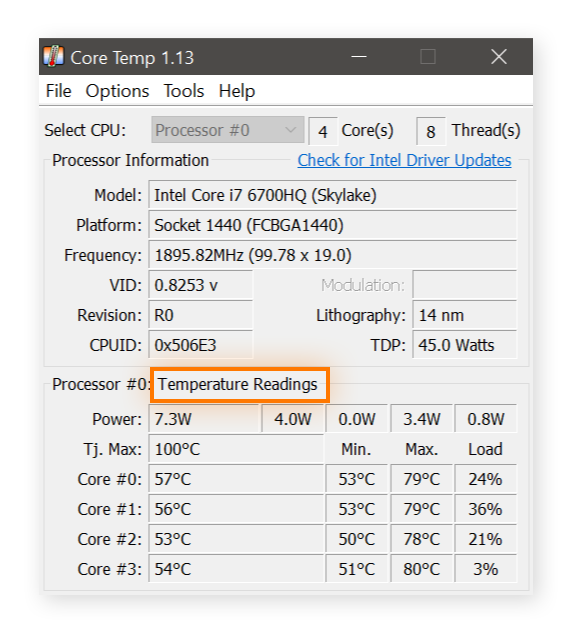
Third-party apps give detailed temperature readings. Programs like HWMonitor, Core Temp, and SpeedFan are popular. They show real-time data and track CPU heat over time. These apps often display other hardware info too. Most are free or have free versions. Use them for better control and deeper insights.
Using Bios For Temp Monitoring
The BIOS lets you see CPU temperature before the system loads. Restart your computer and enter BIOS setup by pressing a key like F2 or Delete. Inside BIOS, find the hardware or health section. This method provides accurate temperature readings directly from the motherboard. No software is needed, but BIOS can be tricky for beginners.
Step-by-step Cpu Temp Check
Checking your CPU temperature is important to keep your computer running smoothly. High temperatures can cause damage or slow down your system. This guide shows how to check your CPU temperature step-by-step. It is simple and takes only a few minutes.
Installing Monitoring Software
First, choose a CPU temperature monitoring program. Popular choices include HWMonitor, Core Temp, and SpeedFan. Download the software from its official website to avoid malware. Run the installer and follow the instructions. Once installed, open the program to start checking your CPU temperature.
Running Temperature Tests
After opening the software, look for the CPU temperature section. It usually shows the current temperature in Celsius or Fahrenheit. To get accurate readings, close other programs and keep your computer idle. For stress testing, use built-in tools or third-party programs that push your CPU to work harder. Watch the temperature rise during this test.
Interpreting Results
Normal CPU temperatures vary by model but usually range from 30°C to 50°C when idle. During stress tests, temperatures can rise to 70°C or 80°C. If your CPU temperature stays above 90°C, it may be overheating. High temperatures can cause system crashes or damage over time. Consider cleaning your computer fans or reapplying thermal paste if temperatures are too high.
Credit: www.avast.com
Tips To Lower Cpu Temperature
Keeping your CPU temperature low is important for your computer’s health. High temperatures can slow down your system and cause damage over time. Simple steps can help reduce heat and keep your CPU running smoothly. Here are some easy tips to lower your CPU temperature.
Improving Airflow
Good airflow inside your computer case helps cool your CPU. Make sure cables are neat and not blocking air paths. Position fans to push hot air out and bring cool air in. Open spaces allow air to flow freely and reduce heat buildup.
Cleaning Dust And Debris
Dust and dirt block airflow and trap heat. Clean your computer regularly using a soft brush or compressed air. Focus on fans, vents, and heat sinks. Removing dust helps your CPU cool faster and work better.
Upgrading Cooling Systems
Basic fans may not be enough for heavy use. Consider upgrading to better cooling parts like larger fans or liquid coolers. These systems remove heat faster and keep your CPU temperature low during intense tasks.
When To Seek Professional Help
Knowing how to check your CPU temperature is helpful. Yet, some problems need expert help. Overheating can damage your computer. Sometimes, fixing it yourself is not enough. You should know when to ask a professional.
Persistent Overheating Issues
Constant high CPU temperature signals a serious problem. Cleaning dust or reapplying thermal paste may not help. Your cooling system might be failing. A professional can find hidden issues. Ignoring this can lead to hardware failure.
Hardware Replacement Signs
Strange noises or frequent shutdowns are warning signs. Your fan could be broken or your CPU damaged. Professionals can test and replace parts safely. Trying to fix hardware alone might cause more harm. Early replacement saves money and time.
Warranty And Support Options
Check if your device still has a warranty. Contact the manufacturer for support before opening your device. Professionals authorized by the manufacturer protect your warranty. They use proper tools and parts. This ensures your device stays covered and safe.

Credit: www.alcpu.com
Frequently Asked Questions
How Can I Check My Cpu Temperature In Windows?
Use built-in tools like Task Manager or third-party apps such as HWMonitor. These display real-time CPU temperature easily.
What Is A Safe Cpu Temperature Range?
Typically, 30°C to 50°C is safe when idle. Under load, temperatures up to 85°C are acceptable but avoid higher.
Why Is My Cpu Temperature So High?
High CPU temperature can be caused by poor ventilation, dust buildup, or faulty cooling systems. Clean fans and improve airflow.
Can Bios Show Cpu Temperature?
Yes, most BIOS setups display CPU temperature. Access BIOS during startup by pressing keys like F2 or DEL.
Conclusion
Knowing your CPU temperature helps keep your computer safe and fast. Use simple tools to check the heat regularly. Watch for high numbers to avoid damage or slowdowns. Cooling your CPU can make a big difference. Stay aware and take quick action when needed.
This small step can extend your computer’s life and improve performance. Keep your system cool, happy, and ready for any task.