How to Know If Your Cpu is Overclocked: Quick & Easy Guide
Are you curious if your CPU is running faster than it should? Overclocking can boost your computer’s speed, but it can also cause problems if you don’t know it’s happening.
Knowing whether your CPU is overclocked is key to keeping your system safe and stable. You’ll learn simple ways to check your CPU’s status quickly and easily. By the end, you’ll have the confidence to understand your computer’s performance like a pro.
Keep reading—you don’t want to miss these easy tips that could save your PC!

Credit: www.reddit.com
Signs Of An Overclocked Cpu
Knowing the signs of an overclocked CPU helps you understand your computer better. Overclocking means running the CPU faster than its standard speed. This can change how your system behaves. Some changes are easy to spot. Others need careful checking. Below are key signs that show your CPU might be overclocked.
Performance Boosts
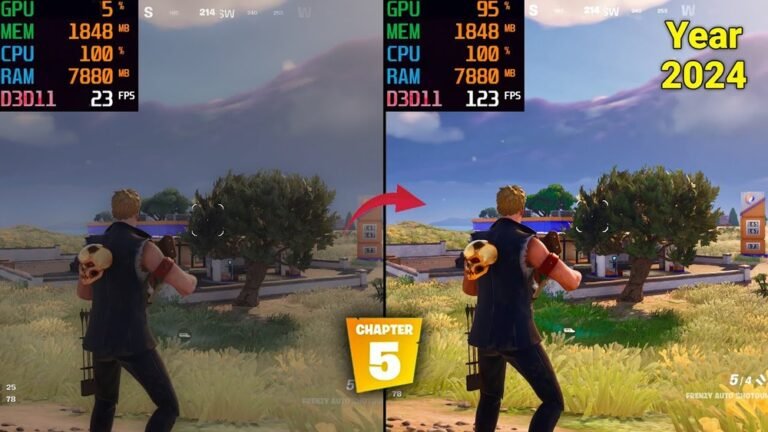
An overclocked CPU often runs faster than usual. Programs open quicker. Games feel smoother. Tasks complete in less time. You may notice your computer feels more responsive. This speed increase is a common sign of overclocking. It means the CPU works harder than normal.
Increased Heat Output
Overclocking makes the CPU produce more heat. Your computer’s fan may run louder or more often. The case might feel warmer to touch. High temperatures can affect other parts too. Heat is a clear sign your CPU is pushed beyond its usual limits.
System Instability
An overclocked CPU can cause your system to act strange. Your computer might freeze or crash randomly. Programs may close without warning. Errors and blue screens can appear more often. Instability happens when the CPU runs too fast for stable operation.

Credit: www.reddit.com
Checking Bios Settings
Checking BIOS settings is a direct way to find out if your CPU is overclocked. The BIOS controls your computer’s hardware and shows detailed CPU information. By entering the BIOS, you can see the CPU frequency and other key settings. This helps you know if your CPU runs faster than its normal speed.
Accessing Bios
Start by restarting your computer. Press the BIOS key as your PC boots. Common keys include Delete, F2, or Esc. The screen usually shows which key to press. Press the key quickly before the operating system starts. The BIOS menu will appear on a simple screen.
Locating Cpu Frequency Settings
In BIOS, find the section for CPU or Hardware settings. This section might be named “Advanced,” “Overclocking,” or “Frequency.” Look for the CPU speed or clock speed option. It shows the current speed in MHz or GHz. This number tells you the CPU’s running frequency.
Interpreting Clock Speeds
Check the displayed CPU speed against your CPU’s base speed. The base speed is the normal speed listed by the manufacturer. A higher number means the CPU is overclocked. For example, a 3.5 GHz CPU running at 4.0 GHz is overclocked. If the speed matches the base speed, no overclocking is active.
Using Software Tools
Software tools help check your CPU’s clock speed and health. These programs show clear data about your processor’s performance. They make it easy to see if your CPU runs faster than usual. This process does not need technical skills or opening your computer.
Cpu-z For Clock Speed
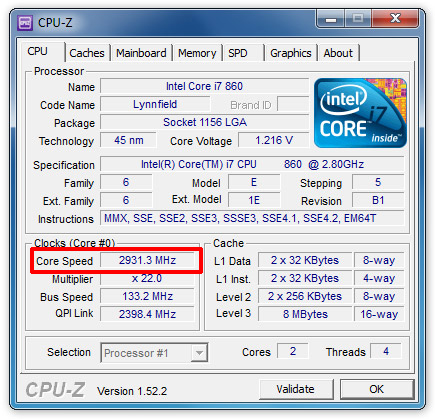
CPU-Z shows your CPU’s current clock speed in real time. It also displays the base speed set by the manufacturer. If the current speed is higher than the base, your CPU is overclocked. CPU-Z is free and simple to use. It provides detailed info about your processor and its settings.
Hwmonitor For Temperature
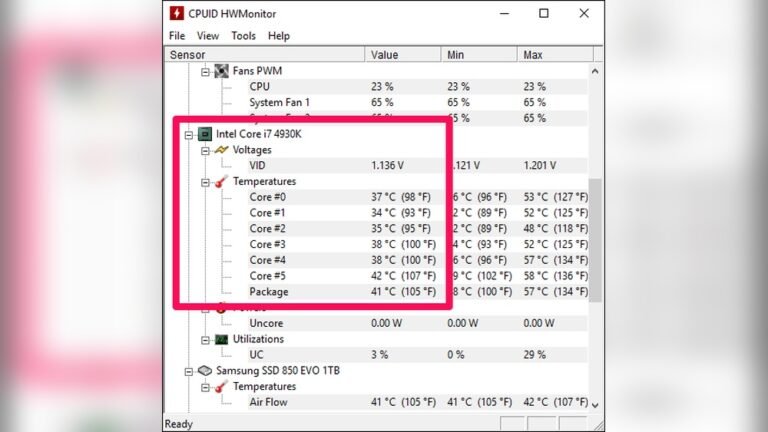
HWMonitor tracks your CPU temperature while running. Overclocked CPUs run hotter than normal. This tool shows if your CPU’s temperature is higher than standard limits. Watching these numbers helps avoid overheating damage. It also lists voltages and fan speeds for full monitoring.
Task Manager Insights
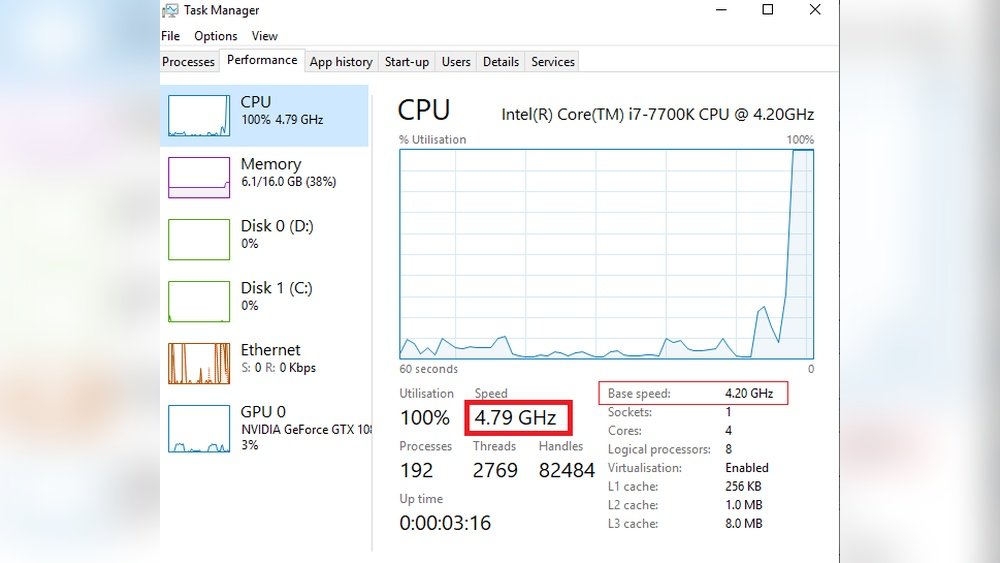
Task Manager gives a quick look at your CPU usage and speed. Open the Performance tab to see the current clock speed. This speed changes based on workload and overclocking. Task Manager is built into Windows, so no extra download needed. It helps spot unusual CPU activity easily.
Credit: cleanerone.trendmicro.com
Comparing Base And Current Clock Speeds
Comparing base and current clock speeds helps you see if your CPU is overclocked. The base speed is the factory-set frequency. The current speed shows what your CPU runs at now. A higher current speed means the CPU is overclocked. This method is simple and clear for most users. It gives a quick check without extra tools.
Finding Official Cpu Specs
Start by finding your CPU model number. You can see this in system settings or on the CPU package. Next, visit the official CPU maker’s website. Search for your CPU model there. The site shows the base clock speed in GHz. Write down this number. This is your CPU’s normal speed.
Verifying Current Cpu Frequency
Open your computer’s task manager or use a CPU info app. Look for the current CPU speed or frequency. This number changes with usage but note the maximum speed shown. Compare this number with the base speed from specs. If the current speed is higher, your CPU is overclocked. If it matches or is lower, the CPU runs at normal speed.
Risks Of Overclocking
Overclocking a CPU pushes it beyond factory settings to boost performance. This can cause several risks that affect your computer’s health and stability. Knowing these risks helps you make safer choices.
Potential Hardware Damage
Running a CPU at higher speeds produces more heat. This extra heat can damage the processor and other parts. Over time, the risk of hardware failure grows. Components may wear out faster or stop working. Cooling systems must be very effective to prevent damage.
Warranty Considerations
Manufacturers often void warranties if a CPU is overclocked. This means repairs or replacements may not be free. Overclocking can cause permanent damage, which is not covered by warranty. Always check the warranty rules before changing CPU settings.
When To Reset To Default Settings
Resetting your CPU to its default settings is important after overclocking. Overclocking pushes the CPU beyond its original limits. This can cause instability and damage over time. Knowing when to reset helps keep your computer safe and stable.
Sometimes, the CPU may not work well after overclocking. Resetting brings it back to normal speed. This prevents crashes and overheating. It also helps if you want to sell or troubleshoot your computer.
Signs To Revert Overclocking
Your PC crashes often or shows blue screens. These are clear signs of instability. The system may freeze or restart randomly. Overclocking can cause these problems if settings are too high.
Temperature rises above safe limits during normal use. High heat can damage the CPU and other parts. Overclocked CPUs run hotter, so watch the temperatures closely.
Performance drops instead of improving. If your computer slows down or lags, overclocking might be the cause. Incorrect settings can reduce efficiency.
Programs or games fail to run properly. Errors or crashes in software can happen due to unstable CPU speeds.
Steps To Restore Default Speeds
Restart your computer and enter the BIOS or UEFI menu. Usually, press keys like DEL, F2, or ESC during startup.
Look for the overclocking or CPU settings section. This area controls the CPU speed and voltage.
Find the option to reset or load default settings. It may say “Load Optimized Defaults” or “Reset to Default.”
Select this option and confirm your choice. The system will reset CPU speeds to factory settings.
Save the changes and exit the BIOS. Your PC will restart with default CPU speeds active.
Check your system stability and temperatures to ensure normal operation.
Frequently Asked Questions
How Can I Check If My Cpu Is Overclocked?
You can check CPU overclocking in BIOS settings or use software like CPU-Z. Look for clock speeds higher than the base frequency.
What Signs Indicate My Cpu Is Running Overclocked?
Higher temperatures, increased fan speeds, and system instability can indicate overclocking. Performance spikes beyond default specs also suggest it.
Does Overclocking Affect Cpu Performance Visibly?
Yes, overclocking boosts CPU speed, improving gaming and multitasking performance. However, it may cause overheating if cooling is insufficient.
Can I Detect Overclocking Through Windows Tools?
Yes, Task Manager shows CPU speed under Performance tab. Compare this speed with your CPU’s base clock to identify overclocking.
Conclusion
Knowing if your CPU is overclocked helps keep your computer safe. Checking the CPU speed and settings is a simple step. Use easy tools or your system’s BIOS to find out. Overclocking can make your CPU run faster but may cause heat.
Keep an eye on temperatures and performance. Stay informed to avoid damage and maintain good speed. Now you can check your CPU with confidence and care.