How to Find Cpu Details in Linux: Quick and Easy Methods
Want to know exactly what kind of CPU powers your Linux system? Whether you’re troubleshooting, upgrading, or just curious, finding detailed CPU information is essential.
But if you’ve ever felt lost in the command line or overwhelmed by technical jargon, don’t worry—you’re in the right place. This guide will show you simple, clear steps to quickly uncover all the CPU details you need. Keep reading, and you’ll gain the confidence to explore your system like a pro.
Check Cpu Info With Lscpu
The lscpu command is a simple way to see CPU details on Linux. It shows clear information about your processor. This tool reads data from the system and presents it in a human-friendly format.
Using lscpu helps you understand your CPU’s model, speed, cores, and architecture. It works on almost all Linux distributions and requires no special setup.
How To Run The Lscpu Command
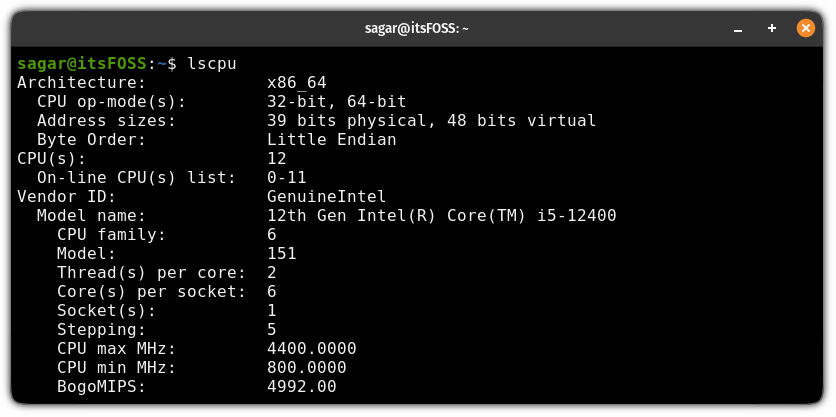
Open your terminal to use lscpu. Just type lscpu and press Enter. The command will display detailed CPU information right away. No extra options are needed for the basic info.
Understanding The Output
The output shows several lines, each with a key and value. For example, “Architecture” tells you if your CPU is 32-bit or 64-bit. “CPU(s)” shows the number of cores available.
You can find the CPU model name, speed in MHz, and cache size. This helps you check if your system meets software requirements or to compare hardware.
Using Lscpu For More Details
You can add options to lscpu for extra info. Use lscpu -e to see details per CPU core. The lscpu --json option prints data in JSON format, useful for scripts.
These options give a deeper look into your processor’s specs and how Linux views your CPU setup.

Credit: www.geeksforgeeks.org
Explore /proc/cpuinfo File
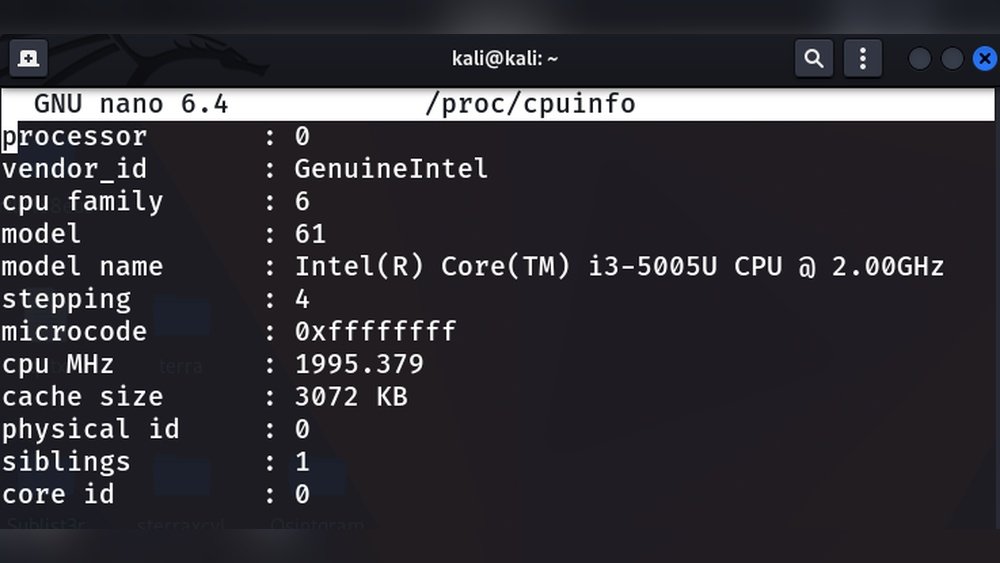
The /proc/cpuinfo file holds detailed information about the CPU in Linux systems. It is a virtual file that provides real-time data. This file is easy to read using basic commands. It helps users understand their processor’s features quickly.
By exploring /proc/cpuinfo, you can see details such as model name, CPU cores, speed, and cache size. This information is useful for system monitoring and troubleshooting. Let’s explore how to access and interpret this file.
What Is The /proc/cpuinfo File?
The /proc/cpuinfo file is part of the proc filesystem. It is not a real file but a virtual file created by the Linux kernel. It shows current CPU information directly from the system. The data updates automatically without any user input.
How To View The /proc/cpuinfo File
To view this file, open a terminal and type cat /proc/cpuinfo. This command prints the entire content of the file. You can see all the details about each CPU core. Use less or more to scroll through the content easily.
Key Fields In /proc/cpuinfo
Some important fields include processor, model name, cpu MHz, and cache size. The processor field shows the core number. The model name tells the CPU brand and model. The cpu MHz shows the current speed of the CPU. The cache size indicates the processor cache memory.
Use Dmidecode For Detailed Info
The dmidecode command shows detailed information about your CPU. It reads data from the system’s DMI table. This table contains hardware details stored by the BIOS.
This tool gives more detailed info than other commands. It shows CPU type, speed, cache size, and more. It also displays motherboard and BIOS details.
How To Run Dmidecode
Open a terminal window. Type sudo dmidecode -t processor and press Enter. You need root permissions to run the command. This command lists all CPU details from the DMI table.
Understanding Dmidecode Output
The output shows several fields. Look for “Version” to find CPU model. “Voltage” tells the CPU voltage. “External Clock” shows the bus speed. “Max Speed” indicates CPU maximum speed. Cache sizes also appear here.
Using Dmidecode For System Hardware
You can get more hardware info with dmidecode. Use sudo dmidecode without options to see the full report. It lists memory, BIOS, and motherboard details. This helps understand your whole system.
Leverage Hwinfo Command
The hwinfo command is a powerful tool to check CPU details in Linux. It provides detailed information about your hardware components. This command shows data like CPU model, speed, cache size, and more.
Using hwinfo helps you understand your system better. It works on many Linux distributions and is simple to use.
How To Install Hwinfo
First, check if hwinfo is installed. Open the terminal and type hwinfo --version. If not found, install it using your package manager.
For Debian or Ubuntu, run sudo apt-get install hwinfo. For Fedora, use sudo dnf install hwinfo. For Arch Linux, try sudo pacman -S hwinfo.
Running Hwinfo To Get Cpu Details
Type hwinfo --cpu in the terminal. The command shows detailed CPU info like vendor, model, and core count.
The output also includes clock speed and cache sizes. It lists flags that describe CPU features.
Interpreting Hwinfo Output
Look for the “Processor” section to find the CPU name. “Clock” tells you the speed in MHz or GHz.
“Cache” shows the size of L1, L2, and L3 caches. “Features” lists supported CPU instructions.
Using Hwinfo For Troubleshooting
hwinfo helps detect CPU issues. Compare current CPU info with expected specs.
It aids in verifying hardware upgrades or replacements. The detailed report assists in diagnosing performance problems.
Get Cpu Details With Inxi
Get CPU details with inxi is a quick and easy method. This tool shows clear and detailed information about your processor. It works on most Linux systems and does not need complex commands.
inxi displays the CPU model, speed, cores, and cache size. It also shows other hardware details if needed. You can use it to check your system’s performance or for troubleshooting.
How To Install Inxi On Linux
Many Linux distributions already have inxi in their package list. Use your package manager to install it. For example, on Ubuntu, type:
sudo apt install inxiFor Fedora, use:
sudo dnf install inxiAfter installation, you are ready to get CPU details.
Command To Display Cpu Information
To show CPU details, run:
inxi -CThis command lists the CPU model, speed, and core count. It also shows the CPU flags and cache size. The output is easy to read and understand.
Understanding The Output
The output shows the CPU name first. Next, it displays speed in MHz or GHz. Core count and threads are listed as well. Cache size is shown in KB or MB. CPU flags indicate supported features.
Each line gives key data about your processor. This helps you know your system better.

Credit: www.youtube.com
Compare Methods For Accuracy
Comparing methods to find CPU details in Linux helps ensure accurate information. Different commands show different parts of CPU data. Some focus on hardware specs, others on current usage or speed.
Choosing the right method depends on what details matter most. Accuracy means you get the correct model, speed, and features. Some methods read system files, others query the kernel directly. This affects the detail level and reliability.
Cat /proc/cpuinfo
This command reads CPU information from a system file. It shows detailed specs like model name and cache size. It is easy and quick. The data updates on boot, so changes after boot may not show here.
Lscpu Command
This command summarizes CPU architecture details. It lists CPU cores, threads, and speed clearly. It parses data from the system and presents it neatly. Accuracy is high for static hardware information.
Dmidecode Command
This tool reads BIOS data to show CPU details. It can provide extra info like voltage and family. Requires root access, which may limit use. It offers deep, detailed data but depends on BIOS correctness.
Top And Htop Commands
These commands focus on CPU usage, not hardware specs. They show real-time CPU load and process info. Useful for performance monitoring, less for hardware details. Accuracy varies with system activity.
Comparison Summary
For static hardware info, cat /proc/cpuinfo and lscpu are reliable. For detailed BIOS-level info, dmidecode is best but needs root access. For live CPU usage, top and htop work well.
Automate Cpu Info Retrieval
Automating CPU info retrieval saves time and reduces errors. Instead of typing commands each time, you can create scripts that fetch details quickly. This method suits users managing many Linux machines or those who want regular updates on CPU status.
Automation helps in monitoring system health efficiently. It runs commands at set intervals or triggers based on events. This approach makes CPU information available without manual effort.
Using Shell Scripts To Retrieve Cpu Details
Create a simple shell script that runs commands like lscpu or cat /proc/cpuinfo. Save the output to a file or display it on the screen. Schedule this script with cron to automate execution.
Scheduling Cpu Info Checks With Cron
Cron allows running tasks at specific times automatically. Add your script to the crontab file. Set it to run every hour, day, or any preferred interval. This setup ensures CPU details are collected regularly.
Using Systemd Timers For Automation
Systemd timers offer another way to automate tasks. Create a timer unit that triggers your CPU info script. This method works well on modern Linux systems with systemd.
Storing And Analyzing Cpu Data
Store CPU info in log files for future reference. Use simple text files or databases. Analyze trends or spot unusual CPU behavior over time.
Credit: itsfoss.com
Frequently Asked Questions
How Can I Check Cpu Model On Linux?
Use the command cat /proc/cpuinfo to view detailed CPU information. It lists the model, vendor, and speed of your CPU.
Which Command Shows Cpu Architecture In Linux?
The lscpu command displays CPU architecture, cores, threads, and cache size. It provides a quick summary of your processor’s specs.
How To Find Cpu Frequency In Linux Terminal?
Run cat /proc/cpuinfo | grep “cpu MHz” to see the current CPU frequency. This shows the real-time speed of each CPU core.
Can I Get Cpu Details Using Gui In Linux?
Yes, tools like Hardinfo or GNOME System Monitor provide CPU information with a graphical interface. They show CPU model, load, and speed easily.
Conclusion
Knowing your CPU details helps manage your Linux system better. You can check the processor type, speed, and cores quickly. Commands like lscpu and /proc/cpuinfo give clear information. These tools help you understand your hardware needs. Keep these methods in mind for easy system checks.
Understanding your CPU helps with software choices and performance. Stay informed to keep your Linux system running smoothly. Simple steps lead to better control and knowledge.