How to Find Cpu Temp Windows 10: Easy Steps to Monitor Safely
Are you worried your computer is running too hot? Knowing your CPU temperature on Windows 10 is key to keeping your PC safe and running smoothly.
If your CPU gets too hot, it can slow down your system or even cause damage. But don’t worry—finding your CPU temp is easier than you think. You’ll discover simple, step-by-step ways to check your CPU temperature quickly. Keep reading, and you’ll learn how to protect your PC from overheating before it’s too late.

Credit: www.youtube.com
Check Cpu Temp Using Built-in Tools
Checking your CPU temperature helps keep your computer safe. High temperatures can cause problems. Windows 10 has some built-in tools to help you check the CPU temp. These tools are easy to use and require no extra downloads. You can find CPU temperature data directly through system settings or during startup. Here are two simple ways to check your CPU temperature using built-in options.
Accessing Bios For Cpu Temperature
The BIOS shows basic hardware info, including CPU temperature. To enter BIOS, restart your PC. Press the setup key during the startup screen. Common keys are F2, Delete, or Esc. Look for a menu named “Hardware Monitor” or “PC Health.” Here, you will see the CPU temperature. Note that the BIOS shows temperature when your computer is idle. This method gives a quick snapshot of your CPU heat.
Using Windows Task Manager Insights
Windows Task Manager shows system performance but not direct CPU temperature. You can still check CPU load and speed here. Open Task Manager by pressing Ctrl + Shift + Esc. Click the “Performance” tab. Select “CPU” to view usage stats. High CPU usage can cause heat rise. Use this data with BIOS info to guess temperature trends. Task Manager helps monitor CPU stress and performance easily.
Third-party Software Options
Third-party software offers an easy way to check your CPU temperature on Windows 10. These programs provide clear readings and extra details about your computer’s health. They work better than the built-in options, giving you real-time updates and alerts.
You can choose from many apps designed to fit different needs. Some are simple and show only the temperature, while others give full system reports. These tools help prevent overheating and keep your PC running smoothly.
Popular Cpu Temp Monitoring Apps
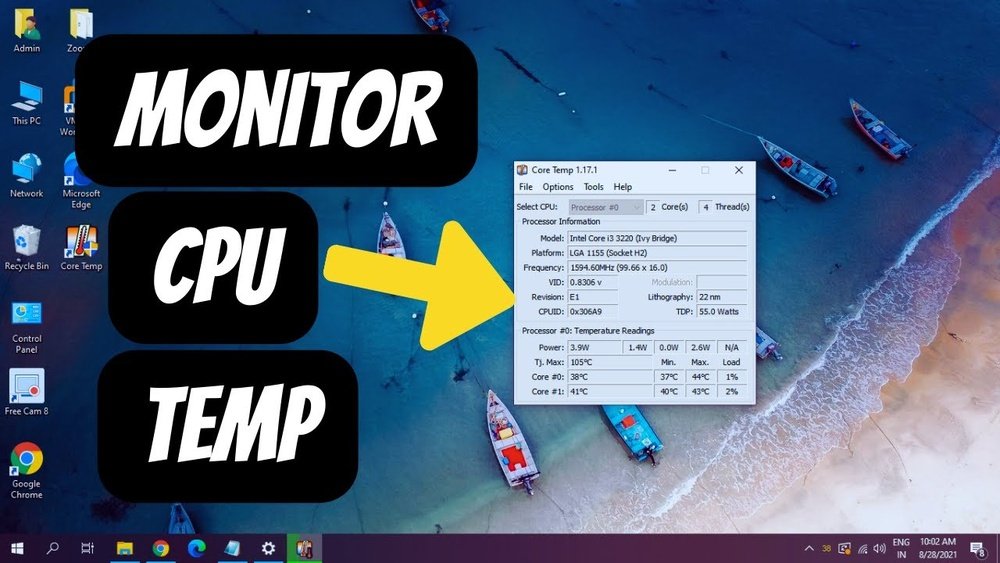
Core Temp is a favorite for many users. It shows the temperature of each CPU core separately. HWMonitor offers detailed info about your system’s voltages, fan speeds, and temperatures. SpeedFan lets you control fan speeds and track temperatures in one place. Real Temp is designed for Intel processors and provides accurate temperature readings quickly.
How To Install And Use Software
Download the software from the official website. Avoid third-party sites to prevent malware risks. Run the installer and follow the on-screen steps. Open the program after installation. The main window usually displays the CPU temperature instantly. Some apps let you set alerts for high temperatures. Check settings to customize notifications and update intervals. Close the software when finished or keep it running in the background for constant monitoring.
Interpreting Cpu Temperature Readings
Understanding CPU temperature readings is important for keeping your computer safe. The CPU works hard and can get hot during use. Reading the temperature helps you know if your PC runs well or needs help. Too much heat can cause damage or slow down your system.
By learning the normal temperature ranges and signs of overheating, you can protect your computer. You can avoid crashes and extend the life of your CPU. Let’s explore what these temperatures mean and what to watch for.
Normal Temperature Ranges
Most CPUs run safely between 30°C and 50°C when idle. During heavy tasks, temperatures can rise to 60°C or 70°C. Staying below 80°C is usually safe for short periods. Each CPU model has its own limits. Check your CPU’s specs for exact numbers. Keeping the temperature steady helps your computer work better.
Signs Of Overheating
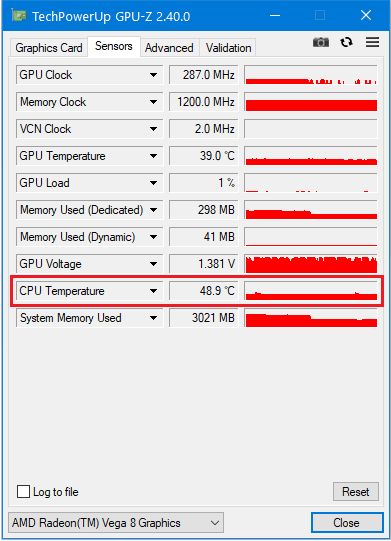
Overheating causes slow performance or sudden restarts. You might hear loud fan noise as the system cools down. The computer can freeze or shut off without warning. High temperatures over 90°C are dangerous. If you notice these signs, it is time to cool your CPU. Cleaning dust, improving airflow, or replacing thermal paste helps reduce heat.
Credit: www.isunshare.com
Tips To Maintain Safe Cpu Temperature
Keeping your CPU temperature safe is important for your computer’s health. High temperatures can slow down your PC and cause damage over time. Simple steps help keep your CPU cool and working well. Below are some easy tips to maintain a safe CPU temperature.
Improving Pc Cooling
Good cooling keeps your CPU temperature low. Use extra fans to increase airflow inside the case. Arrange cables neatly to avoid blocking air paths. Consider upgrading to a better CPU cooler for more efficiency. Cooler air means better performance and longer PC life.
Cleaning Dust And Debris
Dust blocks air vents and clogs fans. It traps heat and raises the CPU temperature. Clean your PC regularly using compressed air or a soft brush. Focus on vents, fans, and heatsinks. A clean PC cools better and runs smoother.
Updating Drivers And Firmware
Outdated drivers can cause hardware to work harder. Firmware updates often improve cooling and power management. Check your PC or motherboard website for updates. Install the latest drivers and BIOS versions. Updated software helps maintain a safe CPU temperature.
Setting Up Alerts For High Cpu Temp
Setting up alerts for high CPU temperature helps protect your Windows 10 PC. You get notified before the CPU gets too hot. This prevents damage and keeps your computer running smoothly.
Alerts warn you to take action quickly. You can close heavy programs or clean your PC’s fans. Setting up these alerts is easy with the right tools.
Configuring Software Notifications
Many software programs monitor CPU temperature. They can send alerts when the temperature goes too high. You can set a temperature limit in the software settings. When the CPU reaches this limit, the software notifies you.
Look for programs like HWMonitor, Core Temp, or SpeedFan. These apps show CPU temperature in real time. You can turn on notifications in the options menu. Choose how you want to be alerted. Some apps show pop-ups, others send emails.
Using Hardware Monitoring Tools
Hardware tools also track CPU temperature. Some motherboards have built-in sensors. These sensors connect to software that sends alerts. You can find this software on your motherboard’s support site.
Hardware tools often work in the background. They monitor CPU temperature all the time. If the CPU gets too hot, the tool sends a warning. This helps you act fast to cool down your PC.

Credit: softwareg.com.au
Frequently Asked Questions
How Can I Check Cpu Temperature On Windows 10?
You can check CPU temperature using third-party apps like HWMonitor or Core Temp. These tools display real-time temperature readings. Windows 10 doesn’t have a built-in feature for CPU temp monitoring.
What Is A Safe Cpu Temperature For Windows 10?
A safe CPU temperature typically ranges from 30°C to 70°C during normal use. Temperatures above 80°C can cause overheating and performance issues. Proper cooling and ventilation help maintain safe CPU temperatures.
Can I Monitor Cpu Temperature Without Software?
Windows 10 lacks native CPU temperature monitoring. Using BIOS or UEFI firmware can show CPU temps, but it requires rebooting. Third-party software is more convenient for real-time monitoring.
Why Is My Cpu Temperature High On Windows 10?
High CPU temperature can result from dust buildup, poor airflow, or malfunctioning fans. Running intensive applications or malware can also increase temperature. Cleaning and optimizing cooling can reduce overheating.
Conclusion
Checking your CPU temperature on Windows 10 helps keep your computer safe. You can use built-in tools or free software to find the CPU temp. Knowing the temperature helps you avoid overheating and damage. It is easy to do and takes just a few minutes.
Keep an eye on your CPU temp regularly for better performance. Simple steps make a big difference in your PC’s health. Stay aware and protect your computer from heat problems.