How to Tell If My Cpu is Bottlenecking: Easy Signs to Check Now
Are you noticing your computer slowing down during games or heavy tasks? You might be wondering if your CPU is holding everything back.
Knowing how to tell if your CPU is bottlenecking can save you time, money, and frustration. You’ll discover simple ways to spot the signs of a CPU bottleneck and learn what you can do about it. Keep reading to make sure your PC runs at its best.
Credit: totalplumbingfl.com
What Is Cpu Bottlenecking
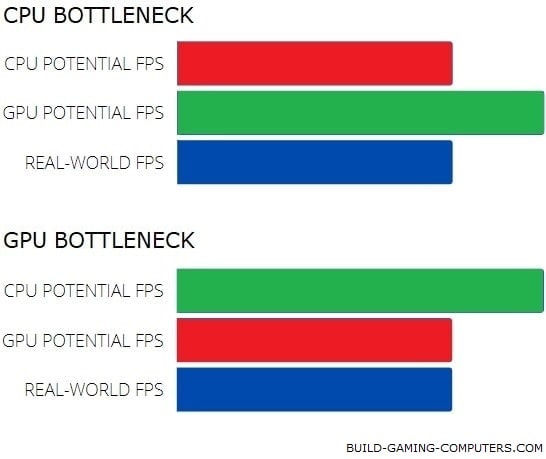
CPU bottlenecking happens when the processor limits your computer’s performance. The CPU cannot keep up with other parts like the graphics card. This slows down the entire system. You may notice lag or slow response in games and apps.
Understanding CPU bottlenecking helps improve your computer’s speed. It shows when the processor stops other components from working fast. This knowledge guides you in fixing or upgrading your PC parts.
What Does Cpu Bottlenecking Mean?
CPU bottlenecking means the processor is the slowest part. It holds back the speed of other hardware. For example, a powerful graphics card waits for the CPU to finish tasks. This waiting causes lower overall performance.
How Does Cpu Bottlenecking Affect Performance?
When the CPU is bottlenecked, programs run slower. Games may have low frame rates or stutter. Tasks take longer to complete. The system feels less responsive and can freeze briefly.
Why Does Cpu Bottlenecking Occur?
It happens if the CPU is older or less powerful than other parts. A high-end graphics card with a weak CPU creates a bottleneck. Software that needs heavy processing can also cause this issue.
Common Bottleneck Symptoms
Common bottleneck symptoms help you spot if your CPU limits your PC’s power. These signs show how the CPU slows down other parts, like the GPU or applications. Identifying these symptoms helps improve your computer’s speed and gaming experience.
Low Frame Rates In Games
Games run slowly with fewer frames per second. The visuals seem choppy or laggy. This happens even with a strong graphics card. The CPU cannot process game data fast enough to keep up.
High Cpu Usage With Low Gpu Usage
The CPU works hard, reaching 90% or more. Meanwhile, the GPU stays mostly idle. This means the CPU is the bottleneck, limiting overall system performance. The graphics card waits for the CPU to send data.
Slow Application Performance
Apps take longer to open and respond. Tasks like video editing or browsing feel sluggish. The CPU struggles to handle multiple tasks quickly. This slows down the entire system and reduces productivity.
System Freezes And Stutters
Your computer pauses or freezes during use. Movements and actions appear uneven and jerky. The CPU cannot keep up with data flow. This causes delays and interrupts smooth operation.
Tools To Monitor Cpu Performance
Monitoring your CPU performance helps you find out if it is slowing down your computer. Tools for checking CPU activity show how much work your processor is doing. They also reveal if the CPU is the cause of lag or slowdowns. Using the right tools makes it easier to spot bottlenecks and fix them.
Task Manager
Task Manager is built into Windows. It shows CPU usage in real time. You can see which programs use the most CPU power. It also displays CPU speed and core usage. Task Manager helps find processes that overload the CPU. It is simple and free for all Windows users.
Performance Monitoring Software
Performance monitoring software offers deeper insights than Task Manager. These tools track CPU temperature, clock speed, and power consumption. They give detailed graphs and alerts for CPU issues. Some popular options include HWMonitor and MSI Afterburner. These programs help monitor CPU health over time.
Benchmarking Tools
Benchmarking tools test your CPU under heavy load. They measure how fast your CPU completes tasks. Popular tools are Cinebench and Geekbench. Benchmark results show if your CPU matches expected performance levels. Comparing scores helps detect bottlenecks in your system.
Credit: www.youtube.com
Comparing Cpu And Gpu Balance
Comparing CPU and GPU balance helps find performance issues in your computer. Both parts work together to run games and applications smoothly. If one is much faster than the other, it can slow down your system. This slowdown is called a bottleneck. Checking their balance gives clues about possible bottlenecks.
Checking Component Specifications
Start by knowing the model and speed of your CPU and GPU. Look at their clock speeds and core counts. Higher numbers usually mean better performance. Compare these specs using online benchmarks. Benchmarks show real-world performance scores. If your CPU scores much lower than your GPU, it may limit overall speed. This mismatch means your CPU can’t keep up with your GPU.
Using Bottleneck Calculators
Bottleneck calculators are online tools that compare your CPU and GPU. Enter your component models to get a bottleneck percentage. A low percentage means good balance. A high percentage shows a likely bottleneck. These tools help check compatibility before buying new parts. They give a quick idea if your CPU or GPU needs upgrading to improve performance.
Steps To Diagnose Bottleneck
Knowing how to check if your CPU causes a bottleneck helps improve your computer’s speed. Start by testing the CPU’s performance under pressure. Then, watch how your system uses resources. Try different programs to see how your CPU handles them. These steps reveal if your CPU limits your system’s speed.
Running Stress Tests
Stress tests push your CPU to its limits. Use tools like Prime95 or AIDA64. These programs make the CPU work hard. Watch for crashes or slow responses. If the CPU heats up too much, it may be a bottleneck. Stress tests show if the CPU can handle heavy tasks.
Analyzing Resource Usage
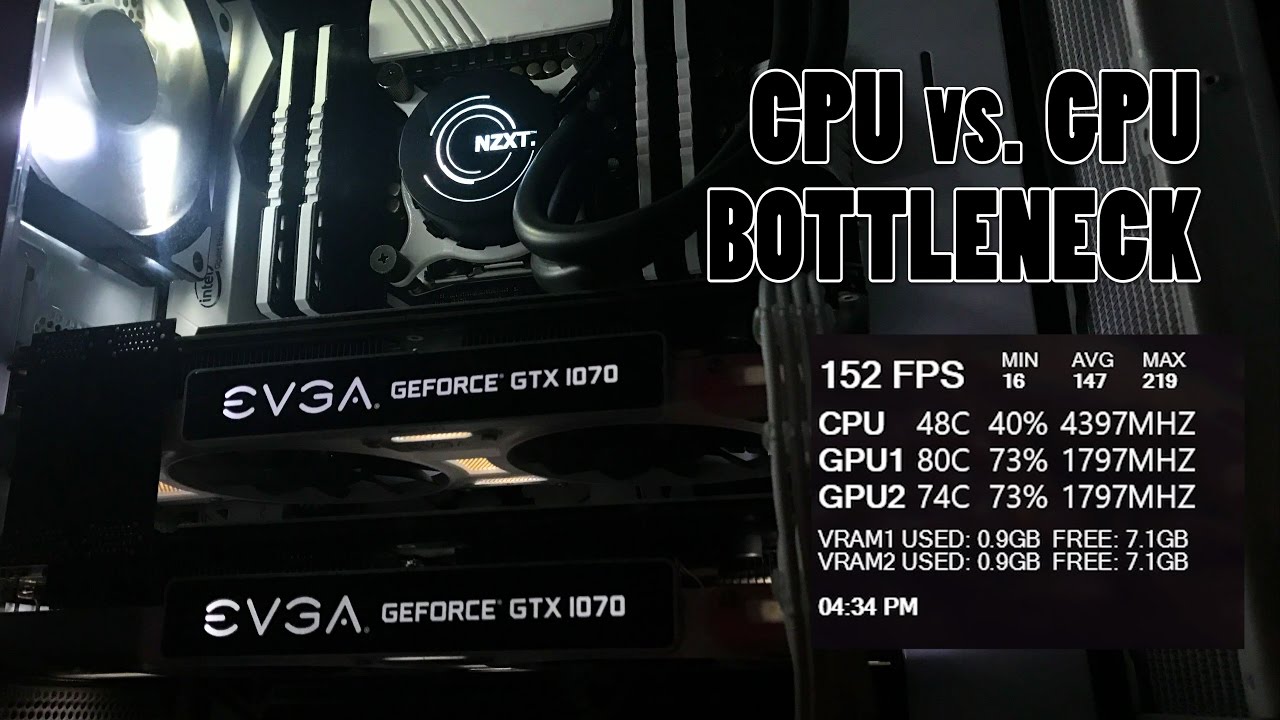
Check your system’s resource use with Task Manager or Resource Monitor. Look at CPU, GPU, and RAM usage during tasks. High CPU use with low GPU use means a CPU bottleneck. Balanced use shows no bottleneck. This check helps find which part slows your system.
Testing With Different Software
Run games or programs that use the CPU and GPU differently. Some software needs more CPU power. Others rely on the GPU. If your system slows during CPU-heavy tasks, the CPU may be the bottleneck. Testing various software helps spot CPU limits clearly.
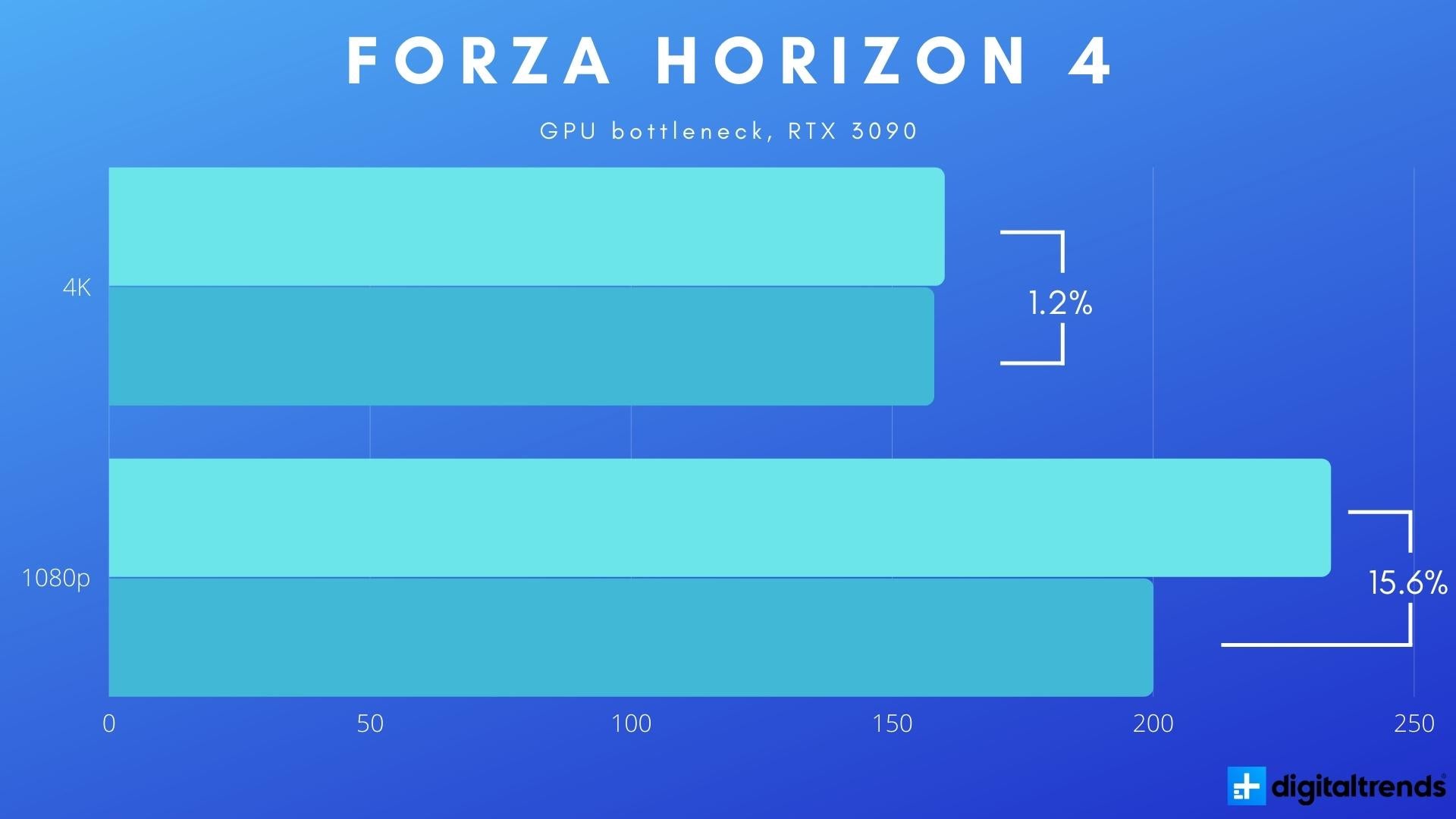
Credit: softwareg.com.au
Ways To Fix Cpu Bottleneck
CPU bottlenecks slow down your computer and affect performance. Fixing these bottlenecks can make your system faster and smoother. Several methods help reduce or remove CPU bottlenecks. Some require hardware changes, while others focus on software and settings. Here are easy ways to fix CPU bottlenecks.
Upgrading The Cpu
Replacing your old CPU with a newer, faster model improves performance. A better CPU handles more tasks at once. Check your motherboard compatibility before upgrading. This upgrade helps balance your system with other hardware parts. It often gives the biggest speed boost.
Overclocking Options
Overclocking increases CPU speed beyond factory settings. It can improve performance without buying new parts. Use reliable software or BIOS settings for overclocking. Monitor CPU temperature to avoid overheating. Overclocking works best with good cooling systems.
Optimizing System Settings
Adjust system settings to reduce CPU load. Disable unnecessary startup programs and services. Set your power plan to high performance in Windows. Update drivers to keep hardware running smoothly. These small changes help your CPU work better.
Reducing Background Processes
Close apps running in the background that use CPU power. Use Task Manager to find and stop these processes. Avoid running many programs at once. This frees CPU resources for important tasks. Less background activity means less bottlenecking.
Frequently Asked Questions
How Can I Identify Cpu Bottlenecking Symptoms?
CPU bottlenecking often causes low frame rates, stuttering, and high CPU usage. Monitor your CPU and GPU usage while gaming or running tasks. If CPU usage hits 100% but GPU usage stays low, your CPU is likely bottlenecking your system’s performance.
What Tools Detect If My Cpu Is Bottlenecking?
Use monitoring software like MSI Afterburner, Task Manager, or HWMonitor. These tools track CPU and GPU usage in real time. If CPU usage is maxed out while GPU usage is low, it indicates a CPU bottleneck during demanding applications or games.
Can Upgrading My Cpu Fix Bottleneck Issues?
Yes, upgrading to a more powerful CPU can reduce bottlenecks. A stronger CPU better handles tasks and matches GPU performance. This leads to smoother gameplay and faster processing, eliminating the performance gap caused by an underpowered processor.
Does Cpu Bottleneck Affect Gaming Performance?
Absolutely, CPU bottlenecking limits frame rates and causes lag. When the CPU can’t process game data fast enough, the GPU waits idly. This results in stuttering, lower FPS, and a less smooth gaming experience overall.
Conclusion
A slow or lagging PC often shows CPU bottleneck signs. Check your CPU and GPU usage during tasks to spot issues. Upgrade only if your CPU limits performance noticeably. Balance between parts keeps your system running smooth. Simple tests help decide if a CPU change is needed.
Clear understanding saves money and avoids unnecessary upgrades. Keep your PC healthy by monitoring its key components. Stay patient and make informed choices for better performance.