How to Install a Cpu Cooler: Easy Steps for Maximum Performance
Are you ready to boost your computer’s performance and keep your CPU running cool? Installing a CPU cooler might sound tricky, but it’s easier than you think.
Whether you’re upgrading your system or replacing an old cooler, this step-by-step guide will walk you through the process clearly and simply. By the end, you’ll have your CPU cooler installed correctly, helping your computer stay faster and safer. Keep reading—you’re just a few steps away from a cooler, more efficient PC!
Choosing The Right Cooler
Choosing the right CPU cooler is key to keeping your computer safe and fast. The cooler stops your CPU from getting too hot. This helps your computer work well and last longer. Picking the right cooler needs some thought about your needs and setup.
Air Vs Liquid Coolers
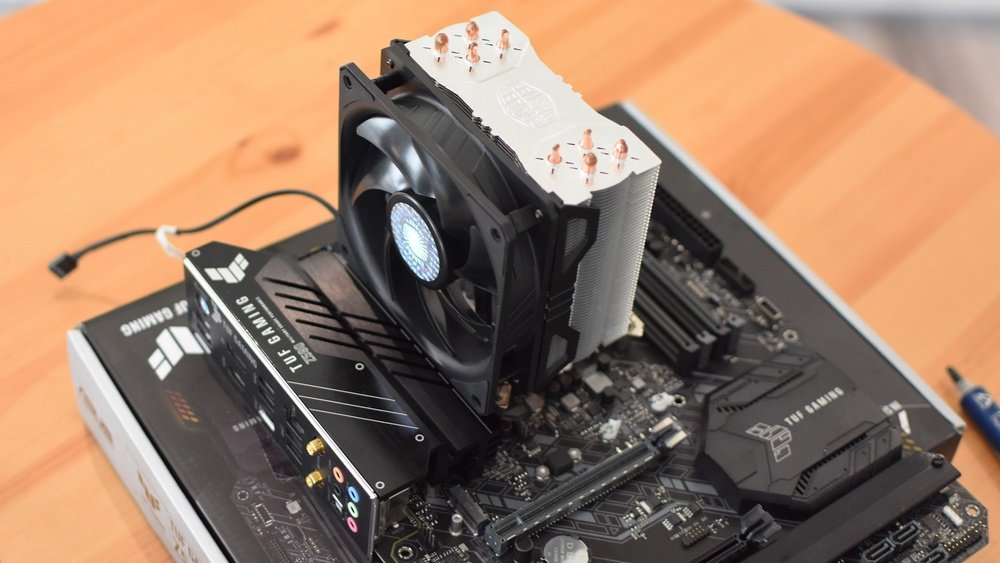
Air coolers use fans and metal fins to cool the CPU. They are easy to install and usually cost less. Liquid coolers use water to move heat away from the CPU. They can cool better but need more care and space inside the case. Choose air coolers for simple builds and liquid coolers for high performance.
Compatibility With Your Cpu
Check if the cooler fits your CPU socket. Different CPUs need different mounting types. Also, make sure the cooler fits inside your case. Some coolers are too tall or wide. Read the product details carefully to avoid problems.
Noise Levels And Performance
Coolers with big fans often run quieter. Liquid coolers can be silent but may have pump noise. Think about noise if you want a quiet room. Also, check the cooling power. Good performance keeps your CPU cool under heavy work.

Credit: www.wikihow.com
Preparing Your Workspace
Preparing your workspace is the first step to install a CPU cooler safely and effectively. A well-organized area helps avoid mistakes and protects your computer parts. Taking time to set up the right environment makes the process smoother and faster.
Gathering Necessary Tools
Start by collecting all tools needed for the installation. Basic tools include a screwdriver, thermal paste, and cleaning wipes. Having everything ready prevents interruptions during the process. Check your cooler’s manual for any special tools required.
Ensuring Proper Lighting And Cleanliness
Good lighting lets you see small parts clearly. Choose a bright, well-lit space to work. Clean your workspace to keep dust and dirt away from the CPU and cooler. A tidy area reduces the risk of damage and lost screws.
Handling Static Electricity
Static electricity can harm computer parts easily. Use an anti-static wristband or touch a metal object to discharge static. Avoid working on carpet or other static-prone surfaces. Taking these steps protects your CPU and other components.
Removing The Old Cooler
Removing the old CPU cooler is the first step to install a new one. It helps keep your processor safe and ready for the upgrade. Take your time to avoid damage to the CPU or motherboard.
Powering Down And Unplugging
Turn off your computer completely. Unplug the power cable from the wall or power supply. This stops any electricity from flowing. Also, press the power button for a few seconds to drain leftover power. Safety first.
Detaching The Current Cooler
Locate the cooler attached to the CPU. It may have screws, clips, or a bracket holding it. Carefully loosen or unclip these parts. Gently twist the cooler side to side to break the seal of thermal paste. Avoid pulling straight up to prevent damage.
Cleaning The Cpu Surface
After removing the cooler, the CPU surface will have old thermal paste. Use a soft cloth or paper towel with isopropyl alcohol. Wipe the CPU gently until the surface looks clean and shiny. This ensures good contact for the new cooler.
Applying Thermal Paste
Applying thermal paste is a key step when installing a CPU cooler. It helps transfer heat from the CPU to the cooler. Without it, your CPU may overheat and slow down. The right amount and correct method are important. Too much or too little paste can cause problems. Let’s explore how to do it properly.
Choosing The Right Thermal Paste
Not all thermal pastes are the same. Some work better for high-performance CPUs. Others suit everyday computers. Look for pastes with good thermal conductivity. Silicone-based pastes are common and easy to use. Metal-based pastes offer better heat transfer but need careful handling. Pick one that fits your needs and budget.
Correct Application Techniques
Start by cleaning the CPU surface. Use alcohol wipes to remove old paste. Apply a small pea-sized drop in the center of the CPU. When the cooler presses down, the paste spreads evenly. Avoid spreading it yourself to prevent air bubbles. The goal is a thin, even layer covering the CPU surface.
Avoiding Common Mistakes
Do not use too much thermal paste. Excess paste can spill over and reduce cooling. Avoid applying paste outside the CPU area. Using old or dried paste lowers effectiveness. Never skip cleaning the CPU before applying paste. These mistakes hurt performance and can cause overheating.
Installing The New Cooler
Installing the new CPU cooler is a key step in keeping your computer cool and running well. This process requires care and attention to detail. Follow these simple steps to install the cooler correctly and avoid any damage to your CPU or motherboard.
Aligning The Cooler Properly
Start by placing the cooler over the CPU. Make sure the cooler’s base matches the CPU surface exactly. Check the orientation of the cooler’s mounting holes. Align them with the holes on the motherboard. This step ensures good contact and proper cooling.
Securing The Mounting Mechanism
Once aligned, fasten the cooler using the mounting screws or clips. Tighten the screws evenly, switching between them in a diagonal pattern. Avoid over-tightening to prevent damage. The cooler must sit firmly but gently on the CPU.
Connecting Power Cables
Locate the cooler’s power cable, usually a small 3 or 4-pin connector. Plug it into the CPU fan header on the motherboard. This connection powers the fan for airflow. Ensure the cable is secure to avoid loose connections.
Testing Cooler Performance
Testing cooler performance is the step after installing your CPU cooler. It shows if the cooler works well. Proper testing helps avoid overheating and damage to your CPU. You check if the cooler keeps temperatures low and runs quietly.
Booting Up The System
Turn on your computer after installing the cooler. Watch for any unusual sounds or smells. The system should start without errors or crashes. If it does, the cooler is likely installed correctly. If the system fails to boot, check the cooler’s power connection.
Monitoring Temperatures
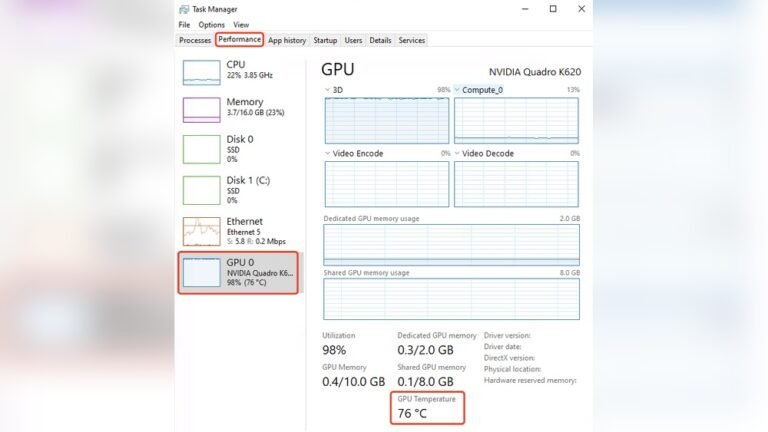
Use software to watch CPU temperatures. Programs like HWMonitor or Core Temp are easy to use. Look for temperatures under 40°C when idle. During heavy tasks, temperatures should stay below 80°C. High temperatures mean the cooler may not be working well.
Troubleshooting Issues
If temperatures are high, check the cooler’s seating. Make sure thermal paste covers the CPU properly. Confirm the fan spins freely and is plugged in. Clean any dust blocking airflow. Replace or adjust the cooler if problems continue.
Maintenance Tips
Maintaining your CPU cooler is important for keeping your computer running smoothly. Regular care helps prevent overheating and extends your cooler’s life. Follow these simple tips to keep your CPU cooler in top shape.
Regular Cleaning
Dust and dirt build up on the cooler over time. This blocks airflow and reduces cooling power. Clean the fan and heatsink every few months. Use a soft brush or compressed air. Avoid using water or harsh chemicals. Keep the area around the cooler free of dust too.
Checking Thermal Paste Condition
Thermal paste helps transfer heat from the CPU to the cooler. It can dry out or crack after a year or more. Check the paste if temperatures rise unexpectedly. Remove the cooler and inspect the paste layer. Replace it with a fresh, thin layer if needed. This keeps heat transfer efficient.
Upgrading When Necessary
Older coolers may not handle new CPUs well. Watch for signs like high temperatures or loud fans. Consider upgrading to a better cooler for improved performance. Choose a cooler that fits your CPU socket and case. A good upgrade helps your system stay cool and quiet.

Credit: www.wikihow.com

Credit: www.youtube.com
Frequently Asked Questions
What Tools Do I Need To Install A Cpu Cooler?
You need a screwdriver, thermal paste, and cleaning materials. Some coolers include mounting brackets and screws. Always check the cooler’s manual for specific tools. Proper tools ensure a secure and safe installation.
How Do I Apply Thermal Paste Correctly?
Apply a small pea-sized amount of thermal paste on the CPU. Spread evenly or let the cooler pressure distribute it. Too much paste can cause overheating. Proper application improves heat transfer between CPU and cooler.
Can I Install A Cpu Cooler Without Removing The Motherboard?
It depends on your PC case and cooler type. Some coolers allow installation without motherboard removal, but most require it. Removing the motherboard offers easier access and safer installation. Always follow your cooler’s installation guide for best results.
How Tight Should I Screw The Cpu Cooler?
Screw the cooler firmly but avoid over-tightening. Excessive force can damage the CPU or motherboard. Tighten screws evenly in a diagonal pattern. Proper tightness ensures good contact and efficient cooling.
Conclusion
Installing a CPU cooler is easier than you think. Follow each step carefully for best results. Keep your workspace clean and parts organized. Make sure the cooler fits your CPU socket well. Tighten screws evenly to avoid damage. Don’t forget to apply thermal paste properly.
Double-check all connections before turning on your PC. A good cooler keeps your computer running cool and quiet. Take your time and work patiently. Enjoy a better, safer computer experience after installation.