How to Overclocking Cpu: Boost Performance Safely and Easily
Want to make your CPU run faster without spending a dime on new hardware? Overclocking your CPU can unlock hidden power and boost your computer’s performance.
But it can seem tricky if you don’t know where to start. Don’t worry—this guide will walk you through simple, clear steps to safely overclock your CPU. By the end, you’ll know how to get the most out of your processor and enjoy smoother gaming, faster editing, and better overall speed.
Ready to take control of your PC’s power? Let’s dive in.

Credit: www.wikihow.com
Why Overclock Your Cpu
Overclocking your CPU means running it faster than its original speed. This can make your computer work quicker and handle tough tasks better. Many people overclock their CPUs to get more power without buying new parts. It is popular among gamers, video editors, and tech enthusiasts. But it is important to understand both the good and bad sides of overclocking before starting.
Benefits Of Overclocking
Overclocking can boost your computer’s speed and performance. It helps programs run smoother and faster. Games load quicker and play more smoothly. You can finish tasks like video editing or 3D rendering sooner. Overclocking can save money by improving your current CPU instead of buying a new one. It also offers a fun way to learn more about computer hardware.
Risks To Consider
Overclocking increases heat inside your CPU. Too much heat can damage the processor or other parts. It may cause your computer to crash or freeze often. Overclocking can reduce the life of your CPU. It might void your warranty, meaning no repairs if something breaks. Careful cooling and settings are needed to avoid these problems.
Preparing For Overclocking
Preparing for overclocking your CPU is an important step. It helps avoid damage and makes the process smoother. Taking time to prepare ensures better results and safer operation.
Start by checking if your CPU supports overclocking. Update your system’s BIOS and drivers for stability. Choose a cooling solution that can handle extra heat. Each step matters for a successful overclock.
Checking Cpu Compatibility
Not all CPUs support overclocking. Look for models with unlocked multipliers, like Intel’s K-series or AMD’s Ryzen. Check your motherboard’s specs too. It must support overclocking features. Use online tools or your CPU’s manual to confirm compatibility.
Updating Bios And Drivers
BIOS updates improve system stability and add new features. Download the latest BIOS from your motherboard’s website. Follow the update instructions carefully. Update your chipset drivers as well. This keeps your system running smoothly during overclocking.
Choosing The Right Cooling Solution
Overclocking increases CPU temperature. Stock coolers often cannot handle this heat. Consider aftermarket air coolers or liquid cooling systems. Good cooling keeps your CPU safe and stable. Check reviews to find a cooler that fits your case and budget.
Essential Tools And Software
Overclocking a CPU requires the right tools and software. These tools help you adjust settings safely and check your CPU’s health. Choosing the correct software makes the process smoother and more effective.
Monitoring and overclocking tools work together. Monitoring tools keep an eye on temperature and performance. Overclocking utilities let you change CPU speed and voltage easily.
Monitoring Tools
Monitoring tools show real-time data about your CPU. They track temperature, fan speed, and voltage. This helps prevent overheating and hardware damage. Popular tools include HWMonitor, Core Temp, and SpeedFan. These apps are easy to use and give clear readings. Watching these numbers keeps your system stable during overclocking.
Overclocking Utilities
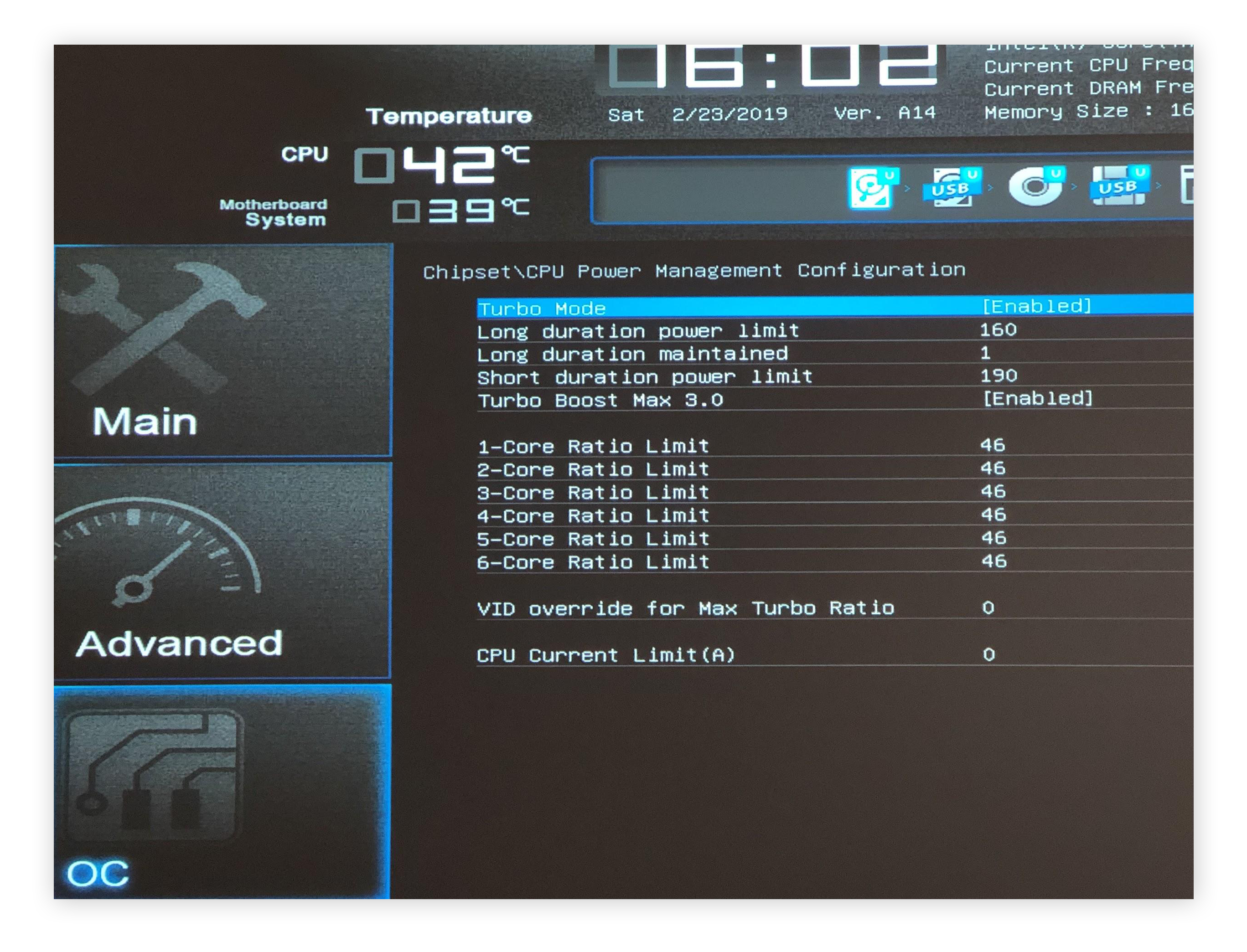
Overclocking utilities allow you to change CPU settings. You can increase clock speed and adjust voltage. Many motherboards have built-in tools in the BIOS or UEFI. Software like Intel Extreme Tuning Utility and AMD Ryzen Master works in Windows. These programs offer safe controls and preset profiles. They simplify the overclocking process for beginners.
Credit: www.avast.com
Step-by-step Overclocking Guide
Overclocking your CPU can boost your computer’s speed. It lets the processor run faster than the default speed set by the manufacturer. This guide walks you through the basic steps of CPU overclocking. Follow each step carefully to avoid damage.
Adjusting Cpu Multiplier
The CPU multiplier controls the speed of your processor. Increasing the multiplier raises the CPU frequency. Start by entering your computer’s BIOS or UEFI settings. Find the CPU multiplier or ratio option. Increase it by one or two steps. Save the changes and restart your computer. Check if the system boots without errors.
Modifying Voltage Settings
Raising the CPU speed often needs more power. You can increase the CPU core voltage for stability. Go back to BIOS and locate the CPU voltage setting. Increase the voltage slightly, in small increments. Avoid adding too much voltage to prevent overheating. Save the settings and reboot the system.
Testing Stability
After changes, test if your system is stable. Use stress test software to check CPU performance. Run the test for 15 to 30 minutes. Monitor temperatures closely to avoid overheating. If your PC crashes or freezes, lower the multiplier or increase voltage carefully. Repeat testing until the system runs smoothly without errors.
Troubleshooting Common Issues
Troubleshooting common issues during CPU overclocking helps keep your system stable. Overclocking pushes your CPU beyond its normal limits. This can cause problems like crashes or overheating. Knowing how to handle these issues keeps your computer running smoothly.
Handling System Crashes
System crashes happen when the CPU runs too fast or settings are unstable. Reset BIOS settings to default if crashes occur often. Lower the CPU clock speed step by step to find a stable point. Test stability with stress test tools after each change. Avoid sudden jumps in frequency or voltage. Small, steady steps work best.
Dealing With Overheating
Overheating can damage your CPU and reduce performance. Check your cooling system first. Clean dust from fans and heatsinks regularly. Apply high-quality thermal paste between the CPU and cooler. Use better coolers if temperatures stay high. Keep your case well-ventilated with extra fans. Monitor CPU temperature using software tools during stress tests.
Maintaining Performance And Safety
Maintaining performance and safety is key to successful CPU overclocking. Overclocking pushes your CPU beyond its normal limits. This can cause it to heat up and become unstable. Careful steps keep your system running well and prevent damage. Regular checks and adjustments help you avoid problems early. Safe overclocking means better performance without risking your hardware.
Regular Monitoring
Watch your CPU temperature often. Use software tools to track heat and speed. High temperatures can cause crashes or damage. Check system stability with stress tests. Look for unusual freezes or errors. Monitoring helps you catch issues quickly. Stay alert to changes during heavy use.
Updating Settings Over Time
CPU performance can change as it ages. Update your overclock settings to match this. Lower clock speeds if temperatures rise too much. Adjust voltage carefully to keep stability. Test new settings with monitoring tools. Small changes keep your system safe and fast. Regular updates improve long-term performance and reliability.
When To Avoid Overclocking
Overclocking a CPU can boost performance but it is not always the best choice. Certain situations call for caution or avoiding overclocking altogether. Knowing when to skip overclocking saves time, money, and potential stress.
Hardware Limitations
Some CPUs and motherboards do not support overclocking. Older or budget hardware may fail under increased speeds. Cooling systems must handle extra heat safely. Weak power supplies risk damaging components. Overclocking on limited hardware can cause crashes or permanent damage.
Warranty Considerations
Many manufacturers void warranties if a CPU is overclocked. This means no free repairs or replacements. Overclocking pushes parts beyond factory limits, seen as misuse. Avoid overclocking on new or expensive CPUs with active warranties. It protects your investment and avoids costly repairs.

Credit: www.geeksforgeeks.org
Frequently Asked Questions
What Is Cpu Overclocking And Why Do It?
CPU overclocking means running your processor faster than its factory speed. It boosts performance for gaming or heavy tasks. However, it increases heat and power use, so proper cooling is essential. Overclocking can extend your CPU’s capabilities without buying new hardware.
How To Safely Overclock A Cpu?
Start by increasing your CPU’s clock speed gradually in the BIOS or UEFI. Test stability using stress tests after each change. Monitor temperatures closely to avoid overheating. Use reliable cooling solutions like quality fans or liquid cooling. Always back up data before overclocking.
What Risks Come With Cpu Overclocking?
Overclocking may void your CPU warranty. It can cause system instability or crashes if not done correctly. Excess heat can damage components over time. Improper settings might reduce CPU lifespan. Proper cooling and careful tuning reduce these risks significantly.
Which Tools Help Monitor Cpu Overclocking Performance?
Popular tools include CPU-Z for hardware info, HWMonitor for temperatures, and Prime95 for stress testing. These apps help track stability and heat during overclocking. Using multiple tools ensures your CPU runs safely and efficiently at higher speeds.
Conclusion
Overclocking your CPU can boost performance for many tasks. Start slow and test your system’s stability often. Watch temperatures closely to keep your computer safe. Small changes make a big difference in results. Remember, patience and care lead to success.
Enjoy the extra speed, but don’t rush the process. Your PC will thank you for careful tuning. Stay curious and keep learning as you go.