How to View Cpu Usage Windows 10: Easy Steps to Monitor Performance
Are you wondering how much of your computer’s power is being used right now? Knowing your CPU usage on Windows 10 can help you spot problems, speed up your system, and keep things running smoothly.
You will learn simple steps to check your CPU usage quickly and easily. By the end, you’ll have the tools to understand your PC better and make it work exactly the way you want. Keep reading to find out how!
Access Task Manager
Task Manager is a key tool to check CPU usage in Windows 10. It shows real-time data about your system’s performance. Accessing Task Manager is simple and quick. You can use different methods based on your preference. Here are three easy ways to open Task Manager.
Open Via Keyboard Shortcut
Press Ctrl + Shift + Esc on your keyboard. This shortcut opens Task Manager immediately. It is the fastest way to access it. You do not need to use your mouse or search menus.
Use Start Menu Search
Click the Start button or press the Windows key. Type Task Manager in the search box. Select the Task Manager app from the list. This method is helpful if you forget shortcuts.
Right-click Taskbar Method
Right-click on the empty space of the taskbar. Choose Task Manager from the menu that appears. This option is quick and easy to find. It works well if you use your mouse often.
Check Cpu Usage In Task Manager
Checking CPU usage in Task Manager helps you understand your computer’s performance. It shows how much work your CPU is doing at any moment. You can see if your computer is running slowly due to high CPU use.
Task Manager is built into Windows 10 and easy to open. It gives a clear view of CPU activity and running programs. This section explains how to check CPU usage step by step.
Locate Performance Tab
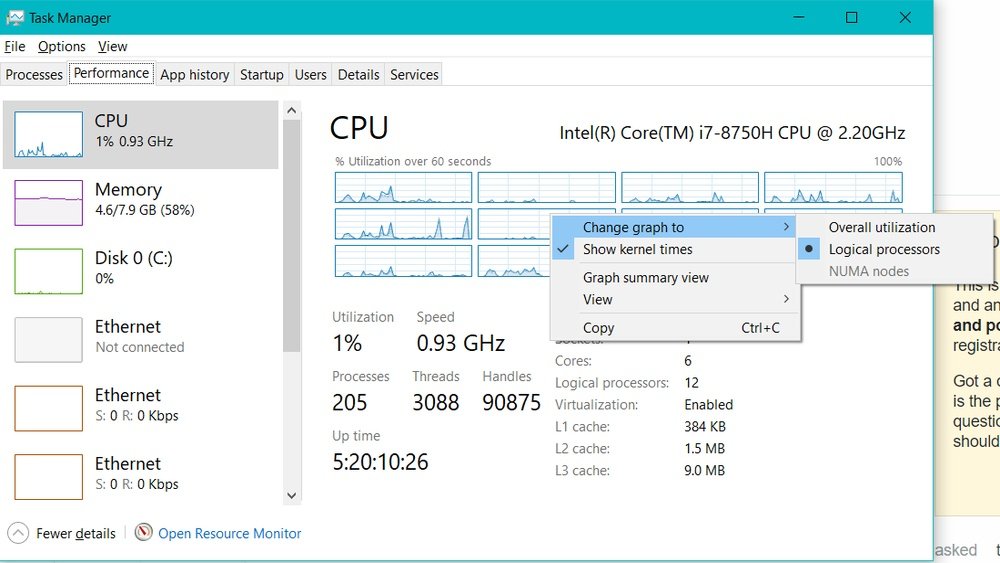
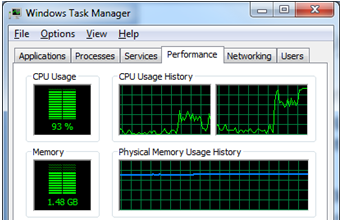
Open Task Manager by pressing Ctrl + Shift + Esc keys. Click the “Performance” tab at the top. This tab shows detailed CPU information. You will see a graph and usage stats here.
Interpret Cpu Usage Graph
The graph shows real-time CPU activity. The line moves up when CPU use increases. Numbers below the graph show CPU percentage. A high percentage means heavy CPU use. Low numbers mean the CPU is free.
View Processes By Cpu
Click the “Processes” tab next to Performance. Click the “CPU” column to sort processes by CPU use. This shows which programs use the most CPU. End tasks that use too much CPU to improve speed.
Use Resource Monitor
Resource Monitor is a powerful tool in Windows 10 that helps you check your CPU usage in detail. It shows real-time data about your system’s performance. You can see which processes use the most CPU power. This helps you understand if your computer is running smoothly or slowing down.
Using Resource Monitor is simple and gives clear information. It breaks down CPU usage by process and service. This makes it easier to find the cause of high CPU use. Let’s explore how to use it step by step.
Launch Resource Monitor
Press Windows + R on your keyboard to open the Run dialog box.
Type resmon and press Enter. This opens Resource Monitor.
You can also open Task Manager first, then go to the Performance tab, and click “Open Resource Monitor” at the bottom.
Analyze Cpu Section
Inside Resource Monitor, click the CPU tab at the top.
This section shows the overall CPU usage percentage.
You will see a list of processes with their CPU usage in real time.
Graphs display the total CPU usage and usage per core.
Identify High Cpu Processes
Look for processes with high CPU percentages in the list.
Sort the CPU column by clicking its header for easy identification.
High CPU use may slow your PC or cause overheating.
You can right-click a process to end it or search online for more details.

Credit: softwareg.com.au
Try Third-party Tools
Windows 10 offers built-in tools to check CPU usage, but third-party software can provide more details. These tools help you see how your CPU works in real-time. They often show graphs, history, and alerts. This makes it easier to understand your computer’s performance and fix problems fast.
Popular Cpu Monitoring Software
Some well-known CPU monitoring tools include HWMonitor, Core Temp, and MSI Afterburner. These programs are free or have free versions. They show CPU temperature, usage, speed, and voltage. Some also monitor other parts like GPU and RAM. Choose one that fits your needs and skill level.
Features To Look For
Look for software that shows clear CPU usage graphs. Real-time updates help catch sudden spikes. Alerts for high temperature or usage are useful. The program should be easy to use and not slow down your PC. Extra features like logging and customizable views add value.
Installation And Setup Tips
Download software only from official websites to avoid malware. Follow installation steps carefully. Some tools ask for permission to access system info. Allow this for full functionality. After installing, check settings to customize alerts and display options. Run the tool in the background for constant monitoring.
Optimize Cpu Performance
Optimizing CPU performance helps your Windows 10 run faster and smoother. A busy CPU slows down tasks and causes lag. Keeping it clear from extra work improves speed. Simple steps can reduce CPU load and boost efficiency.
Close Unnecessary Programs
Many programs run in the background without your knowledge. These use CPU power and slow your PC. Open Task Manager by pressing Ctrl + Shift + Esc. Look at the list of running apps. Select programs you do not need and click “End Task”. This frees up CPU resources quickly.
Manage Startup Items
Some apps start automatically when Windows boots. These increase CPU use right away. Open Task Manager and go to the Startup tab. Check the list of programs that launch on startup. Disable those that are not important. This speeds up boot time and reduces CPU load.
Update Drivers And Windows
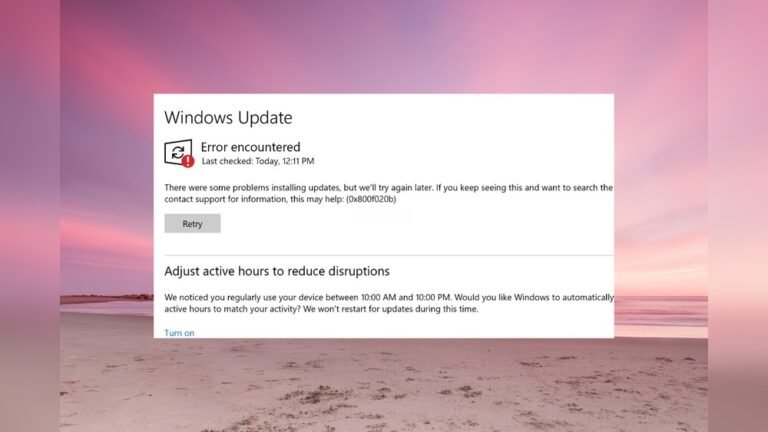
Outdated drivers can cause CPU issues and system slowdowns. Keep your device drivers updated for better performance. Open Settings and go to Update & Security. Click on Windows Update and check for updates. Install all available updates to improve CPU efficiency and stability.

Credit: softwareg.com.au
Credit: www.intel.com
Frequently Asked Questions
How Do I Open Task Manager To View Cpu Usage?
Press Ctrl + Shift + Esc keys together to open Task Manager. Click on the “Performance” tab. Select “CPU” to see real-time CPU usage and details.
Can I Check Cpu Usage Using Command Prompt?
Yes, open Command Prompt and type “wmic cpu get loadpercentage”. Press Enter to view current CPU load percentage instantly.
What Is The Easiest Way To Monitor Cpu Usage?
Using Task Manager is the easiest method. It provides real-time CPU usage graphs and detailed statistics quickly on Windows 10.
How Can I View Cpu Usage History In Windows 10?
Open Resource Monitor by typing “resmon” in the Start menu. The CPU tab shows historical CPU usage by processes and services.
Conclusion
Monitoring CPU usage in Windows 10 helps keep your computer running well. You can check it anytime using simple tools like Task Manager. Knowing how much CPU your programs use shows if your PC is working too hard. This can help you fix slow or frozen systems.
Try these steps regularly to stay informed. Keeping an eye on CPU usage saves time and prevents problems. It’s a small effort with big benefits for your computer’s health.