How to Switch between Cpu And Gpu: Easy Steps for Optimal Performance
Are you struggling to get the best performance from your computer? Knowing how to switch between your CPU and GPU can make a huge difference in speed and efficiency.
Whether you’re gaming, editing videos, or just browsing, choosing the right processor at the right time can save you time and frustration. You’ll learn simple, step-by-step ways to control which one your system uses. Ready to unlock your computer’s full potential?
Keep reading—you’ll find easy tips that anyone can follow.
Credit: rog.asus.com
Reasons To Switch Between Cpu And Gpu
Switching between CPU and GPU can improve your computer’s efficiency. Different tasks need different types of processing power. Choosing the right processor helps your device run better and save energy.
Performance Differences
CPUs have fewer cores but handle complex tasks well. GPUs have many cores and work best with parallel tasks. Switching lets you use the fastest processor for each job. This boosts speed and reduces wait times.
Power Efficiency
CPUs often use less power for simple tasks. GPUs consume more energy but finish heavy tasks quicker. Switching can save battery life and lower heat. Efficient power use keeps your system cooler and lasts longer.
Task Suitability
CPUs manage everyday tasks like browsing and typing. GPUs excel at graphics, videos, and gaming. Some software runs better on one processor type. Switching matches tasks to the best processor for smooth work.

Credit: www.reddit.com
Identifying Your Hardware Setup
Knowing your hardware setup is the first step to switch between CPU and GPU. This helps you understand which parts your computer uses for processing. You get a clear idea of your system’s capabilities. This makes switching easier and safer.
Checking Cpu And Gpu Models
Start by finding out your CPU model. It is the central part of your computer’s brain. On Windows, open Task Manager and go to the Performance tab. Look under “CPU” to see the model name and speed.
Next, check the GPU model. It handles graphics and some calculations. In Task Manager, go to the Performance tab again. Click on “GPU” to find the model and memory size.
This info helps you know if your system can support switching. It also tells you which hardware to choose for better performance.
Verifying Driver Versions
Drivers connect your hardware to software. Outdated drivers may cause problems when switching. Check your CPU and GPU drivers to ensure they are current.
For the GPU, use the manufacturer’s app like NVIDIA GeForce Experience or AMD Radeon Software. These apps show driver versions and updates.
On Windows, open Device Manager. Find your CPU and GPU under “Processors” and “Display adapters.” Right-click and choose “Properties” to see driver details.
Updating drivers improves stability and performance. It also fixes bugs and adds new features. Keep drivers updated before switching between CPU and GPU.
Switching On Windows
Switching between CPU and GPU on Windows helps improve your computer’s performance. You can choose which processor runs specific programs. This is useful for saving battery or boosting graphics power. Windows offers simple ways to make this change without extra software.
Using Graphics Settings
Open Windows Settings and go to System. Select Display, then scroll to Graphics settings. Here, add the app you want to run on CPU or GPU. Choose the app and click Options. Pick either Power saving for CPU or High performance for GPU. Save changes and restart the app to apply.
Configuring Device Manager
Right-click the Start button and open Device Manager. Find Display adapters and expand the list. Right-click your GPU and select Disable device to switch to CPU. To switch back, right-click and select Enable device. This method forces Windows to use the CPU or GPU directly.
Adjusting Power Settings
Go to Control Panel and open Power Options. Select your current power plan and click Change plan settings. Choose Change advanced power settings. Scroll to Graphics settings or Switchable Dynamic Graphics. Set the preferred processor for battery and plugged-in modes. Save settings to control CPU and GPU use.
Switching On Macos
Switching between the CPU and GPU on macOS helps balance power and performance. The system can use the CPU for simple tasks and the GPU for graphics-heavy work. This feature improves battery life and keeps your Mac running smoothly.
macOS offers built-in options to control this switching. You can enable settings that let your Mac decide automatically. Or, you can adjust preferences to save energy or boost performance.
Enabling Automatic Graphics Switching
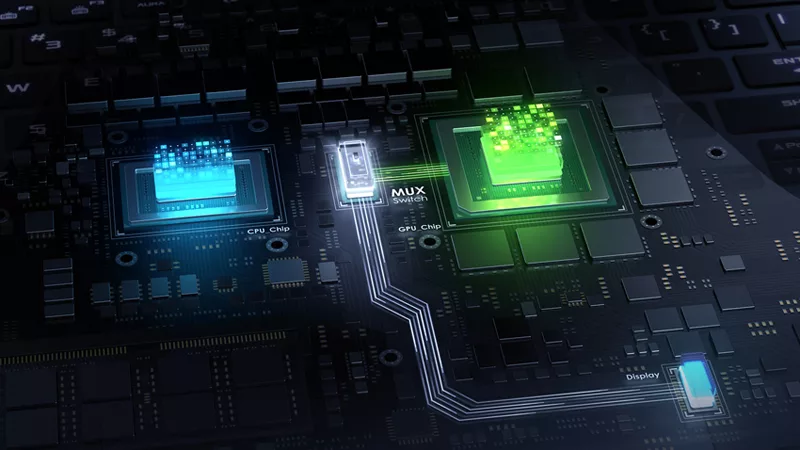
Automatic Graphics Switching lets macOS choose between the CPU and GPU. It uses the integrated graphics for low power needs. The dedicated GPU activates for demanding apps. This method saves battery without losing speed.
To turn it on, open System Preferences and go to the Battery section. Check the box labeled “Automatic graphics switching.” Your Mac will now switch graphics based on the task.
Using Energy Saver Preferences
Energy Saver preferences help manage how your Mac uses power. It controls graphics switching and other settings that affect battery life. Adjusting these settings can extend your Mac’s uptime.
Open System Preferences and select Energy Saver. Here, you can enable or disable automatic graphics switching. Choose the option that fits your needs for power or performance.
Switching On Linux
Switching between CPU and GPU on Linux lets you control your system’s power use and performance. This process is useful for saving battery or boosting graphics power. Linux supports this switch through specific tools and settings. Understanding the steps helps you get the most from your hardware.
Installing Required Drivers
First, install the correct drivers for your CPU and GPU. Use your Linux distribution’s package manager for this task. For Nvidia cards, install the proprietary Nvidia driver. For Intel or AMD GPUs, use the open-source drivers included with most distributions. Proper drivers ensure smooth switching and better performance.
Using Prime Profiles
PRIME profiles let you switch between integrated and dedicated graphics easily. Use the command line or graphical tools to select the active GPU. The “prime-select” tool is common on Ubuntu-based systems. Choose between “intel” for integrated or “nvidia” for dedicated GPU. Restart your system after switching to apply changes.
Configuring X Server Settings
Adjust X Server settings to control GPU use at the display level. Edit the “xorg.conf” file to specify which GPU to use. Include the proper Device section for either Intel or Nvidia. This setup helps avoid conflicts and improves stability. Always back up your configuration files before editing.
Optimizing Performance After Switching
Switching between CPU and GPU can change how your computer works. After switching, you want to make sure your system runs smoothly. Optimizing performance helps you avoid slowdowns and crashes. It also helps you get the best speed and power use from your hardware.
Updating Drivers Regularly
Drivers help your computer talk to the CPU and GPU. Old drivers can cause errors and slow performance. Check for new driver updates often. Install the latest versions from the official manufacturer’s website. New drivers fix bugs and improve speed. This step keeps your system stable and fast.
Monitoring Resource Usage
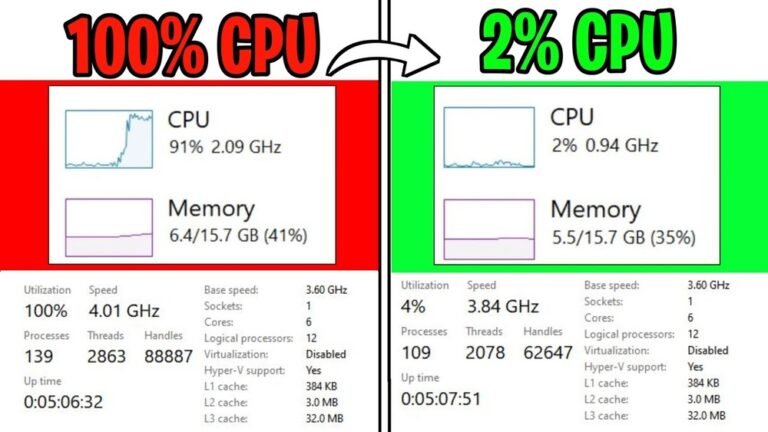
Watch how your CPU and GPU use power and memory. Use tools like Task Manager or system monitors. These tools show which parts of your computer work the hardest. If one part is too busy, your system may lag. Spotting problems early helps you fix them quickly. Keep an eye on temperatures too, to avoid overheating.
Fine-tuning Application Settings
Many apps let you choose between CPU or GPU use. Adjust these settings to match your needs. Lower graphics settings to reduce GPU load if needed. Increase CPU priority for apps that need more processing power. Small tweaks can make a big difference in speed and smoothness. Test changes step by step to find the best setup.
Troubleshooting Common Issues
Switching between CPU and GPU can sometimes cause issues. These problems may affect your device’s display, performance, or compatibility. Troubleshooting these common issues helps keep your system running smoothly.
Display Problems
Screen flickering or blank displays can happen after switching. Check your display cables and connections first. Update your graphics drivers to the latest version. Sometimes, adjusting the display settings in your control panel fixes the issue. Restarting your computer often resolves minor display glitches.
Performance Bottlenecks
Slow performance may occur if the system uses the wrong processor. Ensure your system uses the GPU for graphics-heavy tasks. Close unnecessary background programs to free up resources. Monitor your CPU and GPU usage to spot bottlenecks. Updating drivers can also improve performance.
Compatibility Conflicts
Some software may not work well with certain processors. Check if your applications support GPU acceleration. Update your operating system and software to the latest versions. Disable conflicting software that might block GPU use. Use device manager to resolve hardware conflicts.

Credit: www.reddit.com
Frequently Asked Questions
How Do I Switch From Cpu To Gpu On Windows?
To switch from CPU to GPU on Windows, open your graphics settings. Select the app, then choose your preferred GPU under “Graphics preference. ” This lets you optimize performance for specific applications.
Can I Manually Choose Gpu Or Cpu For Specific Programs?
Yes, you can manually select GPU or CPU for programs. Use your system’s graphics settings or control panel. This helps improve performance and manage power consumption based on your needs.
Why Is Switching Between Cpu And Gpu Important?
Switching between CPU and GPU improves system efficiency. GPUs handle graphics-heavy tasks better, while CPUs manage general processing. Choosing the right processor optimizes speed, power use, and overall performance.
Does Switching To Gpu Improve Gaming Performance?
Switching to GPU usually boosts gaming performance. GPUs are designed for rendering graphics and complex visuals. Enabling GPU usage reduces lag and enhances frame rates for smoother gameplay.
Conclusion
Switching between CPU and GPU can improve your computer’s performance. Choose the right option based on your task. Use settings or software to make the switch easy. Keep your drivers updated for smooth changes. Test your system after switching to check for issues.
This simple skill helps you get better results. Practice a few times to feel confident. Now, you can control your computer’s power better.