How to Overclock a Amd Cpu: Boost Performance Safely & Easily
Are you ready to unlock the full power of your AMD CPU? Overclocking can boost your computer’s speed and performance, giving you smoother gaming, faster editing, and a more responsive system.
But it can also seem complicated and risky if you don’t know where to start. In this guide, you’ll learn exactly how to overclock your AMD CPU safely and effectively—step by step. By the end, you’ll have the confidence to push your processor beyond its limits and enjoy the speed you’ve been missing.
Keep reading, because your PC’s true potential is just a few tweaks away.

Credit: www.pcmag.com
Preparing For Overclocking
Preparing for overclocking your AMD CPU is the first important step. It helps you avoid problems and ensures a smooth process. Planning well saves time and protects your hardware. Take time to check all details before starting.
Check Cpu Compatibility
Not all AMD CPUs support overclocking. Identify your CPU model. Visit AMD’s official website to see if overclocking is allowed. Also, check your motherboard compatibility. A good motherboard supports stable overclocking. Without compatibility, overclocking can cause damage.
Update Bios And Drivers
Old BIOS versions may lack overclocking features. Update your BIOS to the latest version. This improves system stability and performance. Update your chipset drivers too. New drivers help your system run smoothly with changes.
Gather Necessary Tools
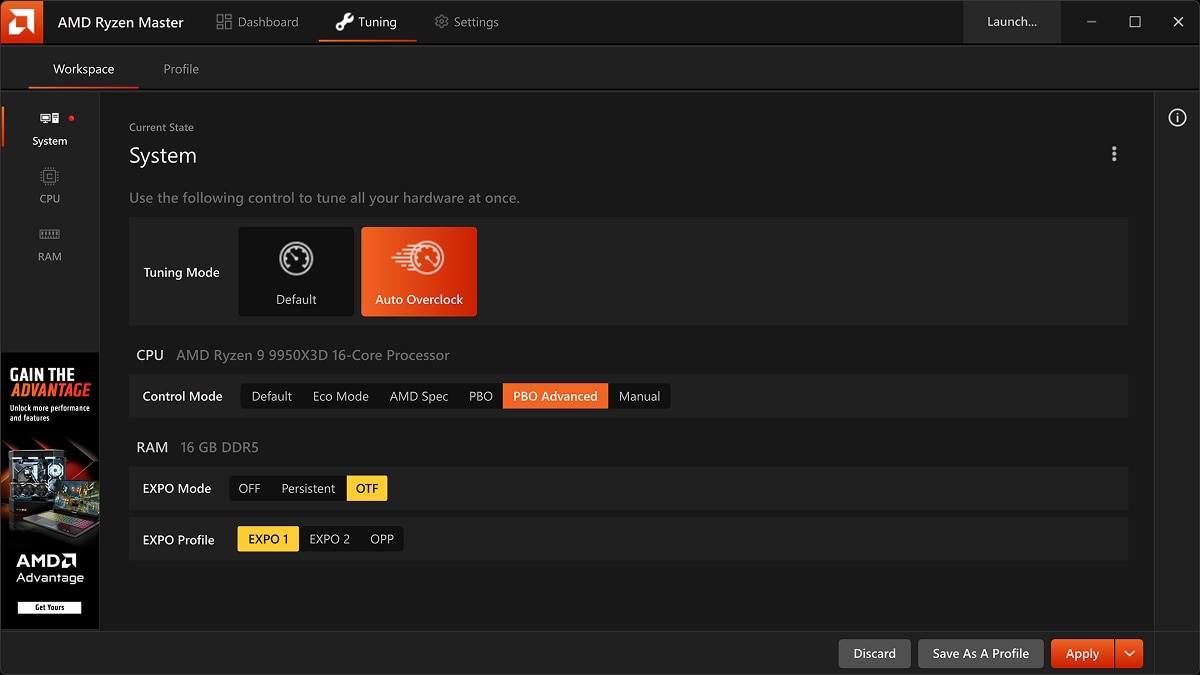
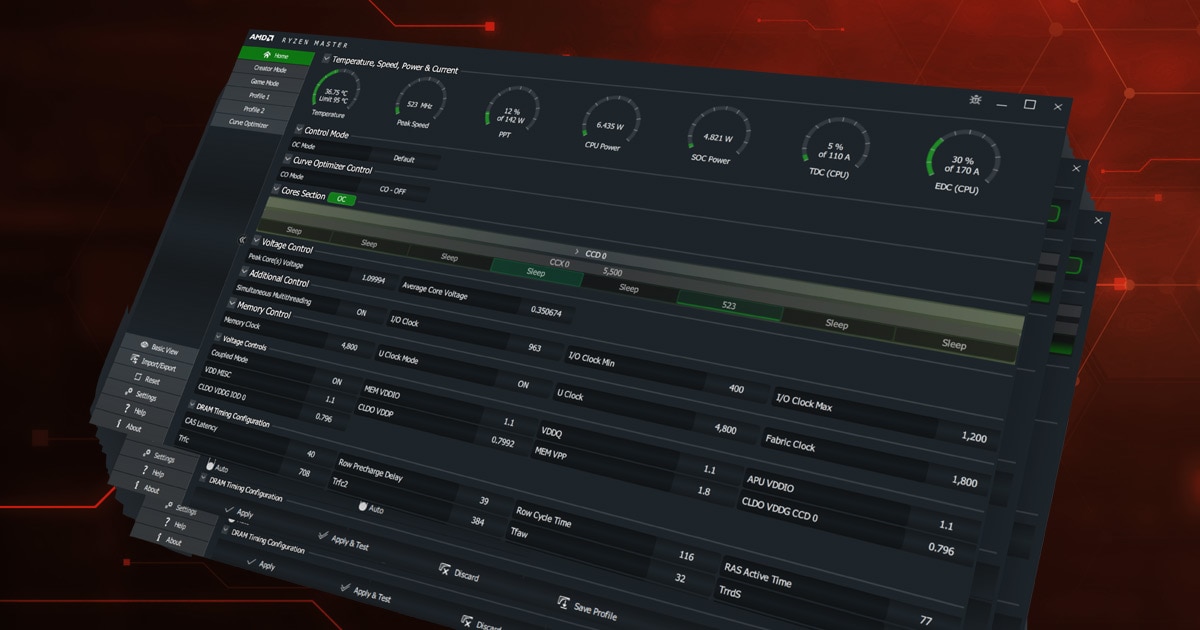
Prepare tools before starting. You need software like Ryzen Master or BIOS tools. Download stress test programs such as Prime95 or AIDA64. Also, have hardware monitoring tools ready. A good cooling system is essential. Keep a notebook to record settings and results.
Setting Up The Bios
Setting up the BIOS is the first step in overclocking your AMD CPU. This process lets you change hardware settings to boost CPU speed. BIOS controls how your CPU runs and adjusts power and frequency settings.
Careful setup is important. Wrong changes can cause system crashes or damage. Follow each step slowly and check your results often.
Access Bios Settings
Restart your computer. Press the BIOS key during startup. Common keys are Delete, F2, or F10. The screen usually shows which key to press.
Once inside BIOS, use the keyboard to move through menus. Mouse use depends on your motherboard model. Find the main menu or advanced settings.
Navigate To Overclocking Options
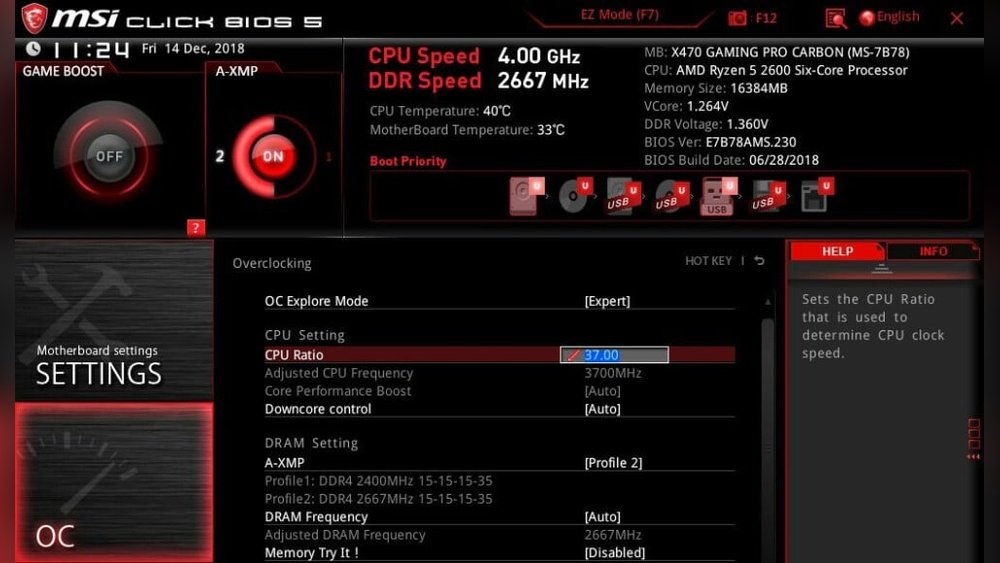
Look for a tab named “OC,” “Overclock,” or “Tweaker.” This section holds all CPU speed controls. Different BIOS versions may label it differently.
Enter the overclocking menu carefully. Avoid changing unrelated settings. Find CPU frequency, multiplier, and voltage controls here.
Adjust Cpu Multiplier And Voltage
Start by increasing the CPU multiplier. This raises the CPU clock speed. Increase it by small steps, like 0.5 or 1.
Next, adjust the CPU core voltage if needed. Higher speeds often require more voltage. Increase voltage slowly to avoid overheating.
Save your settings before exiting BIOS. Restart your computer to test new speeds. Monitor temperatures and system stability after changes.
Optimizing Cooling Solutions
Overclocking an AMD CPU raises its temperature. Keeping the CPU cool is very important. Good cooling helps keep the system stable. It also protects your CPU from damage. Optimizing your cooling setup can improve performance and lifespan.
Choose The Right Cooler
Pick a cooler that fits your CPU and case. Air coolers are simple and effective for most users. Liquid coolers offer better cooling for higher overclocks. Check the cooler’s size and compatibility before buying. A good cooler keeps the CPU temperature low and steady.
Improve Case Airflow
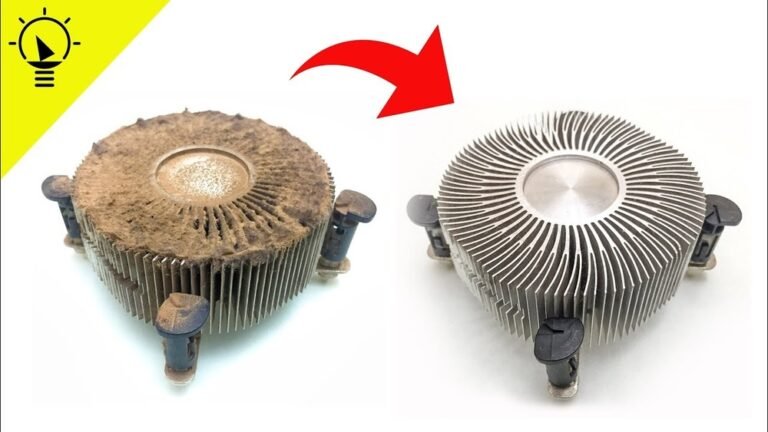
Good airflow moves hot air out of the case fast. Use several fans for intake and exhaust. Keep cables tidy to avoid blocking air paths. Clean dust filters regularly to maintain airflow. Balanced airflow helps all parts stay cool during overclocking.
Monitor Temperature Levels
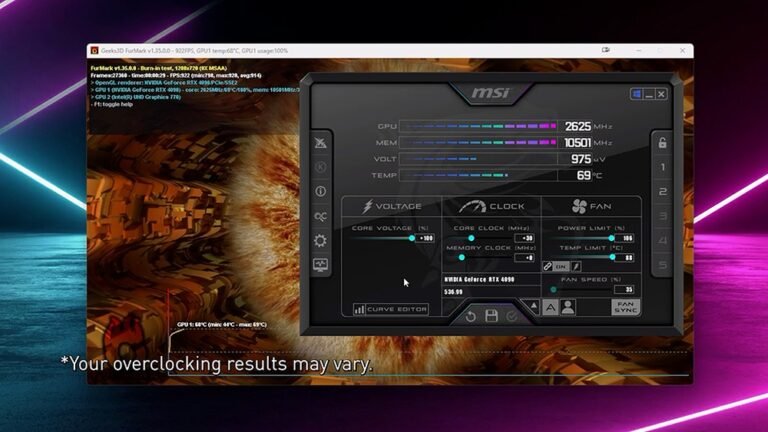
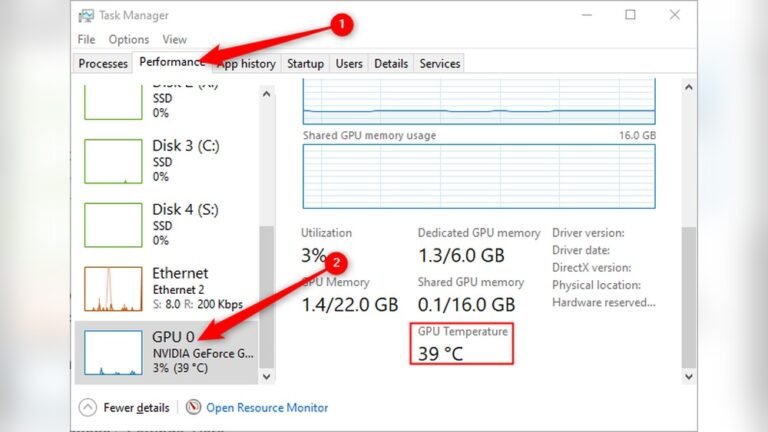
Track your CPU temperature while overclocking. Use software tools that show real-time temperature data. Watch for high temperatures to avoid overheating. Stop or reduce overclock if temperatures go too high. Keeping an eye on temps helps keep your CPU safe.
Testing Stability And Performance
Testing stability and performance is a key step after overclocking your AMD CPU. It ensures your system runs smoothly without crashes or errors. This step also shows if the overclock improves your CPU’s speed and power. Follow clear methods to check your setup effectively.
Use Stress Testing Software
Stress testing software pushes your CPU to its limits. It helps find any weaknesses or faults in the overclock. Popular tools include Prime95, AIDA64, and OCCT. Run these tests for at least 30 minutes to catch errors. Stop the test if the system crashes or shows errors. This means your overclock needs adjustment.
Monitor System Stability
Keep an eye on your CPU temperature and voltage during tests. Use software like HWMonitor or Ryzen Master. Watch for temperatures above 85°C, which can harm your CPU. Check voltage levels to avoid instability or damage. A stable system runs without crashes, freezes, or reboots.
Benchmark Performance Gains
Use benchmarks to see how much faster your CPU runs. Tools like Cinebench, Geekbench, or 3DMark measure performance clearly. Compare scores before and after overclocking. Higher scores mean better CPU performance. This step proves your overclock is effective and worth it.
Troubleshooting Common Issues
Troubleshooting common issues is key when overclocking an AMD CPU. Small problems can cause big headaches. Knowing how to spot and fix these issues saves time and stress.
Overclocking pushes your CPU beyond normal limits. This can cause overheating, crashes, and instability. Identifying problems early helps keep your system safe and stable.
Identify Overheating Symptoms
Overheating is a common issue during overclocking. Watch for sudden shutdowns or restarts. Your PC might feel very hot or loud. Use software tools to monitor CPU temperatures. Temperatures above 85°C often mean overheating. Lower the clock speed or improve cooling if this happens.
Fix System Crashes
Crashes happen when the CPU is unstable. Your system may freeze or show blue screens. Check your voltage and clock settings in BIOS. Reduce clock speed slightly to test stability. Update your motherboard BIOS and drivers. Stable settings prevent crashes and data loss.
Restore Default Settings
Sometimes, restoring default settings is the best fix. Enter BIOS and select “Load Optimized Defaults.” This resets all overclocking changes. It helps if your PC won’t start or crashes too often. After resetting, try overclocking again with smaller steps.
Credit: www.amd.com
Tips For Safe Overclocking
Overclocking an AMD CPU can boost performance but carries risks. Safe overclocking needs careful steps. Follow these tips to protect your hardware and keep your system stable. Taking time and caution helps avoid damage and system crashes.
Increase Settings Gradually
Change clock speeds in small steps. Do not jump to high frequencies quickly. Test system stability after each increase. Small adjustments reduce the chance of errors. Patience leads to better results and safer overclocking.
Avoid Excessive Voltage
Raising voltage can help reach higher speeds but adds heat. Use the lowest voltage that keeps the system stable. Excess voltage shortens CPU life and risks damage. Monitor temperatures and keep them in safe limits.
Keep System Backups
Back up important files before overclocking. Unexpected crashes can cause data loss. Creating backups protects your work and personal data. Save copies on external drives or cloud storage for safety.
Credit: www.totalplumbingfl.com
Frequently Asked Questions
What Is The Best Amd Cpu For Overclocking?
The best AMD CPUs for overclocking are Ryzen 5 and Ryzen 7 series. They offer unlocked multipliers and strong performance. Higher-end models like Ryzen 9 provide more headroom but cost more. Choose based on your budget and cooling setup for optimal results.
How Do I Safely Overclock My Amd Cpu?
Start by increasing clock speeds in small increments. Monitor temperatures closely using reliable software. Adjust voltage only when necessary to maintain stability. Use stress tests to ensure reliability. Always keep cooling efficient to prevent overheating during overclocking.
What Cooling Solutions Work Best For Amd Cpu Overclocking?
High-quality air coolers or liquid cooling systems work best. Stock coolers often can’t handle increased heat from overclocking. Liquid coolers provide better thermal management for higher clock speeds. Ensure your case has good airflow to support your cooling solution.
Can Overclocking Void My Amd Cpu Warranty?
Yes, overclocking can void your AMD CPU warranty. AMD considers overclocking as operating outside official specifications. However, some warranties cover limited overclocking under certain conditions. Always check your CPU’s warranty terms before overclocking to avoid losing coverage.
Conclusion
Overclocking an AMD CPU can boost your computer’s speed. Start slow and test your system for stability. Watch the temperature closely to avoid damage. Use reliable software to adjust settings safely. Remember, patience helps you find the best performance. Enjoy faster processing but keep your hardware safe.
This simple guide helps you improve your PC’s power. Take your time and make small changes. Your AMD CPU can work better with careful tuning.