Pc Not Waking from Sleep Mode Fix: Quick and Easy Solutions
Is your PC stuck and refusing to wake up from sleep mode? You’re not alone, and it’s incredibly frustrating when your computer won’t respond just when you need it.
But don’t worry—fixing this problem is easier than you think. You’ll discover simple, effective steps to get your PC back to life quickly. Keep reading, because your next click could save you hours of hassle and keep your work or play running smoothly.

Credit: www.youtube.com
Common Causes Of Sleep Mode Issues
Sleep mode issues can stop your PC from waking up properly. These problems often have simple causes. Knowing common reasons helps you fix the issue faster. Many times, settings or hardware cause the problem.
Power Settings Misconfigurations
Incorrect power settings often block wake-up signals. Your PC may enter deep sleep and not respond. Settings like “Allow wake timers” or “Hybrid sleep” affect wake behavior. Check these settings in the Control Panel or Settings app. Adjusting them can restore normal wake function.
Outdated Device Drivers
Drivers control hardware communication with the PC. Old or faulty drivers can cause sleep issues. Graphics, network, and chipset drivers are common culprits. Updating drivers from the manufacturer’s website often solves the problem. Avoid generic or outdated driver versions.
Software Conflicts
Some programs stop the PC from waking properly. Background apps or system utilities may interfere. Antivirus or system optimization tools sometimes block wake signals. Close unnecessary programs before sleep. You can also check Task Manager for apps using high resources.
Hardware Problems
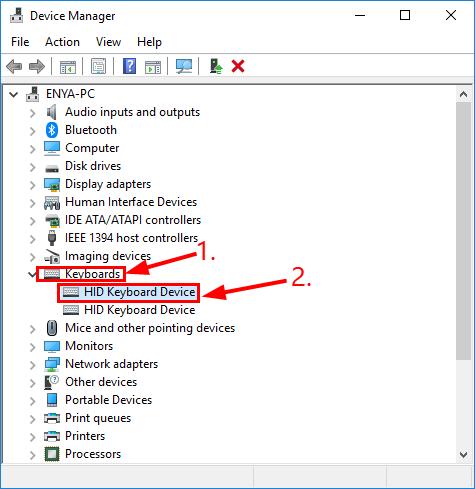
Faulty hardware can prevent your PC from waking up. Problems with the power button, RAM, or motherboard may cause issues. Loose cables or damaged USB devices sometimes block wake functions. Test hardware components and disconnect external devices to isolate the cause.
Credit: www.drivereasy.com
Basic Troubleshooting Steps
Basic troubleshooting steps help fix common PC sleep mode issues. These steps are simple and quick to try. They often solve the problem without needing expert help. Start with easy checks before moving to complex fixes.
Follow these steps carefully to bring your PC back to life from sleep mode.
Perform A Hard Reset
A hard reset clears temporary glitches in your PC. First, hold the power button for 10-15 seconds. This forces your PC to turn off completely. Wait a few seconds, then press the power button again to restart. This simple step can fix many sleep mode problems.
Check Power Supply
Power issues often cause sleep mode troubles. Make sure your PC is plugged in properly. Check the power cable for damage or loose connections. Try a different power outlet if needed. Confirm the power adapter works well. A stable power supply keeps your PC running smoothly.
Disconnect External Devices
External devices can block your PC from waking up. Unplug all USB devices like keyboards, mice, and printers. Remove any external drives or hubs connected to your PC. After disconnecting, try waking your PC again. Sometimes, a faulty device stops the PC from waking properly.
Adjusting Power Settings
Adjusting your PC’s power settings can solve issues with sleep mode. These settings control how your computer sleeps and wakes. Tweaking them often helps fix problems quickly. Below are simple steps to adjust these settings for better performance.
Modify Sleep And Wake Timers
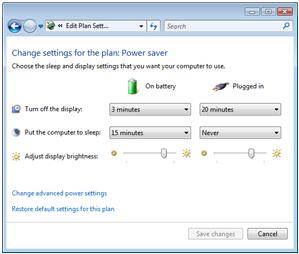
Sleep and wake timers decide when your PC sleeps or wakes automatically. Set these timers to suit your needs. Open Power Options in Control Panel. Click on “Change plan settings.” Set the time for “Put the computer to sleep” to a longer or shorter period. Also, adjust “Wake timers” under advanced settings to enable or disable them. This can prevent your PC from staying asleep or waking unexpectedly.
Disable Fast Startup
Fast Startup speeds up boot time but can cause sleep issues. To turn it off, go to Power Options. Click “Choose what the power buttons do.” Select “Change settings that are currently unavailable.” Uncheck “Turn on fast startup.” Save changes and restart your PC. This often helps the computer wake from sleep properly.
Change Hybrid Sleep Options
Hybrid Sleep combines sleep and hibernation. It can cause wake problems on some PCs. To change it, access Power Options again. Go to advanced power settings. Expand “Sleep” and then “Allow hybrid sleep.” Turn this option off. This helps your PC wake cleanly from sleep mode without confusion.
Updating And Reinstalling Drivers
Updating and reinstalling drivers can solve many PC sleep mode issues. Drivers help your hardware talk to your operating system. Outdated or faulty drivers may cause your PC to not wake from sleep. Keeping them current ensures smooth performance and fewer errors.
Update Graphics Drivers
Graphics drivers control your video card. Old drivers often cause display problems after sleep. Visit your graphics card maker’s website. Download the latest driver for your model. Install it and restart your PC. This can fix black screen or no display issues.
Update Chipset Drivers
Chipset drivers manage communication between your CPU and other parts. Outdated chipset drivers can disrupt power management. Go to your motherboard manufacturer’s website. Find and download the newest chipset drivers. Install them carefully, then reboot your system. This helps your PC wake up properly.
Reinstall Problematic Drivers
Sometimes drivers get corrupted. Reinstalling can fix hidden problems. Open Device Manager and find the device causing trouble. Right-click and choose “Uninstall device.” Restart your PC to let Windows reinstall the driver. This refresh often restores normal sleep and wake functions.
Using Command Prompt Fixes
Using Command Prompt fixes can solve many sleep mode issues fast. The Command Prompt lets you run commands that adjust your PC’s power settings. These commands help fix problems that stop your PC from waking up properly.
Below are easy steps to run power troubleshooter, reset power settings, and disable wake timers. These methods use simple commands anyone can try.
Run Power Troubleshooter
Open Command Prompt as administrator. Type msdt.exe /id PowerDiagnostic and press Enter. This command launches the Power Troubleshooter tool.
Follow the on-screen instructions. The tool checks for power problems and fixes them automatically. This process can restore your PC’s ability to wake from sleep mode.
Reset Power Settings Via Cmd
Type powercfg -restoredefaultschemes in Command Prompt. Press Enter to run the command. This resets all power plans to default settings.
Resetting helps clear incorrect settings that stop your PC from waking. After running the command, restart your computer for changes to apply.
Disable Wake Timers
Type powercfg -waketimers to check active wake timers. These timers can wake your PC unexpectedly or prevent sleep mode.
To disable wake timers, type powercfg -waketimers followed by disabling commands based on your setup. This stops scheduled tasks from interfering with sleep mode.
Credit: support.microsoft.com
Checking Bios And Firmware
Checking your PC’s BIOS and firmware can solve sleep mode problems. These settings control how your computer handles power and wake functions. Sometimes, outdated BIOS or wrong settings stop the PC from waking up properly.
Adjusting BIOS settings is a key step in fixing sleep issues. Let’s explore how to update, reset, and configure these settings.
Update Bios
Updating the BIOS can fix bugs that cause sleep mode problems. Visit your motherboard or PC maker’s website to find the latest BIOS version. Follow their instructions carefully to download and install the update. This process improves hardware compatibility and power management.
Reset Bios To Default
Resetting BIOS to default settings clears any incorrect changes. It restores the factory settings that usually work well with sleep mode. Enter the BIOS menu during startup, find the reset option, and confirm. This step can fix issues caused by wrong power or device settings.
Configure Wake Settings In Bios
Wake settings control how your PC wakes from sleep mode. In BIOS, check options like “Wake on LAN” or “Power on by Keyboard.” Enable the settings that match your needs. Proper wake configuration ensures your PC responds correctly to power signals.
Preventing Future Sleep Mode Problems
Preventing future sleep mode problems helps keep your PC running smoothly. Fixes can stop issues now, but prevention saves time later. Taking simple steps can avoid many common sleep mode troubles. These steps also improve overall computer health.
Focus on system updates, software checks, and hardware care. These areas play a big role in sleep mode performance. Regular attention helps your PC wake up quickly every time.
Regular System Updates
Keep your operating system up to date. Updates fix bugs that cause sleep mode issues. They also improve power management features. Set your PC to install updates automatically. Check updates manually if automatic updates are off. Updated drivers also help hardware work well in sleep mode.
Monitor Software Installations
Some software can interfere with sleep mode. Avoid installing unknown or unnecessary programs. Check software settings for power management options. Uninstall apps that cause wake-up problems. Use trusted software from official sources only. Regularly review installed programs to keep your PC clean.
Maintain Hardware Health
Hardware problems can prevent your PC from waking. Keep your PC clean and dust-free. Dust can cause overheating and sleep mode failures. Check cables and connections for tight fits. Test your RAM and hard drive for errors. Replace faulty parts to ensure smooth sleep and wake cycles.
Frequently Asked Questions
Why Won’t My Pc Wake From Sleep Mode?
Your PC may not wake due to outdated drivers, power settings, or hardware issues. Updating drivers and adjusting sleep settings often resolves this problem.
How To Fix Sleep Mode Not Waking Windows 10?
Update your graphics and chipset drivers. Disable fast startup in power settings. Check for Windows updates to fix sleep mode waking issues.
Can Power Settings Cause Pc Not To Wake?
Yes, incorrect power settings can prevent waking. Ensure sleep timers and hybrid sleep are properly configured in your power options.
Does Usb Device Affect Pc Waking From Sleep?
Sometimes, faulty or incompatible USB devices block waking. Disconnect peripherals and test if the PC wakes normally. Update USB drivers if needed.
Conclusion
Fixing your PC not waking from sleep mode is usually simple. Check power settings and device drivers first. Restart your computer after making changes. Small tweaks often solve the problem fast. Keep your system updated for better performance. These easy steps save time and frustration.
You can enjoy smooth use without interruptions. Try these tips and see the difference yourself.