How to Avoid Incompatible Pc Parts: Essential Tips for Perfect Builds
Building or upgrading your PC can be exciting, but nothing kills the thrill faster than discovering your parts don’t work together. You might end up with wasted money, lost time, and a lot of frustration.
What if you could avoid all that? What if you knew exactly how to pick parts that fit perfectly, so your PC runs smoothly from the start? You’ll learn simple, clear steps to make sure every piece of your build plays well with the others.
Keep reading, and save yourself from common mistakes that trip up many PC builders. Your perfect setup is closer than you think.

Credit: www.reddit.com
Choosing The Right Motherboard
Choosing the right motherboard is key to building a compatible PC. The motherboard connects all parts and controls how they work together. Picking the wrong one can cause many problems, like parts not fitting or working properly. Understanding important motherboard features helps avoid these issues.
Socket Types And Compatibility
The socket is the slot where the CPU sits on the motherboard. Different CPUs need different socket types. Using the wrong socket means the CPU will not fit or work. Check the CPU’s socket type before choosing a motherboard. Match the motherboard socket with the CPU socket exactly.
Chipset Features To Consider
The chipset controls communication between the CPU, memory, and other parts. Different chipsets offer different features and support. Some chipsets support faster memory or multiple graphics cards. Choose a chipset that matches your needs and the CPU. This ensures better performance and compatibility.
Form Factor And Case Compatibility
The form factor is the motherboard’s size and shape. Common types include ATX, Micro-ATX, and Mini-ITX. The motherboard must fit inside your PC case. Check the case size and motherboard form factor before buying. This avoids fitting problems and makes assembly easier.
Selecting A Compatible Processor
Selecting a compatible processor is key to building a stable PC. The processor works as the brain of your computer. Choosing the wrong one can cause many problems. Compatibility depends on several factors. Understanding these will help you avoid mistakes. The most important points include matching sockets, knowing CPU generations, and considering power and cooling needs.
Matching Cpu And Motherboard Sockets
Processors fit into specific motherboard sockets. Each CPU brand and model uses a certain socket type. For example, Intel and AMD have different socket designs. A CPU must match the motherboard socket exactly. Otherwise, it will not fit or work. Check the motherboard’s specs before buying a CPU. This step prevents costly errors and wasted time.
Understanding Cpu Generations
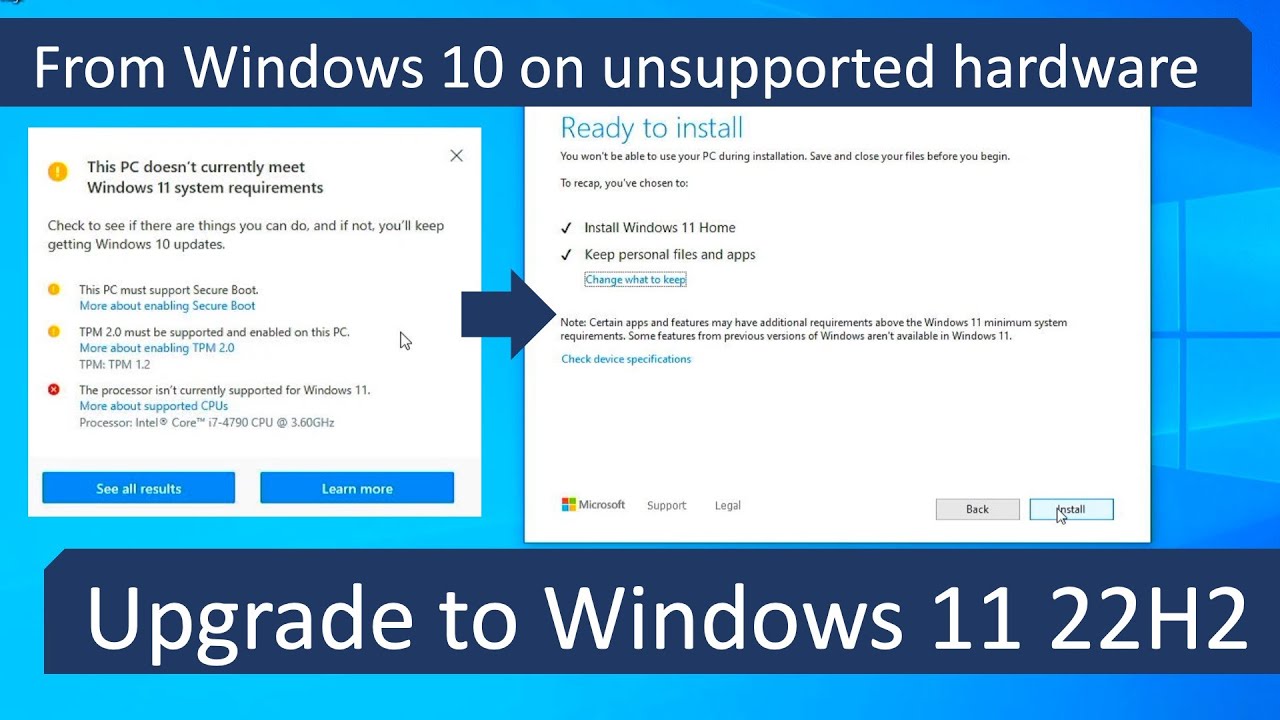
CPU generations indicate the technology and features in a processor. Newer generations usually offer better speed and efficiency. Motherboards often support only certain CPU generations. A modern CPU might not work on an older motherboard. Verify the motherboard supports the CPU’s generation. This ensures the parts work well together and last longer.
Power Requirements And Cooling Needs
Processors need different amounts of power to run. Higher-end CPUs often require more power. The power supply unit must handle the CPU’s demand. Cooling is also crucial. Powerful CPUs generate more heat and need good cooling systems. Check if your case and cooler support the processor’s needs. Proper cooling keeps the CPU safe and stable during use.
Picking The Correct Ram
Picking the correct RAM is key to building a smooth, fast PC. RAM affects how well your computer runs programs and handles tasks. Choosing the wrong RAM causes slow performance or errors. Learn the basics to avoid buying incompatible parts.
Ddr Types And Speeds
RAM comes in different DDR types like DDR3, DDR4, and DDR5. Each type has a unique design and speed range. Your motherboard supports only certain DDR types. Using the wrong type will not fit or work.
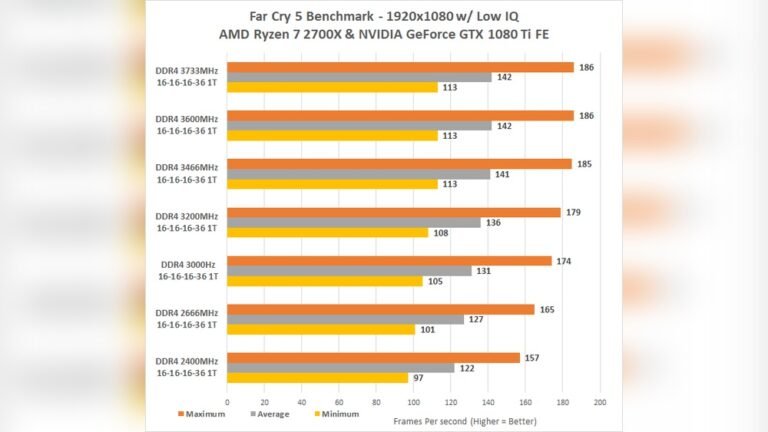
Speeds matter too. Faster RAM helps the CPU access data quickly. Check your motherboard’s supported speeds. Buying RAM faster than supported usually works but runs at the motherboard’s max speed.
Capacity And Channel Configuration
RAM capacity is the total memory size, like 8GB or 16GB. More capacity means better multitasking and performance. Choose capacity based on your needs and budget.
Channel configuration affects speed. Single, dual, and quad channel setups exist. Dual channel uses two sticks of RAM for better performance. Use matched pairs of RAM sticks for best results.
Compatibility With Motherboard And Cpu
Motherboards and CPUs have limits on RAM type, speed, and size. Check your motherboard’s manual for compatible RAM models. CPU memory controller supports certain RAM specs too.
BIOS updates can improve RAM compatibility. Make sure your system firmware is up to date before installing new RAM. Always confirm compatibility before buying to avoid issues.
Credit: www.youtube.com
Graphics Card Compatibility
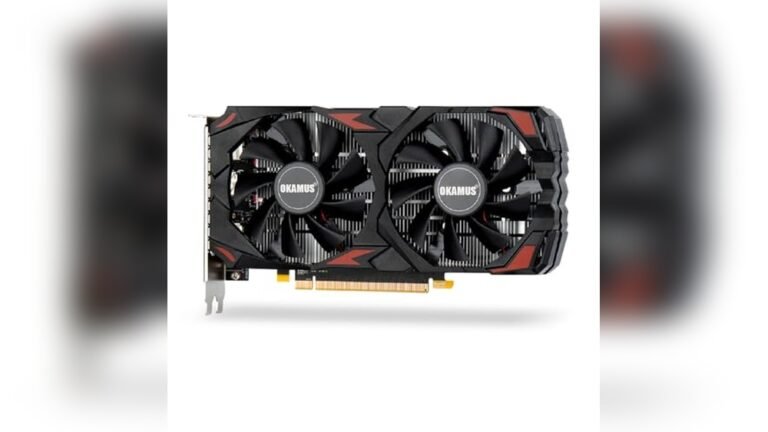
Choosing the right graphics card is key to building a smooth-running PC. Compatibility issues can cause frustration and extra costs. Understanding how to match your graphics card with your system prevents many common problems.
This section covers essential points to check before buying a graphics card. Knowing these helps you avoid parts that do not fit or work well together.
Pcie Slot Versions
Graphics cards use PCIe slots on the motherboard. These slots come in different versions, like PCIe 3.0 or PCIe 4.0. Newer versions offer faster speeds but older cards still fit in newer slots. The card works but may run slower if the slot version is older. Check your motherboard’s PCIe version and the card’s requirement. They need to be compatible for best performance.
Physical Size And Clearance
Graphics cards vary in size. Some are small, while others are long or tall with large cooling fans. Measure your PC case space before buying. Check the length, height, and thickness of the card. Look for obstacles like cables or drive bays inside the case. The card must fit without blocking airflow or touching other parts. A tight fit can cause overheating or damage.
Power Supply Considerations
Graphics cards need enough power to run properly. Check the power supply unit (PSU) wattage. Your PSU should support the card’s power needs plus other components. Also, check power connectors on the card. Some require extra 6-pin or 8-pin connectors. Your PSU must have the right connectors and cables. Using a weak or incompatible PSU can cause crashes or harm parts.
Storage Device Choices
Choosing the right storage device is key to building a compatible PC. Storage affects your computer’s speed and how much data you can save. Picking the wrong type can slow your system or cause installation problems. Learn about different storage options to avoid these issues.
Sata Vs Nvme Ssds
SATA SSDs connect through older ports. They are slower but often cheaper. NVMe SSDs use a faster connection on the motherboard. They offer better speed for tasks like gaming or editing. Check if your motherboard supports NVMe before buying one.
Motherboard Storage Interfaces
Your motherboard has specific ports for storage devices. Common ones include SATA and M.2 slots. SATA ports work with hard drives and SATA SSDs. M.2 slots support NVMe and some SATA SSDs. Confirm your motherboard’s manual to match the drive type.
Drive Capacity And Speed
Storage size matters for your needs. Larger drives hold more files and programs. Speed affects how fast your PC loads data. Higher speed SSDs improve overall performance. Balance size and speed to fit your budget and use.
Power Supply Unit (psu) Essentials
The Power Supply Unit (PSU) is a vital part of any PC build. It powers all components and keeps the system stable. Choosing the right PSU avoids many compatibility problems. Understanding the basics helps pick the best PSU for your needs.
Wattage And Efficiency Ratings
Wattage shows how much power the PSU can deliver. Calculate the total power needed by all parts. Choose a PSU with a bit more wattage than required. Efficiency ratings show how well the PSU uses electricity. Higher efficiency means less wasted power and less heat. Look for ratings like 80 Plus Bronze or better.
Connector Types And Quantity
PSUs have different connectors for components. Check the motherboard, graphics card, and drives for needed connectors. Ensure the PSU has enough connectors for all parts. Some connectors include 24-pin for the motherboard and 6+2 pin for GPUs. Missing connectors cause compatibility issues during assembly.
Modular Vs Non-modular Psus
Modular PSUs allow detaching unused cables. This helps keep the case neat and improve airflow. Non-modular PSUs have all cables fixed. They can cause clutter and block airflow inside the case. Choose modular if you want easy cable management. Non-modular PSUs are usually cheaper but less flexible.
Case And Cooling Compatibility
Choosing the right PC case and cooling system is key to building a stable computer. A mismatch can cause overheating and poor performance. Understanding how case size and cooling parts work together helps avoid these problems.
Case Size And Component Fit
PC cases come in different sizes: mini, mid, and full tower. Each size supports certain motherboard types and hardware lengths. Check your graphics card and CPU cooler size before picking a case. A small case may not fit large parts. Always confirm component dimensions to ensure a perfect fit.
Cooling Solutions And Airflow
Good airflow keeps your PC cool and safe. Cases have different designs for air intake and exhaust. Some support more fans or have mesh panels for better air movement. Plan how air will flow from front to back or bottom to top. Poor airflow traps heat and harms components.
Fan And Radiator Support
Fans and radiators come in many sizes. Cases list supported sizes for mounting these parts. Check the number of fan slots and radiator lengths the case can hold. Larger radiators need more space. Match your cooling system size to the case limits for best results.
Tools And Resources For Compatibility Checks
Choosing the right PC parts can be tricky. Using the wrong parts can cause problems or stop your PC from working. Tools and resources help check if parts work well together. These tools make building a PC easier and safer.
They save time and money by avoiding bad choices. Using the right tools helps find parts that fit and perform well. Here are some helpful tools and resources for checking compatibility.
Online Pc Part Pickers
Online PC part pickers let you create a list of parts. They check if your chosen parts work together. These tools show warnings about incompatible parts. You can compare prices and read basic info. This helps avoid buying parts that do not fit.
Manufacturer Compatibility Lists
Manufacturers provide lists showing which parts work with their products. These lists include supported CPUs, memory, and other components. Checking these lists ensures parts are officially tested. This reduces the risk of errors and failures. Always check the latest version for accuracy.
Community Forums And Reviews
Community forums offer real user experiences with PC parts. People share problems and solutions about compatibility. Reading reviews helps find common issues and fixes. You get honest opinions from others who built PCs. Forums are great for learning from real-world tests.

Credit: www.amazon.com
Frequently Asked Questions
What Are Common Signs Of Incompatible Pc Parts?
Common signs include boot failure, system crashes, or hardware not detected. Check compatibility before purchase to avoid these issues.
How To Check Cpu And Motherboard Compatibility?
Verify socket type and chipset support on manufacturer websites. Use online compatibility tools for accurate matching.
Can Incompatible Ram Cause Pc Problems?
Yes, incompatible RAM can cause crashes, slow performance, or failure to boot. Ensure RAM type and speed match motherboard specs.
Why Is Psu Wattage Important For Pc Parts?
PSU wattage must support all components’ power needs. Insufficient wattage causes instability and potential hardware damage.
Conclusion
Choosing compatible PC parts saves time, money, and effort. Check specifications carefully before buying any component. Use reliable sources to verify part compatibility. Remember, simple research prevents big problems later. Building a PC should be smooth and stress-free. Stay patient and double-check each part’s details.
Enjoy your new PC without compatibility issues.