

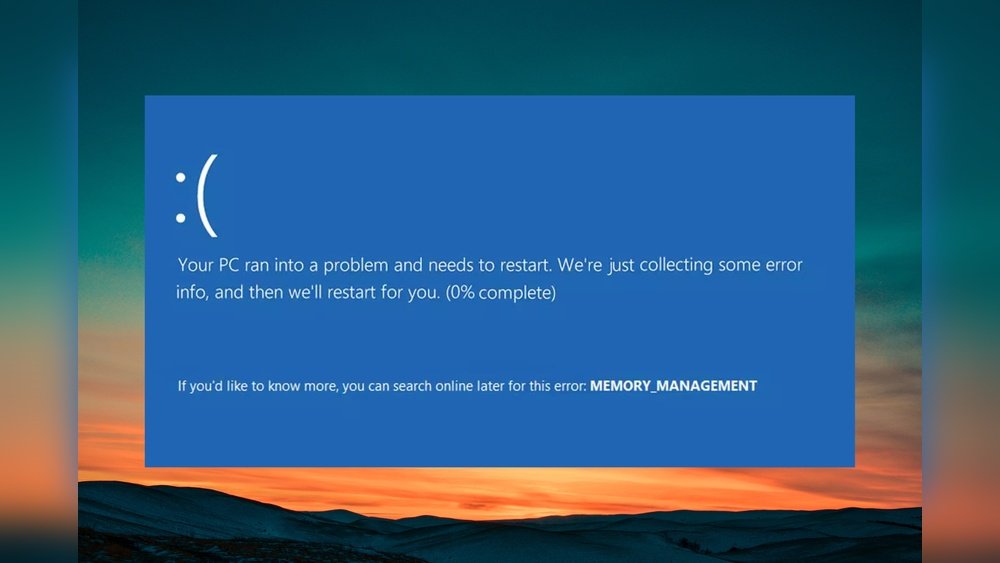
Is your computer crashing with a blue screen, leaving you frustrated and stuck? If your RAM is causing that dreaded blue screen error, you’re not alone.
This problem can disrupt your work, gaming, or any task you’re focused on. But don’t worry—understanding why your RAM triggers these crashes and learning how to fix it can save you time and stress. Keep reading, and you’ll discover simple, effective steps to get your system running smoothly again.

Credit: www.fortect.com
Why Ram Causes Blue Screen
RAM plays a key role in your computer’s performance. It stores data that your system needs quickly. If RAM has problems, your computer may crash. One common sign is the dreaded blue screen. This happens because RAM errors disrupt system processes. The system tries to protect itself by stopping all operations.
Understanding why RAM causes blue screen errors helps fix the problem. It also prevents data loss and system damage. Let’s explore the main reasons behind RAM-related blue screens.
Common Ram Issues
Faulty RAM modules cause many system errors. Dust or poor contact in RAM slots creates problems. Overheating can damage RAM and cause failures. Incompatible or mixed RAM types lead to conflicts. Sometimes, improper installation causes system instability. These issues trigger data corruption and crashes.
Impact On System Stability
RAM errors affect system stability severely. They cause random crashes and freezes. Programs may close unexpectedly or fail to open. The system might reboot without warning. Unstable RAM makes it hard to complete tasks. This leads to frustration and lost work.
Blue Screen Error Codes Related To Ram
Some blue screen codes point to RAM problems. Error codes like MEMORY_MANAGEMENT or PAGE_FAULT_IN_NONPAGED_AREA are common. These errors show memory access problems. They help identify if RAM is the cause. Tools like Windows Memory Diagnostic assist in pinpointing issues.

Credit: www.reddit.com
Diagnosing Ram Problems
Diagnosing RAM problems is the first step to fix blue screen errors caused by memory issues. Faulty RAM can cause crashes, slowdowns, and unexpected restarts. Identifying the exact problem helps avoid unnecessary repairs or replacements.
Several tools and methods exist to check RAM health. Some are built into Windows, while others require downloading special software. Physical checks of the RAM modules also help find loose or damaged sticks.
Using Windows Memory Diagnostic Tool
Windows has a built-in tool called Windows Memory Diagnostic. It scans your RAM for errors quickly and easily. To use it, press Windows key, type “Windows Memory Diagnostic,” and hit Enter.
Choose “Restart now and check for problems.” Your PC will reboot and test the memory automatically. After the test, Windows shows the results. Look for any reported errors. If errors appear, your RAM may be faulty.
Running Memtest86
MemTest86 is a free, powerful tool to test RAM thoroughly. Download it from the official site and create a bootable USB drive. Restart your PC and boot from the USB.
MemTest86 runs multiple tests on your RAM. Let it complete at least one full pass. The tool shows errors if your RAM has problems. Multiple errors usually mean the RAM needs replacement.
Checking Physical Ram Installation
Sometimes, RAM issues happen because the modules are not installed properly. Turn off your PC and unplug it from power. Open the case carefully to access the RAM slots.
Remove each RAM stick gently and reinsert it firmly. Ensure each module clicks into place. Check for dust or dirt on the contacts and clean if needed. A loose or dirty connection can cause blue screen errors.
Quick Fixes For Ram Errors
RAM errors often cause blue screen crashes. Fixing RAM problems quickly can save time. Basic steps can solve many RAM-related issues. These quick fixes do not need special tools.
Reseating Ram Modules
Turn off your computer and unplug it. Open the case to access the RAM slots. Gently remove each RAM module from its slot. Check for any dust or damage. Firmly press the RAM back into the slot. Ensure it clicks into place. Close the case and power on the computer. This can fix loose connections causing errors.
Cleaning Ram Contacts
Dust or dirt on RAM contacts can cause problems. Remove the RAM modules carefully. Use a soft, dry cloth or an eraser to clean the gold contacts. Avoid using water or liquids. Clean contacts improve the connection between RAM and motherboard. Reinsert the RAM modules firmly after cleaning. This step can reduce blue screen errors linked to poor contact.
Testing One Module At A Time
Multiple RAM modules can hide the faulty one. Remove all but one RAM stick from your computer. Turn on the system and check for blue screen errors. Swap the RAM sticks one by one. Test each module alone to find the bad one. Replace the faulty RAM to stop crashes. This method helps identify exact RAM problems easily.
Credit: www.youtube.com
Advanced Solutions
Advanced solutions help fix blue screen errors caused by RAM issues. These steps require careful attention. They go beyond basic troubleshooting and can improve system stability.
Each method targets deeper causes of memory problems. Follow the instructions carefully to avoid mistakes. These solutions can help if simple fixes do not work.
Updating Bios And Drivers
BIOS controls how hardware and software interact. An outdated BIOS can cause memory conflicts. Check your motherboard manufacturer’s website for updates.
Also, update your device drivers, especially chipset and memory drivers. New drivers improve compatibility and fix bugs. Use official sources to download drivers only.
Adjusting Ram Timings In Bios
RAM timing controls how fast memory works. Incorrect timings can lead to crashes and blue screens. Access BIOS settings to check RAM timings.
Set timings according to your RAM’s specifications. Avoid setting timings too low or high. Save changes and restart your computer to test stability.
Replacing Faulty Ram
Faulty RAM often causes blue screen errors. Test your memory using tools like MemTest86 to find bad modules. Remove and replace any defective RAM sticks.
Buy RAM compatible with your motherboard. Install new RAM carefully to avoid damage. Proper replacement can restore system performance and fix errors.
Preventing Future Ram Issues
Preventing future RAM issues helps keep your computer stable and fast. Taking simple steps can stop blue screen errors caused by faulty RAM. Focus on care and smart choices to protect your system’s memory.
Regular System Maintenance
Check your RAM and system health often. Run memory tests to find errors early. Clean dust inside your PC to avoid overheating. Update your system software for better performance and compatibility.
Avoiding Overclocking Risks
Overclocking RAM can cause instability and crashes. Use default speed settings for safe operation. If you must overclock, increase speed slowly and test carefully. Keep your system cool to prevent damage.
Using Quality Ram Modules
Buy RAM from trusted brands with good reviews. Cheap or low-quality RAM often causes errors and blue screens. Choose modules that match your motherboard and system needs. Check warranty and support before buying.
Frequently Asked Questions
Why Does Ram Cause A Blue Screen Error?
Faulty or incompatible RAM often triggers blue screen errors. It disrupts system memory, causing crashes and data corruption. Testing RAM with diagnostic tools helps identify issues. Replacing or reseating RAM can fix the blue screen problem effectively.
How To Check If Ram Is Causing Blue Screen?
Use Windows Memory Diagnostic or MemTest86 tools to test RAM health. These tools scan for errors that cause blue screen crashes. If errors appear, your RAM likely needs replacement or reseating for system stability.
Can Faulty Ram Affect Computer Performance?
Yes, faulty RAM causes system crashes, freezes, and blue screen errors. It also slows down applications and reduces multitasking ability. Ensuring RAM is error-free improves overall computer performance and reliability.
What Steps Fix Ram-related Blue Screen Errors?
Reseat RAM modules, run memory diagnostics, update drivers, and check BIOS settings. Replace damaged RAM sticks if errors persist. These steps resolve blue screen issues caused by RAM problems quickly.
Conclusion
RAM issues can cause blue screen errors on your computer. Fixing RAM problems helps your PC run smoothly. Test your RAM with simple tools to find faults. Replace bad RAM sticks to stop crashes. Keep your system clean and updated for better performance.
Small steps can prevent many blue screen troubles. Stay patient and follow the fixes one by one. Your computer will thank you with fewer errors and faster speeds.
