Motherboard Overheating Problem How to Fix: Quick & Easy Solutions
Is your computer suddenly acting slow, shutting down unexpectedly, or showing strange error messages? These could be signs that your motherboard is overheating.
When your motherboard gets too hot, it can cause serious damage to your entire system. But don’t worry—you don’t have to be a tech expert to fix this problem. You’ll discover simple, effective ways to cool down your motherboard and keep your computer running smoothly.
Keep reading, and you’ll learn how to protect your investment and avoid costly repairs.
Causes Of Motherboard Overheating
Motherboard overheating is a common issue that affects computer performance. It can cause sudden shutdowns, slow speeds, or even permanent damage. Understanding the causes helps prevent these problems and keeps your PC running smoothly.
Several factors lead to motherboard overheating. These include how air moves inside the case, the state of cooling fans, and the quality of thermal paste. Each cause plays a role in how heat builds up and affects your system.
Poor Airflow Inside The Case
Airflow moves hot air out and cool air in. Poor airflow traps heat inside the case. This happens if cables block vents or fans are not placed well. Without good airflow, heat stays near the motherboard. It raises temperatures and risks damage.
Dust And Dirt Accumulation
Dust collects on fans, vents, and the motherboard. Dirt blocks air from moving freely. It acts as insulation, trapping heat. Dust buildup lowers cooling efficiency. Cleaning your computer regularly prevents this problem.
Faulty Or Inadequate Cooling Fans
Fans remove heat from the case. Faulty fans may stop working or run slowly. Inadequate fans cannot cool enough air. Both lead to heat buildup on the motherboard. Check fans often to ensure they work properly.
Overclocking Risks
Overclocking makes the CPU run faster than usual. This increases heat output. Without better cooling, the motherboard can overheat. Overclocking needs careful cooling to avoid damage.
Thermal Paste Issues
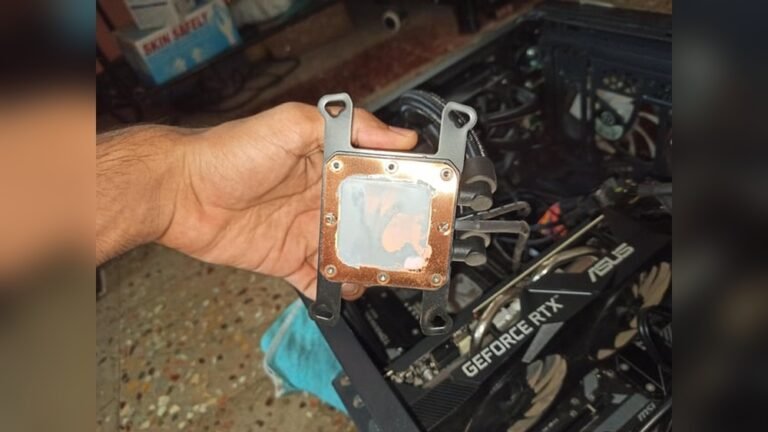
Thermal paste helps transfer heat from the CPU to the cooler. Old or poorly applied paste reduces heat transfer. This causes the CPU and motherboard to get hotter. Reapplying thermal paste can improve cooling.
Signs Of Overheating
Motherboard overheating can cause serious problems for your computer. Recognizing the signs early helps prevent damage. These signs often appear before the system fails completely. Watch closely for unusual behaviors and symptoms.
Unexpected Shutdowns
Your computer may turn off without warning. Sudden shutdowns happen to protect the motherboard. Overheating triggers this safety feature. Frequent shutdowns are a clear warning sign.
System Instability And Crashes
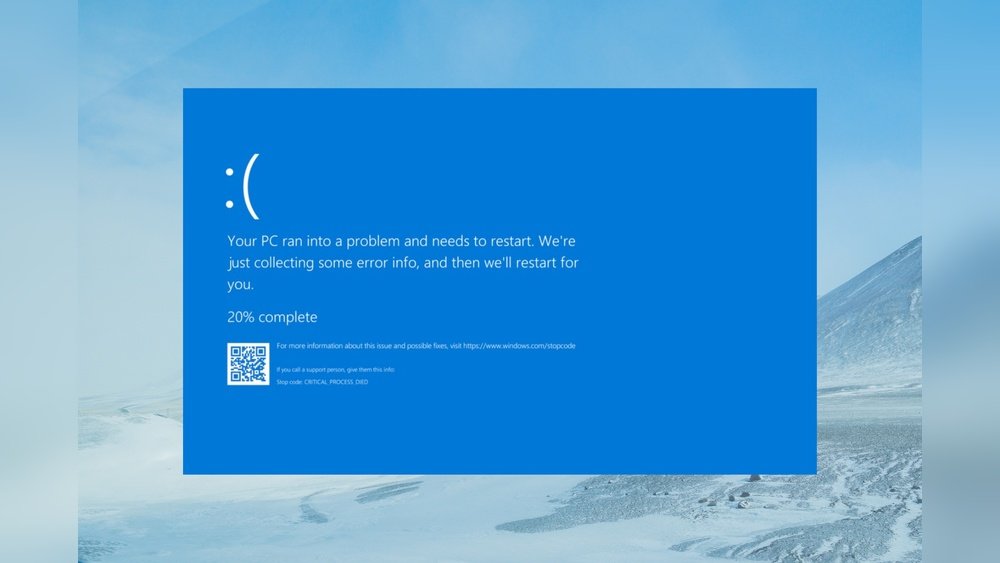
The system may freeze or crash often. Programs may close unexpectedly or stop working. Overheating affects the motherboard’s performance. Instability shows your computer struggles to function properly.
High Temperature Readings
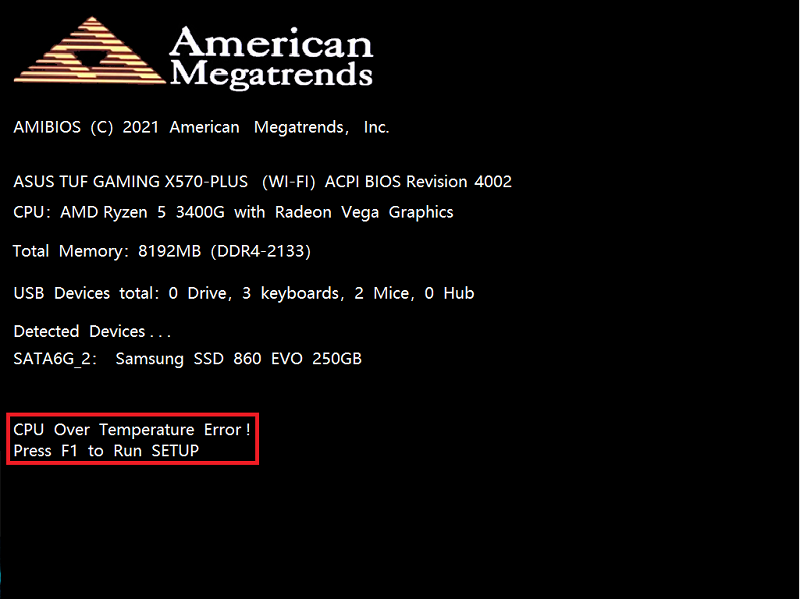
Temperature monitoring tools can show high heat levels. The motherboard’s temperature should stay within safe limits. Consistently high readings mean overheating. Checking these numbers helps catch issues early.
Burning Smell Or Discoloration
A burning smell near your computer is a serious sign. Look for discoloration on the motherboard or nearby parts. These signs indicate heat damage. Act quickly to avoid permanent harm.
Quick Fixes To Reduce Heat
Motherboard overheating can cause your computer to slow down or shut off. Quick fixes help lower the temperature fast. These easy steps keep your system cool and running smoothly.
Clean Dust From Components
Dust blocks airflow and traps heat inside your PC. Use a soft brush or compressed air to clean the motherboard and parts. Pay attention to heat sinks, fans, and vents. Regular cleaning prevents dust buildup and reduces heat.
Improve Case Ventilation
Good airflow inside the case helps remove hot air. Check if cables block air paths and arrange them neatly. Add more case fans if needed. Make sure intake and exhaust fans work well for better ventilation.
Reapply Thermal Paste
Thermal paste transfers heat from the CPU to the cooler. Old or dried paste lowers cooling efficiency. Remove the cooler, clean the old paste, and apply a small fresh amount. This improves heat transfer and lowers temperatures.
Check And Replace Fans
Fans wear out and slow down over time. Listen for strange noises or check fan speeds in BIOS. Replace any broken or weak fans with new ones. Good fans improve air circulation and keep components cool.
Adjust Fan Speeds In Bios
BIOS settings control how fast fans spin. Enter BIOS during startup and find fan speed options. Increase fan speeds to boost cooling. Set speeds carefully to balance noise and temperature control.

Credit: www.youtube.com
Upgrading Cooling Solutions
Upgrading cooling solutions helps keep your motherboard at safe temperatures. It reduces the risk of damage and improves computer performance. Simple upgrades often bring big benefits and prevent overheating problems. This section covers easy ways to improve cooling for your motherboard.
Installing Additional Case Fans
Adding more case fans boosts airflow inside your computer. Good airflow moves hot air out and brings cool air in. Place fans at the front for intake and the back for exhaust. Make sure fans are clean and spinning properly for best results.
Using High-quality Thermal Paste
Thermal paste helps transfer heat from the processor to the cooler. Old or poor-quality paste can cause heat buildup. Replace it with a high-quality thermal paste for better heat transfer. Apply a thin, even layer for the best cooling effect.
Upgrading To Liquid Cooling
Liquid cooling systems cool your motherboard more efficiently than air. They use water or coolant to carry heat away from hot parts. These systems lower temperatures better during heavy use. Choose a liquid cooler that fits your case and is easy to install.
Adding Heat Sinks To Critical Areas
Heat sinks absorb and spread heat away from hot components. Attach heat sinks to parts like VRMs and chipset for extra cooling. Larger or more heat sinks help keep temperatures down. Ensure good contact between heat sinks and components for best results.
Preventive Maintenance Tips
Preventive maintenance stops motherboard overheating before it starts. Small steps keep your system cool and stable. Regular care improves lifespan and performance. Follow these simple tips to avoid heat problems and protect your computer.
Regular Cleaning Schedule
Dust and dirt block airflow inside your PC. Clean your computer every few months. Use a soft brush or compressed air. Focus on fans, vents, and heatsinks. A clean system cools more efficiently. Avoid using water or liquids on parts.
Monitoring Temperatures With Software
Track your motherboard temperature with free tools. Software like HWMonitor or SpeedFan shows heat levels. Watch for sudden spikes or high readings. Set alerts to warn about overheating. Early detection helps prevent damage.
Avoiding Overclocking Without Proper Cooling
Overclocking raises motherboard heat significantly. Only overclock if you have strong cooling systems. Use quality fans or liquid cooling. Without proper cooling, overclocking causes overheating. Keep your system stable and safe by avoiding risky settings.
Ensuring Proper Cable Management
Messy cables block airflow inside the case. Organize cables with ties or clips. Keep them away from fans and vents. Good cable management improves air circulation. Better airflow lowers motherboard temperature effectively.

Credit: au.pcmag.com
When To Seek Professional Help
Knowing when to get professional help for motherboard overheating saves time and money. Some problems need expert tools and skills. Trying to fix these yourself can cause more damage. Recognizing signs of serious trouble is key to protecting your computer.
Persistent Overheating Issues
If your motherboard keeps overheating despite cleaning and basic fixes, call a professional. Persistent heat problems can indicate hidden faults. Experts can test and diagnose issues beyond simple checks. They find problems that regular users might miss.
Damaged Motherboard Components
Physical damage to the motherboard parts needs expert attention. Cracked circuits, burnt areas, or swollen capacitors require repair or replacement. Handling damaged components without knowledge can worsen the situation. Professionals use special tools to fix or replace parts safely.
Complex Cooling System Installation
Installing advanced cooling systems can be tricky for beginners. Water cooling or custom fan setups need precise assembly. Incorrect installation may cause leaks or block airflow. Experts ensure the cooling system works perfectly and keeps the motherboard cool.
Credit: www.asus.com
Frequently Asked Questions
What Causes Motherboard Overheating Issues?
Motherboard overheating often results from poor airflow, dust buildup, or faulty cooling components. Overclocking and high ambient temperatures also contribute. Identifying the root cause helps in applying effective fixes and preventing hardware damage.
How Can I Check If My Motherboard Is Overheating?
You can monitor motherboard temperatures using BIOS settings or software tools like HWMonitor. Look for temperature readings above 80°C, which indicate overheating and require immediate attention to avoid hardware failure.
What Are Quick Fixes For Motherboard Overheating?
Clean dust from fans and vents, improve airflow, and reapply thermal paste on the CPU. Ensure all fans work properly and avoid overclocking. These steps can quickly reduce motherboard temperatures and stabilize performance.
Does Upgrading Cooling Help Motherboard Overheating?
Yes, upgrading to better cooling solutions like high-quality fans or liquid coolers improves heat dissipation. This helps maintain optimal motherboard temperatures, especially during intensive tasks or overclocking, ensuring longevity and stability.
Conclusion
Motherboard overheating can cause serious damage to your computer. Keep the inside clean and dust-free to help airflow. Check that all fans work well and replace broken ones fast. Use good thermal paste on the CPU for better heat transfer.
Avoid blocking vents and keep your computer in a cool place. Watch your system temperature with simple software tools. Fixing overheating early saves you money and headaches later. Stay alert and care for your motherboard to keep it running smooth and safe.
Simple steps can prevent big problems.