How to Decrease Cpu Usage Windows 10: Easy Tips to Boost Speed
Is your Windows 10 computer running slow or overheating? High CPU usage could be the culprit, making everything lag and frustrating you.
But don’t worry—there are simple steps you can take right now to lower your CPU usage and get your PC running smoothly again. You’ll discover easy, effective ways to reduce CPU load, improve performance, and make your computer feel faster.
Keep reading, and you’ll learn how to take control of your system’s power and speed without needing to be a tech expert.
Credit: www.avast.com
Check Running Processes
Checking running processes helps you find programs using too much CPU. This step is key to lowering CPU usage on Windows 10. It shows all active apps and background tasks. You can spot which ones slow your PC down.
Use Task Manager
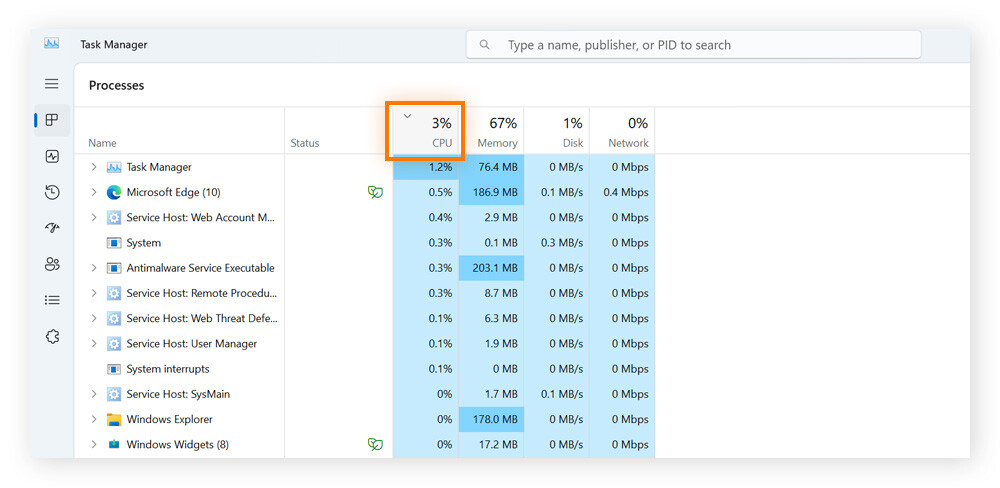
Task Manager shows all running processes on your computer. Press Ctrl + Shift + Esc to open it quickly. The main window lists apps and background tasks with their CPU use. You can sort the list by CPU usage by clicking the CPU column. This helps find heavy processes fast.
Task Manager also lets you end tasks that cause high CPU load. Select the process and click End Task. Be careful with system processes, as stopping them might cause problems.
Identify High Cpu Usage Apps
Look for apps using a lot of CPU in Task Manager. High CPU apps often cause slowdowns and overheating. Some apps need updates to run better. Others may have bugs or run unnecessary tasks.
Note the names of apps with high CPU usage. Search online to learn if they should run constantly or if they can be closed safely. Some apps run in the background without your knowledge. Stopping these can reduce CPU load and improve speed.
Disable Startup Programs
Disabling startup programs is a simple way to lower CPU usage on Windows 10. Many apps start automatically when your PC boots up. These programs use CPU power and slow your system down. Turning off unnecessary startup apps helps your computer run faster and smoother.
Manage Startup Items
To manage startup items, open Task Manager. Press Ctrl + Shift + Esc to launch it quickly. Click the “Startup” tab to see all apps set to start automatically. Review the list carefully. Right-click any app you don’t need at startup. Choose “Disable” to stop it from running on boot. Keep only essential programs enabled to save CPU resources.
Optimize Boot Time
Optimizing boot time improves overall performance. Fewer startup programs mean faster boot speed. Disable heavy programs that slow your PC down. Also, check for apps that update in the background. Disabling these helps reduce CPU load during startup. Restart your computer to apply changes. Notice the quicker start and smoother operation.
Update Windows And Drivers
Keeping Windows and drivers up to date helps reduce CPU usage. Updates fix bugs that slow down your PC. They also improve system stability and performance. Regular updates ensure your computer runs smoothly and efficiently.
Install Latest Windows Updates
Go to Settings and open Update & Security. Click on Windows Update and select Check for updates. Download and install all available updates. Restart your computer to complete the process. This keeps your system secure and optimized.
Update Device Drivers
Device drivers control hardware like graphics and sound cards. Outdated drivers can cause high CPU use and errors. Open Device Manager to see all hardware devices. Right-click a device and choose Update driver. Select Search automatically for updated driver software. Follow on-screen instructions to update each driver.
Scan For Malware
High CPU usage can slow down your Windows 10 computer. Malware often causes this problem. Scanning your system for malware helps find and remove harmful programs. This step is important to lower CPU usage and keep your PC safe.
Run Windows Defender
Windows Defender is built into Windows 10. It protects your PC from viruses and malware. To start a scan, open Windows Security from the Start menu. Select “Virus & threat protection” and click “Quick scan.” This scans your system for common threats fast.
For a deeper check, choose “Full scan.” It looks at all files and programs on your PC. This takes more time but finds hidden malware. After scanning, Windows Defender shows results and actions to take. Follow the prompts to remove any threats.
Use Third-party Antivirus
Third-party antivirus programs can find malware Windows Defender misses. Many free and paid options exist. Choose a trusted antivirus with good reviews. Install and update it before scanning.
Run a full system scan with the antivirus. It checks every file and process. If malware is found, the program will guide you to remove it. Regular scans with third-party antivirus keep your PC safe and reduce CPU load.
Adjust Power Settings
Adjusting power settings can help lower CPU usage on Windows 10. Power plans control how your computer uses energy and affects performance. Choosing the right power plan can reduce the load on your CPU. This saves battery life and keeps your PC running smoothly.
Switch To Balanced Or High Performance
Windows 10 offers several power plans. The default is often “Power Saver,” which may limit CPU speed too much. Switching to “Balanced” gives a good mix of performance and energy use. “High Performance” keeps the CPU running at higher speeds but can increase power use. Pick the plan that fits your needs.
Customize Power Plan
You can change settings within any power plan. Go to “Power Options” in Control Panel. Click “Change plan settings” beside your chosen plan. Adjust advanced settings like processor power management. Set minimum and maximum processor states to control CPU load. Lowering the maximum state reduces CPU usage during light tasks.
Credit: helpdeskgeek.com
Limit Background Apps
Background apps run quietly on your Windows 10. They use CPU power even if you do not see them. Limiting these apps can reduce CPU usage. This helps your computer run faster and saves battery life.
Change Background App Permissions
Open the Settings menu from the Start button. Click on “Privacy” and then “Background apps.” Here, you see a list of apps allowed to run in the background. Turn off the switch for apps you do not need. This stops them from using CPU without your knowledge. It is safe to disable most apps you rarely use.
Close Unnecessary Apps
Press Ctrl + Shift + Esc to open Task Manager. Look under the “Processes” tab for apps using high CPU. Select apps not needed right now. Click “End Task” to close them. This frees CPU power quickly. Repeat this regularly to keep your computer smooth.
Disable Windows Services
Disabling unnecessary Windows services can help lower CPU usage on Windows 10. Many services run in the background without your knowledge. Some of these services are not essential for your daily tasks.
Turning off services that you do not need frees up system resources. This can make your PC faster and more responsive.
Stop Unneeded Services
Identify services that you rarely use or do not need at all. For example, services related to print spooler, remote desktop, or Bluetooth might not be necessary.
Stopping these services reduces CPU load and saves memory. Be careful not to stop important services required for system stability.
Use Services Manager
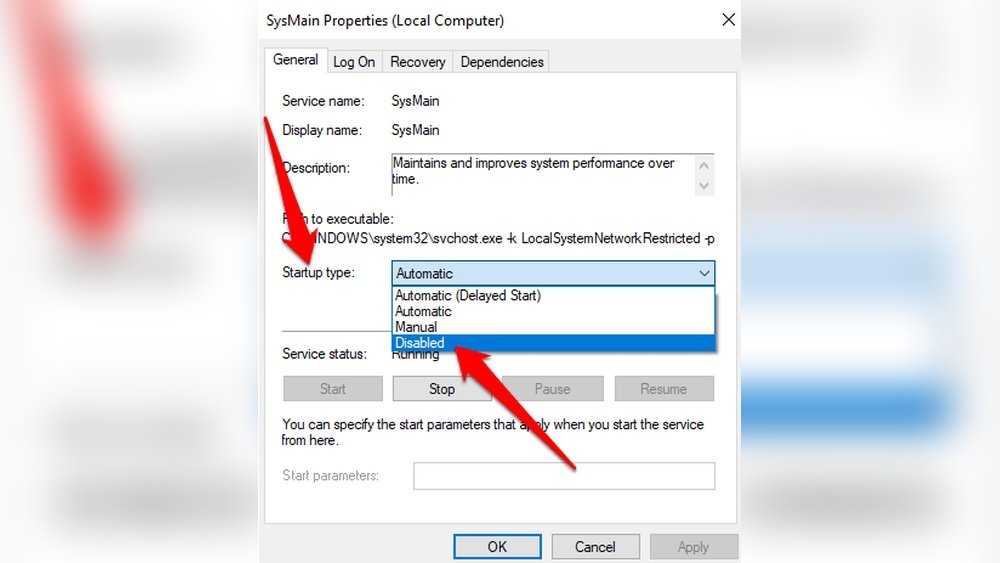
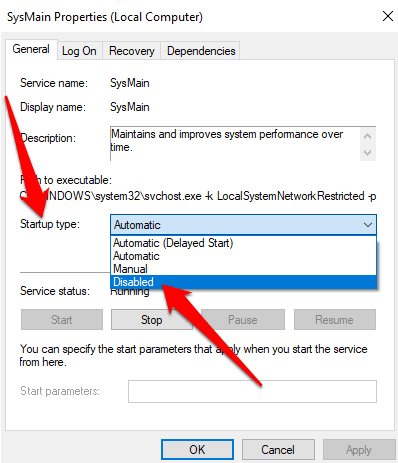
Press Windows + R to open the Run dialog box. Type services.msc and press Enter to open Services Manager.
In the list, find the service you want to disable. Right-click it and select Properties. Change the Startup type to Manual or Disabled.
Click Stop to halt the service immediately. Apply the changes and close the window.
Repeat this for other services you want to disable. This method gives you full control over running services.
Optimize System Performance
Optimizing system performance helps lower CPU usage on Windows 10. It allows the computer to run faster and smoother. This process reduces unnecessary tasks that slow down your PC. Simple changes can make a big difference in how well your system works.
Adjust Visual Effects
Windows 10 uses visual effects like animations and shadows. These can take up CPU power. You can reduce or turn off these effects to save resources.
Go to System Properties. Choose “Advanced system settings.” Click “Settings” under Performance. Select “Adjust for best performance” or customize which effects to disable. This step frees up CPU for important tasks.
Clean Temporary Files
Temporary files build up over time and slow down your PC. They use storage and can increase CPU activity.
Open the Disk Cleanup tool. Select the drive to clean. Check Temporary Files and other unwanted items. Click “OK” to delete them. Regular cleaning keeps your system lighter and faster.
Upgrade Hardware Components
Upgrading hardware components can help reduce CPU usage on Windows 10. Old or slow parts make the CPU work harder. New hardware lets your system run smoother. It shares the workload better. This reduces the CPU’s stress and improves speed.
Add More Ram
RAM stores data your computer uses often. More RAM means less work for the CPU. Your system can handle more tasks at once. This lowers the chance of CPU overload. Adding RAM is a simple and effective upgrade. It helps especially if you run many apps or browser tabs.
Consider Ssd Upgrade
Upgrading to an SSD speeds up data access. Hard drives slow down your system and increase CPU use. SSDs work faster and use less power. This reduces CPU effort during file loading. Your programs open quicker and run smoothly. An SSD upgrade improves overall computer performance.

Credit: www.youtube.com
Frequently Asked Questions
How Can I Reduce High Cpu Usage In Windows 10?
To reduce high CPU usage, close unnecessary programs, disable startup apps, and update Windows. Use Task Manager to identify resource-heavy processes and scan for malware.
Why Is My Cpu Usage Constantly At 100%?
Constant 100% CPU usage often indicates background processes or malware. Check Task Manager, end resource-heavy tasks, update drivers, and run antivirus scans to resolve the issue.
What Windows 10 Settings Improve Cpu Performance?
Adjust power settings to High Performance, disable visual effects, and limit background apps. These changes optimize CPU usage and improve overall system speed.
Can Software Updates Decrease Cpu Usage?
Yes, software updates fix bugs and optimize system performance. Regularly updating Windows and drivers can reduce CPU load and prevent overheating.
Conclusion
Reducing CPU usage on Windows 10 helps your computer run smoothly. Close unused apps and stop heavy background processes. Keep your system updated for better performance and security. Regularly scan for viruses to avoid slowdowns. Adjust power settings to balance speed and energy use.
Simple steps can make a big difference in speed. Try these tips to keep your PC fast and responsive. Your computer will thank you with better work and play.