Pc Not Turning on After Build How to Fix: Ultimate Troubleshooting Guide
You just finished building your PC, but when you press the power button, nothing happens. Frustrating, right?
You’re not alone—many people face this problem after assembling their computer. The good news is, you don’t have to give up or start over. In this guide, you’ll discover simple, step-by-step fixes to get your PC turning on again. Keep reading, because the solution might be easier than you think.
Your new build deserves to work perfectly, and we’re here to help you make that happen.
Common Causes
Building a PC can be exciting, but sometimes it does not turn on after assembly. This issue can happen due to several common causes. Knowing these causes helps to find the problem faster and fix it easily.
Many beginners face this problem because of small mistakes or overlooked parts. The computer might show no signs of power, or it might start but fail to boot. Checking these common causes step-by-step clears confusion and saves time.
Power Supply Issues
The power supply unit (PSU) provides electricity to all PC parts. If the PSU is not connected properly, the PC will not turn on. Loose cables or a faulty power switch can cause power issues. Sometimes the PSU itself is defective or not strong enough for the components.
Check the power cable, connections to the motherboard, and the PSU switch. Test the PSU with a paperclip test or replace it temporarily to confirm it works.
Motherboard Problems
The motherboard links all parts of the computer. Incorrect mounting or a short circuit can stop the PC from powering on. Missing or misaligned standoffs can cause shorts. Bent pins in the CPU socket damage the board and prevent startup.
Make sure the motherboard is installed correctly and no parts are loose. Inspect for visible damage or bent pins carefully before installation.
Cpu And Ram Installation Errors
The CPU and RAM must be installed carefully. If the CPU is not seated properly, the PC will fail to start. Thermal paste should be applied to avoid overheating. RAM sticks need to click firmly into their slots. Incorrect RAM placement causes beep codes or no boot.
Remove and reseat the CPU and RAM with care. Check for any dirt or debris in the slots that could block connections.
Peripheral And Cable Connections
Loose or incorrect cable connections cause many startup problems. The front panel connectors for power and reset buttons must be attached correctly. Missing or loose SATA cables stop drives from powering up. Check all internal and external cables to ensure tight, proper connections.
Make sure the monitor and keyboard are plugged in. Sometimes the PC powers on but looks off due to missing display or input devices.
Initial Checks
Building a PC is exciting, but it can be frustrating when it does not turn on. Start with simple checks before diving deeper. These initial checks help find common issues fast. They save time and avoid extra stress.
Verifying Power Source
Check the wall outlet to ensure it works. Plug in a lamp or phone charger to test power. Avoid using extension cords or power strips that might fail. Use a different outlet if needed. This step ensures the PC gets power from the start.
Inspecting Power Cables
Look at all cables connected to the PC. Make sure the power cable is firmly plugged into the power supply unit (PSU). Check both ends of the cable. Inspect for any visible damage or cuts. Damaged cables can stop the PC from turning on.
Checking Power Button Functionality
Press the PC power button firmly. Sometimes the button may not make proper contact. Check the cable connecting the power button to the motherboard. It should be seated correctly. A loose connection can prevent the PC from starting.
Testing Components
Testing your PC components is important if the computer does not turn on after building it. This step helps find the faulty part quickly. You can check power supply, memory, and graphics card. Each part must work well for the PC to start.
Using A Psu Tester
A PSU tester checks your power supply unit. It shows if the PSU delivers power correctly. Connect the PSU cables to the tester. Turn on the PSU. The tester will display voltage readings. If the numbers are outside the normal range, the PSU may be bad. Replace it to fix the problem.
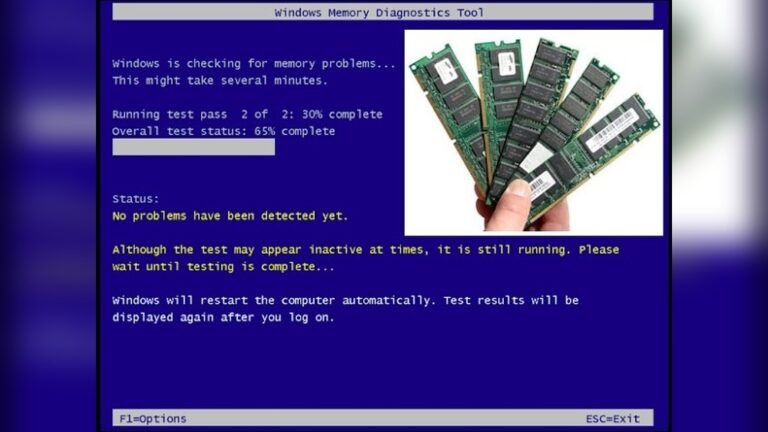
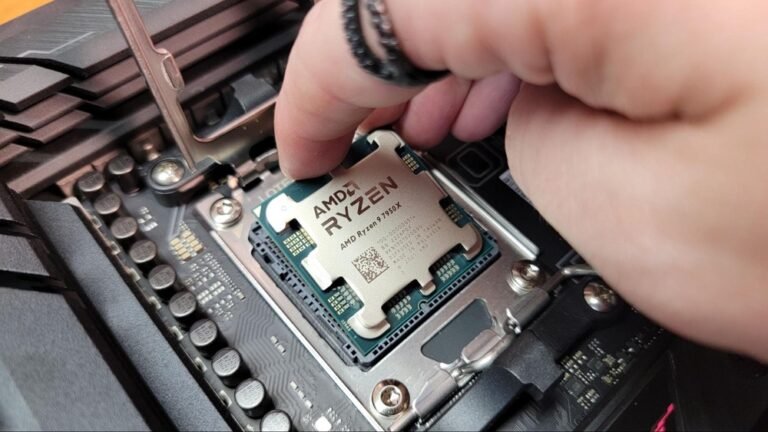
Reseating Ram And Cpu
Loose RAM or CPU can stop your PC from turning on. Remove the RAM sticks carefully. Put them back firmly into their slots. Do the same with the CPU. Make sure the CPU fits correctly in its socket. Check for bent pins before placing it back. Proper seating can solve many startup issues.
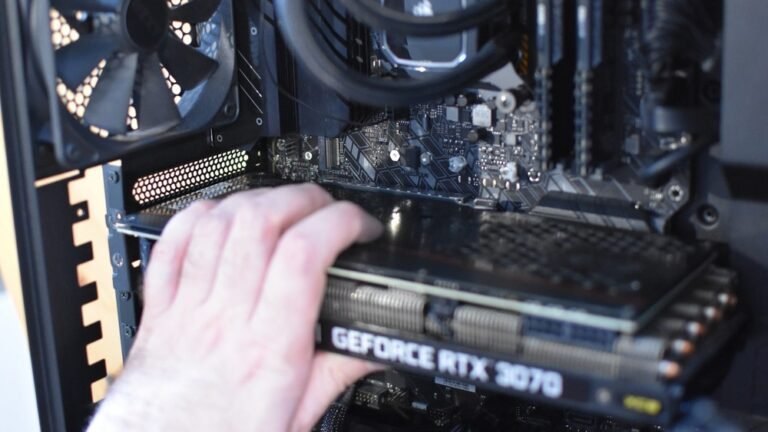
Examining Graphics Card Installation
The graphics card must be installed properly. Remove the card from its slot. Clean the contacts gently. Reinsert the card firmly into the PCIe slot. Connect any power cables needed. Also, check if the card’s fans spin freely. A poorly installed graphics card can prevent booting.
Credit: support.lenovo.com
Bios And Firmware
The BIOS (Basic Input/Output System) and firmware control your PC’s hardware at a basic level. They help the system start and load the operating system. Problems in BIOS or firmware can stop your PC from turning on after a new build.
Fixing BIOS and firmware issues often solves startup problems. It involves resetting settings, updating software, or clearing errors. These steps bring your PC back to a working state.
Resetting Cmos
The CMOS stores BIOS settings. Resetting it clears wrong configurations. Turn off your PC and unplug it first.
Open the case and find the CMOS battery on the motherboard. Remove it carefully and wait about 5 minutes.
Put the battery back and close the case. This resets BIOS to default settings. Turn on your PC to check if it boots.
Updating Bios
Old BIOS versions may not support new hardware. Updating BIOS helps fix bugs and improve compatibility.
Visit your motherboard’s official website. Download the latest BIOS update file. Follow the instructions carefully to update.
Use a USB drive to transfer the update. Restart your PC and enter BIOS setup to start the update process.
Clearing Bios Errors
BIOS errors often show as beep codes or error messages. Note the pattern or text for diagnosis.
Clear errors by resetting CMOS or updating BIOS. Check all hardware connections and remove any faulty parts.
Sometimes, a BIOS recovery mode can fix errors. Follow your motherboard manual for detailed steps.
Troubleshooting Steps
When your PC does not turn on after building it, start by following clear troubleshooting steps. These steps help find the cause fast. Avoid guessing or rushing repairs. Take time to check each part carefully. This method saves time and money.
Begin with simple checks and move to detailed ones. This way, you can spot common errors easily. The process includes testing the PC outside the case, finding faulty parts, and checking for shorts. Each step narrows down the problem.
Breadboarding The Pc
Breadboarding means assembling your PC outside the case. Place the motherboard on a non-conductive surface. Connect only the CPU, one stick of RAM, and the power supply. Use the power switch pins to start the PC.
This test shows if the motherboard and CPU work alone. No case or extra parts can cause shorts here. If the PC powers on, the problem lies in the case or other parts.
Isolating Faulty Hardware
Identify any bad hardware by testing parts one by one. Remove all RAM sticks but one. Try different RAM slots if needed. Test the power supply with a PSU tester or another system.
Disconnect all extra devices like hard drives and graphics cards. Add them back one at a time. Watch for signs of power failure or error beeps. This process finds the broken part.
Checking For Short Circuits
Short circuits can stop your PC from turning on. Check the motherboard standoffs. Make sure none touch the board where they shouldn’t. Inspect cables and connectors for damage or loose ends.
Look for metal screws or parts touching the motherboard. Remove any extra screws inside the case. Use a multimeter if you have one to test for shorts. Fix any issue before trying to power on again.
Credit: www.avast.com
Advanced Solutions
Sometimes basic checks do not fix a PC that won’t turn on after building. Advanced solutions help find hidden problems. These methods dig deeper to spot issues. They save time and money by avoiding random part swaps.
Testing With Minimal Components
Remove all non-essential parts from your PC. Keep only the CPU, one stick of RAM, and power supply. This step shows if the core system can power on. If it does, add parts back one at a time. Watch for the moment it stops working. This helps find the faulty component.
Replacing Suspected Parts
Identify parts that could cause the problem. Common issues come from power supplies, motherboards, or RAM. Swap these parts with known good ones. Testing with new parts confirms if the old ones are bad. Replace the faulty parts to get your PC running again.
Seeking Professional Help
Some problems need expert tools and skills. A technician can test parts more thoroughly. They find issues that are hard to spot at home. Taking your PC to a professional saves frustration. It also prevents damage from incorrect fixes.
Preventive Tips
Building a PC can be exciting but also tricky. Many people face the problem of their PC not turning on after building it. Avoiding this issue starts with good habits during and after the build. Preventive tips help keep your PC safe and working well.
These tips reduce the chance of errors and hardware damage. They also save time and money by preventing problems before they happen. Follow these simple steps to ensure your PC build goes smoothly.
Proper Component Handling
Handle all parts with care. Always touch metal parts of the case to avoid static shock. Use an anti-static wrist strap if possible. Avoid touching gold connectors or chips on components. Keep parts on anti-static mats or bags. This prevents damage from static electricity.
Ensuring Compatibility
Check if all parts work well together. Confirm the motherboard supports the CPU and RAM type. Make sure the power supply can handle all parts’ power needs. Use compatible connectors and sockets. Mismatched parts can stop your PC from turning on.
Regular Maintenance Practices
Keep your PC clean and dust-free. Dust can cause overheating and poor connections. Use compressed air to clean fans and vents. Check cables regularly for loose or damaged wires. Update BIOS and drivers to improve stability. Good maintenance keeps your PC running smoothly.

Credit: www.youtube.com
Frequently Asked Questions
Why Is My Pc Not Turning On After Building?
Your PC might not turn on due to loose cables, incorrect power connections, or faulty hardware. Double-check all power cables, motherboard connections, and ensure the power supply switch is on. Verify RAM and CPU seating to fix this issue efficiently.
How To Check If The Power Supply Is Faulty?
Test the power supply using a PSU tester or by swapping it with a known working unit. Also, ensure the power cable is properly plugged in and the outlet works. A faulty PSU can prevent your PC from powering on.
Can Incorrect Cpu Or Ram Installation Cause No Power?
Yes, improper CPU or RAM installation can stop the PC from powering on. Ensure the CPU is correctly seated and the thermal paste applied. Check RAM sticks are firmly inserted in the slots to resolve power issues.
What Role Does The Motherboard Play In Power Issues?
The motherboard distributes power to all components. Damaged or misconnected motherboard cables can cause startup failure. Inspect for bent pins, damaged circuits, or loose power connectors to fix the problem.
Conclusion
Building a PC can be tough when it does not turn on. Check each connection carefully and try again. Make sure the power supply works and cables fit well. Test the motherboard and RAM for any issues. Sometimes, resetting the BIOS helps solve the problem.
Stay calm and follow steps one by one. Fixing this takes patience and careful work. Soon, your PC will start and run smoothly. Keep these tips in mind for a successful build.