Ram Not Detected by Pc How to Fix: Quick & Easy Solutions
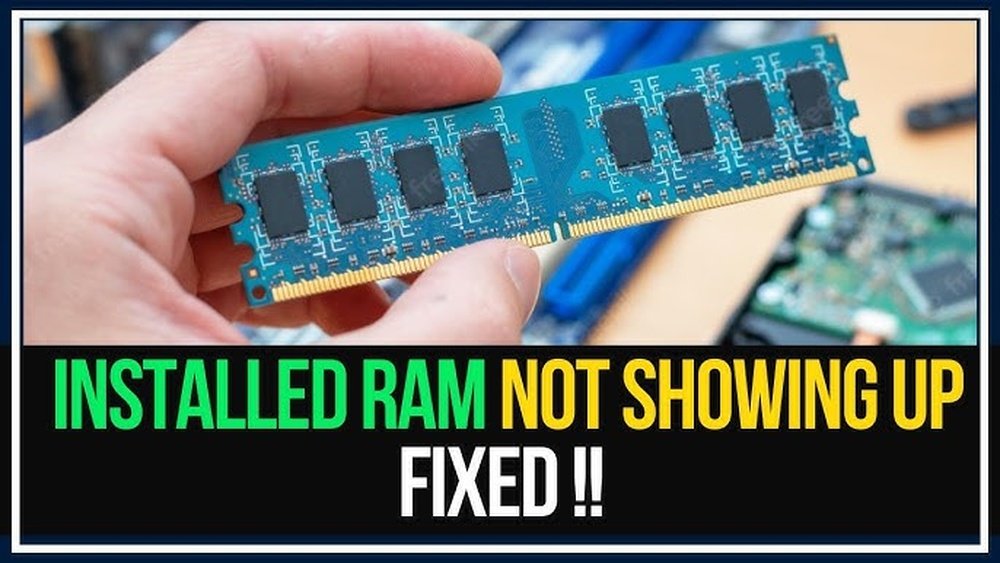
Is your PC showing a “RAM not detected” error? It’s frustrating when your computer can’t recognize its memory, leaving you stuck and unsure what to do next.
But don’t worry—you’re not alone, and this problem is often easier to fix than you think. You’ll discover simple steps to identify why your RAM isn’t detected and how to get your PC back to running smoothly. Keep reading, because the solution might be just a few clicks or adjustments away.
Credit: www.makeuseof.com
Common Causes Of Ram Detection Issues
RAM detection issues can stop your PC from working correctly. These problems often come from simple causes. Knowing these causes helps fix the problem fast. Below are common reasons why your PC may not detect RAM.
Loose Or Improperly Seated Ram
RAM sticks must fit tightly in their slots. Loose RAM can cause the PC to miss it. Sometimes, RAM looks installed but is not fully clicked in. Always press down firmly to secure the RAM.
Incompatible Ram Modules
Not all RAM works with every motherboard. Using the wrong type or speed can cause detection errors. Check your motherboard’s manual to find compatible RAM models. Mixing different RAM brands or sizes can also cause issues.
Faulty Ram Slots
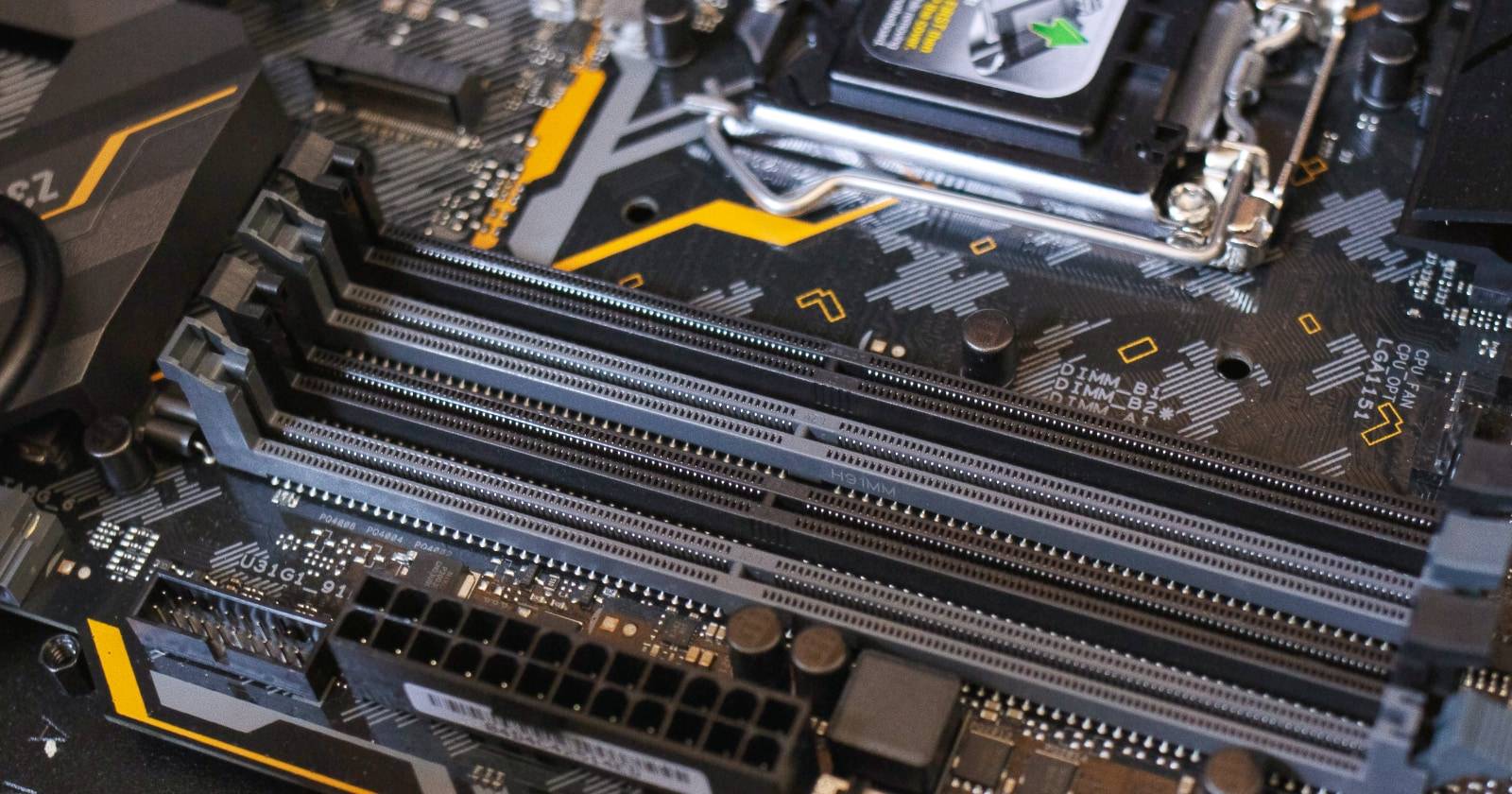
RAM slots on the motherboard can get damaged. Dirt, dust, or bent pins affect connection. Try moving the RAM to another slot to test if the slot is the problem. Clean the slots gently to remove debris.
Bios Or Firmware Glitches
Old or corrupted BIOS can cause RAM detection problems. Updating BIOS fixes bugs and adds support for new hardware. Enter BIOS setup during boot and check if the RAM shows correctly. Resetting BIOS settings may also help.
Hardware Conflicts
Other hardware devices can conflict with RAM detection. Faulty power supply or damaged components cause errors. Disconnect non-essential devices and test the RAM again. This process helps find the conflicting hardware.

Credit: www.youtube.com
Preparing For Troubleshooting
Before fixing the “RAM not detected” problem, get ready for troubleshooting. Proper preparation helps avoid mistakes and protects your computer. Follow simple steps to make the process smooth and safe.
Gathering Necessary Tools
Collect all tools needed before starting. A screwdriver is useful to open the PC case. Use an anti-static wrist strap to prevent electric shocks. Have a flashlight ready to see inside the computer clearly. Keep a soft cloth nearby to clean dust gently.
Safety Precautions
Turn off the computer and unplug it from the power source. Wait a few minutes to let the computer cool down. Avoid touching metal parts inside the PC to stop static damage. Use an anti-static wrist strap to protect components. Work on a clean, dry surface to reduce risk.
Backing Up Important Data
Save your important files before opening the PC. Use an external drive or cloud storage to back up data. This step keeps your information safe if something goes wrong. Backups help avoid data loss during hardware checks. Take time to do this carefully.
Step-by-step Fixes For Ram Detection
RAM not detected by your PC can cause many problems. It stops your computer from working well. Fixing this issue needs careful steps. Follow these clear instructions to find and solve the problem. Each step helps check and fix RAM detection issues. Take your time and do each step carefully.
Power Down And Unplug Pc
First, turn off your PC completely. Unplug the power cable from the wall. This stops any electricity from flowing inside. It keeps you safe and protects your PC parts. Wait for a few minutes before opening the case. This allows all power to leave the system.
Reseat The Ram Modules
Open the case carefully. Find the RAM sticks on the motherboard. Remove each RAM module gently from its slot. Then, press it back firmly until it clicks. This makes sure the RAM connects well. Loose RAM often causes detection problems.
Test Ram Modules Individually
Take out all RAM sticks. Insert one RAM module at a time. Turn on the PC and check if it detects the RAM. Repeat for each RAM stick. This helps find if one RAM is bad. Remove any faulty RAM and replace it.
Clean Ram Slots And Contacts
Dust or dirt can block RAM connections. Use a soft brush or compressed air. Clean the RAM slots on the motherboard carefully. Also, wipe the gold contacts on RAM with a soft cloth. Clean parts improve the connection and detection.
Update Bios Or Firmware
Old BIOS may not support new RAM. Check your motherboard’s website for updates. Download the latest BIOS or firmware. Follow the instructions to update safely. Updated BIOS improves hardware support and fixes bugs.
Check For Compatibility Issues
Not all RAM works with every PC. Check your motherboard manual for supported RAM types. Use RAM with the correct speed and size. Incompatible RAM may not show up or cause errors. Buy RAM that matches your system’s needs.
Using Diagnostic Tools
Using diagnostic tools helps find the cause of RAM not detected by your PC. These tools test memory for errors and hardware problems. They give clear information about your RAM health. Running these tests saves time and helps fix issues quickly. Below are some popular tools to check your RAM status.
Windows Memory Diagnostic
Windows Memory Diagnostic is built into Windows systems. It runs tests on your RAM after a restart. The tool checks for memory problems causing system errors. To open it, type “Windows Memory Diagnostic” in the Start menu. Choose “Restart now and check for problems.” Your PC will reboot and scan the RAM. After the test, Windows shows results on the screen. This tool is easy and free for all Windows users.
Memtest86
MemTest86 is a trusted third-party tool for deep memory testing. It boots from a USB drive outside Windows. This tool performs thorough tests on your RAM modules. It detects errors that Windows Memory Diagnostic might miss. Download MemTest86 from its official site and create a bootable USB. Restart your PC and boot from the USB drive. The test runs automatically and shows errors found. MemTest86 is ideal for detailed memory diagnosis.
Third-party Hardware Monitoring Software
Hardware monitoring software helps track RAM and system health. Programs like HWMonitor or Speccy show memory status and temperatures. These tools provide real-time information about your hardware. They can detect unusual behavior in RAM performance. Installing these programs helps monitor your PC regularly. They also assist in diagnosing hardware-related problems early. Use these tools for ongoing RAM health checks and maintenance.
When To Replace Ram Or Other Hardware
Knowing when to replace RAM or other hardware is key to fixing PC issues. Faulty RAM can cause errors, crashes, and slow performance. Sometimes, the problem is with the motherboard or compatibility, not just the RAM stick. Testing and identifying the exact cause helps avoid unnecessary expenses and downtime.
Identifying Faulty Ram
Start by checking if your PC shows error messages or crashes often. Use memory diagnostic tools to scan RAM for errors. Remove and test each RAM stick separately to find the faulty one. Bad RAM usually causes blue screens or random reboots. Replace any stick that fails the tests.
Testing Motherboard Slots
Sometimes RAM sticks are fine, but the slots on the motherboard are bad. Test each slot by inserting a known good RAM stick one at a time. If a slot fails to recognize the RAM, it may be damaged. Avoid using faulty slots, as they can cause system instability. Consider motherboard repair or replacement if many slots fail.
Choosing Compatible Replacement Ram
Match new RAM with your PC’s specifications for best results. Check the motherboard manual for supported RAM type, speed, and capacity. Use RAM from trusted brands to ensure quality and reliability. Mixing different RAM types can cause errors and slowdowns. Buy RAM sticks with the same size and speed to keep your system stable.

Credit: meridionalcenter.com.br
Preventing Future Ram Detection Problems
Preventing future RAM detection problems saves time and stress. Taking simple steps helps keep your PC running smoothly. Avoid common mistakes and maintain your system well. Follow clear methods to ensure RAM stays detected and functional.
Proper Installation Techniques
Place RAM sticks firmly into the slots. Align the notch correctly before pressing down. Use even pressure on both ends of the module. Avoid touching the gold connectors to prevent damage. Ensure clips on the sides snap securely into place. Double-check the seating before closing your case.
Regular System Maintenance
Keep your PC clean and dust-free. Dust can block connections and cause errors. Open your case periodically to remove dust gently. Use compressed air to clear slots and fans. Check for loose cables and connections inside. Regular care helps prevent hardware issues from developing.
Updating System Software
Install the latest BIOS updates from your motherboard maker. BIOS updates improve hardware compatibility and fix bugs. Keep your operating system updated with security patches. Updated drivers support better communication with RAM. Regular software updates reduce detection problems and improve stability.
Frequently Asked Questions
Why Is My Pc Not Detecting Ram?
Your PC may not detect RAM due to improper seating, faulty RAM slots, or incompatible modules. Dust or debris can also block connections. Ensure the RAM sticks are firmly installed and compatible with your motherboard to resolve detection issues.
How Can I Fix Ram Detection Issues?
To fix RAM detection, first power off and unplug your PC. Reseat the RAM sticks firmly, clean the slots gently, and check BIOS settings for memory recognition. Updating BIOS and testing with different RAM modules can also help identify the problem.
Can Bios Updates Improve Ram Detection?
Yes, BIOS updates can improve RAM detection by adding support for newer modules and fixing compatibility bugs. Always download updates from your motherboard manufacturer’s site and follow instructions carefully to avoid system issues during the update process.
Does Faulty Ram Cause Pc Startup Problems?
Faulty RAM can cause startup failures, crashes, or blue screens. If your PC fails to boot or freezes, test each RAM stick individually to identify and replace defective modules for stable performance.
Conclusion
Fixing RAM detection issues can be simple with the right steps. Check the RAM seating and clean the slots carefully. Test your RAM sticks one by one to find problems. Update your BIOS and drivers to improve hardware support. Restart your PC after each change to see results.
These easy fixes often solve RAM detection problems fast. Keep your computer clean and handle parts gently. Stay calm and follow the steps step-by-step. Your PC should recognize the RAM and work smoothly again.