What Motherboard Ports are Important: Essential Guide for 2026
When you look at your computer’s motherboard, you might see a bunch of ports and wonder which ones really matter. Knowing what motherboard ports are important can save you time, money, and frustration.
Whether you’re building a new PC, upgrading, or just curious, understanding these ports helps you connect the right devices and get the most out of your system. Keep reading, and you’ll discover exactly which ports you should focus on—and why they make a difference for your setup.
Credit: www.tutorialsweb.com
Key Motherboard Ports
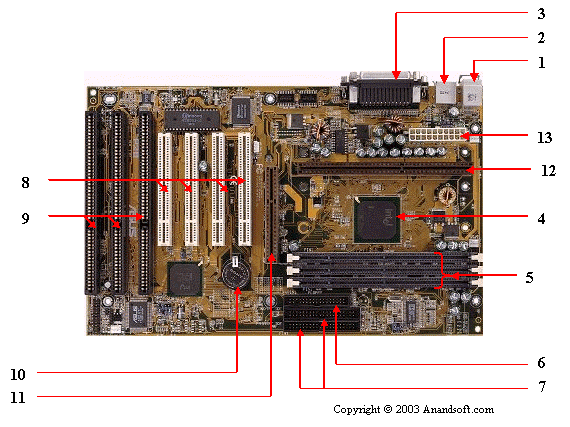
Motherboards have many ports that connect your computer to other devices. These ports let you plug in important tools and accessories. Knowing the key motherboard ports helps you choose the right board for your needs. Each port serves a special purpose to make your system work well.
Usb Ports
USB ports are the most common connection points. They connect keyboards, mice, printers, and external drives. USB 3.0 and USB-C ports offer faster data transfer speeds. More USB ports mean you can connect more devices at once.
Hdmi And Display Outputs
These ports let you connect your monitor or TV. HDMI supports both video and audio signals. DisplayPort is another option for high-resolution screens. Having multiple display outputs helps if you use more than one monitor.
Audio Jacks
Audio jacks connect speakers, headphones, and microphones. Most motherboards have separate jacks for audio input and output. Good audio ports improve sound quality for music and calls. Some boards also support surround sound setups.
Ethernet Port
The Ethernet port connects your computer to a wired network. Wired connections are faster and more stable than Wi-Fi. This port is important for gaming, streaming, and work tasks. Look for gigabit Ethernet for the best speeds.
Power Connectors
Power connectors supply electricity to the motherboard. The main 24-pin connector powers the board itself. Additional 4 or 8-pin connectors power the CPU. Proper power connectors ensure stable and reliable performance.
Usb Port Types And Uses
USB ports are vital for connecting many devices to a computer. They allow you to transfer data and power devices. Different types of USB ports serve different purposes. Understanding these types helps you pick the right motherboard for your needs.
USB ports come in various shapes and speeds. They include USB-A, USB-C, and newer standards like USB 3.2 and USB4. Each offers unique benefits for data transfer and charging.
Usb-a And Usb-c
USB-A is the classic rectangular port. It works with most older devices like keyboards and flash drives. USB-C is smaller and oval-shaped. It fits both ways, making it easier to plug in. USB-C supports faster data and power transfer than USB-A.
Usb 3.2 Vs Usb4
USB 3.2 provides good speed for everyday tasks. It can reach speeds up to 20 Gbps. USB4 is much faster, up to 40 Gbps. USB4 supports more types of connections, including video output. It is best for heavy data use and new devices.
Charging And Data Transfer
USB ports charge devices like phones and tablets. Some ports offer quick charging with higher power output. Data transfer speed depends on the USB version. Faster ports save time when moving large files. Choose ports that match your device needs for best results.
Video Output Options
Video output options on a motherboard determine how you connect your monitor. They affect picture quality and display performance. Choosing the right port ensures clear images and smooth visuals. Different ports support different resolutions and refresh rates. Some are newer and faster, while others are older but still useful.
Hdmi And Displayport
HDMI and DisplayPort are the most common modern video outputs. HDMI works well for TVs and monitors. It carries both video and audio signals. DisplayPort is popular for high-resolution monitors. It supports higher refresh rates and better colors. Both ports support 4K and even 8K displays. DisplayPort often allows multiple monitors on one cable.
Vga And Dvi Legacy Ports
VGA and DVI are older video ports. VGA uses analog signals and has lower image quality. It suits older monitors and projectors. DVI offers better quality than VGA. It sends digital signals and supports higher resolutions. These ports still work for many setups. They lack the audio support found in HDMI and DisplayPort.
Choosing The Right Display Port
Select a port based on your monitor and needs. Use HDMI or DisplayPort for the best image quality. VGA and DVI can work for older screens. Check your monitor’s supported ports first. Higher resolution screens need HDMI 2.0 or DisplayPort 1.2 and above. Consider cable length and compatibility too. The right port improves your viewing experience and device connection.

Credit: softwareg.com.au
Networking Ports
Networking ports on a motherboard connect your computer to the internet and other devices. These ports affect speed and reliability for online tasks. Choosing the right networking ports is important for smooth browsing, streaming, and downloads.
Ethernet Speeds And Standards
Ethernet ports link your PC to wired networks. Common types include 1 Gigabit per second (Gbps) and 2.5 Gbps ports. Faster speeds mean quicker downloads and less lag. Newer motherboards may support 5 Gbps or 10 Gbps. Check your needs and network hardware before choosing.
Wi-fi And Bluetooth Integration
Many motherboards come with built-in Wi-Fi and Bluetooth. Wi-Fi allows wireless internet access without cables. Bluetooth connects devices like headphones and keyboards. Look for Wi-Fi 6 or Wi-Fi 6E for faster and stable connections. Bluetooth 5.0 offers better range and speed than older versions.
Future Trends In Connectivity
Networking technology evolves quickly. Wi-Fi 7 promises even faster wireless speeds soon. Ethernet ports may support 10 Gbps or higher in new models. Integrated 5G connectivity could become common for mobile internet. Choose a motherboard that supports future upgrades to stay connected longer.
Audio Connectivity
Audio connectivity is a key feature on a motherboard. It lets you connect speakers, headphones, and microphones. Good audio ports improve sound quality for calls, music, and movies. Understanding these ports helps you choose the right motherboard for your needs.
3.5mm Audio Jacks
3.5mm audio jacks are the most common ports. They support headphones, microphones, and speakers. These jacks come in different colors to show their function. Green usually means speakers or headphones. Pink is for microphones. Some motherboards have multiple jacks for surround sound setups. These jacks offer easy plug-and-play use.
Optical Audio Ports
Optical audio ports use light to send sound signals. They provide clear digital sound without interference. These ports connect to high-end speakers and sound systems. Optical connections are great for home theater setups. They carry surround sound formats like Dolby Digital. Optical ports add versatility to your audio options.
Surround Sound Support
Surround sound creates immersive audio experiences. Many motherboards support 5.1 or 7.1 surround sound systems. This means six or eight separate audio channels. You need multiple audio jacks or digital outputs for this. Surround sound is ideal for movies and gaming. It brings sounds from all directions to life.
Expansion And Storage Ports
Expansion and storage ports are key parts of a motherboard. They let you add extra hardware and store data. These ports help your computer grow with your needs. Knowing these ports helps you pick the right motherboard.
Pcie Slots
PCIe slots hold important cards like graphics cards and sound cards. They come in different sizes, like x1, x4, x8, and x16. More lanes mean faster data transfer. A good number of PCIe slots lets you add many devices. This is important for creative work and gaming.
M.2 And Sata Connectors
M.2 and SATA connectors link storage drives to your motherboard. M.2 slots support fast SSDs with small size. SATA connectors work with hard drives and SSDs. Both types let you store lots of files and programs. More connectors mean more space for storage upgrades.
Thunderbolt Integration
Thunderbolt ports give fast data transfer and power through one cable. They connect external drives, monitors, and docks. Thunderbolt helps with quick backups and smooth video work. Having Thunderbolt on your motherboard boosts its flexibility.
Power And System Management Ports
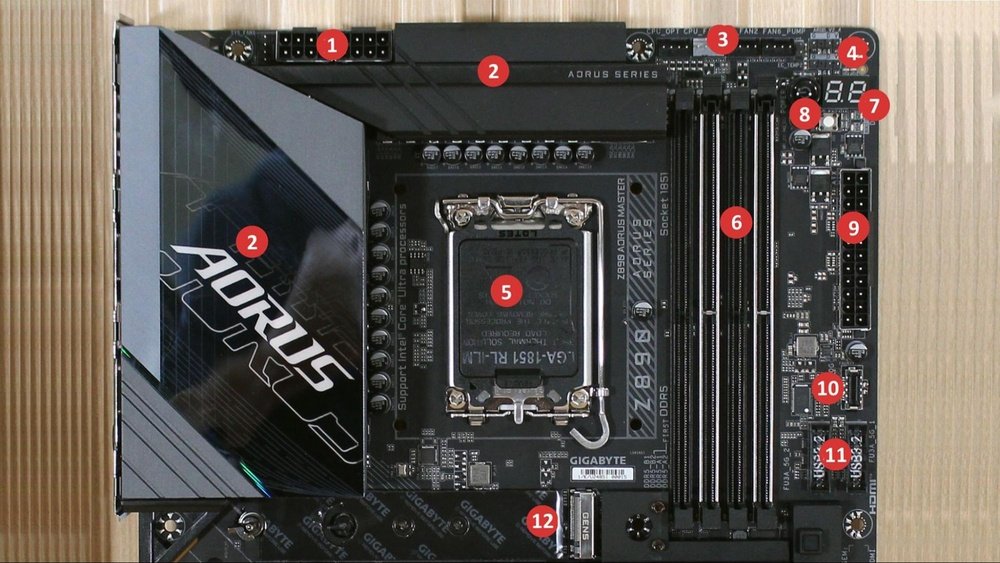
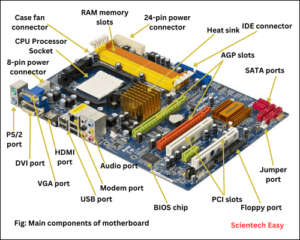
Power and system management ports play a key role in a motherboard’s function. They deliver electricity to the entire system. These ports also control cooling and lighting. Proper power delivery keeps the system stable. System management ports help maintain safe temperatures. They manage fan speeds and RGB lighting effects.
24-pin Atx Power Connector
The 24-pin ATX power connector is the main power source. It connects the power supply to the motherboard. This port provides electricity to most components. Without it, the motherboard cannot run. It is usually the largest power connector. Ensuring a solid connection here is crucial for stability.
Cpu Power Connectors
CPU power connectors supply extra power to the processor. They come in 4-pin, 8-pin, or sometimes 8+4-pin forms. These connectors deliver the energy the CPU needs. High-performance CPUs require more power. A loose or missing connection can cause crashes or failure to boot.
Fan And Rgb Headers
Fan headers control cooling fans inside the computer. They allow the motherboard to adjust fan speed. This helps keep the system cool and quiet. RGB headers power and control LED lighting strips. They let users customize the look of their PC. Both headers improve system management and user experience.
Credit: www.liftingitalia.com
Port Selection Tips For 2026
Selecting the right motherboard ports matters more than ever in 2026. Technology changes fast. New devices need new connections. Choosing the right ports helps your computer run smoothly. It also keeps your system ready for new gadgets. This section guides you through key tips for picking ports that suit your needs.
Balancing Performance And Compatibility
Choose ports that match your devices. USB-C and USB 3.2 offer fast data transfer. Older USB 2.0 ports keep support for older gadgets. HDMI and DisplayPort are vital for video output. Ensure your ports work with your monitor and accessories. Avoid ports you do not plan to use. This keeps your build simple and efficient.
Future-proofing Your Build
Select ports that will stay useful for years. USB4 and Thunderbolt 4 are good choices. They work with many future devices. More USB-C ports help connect newer devices. Consider adding multiple video output ports. This allows easy upgrades to new monitors. Think about charging ports too. Fast charging through USB-C saves time and clutter.
Budget Considerations
More ports can mean higher motherboard cost. Focus on the ports you really need. Avoid paying extra for unused features. Basic USB 3.2 and HDMI ports suit most users well. Prioritize ports that improve daily use. Balance your budget with your device needs. This keeps your build affordable and practical.
Frequently Asked Questions
What Are The Essential Ports On A Motherboard?
Essential motherboard ports include USB, HDMI, audio jacks, Ethernet, and PCIe slots. These ports allow connectivity for peripherals, displays, networks, and expansion cards.
Why Is Usb Port Type Important On Motherboards?
USB port types affect data transfer speed and device compatibility. USB 3. 0 and above offer faster speeds and support newer devices compared to USB 2. 0.
How Do Hdmi And Displayport Differ On Motherboards?
HDMI and DisplayPort both transmit video and audio, but DisplayPort supports higher resolutions and refresh rates, ideal for gaming and professional displays.
What Role Does The Ethernet Port Play On Motherboards?
The Ethernet port provides a reliable wired internet connection. It supports faster, stable networking for gaming, streaming, and professional use compared to Wi-Fi.
Conclusion
Choosing the right motherboard ports helps your computer work best. USB ports connect many devices like keyboards and phones. HDMI and DisplayPort let you see your screen clearly. Audio ports bring sound from speakers or headphones. Ethernet ports give a stable internet connection.
Knowing these ports makes buying easier and smarter. Your computer will fit your needs well. Simple choices lead to smooth and fast use. Think about what devices you use most. That way, your setup stays useful and ready.