How to See Temperature of Cpu: Easy Steps to Monitor Safely
Are you worried that your computer might be overheating? Knowing how to see the temperature of your CPU is one of the easiest ways to keep your system running smoothly.
When your CPU gets too hot, it can slow down, freeze, or even get damaged. But don’t worry—you don’t need to be a tech expert to check it. You’ll learn simple, step-by-step methods to find out your CPU’s temperature quickly.
By the end, you’ll have the tools to protect your computer and boost its performance. Keep reading to take control of your CPU’s health now!

Credit: www.alcpu.com
Why Monitor Cpu Temperature
Monitoring CPU temperature helps prevent overheating and keeps your computer running smoothly. Knowing how to see your CPU’s temperature lets you catch problems early and protect your hardware. Simple tools can show real-time temperature with just a few clicks.
Prevent Overheating
CPUs generate heat during use. Too much heat causes damage. Monitoring temperature helps avoid overheating. Overheating can slow down your computer. It can also cause sudden shutdowns. Keeping an eye on temperature keeps your PC safe.
Improve Performance
High CPU temperature reduces speed. The processor lowers performance to cool down. Watching temperature helps maintain fast speeds. You can stop slowdowns by acting early. A cooler CPU means better work and play.
Extend Hardware Life
Heat wears out computer parts faster. Constant high temperature shortens CPU life. Monitoring temperature protects your investment. It helps your computer last many years. A cooler CPU means fewer repairs.
Detect Cooling Problems
Fans and cooling systems may fail. Temperature rise signals cooling issues early. You can fix or replace parts on time. Early detection prevents bigger damage later. Temperature monitoring keeps your system stable.
Signs Of Overheating
Knowing the signs of CPU overheating is very important. It helps protect your computer from damage. Overheating can slow down your system and cause crashes. Detecting these signs early can save time and money.
Watch for unusual behavior. It often hints that your CPU temperature is too high. Understanding these signs helps you take action quickly. Keep your computer running smoothly and safely.
Unexpected Shutdowns Or Restarts
Your computer may turn off without warning. This happens because the CPU is too hot. To protect itself, the system shuts down automatically. Frequent shutdowns are a clear sign of overheating.
System Slows Down
The CPU reduces speed to cool down. You might notice programs running slower than usual. Tasks take longer to finish. This slowdown helps prevent damage from heat.
Loud Fan Noise
The cooling fan works harder when the CPU is hot. You hear louder or constant fan noise. This tries to lower the temperature inside the computer. Loud fans often mean your CPU is overheating.
Unusual Error Messages
Error messages appear during high CPU temperatures. These messages warn about overheating or hardware issues. Ignoring these alerts can lead to serious problems. Pay attention to these warnings to avoid damage.
High Temperature Readings In Monitoring Software
Use software tools to check your CPU temperature. Numbers above the normal range indicate overheating. Regular monitoring helps catch heat issues early. This step is key to keeping your CPU safe.
Built-in Tools For Checking Cpu Temp
Checking your CPU temperature helps keep your computer safe from overheating. Many computers come with built-in tools that show CPU temperature. These tools do not need extra software. They are easy to use and give quick results.
Bios/uefi Interface
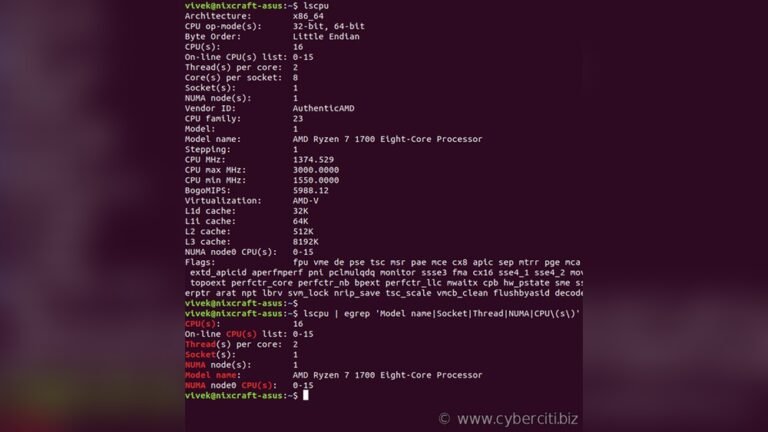
The BIOS or UEFI is the first screen you see when starting your PC. It has a section for hardware information. You can find CPU temperature here. Restart your computer and press the key to enter BIOS/UEFI. This key is often Delete, F2, or Esc. Look for “Hardware Monitor” or “PC Health” to see the CPU temp. The reading updates in real time but only works when the PC is off or restarting.
Windows Task Manager
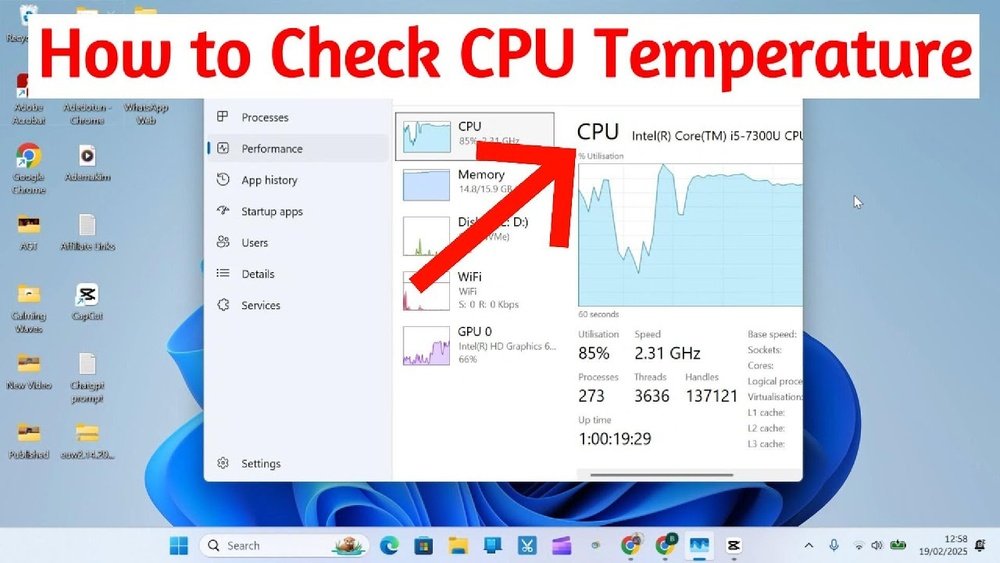
Windows Task Manager shows many system details but not CPU temperature by default. Some newer Windows versions or specific PC brands include temperature info here. Open Task Manager by pressing Ctrl + Shift + Esc. Click the “Performance” tab and select “CPU.” If temperature shows, it appears near CPU usage. If not, you need other tools to check CPU temp on Windows.
Mac Activity Monitor
Mac Activity Monitor is a built-in tool for monitoring system resources. It does not show CPU temperature directly. To check CPU temp on a Mac, you usually need third-party apps. However, Activity Monitor helps track CPU load and memory use. These details help understand if your Mac is working too hard. For temperature, check System Report under “Hardware” for some models, but it’s limited.
Credit: www.youtube.com
Third-party Software Options
Third-party software offers a simple way to check your CPU temperature. These programs show detailed information about your CPU and other hardware. They are easy to install and use. Most of them work on different Windows versions.
These tools help you monitor your CPU temperature in real time. They also display other useful data like voltage and fan speed. Using third-party software can prevent overheating and improve your PC’s performance.
Hwmonitor
HWMonitor is a popular tool for monitoring hardware status. It shows temperatures, voltages, and fan speeds clearly. The interface is simple and easy to read. HWMonitor supports many CPU models and sensors. It updates data continuously to keep you informed.
Core Temp
Core Temp focuses only on CPU temperature. It shows the temperature of each core separately. This helps to find hot spots inside your processor. The program is lightweight and does not slow your PC. Core Temp also supports logging and alerts.
Speedfan
SpeedFan monitors temperature, fan speed, and voltages. It can also control fan speeds automatically. This helps to keep your PC cool and quiet. SpeedFan works with many different hardware sensors. It has an advanced interface but remains user-friendly.
Using Command Line To Check Temperature
Checking your CPU temperature through the command line is fast and efficient. It requires no extra software with a graphical interface. This method suits users who prefer simple text commands. It works on both Windows and Linux systems. Below, learn how to check CPU temperature using command line tools.
Windows Powershell Commands
Windows users can access CPU temperature using PowerShell commands. First, open PowerShell as an administrator. Use the command Get-WmiObject MSAcpi_ThermalZoneTemperature -Namespace "root/wmi". This command shows temperature data from your CPU’s sensors.
Note that the temperature is in tenths of degrees Kelvin. Convert it by subtracting 2732, then divide by 10. For example, to get the temperature in Celsius, use:
(Get-WmiObject MSAcpi_ThermalZoneTemperature -Namespace "root/wmi").CurrentTemperature / 10 - 273.15This command returns the current CPU temperature in Celsius. Keep in mind that some systems may not report temperature correctly via this method.
Linux Terminal Tools
Linux provides several terminal tools to check CPU temperature. The most common is lm-sensors. Install it using your package manager, for example, sudo apt install lm-sensors. After installation, run sudo sensors-detect to find your sensors.
Once set, type sensors to display temperature readings. You will see CPU temperature along with other sensor data. Another tool is hddtemp for hard drive temperature, but it does not measure CPU heat.
For real-time monitoring, use watch sensors. This updates temperature readings every two seconds. These tools give a simple way to track CPU temperature in Linux.
Safe Temperature Ranges For Cpus
Knowing the safe temperature range for your CPU helps keep your computer healthy. CPUs run best within specific temperature limits. Staying inside these limits prevents damage and slows down. This guide explains what temperatures are safe for most CPUs.
What Is A Safe Idle Temperature?
Idle temperature means the CPU temperature when your computer does little work. Usually, a safe idle temperature is between 30°C and 45°C. If your CPU stays higher at idle, it might need cleaning or better cooling.
Safe Temperature During Normal Use
While using your computer for tasks like browsing or watching videos, the CPU works harder. In this case, a safe temperature range is 40°C to 65°C. Temperatures above this may cause your CPU to slow down to avoid damage.
Maximum Temperature Limits
Each CPU has a maximum temperature limit set by the manufacturer. This limit usually falls between 85°C and 100°C. Reaching this temperature often leads to automatic shutdown to protect the CPU.
Signs Your Cpu Is Running Too Hot
Unexpected shutdowns, slow performance, or loud fan noise are signs of high CPU temperature. Check your CPU temperature if you notice these problems. Cooling issues or dust buildup often cause overheating.
Tips To Prevent Overheating
Keeping your CPU cool is key to a healthy computer. Overheating can cause slow performance and damage parts. Simple steps help lower the temperature and protect your system.
These tips improve airflow, reduce dust, and help your CPU run smoothly.
Improve Airflow
Good airflow moves hot air out and fresh air in. Place your computer in a spot with open space around it. Avoid tight spaces like cabinets or corners. Use extra fans if needed to push air through the case. Check fan directions to ensure air flows correctly.
Clean Dust Regularly
Dust blocks airflow and traps heat. Clean your computer every few months. Use a soft brush or compressed air to remove dust from fans, vents, and heatsinks. Turn off and unplug your PC before cleaning. This simple task helps keep your CPU cool.
Use Quality Thermal Paste
Thermal paste fills gaps between your CPU and cooler. Good paste improves heat transfer. Replace old or dried paste every year or when you remove the cooler. Apply a small, even layer for the best results. This keeps your CPU cooler under load.
When To Seek Professional Help
Knowing your CPU temperature is important. Sometimes, the issue needs a professional touch. Knowing when to seek help keeps your computer safe.
Minor temperature rises can be normal. But some signs show a serious problem. Act fast to avoid damage.
Signs Of Overheating Beyond Basic Fixes
Frequent shutdowns or restarts show overheating. Fans running loudly and constantly is another sign. If cleaning dust does not help, get help.
Unusual Cpu Temperature Readings
Temperatures above 90°C are dangerous. If software shows strange or inconsistent readings, the sensor might be faulty. A technician can check this properly.
Hardware Issues Affecting Temperature
Broken or failing fans cause heat buildup. Thermal paste dried out or missing also raises temperature. Professionals can replace parts safely.
After Diy Steps Fail
Trying to cool your CPU by cleaning or software settings helps sometimes. If problems continue, professional repair is best. It prevents further damage.

Credit: openhardwaremonitor.org
Frequently Asked Questions
How Can I Check My Cpu Temperature On Windows?
You can check CPU temperature using software like HWMonitor or Core Temp. These tools display real-time temperature readings easily.
What Is A Safe Cpu Temperature Range During Use?
A safe CPU temperature typically ranges from 30°C to 70°C. Temperatures above 80°C may cause overheating and damage.
Can Bios Show Cpu Temperature Without Software?
Yes, most BIOS setups display CPU temperature under hardware monitoring. Access BIOS during startup to view these readings.
Why Does My Cpu Temperature Suddenly Rise?
CPU temperature can rise due to heavy tasks, poor cooling, or dust buildup. Ensure proper airflow and clean your PC regularly.
Conclusion
Knowing your CPU temperature helps keep your computer safe. You can check it with simple tools or built-in software. Watching the temperature stops your PC from overheating. It also helps you fix problems early. Keep your system cool and running well.
Regular checks make your computer last longer. Stay alert and protect your device easily.