Pc Case Airflow Not Working Properly Fix: Quick & Easy Solutions
Is your PC running hotter than usual or making loud fan noises? If your PC case airflow is not working properly, it can cause your computer to overheat and slow down.
You might not realize how important good airflow is until problems start piling up. But don’t worry—fixing this issue is easier than you think. You’ll discover simple and effective ways to improve your PC’s airflow, keep your system cool, and boost its performance.
Keep reading—you’re just a few steps away from a cooler, faster PC.
Signs Of Poor Airflow
Poor airflow inside a PC case can cause many problems. It stops cool air from reaching important parts. Hot air gets trapped, making the computer run hotter than normal. This can shorten the life of your hardware and reduce performance. Recognizing the signs of poor airflow helps you fix issues fast. Catch problems early to keep your PC running smoothly.
Overheating Components
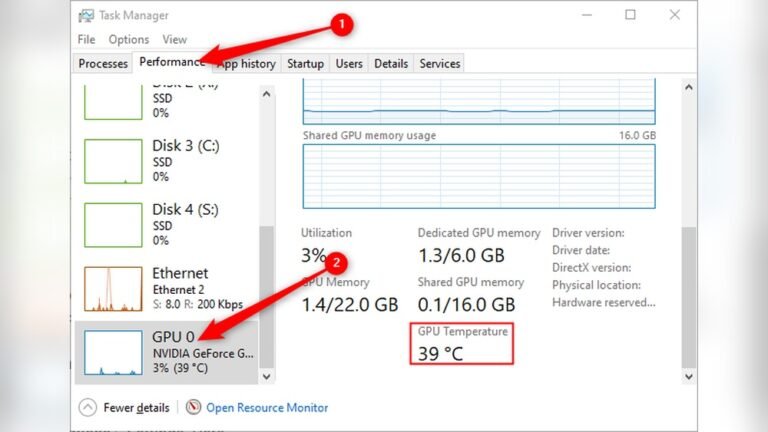
One clear sign of poor airflow is overheating parts. The CPU, GPU, and other components get very hot. They may reach unsafe temperatures quickly. Overheating can cause your computer to slow down or shut off. You might notice the system feels hot or the fans spin faster. High temperatures can damage your hardware over time.
Increased Fan Noise
Fans work harder when airflow is poor. They speed up to cool hot parts. This makes your PC louder than usual. Constant loud fan noise means the system struggles to stay cool. The fans may run at full speed for long periods. This noise signals that airflow is not enough to cool the PC properly.
Dust Accumulation
Dust blocks air vents and fan blades. It builds up inside the case over time. Dust reduces airflow and traps heat. A thick layer of dust makes cooling less effective. You might see dust on fan grills or inside the case. Cleaning dust regularly helps maintain good airflow and cooling.

Credit: www.youtube.com
Common Causes Of Airflow Issues
Poor airflow inside a PC case causes overheating and slows down performance. Understanding common airflow issues helps improve cooling. These problems often come from simple mistakes or blockages.
Incorrect Fan Placement
Fans must push air in and out correctly. Intake fans bring cool air inside. Exhaust fans push hot air out. Placing fans in the wrong spots stops airflow. Fans facing the wrong way cause air to circulate poorly.
Clogged Air Filters
Air filters stop dust from entering the PC. Dust buildup blocks air movement. Clogged filters reduce airflow and raise temperatures. Clean or replace filters regularly to keep air flowing well.
Obstructed Air Vents
Vents allow air to move through the case. Objects or dust blocking vents trap hot air inside. Keep vents clear of cables, parts, and dust. Good vent clearance improves cooling.
Cable Management Problems
Loose cables inside the case block airflow paths. Messy cables create air pockets where heat builds up. Organize cables using ties or clips. Clean cable management helps air move freely through the case.
Optimizing Fan Setup
Optimizing your PC case fan setup improves airflow and keeps your system cool. Fans move air through the case, removing hot air and bringing in fresh air. A good fan setup lowers temperatures and helps your PC run smoothly.
Choosing The Right Fans
Select fans that fit your case size and airflow needs. Larger fans move more air with less noise. Look for fans with good airflow (measured in CFM) and low noise levels (measured in dBA). Quality fans last longer and work better.
Proper Intake And Exhaust Balance
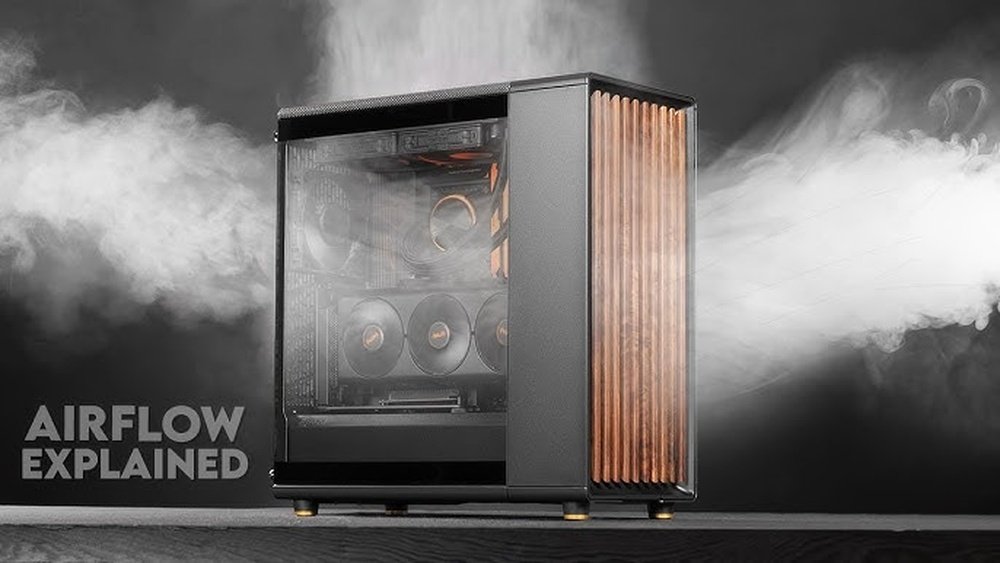
Set fans to create a steady airflow path. Intake fans bring cool air inside the case. Exhaust fans push hot air out. Balance intake and exhaust fans to avoid air pockets. Too many intake fans cause positive pressure; too many exhaust fans cause negative pressure. Balanced airflow reduces dust buildup and improves cooling.
Adjusting Fan Speeds
Control fan speeds for quieter and efficient cooling. Use BIOS or software to set fan curves based on temperature. Slow fans at low temps reduce noise. Speed fans up as the system heats. Proper speed control extends fan life and keeps your PC cool without loud noise.

Credit: coolifycool.com
Cleaning And Maintenance Tips
Keeping your PC case clean is key to good airflow. Dust and dirt block air, causing heat to build up. Regular cleaning and care help your PC run cool and last longer. Follow these simple tips to keep your PC case in top shape.
Removing Dust And Debris
Turn off your PC and unplug it before cleaning. Use a soft brush or canned air to remove dust from fans and vents. Avoid using a vacuum as it can damage parts. Clean hard-to-reach spots carefully to stop dust from settling again. Dust-free fans spin better and cool faster.
Maintaining Filters
Many PC cases have dust filters on vents. Remove these filters gently and rinse them with water. Let them dry completely before putting them back. Clean filters stop dust from entering your PC while letting air flow freely. Replace filters if they get torn or too dirty.
Regular Inspection Schedule
Check your PC case every month for dust or blockages. Look at fans, vents, and filters closely. Early cleaning prevents dust build-up and overheating. Keep a small brush and canned air handy for quick cleaning. Regular checks keep your PC running cool and smooth.
Improving Internal Airflow
Improving internal airflow is key to fixing poor PC case ventilation. Good airflow keeps your components cool and prevents overheating. It also extends the life of your hardware and improves performance. Simple changes inside the case can make a big difference. Focus on organizing cables, repositioning components, and choosing the right case for airflow.
Organizing Cables
Cables can block the flow of air inside your PC. Messy cables create pockets of hot air that damage components. Use cable ties or Velcro straps to bundle cables neatly. Route them behind the motherboard tray if possible. Clear airflow paths help cool air reach all parts. Keep cables away from fans and vents.
Repositioning Components
Some parts may block airflow if placed poorly. Move large components like graphics cards or hard drives to open spaces. Avoid stacking drives or placing them near intake fans. Position fans to create a smooth airflow from front to back. Ensure hot air can exit the case easily. Proper spacing helps air circulate better and cool components faster.
Using Airflow-optimized Cases
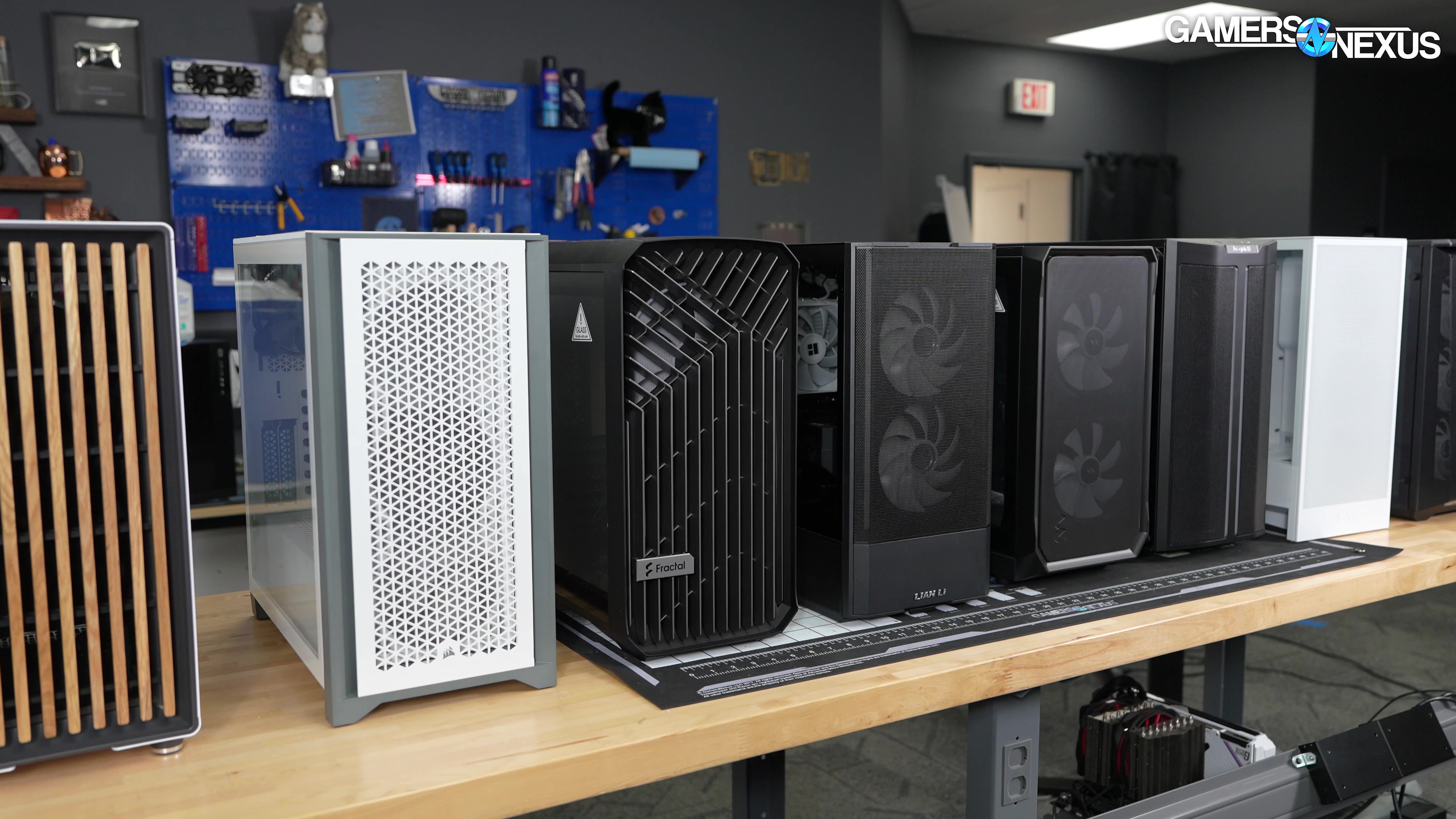
Cases designed for airflow improve cooling naturally. These cases have more fan mounts and better ventilation. Look for cases with mesh front panels and top exhausts. Good cases allow fresh air to enter and hot air to leave quickly. Using an airflow-optimized case reduces the chance of heat buildup inside your PC.
Advanced Cooling Solutions
Advanced cooling solutions improve your PC’s airflow and keep components cool. Basic cooling might not be enough for high-performance parts. Advanced methods help reduce heat and boost system stability. These solutions include adding more fans, switching to liquid cooling, and using fan controllers. Each method targets airflow issues in a specific way.
Installing Additional Fans
Adding more fans increases air movement inside the case. Place intake fans at the front and exhaust fans at the back or top. This setup creates a steady airflow path. Choose fans with good airflow and low noise levels. Proper fan placement avoids hot spots and cools all components evenly.
Upgrading To Liquid Cooling
Liquid cooling uses a pump to move coolant through tubes and a radiator. It handles heat better than air cooling alone. This method suits CPUs or GPUs that run very hot. Radiators can be mounted inside or outside the case. Liquid cooling lowers temperatures and can reduce fan noise.
Using Fan Controllers
Fan controllers let you adjust fan speeds manually or automatically. Control fans based on temperature sensors inside the case. Slower speeds reduce noise when the system is cool. Higher speeds increase airflow under heavy load. Fan controllers balance cooling performance and noise levels effectively.
Credit: gamersnexus.net
Frequently Asked Questions
Why Is My Pc Case Airflow Not Working?
Poor PC case airflow often results from obstructed fans or incorrect fan placement. Dust buildup and closed vents can also reduce airflow. Checking fan orientation and cleaning dust filters helps restore proper ventilation and cooling efficiency.
How Can I Fix Low Airflow In My Pc Case?
To fix low airflow, clean all dust filters and fans. Ensure intake and exhaust fans are correctly positioned. Use cable management to avoid airflow blockage. Adding extra fans or upgrading to higher CFM fans can also improve airflow.
Does Fan Direction Affect Pc Airflow?
Yes, fan direction directly impacts airflow. Intake fans should pull cool air in, and exhaust fans push hot air out. Incorrectly oriented fans cause air circulation issues, leading to overheating and poor cooling performance.
Can Dust Cause Airflow Problems In Pc Cases?
Dust is a major cause of airflow problems. It clogs fans, filters, and vents, restricting air movement. Regular cleaning every few months prevents dust buildup and maintains optimal airflow and cooling efficiency.
Conclusion
Good airflow keeps your PC cool and running well. Check fan direction and clean dust regularly. Use enough fans to create clear air paths. Avoid blocking vents with cables or parts. Test your setup after changes to see improvements. Small fixes can stop overheating and slowdowns.
Stay patient and adjust step by step. A cool PC lasts longer and works faster. Keep airflow in mind for better performance every day.