Pc Beeping After Ram Upgrade How to Fix: Quick & Easy Solutions
Have you just upgraded your PC’s RAM, only to be greeted by a series of beeps? That sudden beeping can be confusing and worrying.
But don’t panic—these sounds are your computer’s way of telling you something isn’t quite right. You’ll learn exactly why your PC is beeping after the RAM upgrade and, most importantly, how to fix it quickly. Keep reading, and you’ll have your computer running smoothly again in no time.
Common Causes Of Beeping After Ram Upgrade
Beeping sounds from your PC after a RAM upgrade signal a problem. These beeps help identify what went wrong. Understanding common causes helps fix the issue fast. Many problems relate to installation, compatibility, or system settings.
Incorrect Ram Installation
RAM must fit correctly in its slot. Press it firmly until it clicks. Loose or tilted RAM causes beeps. Check if the RAM sticks are aligned properly. Remove and reinstall to ensure a secure fit.
Incompatible Ram Modules
Not all RAM sticks work with every motherboard. Different types or speeds may cause errors. Check your motherboard manual for compatible RAM. Mixing brands or sizes can also lead to beeping. Use matching RAM modules for best results.
Faulty Ram Slots
Sometimes the problem is the slot, not the RAM. Dust or damage in slots can cause errors. Clean the slots gently with compressed air. Try inserting RAM into a different slot. This helps find if a slot is faulty.
Bios And Firmware Issues
Old BIOS may not recognize new RAM. Update BIOS to support the latest memory. Firmware updates fix compatibility problems. Check your motherboard’s website for updates. Updating can stop beeping after installing new RAM.

Credit: www.youtube.com
Diagnosing The Beep Codes
After upgrading your RAM, your PC may beep at startup. These beeps are signals from the motherboard. They tell you what might be wrong. Understanding these beep codes helps fix issues faster. This section explains how to read and use beep codes to solve problems.
Identifying Different Beep Patterns
Beep codes come in patterns like short, long, or repeated beeps. Each pattern means something different. For example, one long beep and two short beeps often point to RAM problems. Counting the beeps and their length is the first step. Write down the pattern you hear. This info helps narrow down the issue.
Consulting Motherboard Manual
Your motherboard manual is a key resource. It lists beep codes specific to your model. Find the beep codes section in the manual. Match your beep pattern with the codes listed. The manual tells you what each code means. It also suggests steps to fix the problem.
Using Online Resources
Many websites explain beep codes for different motherboards. Search for your motherboard model and beep code online. Forums and tech sites offer useful advice. Videos can also show how to check and fix beep code issues. Use these resources to get clear answers fast.
Step-by-step Fixes For Ram Beeping
Hearing beeps after upgrading your RAM can be alarming. These sounds signal a hardware issue that stops your PC from starting properly. The good news? You can fix these problems step-by-step without special tools. Follow these simple instructions to solve the beeping and get your computer running smoothly again.
Power Down And Re-seat Ram
Turn off your PC and unplug it from the power source. Open the computer case carefully to access the RAM slots. Remove the RAM sticks by pressing the clips on the sides. Check the RAM modules for dust or dirt. Gently clean the gold contacts with a soft cloth if needed. Re-insert the RAM sticks firmly into their slots until the clips snap back. Close the case and power on your PC to check for beeps.
Test Ram Modules Individually
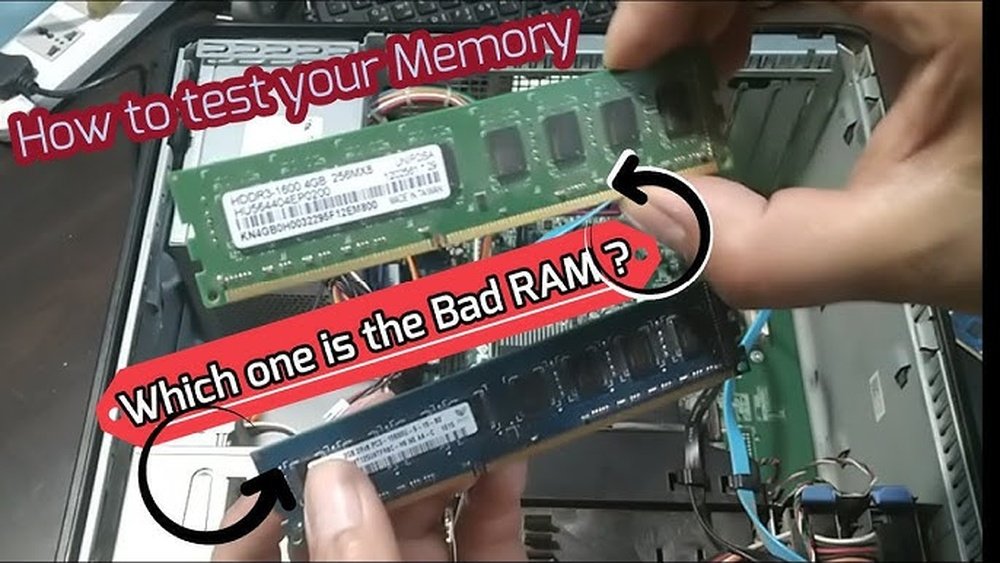
Remove all RAM sticks except one. Insert a single stick into the first RAM slot. Turn on your computer and listen for beeps. No beeps mean the module is likely good. If beeping continues, try another stick in the same slot. Test each RAM module one by one. This process helps identify if any stick is faulty.
Try Different Ram Slots
Sometimes the slot itself causes the problem. Insert a working RAM stick into a different slot. Power on your PC and listen for beeps. No beeps mean the slot is fine. Beeps suggest the slot may be damaged or dirty. Test all slots to find the problem. This method helps isolate faulty RAM slots.
Reset Bios To Default Settings
Resetting BIOS clears any memory configuration errors. Turn off your PC and unplug it. Locate the CMOS battery on the motherboard. Remove it carefully and wait for 5 minutes. Reinsert the battery and close the case. Power on your PC and enter BIOS setup. Select the option to load default settings. Save and exit BIOS. This reset often fixes memory detection issues causing beeps.

Credit: www.reddit.com
Using Diagnostic Tools
After upgrading your RAM, your PC might beep. These sounds help find the problem. Using diagnostic tools can show where the issue lies. They test the memory and motherboard for errors. This saves time and helps you fix the PC quickly.
Memory Testing Software
Memory testing software checks your RAM for faults. It runs tests to find bad memory sections. Windows has a tool called Windows Memory Diagnostic. You can also use MemTest86, a popular free tool. These programs scan RAM deeply and report errors clearly. Run these tests if your PC beeps after installing new RAM.
Motherboard Diagnostic Leds
Many motherboards have diagnostic LEDs or lights. These lights show hardware problems using colors or patterns. Check your motherboard manual to understand the signals. The LEDs can pinpoint if RAM or another part causes the beep. This method offers a quick and easy way to find issues without extra software.
Third-party Diagnostic Utilities
Third-party utilities offer detailed hardware checks. Tools like HWMonitor or AIDA64 provide system health reports. They track temperature, voltage, and component status. These programs help spot problems beyond just the RAM. Use these tools for a full hardware review after a RAM upgrade.
Preventing Ram Upgrade Issues
Upgrading your RAM can boost your PC’s speed and performance. Still, issues like beeping sounds after installation can occur. Preventing these problems starts before you open your PC case. Careful planning and simple steps reduce errors and frustration.
Choosing Compatible Ram
Select RAM that matches your motherboard specifications. Check the type, speed, and size supported by your system. Use your PC manual or manufacturer’s website for guidance. Incompatible RAM causes errors and beeping sounds.
Proper Handling And Installation
Handle RAM carefully to avoid damage. Touch metal parts only and avoid static electricity. Ground yourself before starting the upgrade. Insert RAM sticks firmly into slots until they click. Loose or wrongly installed RAM triggers beeping alerts.
Updating Bios Before Upgrade
Update your motherboard BIOS to support new RAM modules. An outdated BIOS may not recognize upgraded memory. Visit your motherboard’s official website for the latest BIOS version. Follow instructions carefully to avoid system issues.

Credit: www.reddit.com
Frequently Asked Questions
Why Is My Pc Beeping After A Ram Upgrade?
Beeping sounds after a RAM upgrade usually indicate memory issues. The RAM might be improperly seated or incompatible. It can also signal faulty or damaged RAM modules. Checking installation and compatibility often resolves this problem quickly.
How To Fix Ram Beeping Errors After Upgrade?
First, power off and reseat the RAM sticks firmly. Ensure modules match motherboard specifications. Clean slots from dust or debris. Test each RAM stick individually to identify faulty ones. Updating BIOS can also help fix compatibility issues.
What Do Different Beep Codes Mean After Ram Installation?
Beep codes vary by motherboard brand. Typically, continuous beeps indicate RAM failure. One long beep plus two short beeps may mean video or memory errors. Refer to your motherboard manual for exact beep code meanings to diagnose properly.
Can Incompatible Ram Cause Pc Beeping After Upgrade?
Yes, incompatible RAM can trigger beep codes and prevent booting. Motherboards require specific RAM types and speeds. Using unsupported RAM causes errors and instability. Always check motherboard compatibility before buying new RAM.
Conclusion
A PC beeping after a RAM upgrade means something needs fixing. Check if the RAM sticks fit correctly in the slots. Make sure the RAM is compatible with your motherboard. Clear any dust or dirt from the slots. Restart your PC after adjustments.
These simple steps often solve the problem fast. Stay calm and patient while troubleshooting. Your computer will run smoothly once the issue is fixed. Keep these tips in mind for future upgrades.