How to Lower the Temperature of Cpu: Proven Cooling Tips
Is your CPU running hotter than it should? High temperatures can slow down your computer, cause crashes, and even damage your hardware over time.
You don’t have to accept a hot, noisy machine as normal. You’ll discover simple, effective ways to lower your CPU temperature right now. Whether you’re a gamer, a student, or someone who uses their computer every day, these tips will help keep your system cool and running smoothly.
Keep reading to protect your CPU and boost your computer’s performance today.
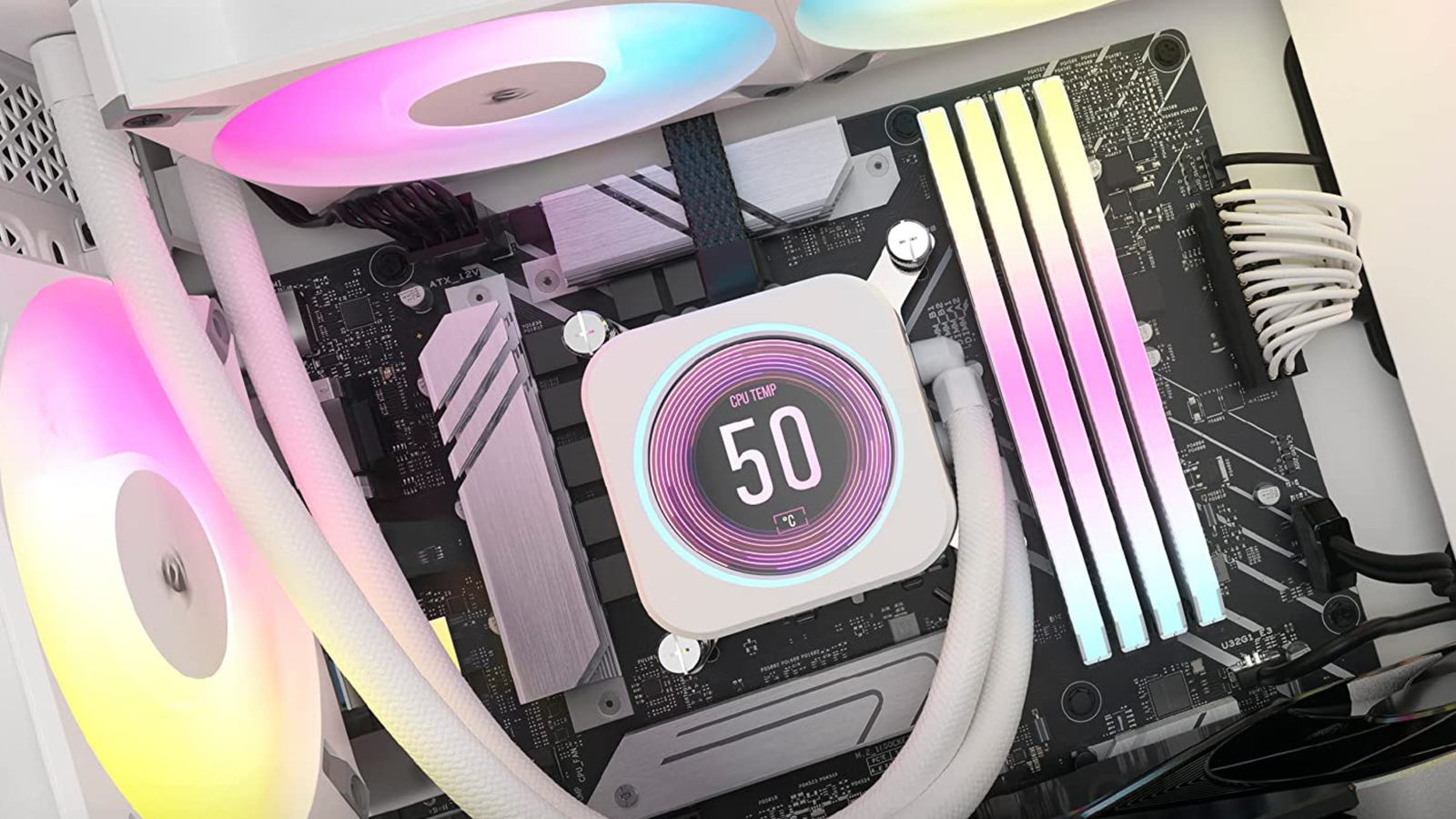
Credit: www.xda-developers.com
Causes Of High Cpu Temperature
High CPU temperature can cause slow performance and hardware damage. Understanding what causes this heat is important. It helps you find the right ways to cool your CPU effectively.
Several factors can raise the CPU temperature. Some come from how the CPU works. Others come from the environment or how the computer is built.
Heat Generation In Cpus
CPUs create heat as they work. Electrical energy changes into heat energy inside the chip. The faster the CPU runs, the more heat it produces. Tasks like gaming or video editing make the CPU work harder. This increases heat output quickly.
Modern CPUs have many tiny parts packed close together. This design helps speed but also traps heat. Without proper cooling, the temperature rises fast. Heat affects the CPU’s performance and lifespan.
Common Factors Raising Cpu Heat
Poor airflow inside the computer case raises CPU temperature. Dust on fans and vents blocks air movement. This stops heat from leaving the case.
Old or dried thermal paste between the CPU and cooler reduces heat transfer. The cooler cannot absorb heat well. This makes the CPU hotter.
Overclocking the CPU pushes it beyond normal speed. It creates extra heat that normal cooling might not handle. High room temperature also makes cooling less effective.
Running many programs at once puts heavy load on the CPU. This constant work keeps the temperature high. Power settings that keep the CPU at full speed increase heat too.
Signs Of Overheating
Overheating can harm your CPU and affect your computer’s performance. Knowing the signs of overheating helps you act fast. Watch for these key symptoms to keep your CPU cool and safe.
Performance Slowdowns
Your computer may run slower than usual. Programs take longer to open. Games or videos lag or freeze. This happens because the CPU reduces speed to avoid damage.
Unexpected Shutdowns
Your PC might turn off without warning. This protects the CPU from high heat. Sudden shutdowns often mean the temperature is too high. It is a clear sign you need to check cooling.
Temperature Monitoring Tools
Use software to check your CPU temperature. Many free tools show real-time heat levels. These apps alert you if the CPU gets too hot. Monitoring helps you prevent damage and keep your system stable.
Improving Airflow Inside The Case
Improving airflow inside your computer case is a key step to lower your CPU temperature. Good airflow moves hot air out and brings cool air in. This helps the CPU stay cooler and work better. Simple changes can make a big difference in how air flows inside your case.
Focus on arranging fans, managing cables, and picking the right case. These steps keep air moving smoothly and stop heat from building up.
Optimizing Fan Placement
Place fans to create a clear path for air. Fans at the front pull cool air in. Fans at the back push hot air out. Top fans also help remove rising heat. Avoid blocking fans with parts or cables. Balanced intake and exhaust fans improve airflow and lower temperatures.
Cable Management Tips
Tidy cables to avoid blocking airflow. Use cable ties to bundle cables together. Route cables behind the motherboard tray if possible. Keep cables away from fans and vents. Clean cable paths let air flow freely and reduce heat build-up.
Choosing The Right Case
Pick a case with good ventilation and fan support. Cases with mesh panels allow more air in. Larger cases give more space for air to move. Look for cases with multiple fan mounts. A well-ventilated case helps keep the CPU cool longer.
Upgrading Cooling Solutions
Upgrading the cooling system of your CPU is a key step to reduce its temperature. Better cooling means your processor runs smoothly and lasts longer. Simple upgrades can bring big changes in performance and stability. Understanding different cooling options helps you pick the best one for your setup.
Air Coolers Vs Liquid Coolers
Air coolers use fans and heat sinks to move heat away from the CPU. They are usually easy to install and cost less. Air coolers work well for most users and require little maintenance.
Liquid coolers use water or coolant to absorb heat. They often cool the CPU better than air coolers. These systems include a pump, tubes, and a radiator with fans. Liquid coolers are quieter but can be more expensive and need careful installation.
Installing Aftermarket Coolers
Aftermarket coolers replace the stock cooler that comes with your CPU. They offer better cooling performance and lower noise levels. Installing one improves heat dissipation significantly.
Before installation, check the cooler size and your case space. Follow the instructions carefully. Secure the cooler firmly to avoid damage or poor contact with the CPU.
Using Thermal Paste Effectively
Thermal paste helps transfer heat between the CPU and cooler. Applying it correctly improves heat flow and lowers CPU temperature.
Clean the old paste off the CPU and cooler base before applying new paste. Use a small, pea-sized amount in the center of the CPU. Spread it evenly by pressing the cooler down. Avoid using too much paste, as it can reduce cooling efficiency.
Maintaining Your Cooling System
Maintaining your CPU cooling system is key to keeping your computer running cool and smooth. A well-kept cooling system stops overheating and extends your CPU’s life. Regular care helps avoid serious heat problems that can slow down or damage your PC. Simple steps like cleaning and checks make a big difference.
Cleaning Dust And Debris
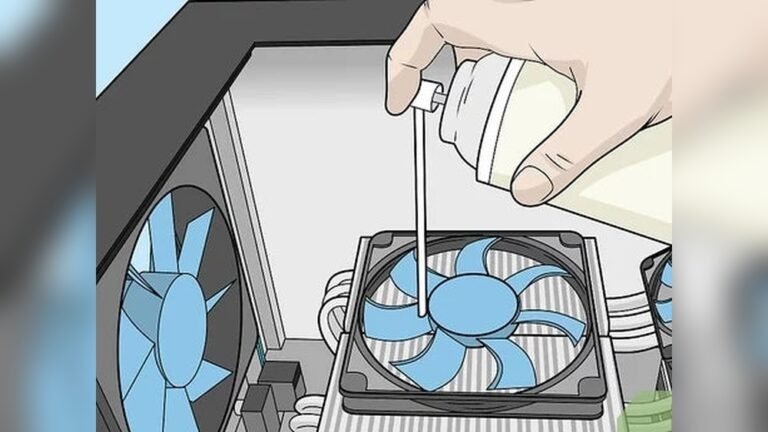
Dust blocks airflow and clogs fans. Remove dust regularly using a soft brush or compressed air. Pay attention to vents, fans, and heat sinks. Keeping these parts clean helps air flow freely. This lowers the CPU temperature and improves cooling efficiency.
Replacing Old Fans
Fans wear out over time and lose power. Old fans make more noise and cool less. Replace fans every few years or when they fail. Choose fans that match your PC’s size and power needs. New fans boost airflow and keep your CPU cooler.
Regular System Checks
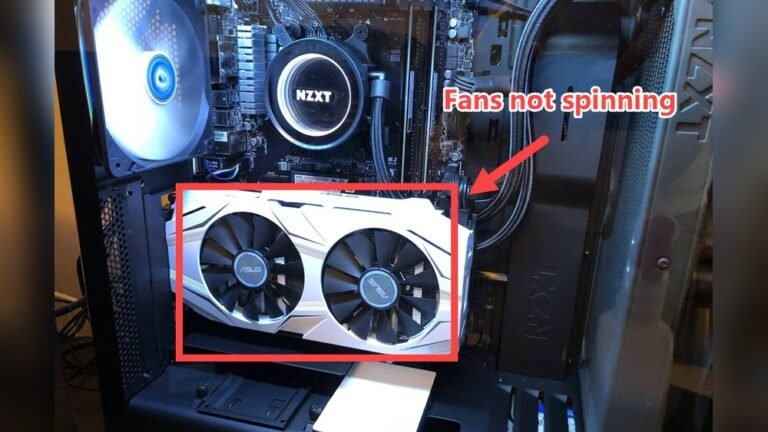
Check your cooling system often for damage or wear. Listen for unusual noises from fans or rattling parts. Make sure all fans spin smoothly and cables are secure. Regular checks catch problems early. Fixing issues fast prevents heat buildup and protects your CPU.

Credit: www.youtube.com
Adjusting Cpu Settings
Adjusting CPU settings helps control the temperature of your processor. It can make your computer cooler and safer. Small changes to voltage, clock speed, and power use can lower heat. These tweaks can keep your CPU running smoothly for longer.
Many computers allow users to change these settings in the BIOS or with special software. Knowing what each option does helps you avoid problems and keep your system stable.
Reducing Cpu Voltage
Lowering the CPU voltage decreases heat output. This process is called undervolting. It means giving the CPU less power than usual. The CPU still works well but produces less heat. Start with small changes and test for stability. Use tools like CPU-Z or Intel XTU to adjust voltage safely.
Underclocking Techniques
Underclocking reduces the CPU’s clock speed. A slower clock means the CPU uses less power. This lowers heat and extends battery life on laptops. Change the multiplier or base clock in BIOS settings. Test your system after changes to avoid crashes or freezes.
Power Management Settings
Adjusting power settings can also lower CPU temperature. Use Windows or Mac power plans to reduce CPU workload. Set the processor state to a lower percentage in advanced power options. This limits the CPU’s maximum speed and cuts heat. Balanced or power saver modes help keep temperatures down.
Environmental Factors
Environmental factors play a key role in keeping your CPU cool. The surroundings affect how well heat moves away from the processor. Small changes in your environment can lower CPU temperature.
Focus on the room and PC setup to help your CPU run cooler. Simple steps improve airflow and reduce heat buildup.
Room Temperature Control
Keep the room where your PC sits cool. A lower room temperature helps the CPU stay cooler. Use air conditioning or fans to reduce heat. Avoid placing the PC in hot or sunny areas. Cooler air means better CPU cooling.
Positioning The Pc
Place your PC in an open space with good airflow. Avoid tight corners or enclosed desks that trap heat. Keep the PC off the floor to reduce dust and improve air intake. Position the PC near vents or windows for fresh air. Good placement helps heat escape fast.
Using External Cooling Devices
External cooling devices add extra airflow around your PC. Cooling pads and external fans blow air to lower CPU temperature. These devices are simple to use and very effective. Use them especially in warm rooms or during heavy PC use. External cooling helps reduce CPU heat quickly.
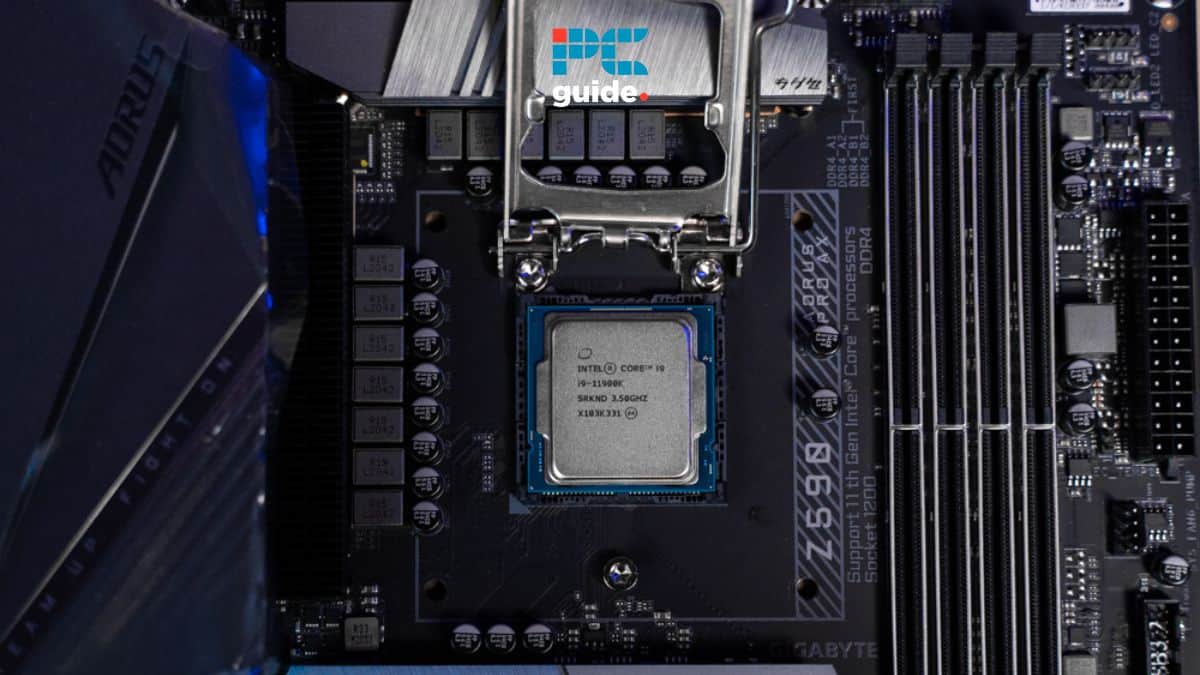
Credit: www.pcguide.com
Frequently Asked Questions
How Can I Reduce Cpu Temperature Quickly?
To reduce CPU temperature quickly, improve airflow by cleaning fans and vents. Use quality thermal paste and ensure proper fan speed settings. Avoid running heavy programs simultaneously to lower CPU load and heat generation.
What Are The Best Cooling Methods For Cpus?
The best CPU cooling methods include air cooling with high-quality fans, liquid cooling systems, and using thermal paste. Each method efficiently dissipates heat, preventing overheating and maintaining optimal CPU performance.
Does Cleaning Dust Help Lower Cpu Temperature?
Yes, cleaning dust from your PC helps lower CPU temperature. Dust blocks airflow and insulates heat, causing the CPU to overheat. Regular cleaning ensures better ventilation and cooling efficiency.
Can Undervolting Reduce Cpu Temperature Effectively?
Undervolting reduces CPU voltage, lowering power consumption and heat output. It effectively decreases CPU temperature without significantly impacting performance, making it a popular method for thermal management.
Conclusion
Keeping your CPU cool helps your computer run better and last longer. Simple steps like cleaning dust, improving airflow, or using better cooling tools can lower temperature fast. Watching your CPU temperature can stop problems before they start. Stay patient and check often to keep things safe.
A cool CPU means a happy, smooth-running computer.