Cpu Temperature Too High at Idle How to Fix: Easy Expert Tips
Is your CPU temperature too high even when your computer is just sitting idle? This can be a serious problem that slows down your system and shortens your hardware’s life.
You might not realize it, but your CPU should stay cool when you’re not using it heavily. If it’s running hot, something is wrong—and you need to fix it fast. You’ll discover simple and effective ways to bring your CPU temperature back to a safe level.
Keep reading to protect your computer and get it running smoothly again.
Causes Of High Idle Cpu Temperature
High CPU temperature at idle means your processor is hotter than normal even when not working hard. This can harm your computer and cause slowdowns. Knowing the causes helps you fix the issue quickly. Several factors can make your CPU run hot without heavy use. Understanding these is the first step to cool your system down.
Dust And Dirt Buildup
Dust blocks fans and vents. It stops cool air from reaching the CPU. Dirt on the heatsink reduces its ability to take heat away. Over time, dust piles up inside the case. This buildup raises the CPU temperature even when idle.
Poor Airflow In Case
Good airflow moves hot air out and brings cool air in. If your case has few fans or cables block air paths, heat stays inside. Poor airflow traps heat around the CPU. This causes the temperature to rise even without heavy tasks.
Thermal Paste Issues
Thermal paste helps heat move from CPU to cooler. Old or dried paste loses this ability. Wrong or missing paste causes poor heat transfer. The CPU then stays hotter than it should while idle.
Background Processes
Some programs run quietly in the background. They use CPU power without obvious signs. These processes keep the CPU busy, raising its temperature. Even small tasks can increase heat if they run constantly.
Overclocking Effects
Overclocking pushes the CPU to work faster than normal. It raises power use and heat output. Even at rest, an overclocked CPU can run hot. Without proper cooling, this leads to high idle temperatures.

Credit: www.reddit.com
Monitoring Cpu Temperature
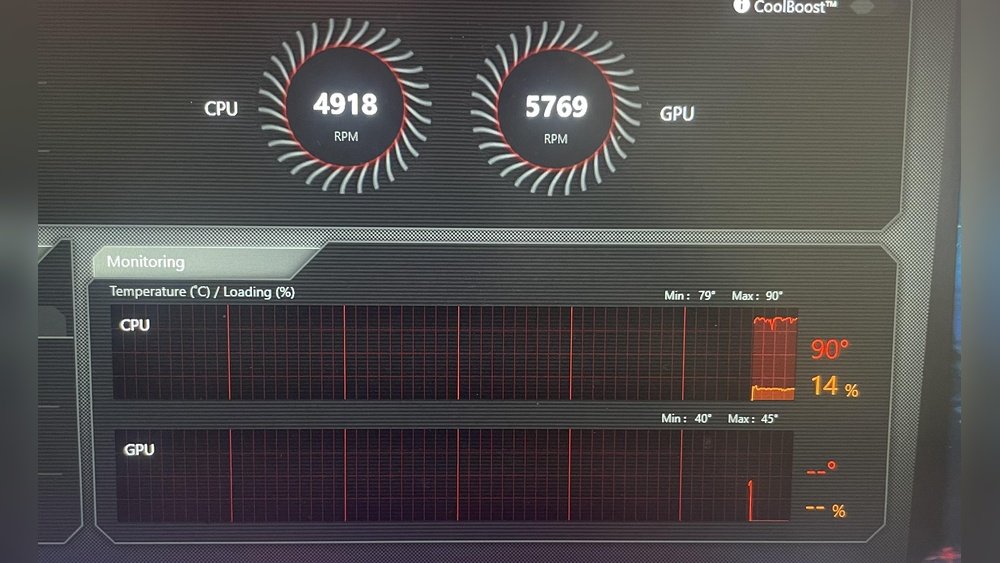
Monitoring CPU temperature is essential for keeping your computer safe and running smoothly. High temperatures at idle can signal problems like poor airflow or dust buildup. Knowing how to check and understand your CPU temperature helps prevent damage and improves performance.
Best Software Tools
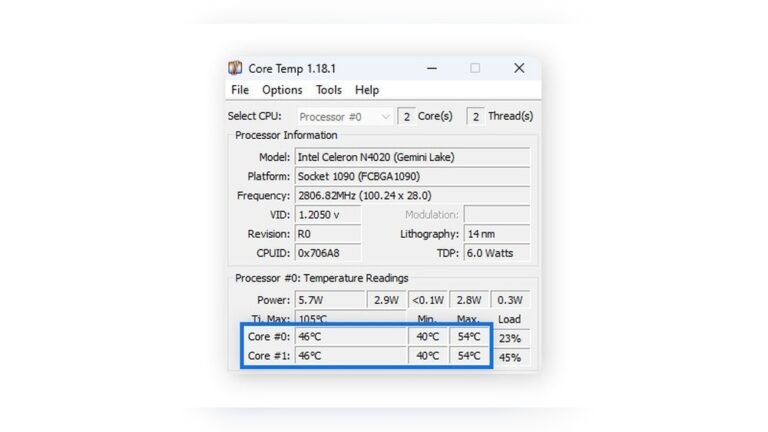
Many tools show real-time CPU temperatures. Popular free options include HWMonitor, Core Temp, and SpeedFan. These programs are easy to install and use. They provide detailed temperature readings and alerts for overheating. Some tools also show fan speed and voltage levels.
Normal Temperature Ranges
CPU temperatures vary by model and usage. At idle, normal ranges are usually between 30°C and 50°C (86°F to 122°F). Under heavy load, temperatures can rise to 70°C or 80°C (158°F to 176°F). Consistently higher idle temperatures may indicate a cooling problem.
Identifying Temperature Spikes
Sudden temperature jumps can harm your CPU. Watch for spikes above 60°C (140°F) at idle. These spikes often happen due to background apps or dust blocking airflow. Regular monitoring helps catch these issues early. Clear dust and close unnecessary programs to reduce spikes.
Basic Cooling Fixes
Basic cooling fixes can help lower your CPU temperature at idle. These steps improve airflow and heat transfer inside your computer. They are simple and do not need much technical skill. Try these fixes before thinking about new hardware.
Cleaning Dust From Components
Dust blocks airflow and traps heat inside your PC. Use a soft brush or compressed air to clean fans, vents, and heatsinks. Do this regularly to keep your system cool. Always turn off and unplug your computer before cleaning.
Improving Case Ventilation
A well-ventilated case moves hot air out and brings cool air in. Check that all fans work and are placed correctly. Remove any objects blocking air vents. You can add extra fans if your case has space for them.
Reapplying Thermal Paste
Thermal paste helps transfer heat from the CPU to the cooler. Over time, it can dry out and lose effectiveness. Remove the old paste carefully and apply a new thin layer. This simple step can lower your CPU temperature significantly.

Credit: www.reddit.com
Advanced Cooling Solutions
Advanced cooling solutions help lower high CPU temperatures during idle. These methods improve airflow and heat dissipation. They keep your system stable and extend hardware life.
Upgrading Cpu Coolers
Stock coolers often struggle with heat control. Upgrading to a better air cooler can reduce temperatures significantly. Choose coolers with larger heatsinks and more heat pipes. Fans with higher airflow ratings work best for cooling. Make sure the cooler fits your CPU socket and case size.
Installing Additional Case Fans
More fans improve airflow inside the case. Place intake fans at the front to bring cool air in. Exhaust fans at the back or top push hot air out. Balanced airflow reduces heat buildup around the CPU. Use quiet fans to keep noise levels low.
Using Liquid Cooling Systems
Liquid cooling offers excellent heat removal compared to air cooling. It uses a pump to move coolant through a radiator and CPU block. This keeps the CPU temperature low even under load. All-in-one (AIO) liquid coolers are easy to install and maintain. Custom loops provide better cooling but require more effort and cost.
Optimizing System Settings
Optimizing system settings can lower your CPU temperature at idle. Simple tweaks help your computer work more efficiently. These changes reduce the load on your CPU and stop it from overheating.
Focus on managing startup programs, adjusting power settings, and disabling unnecessary background tasks. Each step cuts down CPU use and heat build-up.
Managing Startup Programs
Many programs start automatically with your computer. They use CPU power even when not needed. Open your task manager or system settings. Find the list of startup programs. Disable any app that is not essential. This reduces CPU workload and lowers temperature.
Adjusting Power Settings
Power settings affect how your CPU runs. Set your computer to a balanced or power saver mode. This limits CPU speed and heat output. Avoid high performance mode at idle. Check your control panel or system preferences for power options. Change the plan to save energy and keep the CPU cool.
Disabling Unnecessary Background Tasks
Background tasks use CPU resources quietly. Some run without your knowledge. Use task manager or system monitor to check running tasks. End those that are not needed. This frees up CPU power and lowers temperature. Regularly review these tasks to maintain a cooler system.

Credit: www.reddit.com
Preventing Future Overheating
High CPU temperature at idle can damage your computer over time. Preventing future overheating keeps your PC safe and running well. Simple steps help avoid heat problems and extend your CPU’s life.
Regular Maintenance Tips
Clean dust from fans and vents regularly. Dust blocks airflow and traps heat inside. Check fan operation often. Replace broken or noisy fans quickly. Use compressed air to blow out dust gently. Keep your PC in a cool, ventilated place. Avoid placing it near heat sources or in direct sunlight.
Hardware Upgrade Recommendations
Consider upgrading your CPU cooler if temperatures stay high. Stock coolers may not be enough for some CPUs. Choose a larger air cooler or a liquid cooling system. Add more case fans to improve airflow. Use thermal paste correctly when installing coolers. Old or dried thermal paste reduces heat transfer and should be replaced.
Software Updates And Drivers
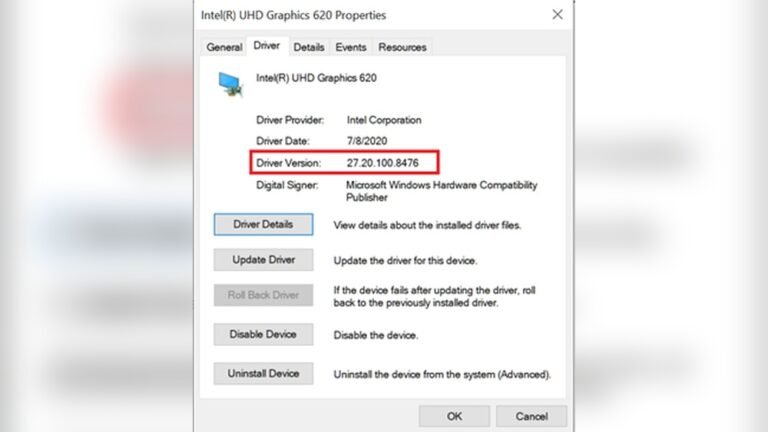
Keep your BIOS and chipset drivers updated. Updates can improve power management and cooling. Use trusted software to monitor CPU temperature. Adjust fan speed settings if your system allows. Close unnecessary background programs to reduce CPU load. This lowers heat generation during idle time.
Frequently Asked Questions
Why Is My Cpu Temperature High At Idle?
High idle CPU temperature can result from dust buildup, poor airflow, or degraded thermal paste. Background processes and faulty fans also cause overheating even when idle.
How Can I Reduce Cpu Temperature At Idle?
Clean dust from fans and heatsinks, improve case airflow, and reapply thermal paste. Also, close unnecessary background apps to lower CPU load and temperature.
Is High Idle Cpu Temperature Harmful?
Yes, consistently high idle temperatures can reduce CPU lifespan and cause system instability. Keeping idle temperatures below 40-50°C helps maintain optimal performance.
Can Software Fix High Cpu Temperature At Idle?
Software can help by managing CPU power settings and closing background tasks. However, physical cleaning and hardware checks are often necessary for lasting temperature control.
Conclusion
Keeping your CPU temperature low at idle helps your computer last longer. Check your cooling system and clean dust often. Use good thermal paste and make sure fans work well. Close unnecessary programs to reduce CPU load. Watch your temperature regularly to catch problems early.
Small fixes can stop big issues later. Stay calm and take simple steps to keep your PC cool and safe.