Pc Error Codes During Startup Fix: Easy Solutions to Troubleshoot
Have you ever turned on your PC, only to be met with confusing error codes flashing across the screen? These startup error codes can stop your computer before it even fully wakes up, leaving you frustrated and unsure of what to do next.
But don’t worry—you’re not alone, and fixing these issues is easier than you might think. You’ll discover clear, step-by-step solutions to decode those error messages and get your PC running smoothly again. Keep reading, and take control of your computer’s health today.
Common Pc Startup Error Codes
PC startup error codes help identify problems during boot. They give clues about hardware or software issues. Understanding common codes makes fixing easier. These codes appear in different forms. Some are sounds, others show on screen. Knowing what each code means saves time and stress.
Beep Codes
Beep codes are sounds from the motherboard speaker. They signal hardware problems before the screen loads. Different beep patterns mean different errors. For example, one long beep and two short beeps often mean a graphics card issue. No beep might mean a power or motherboard problem. Listen carefully to the pattern.
Post Error Codes
POST codes show on a small display or as blinking lights. POST stands for Power-On Self-Test. It checks hardware before loading the operating system. If POST finds a problem, it shows a code. These codes often appear as numbers or letters. Refer to your motherboard manual to decode them. They help pinpoint issues quickly.
Blue Screen Errors
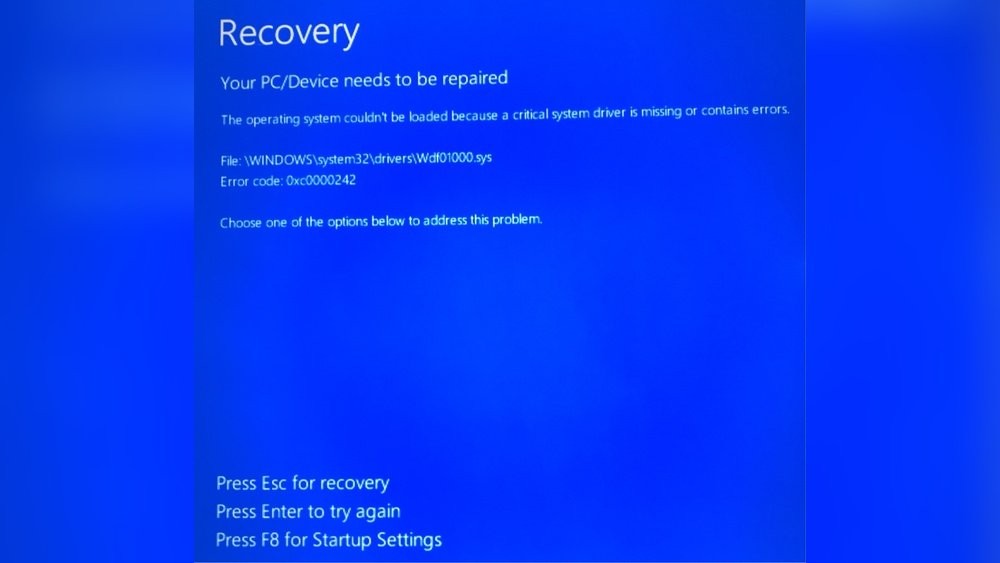
Blue Screen Errors show a blue screen with text. They appear after the system starts but before full loading. These errors indicate software or hardware conflicts. The screen shows an error code like “0x0000007B”. This code helps identify the problem. Note the code and search for solutions based on it.
Bios Error Messages
BIOS error messages appear as text on the screen. They inform about hardware or configuration issues. Messages like “Keyboard not detected” or “CMOS checksum error” are common. BIOS errors stop the boot process until fixed. Follow the message advice or check BIOS settings to resolve them.

Credit: www.reddit.com
Causes Of Startup Errors
Startup errors on a PC can stop it from working properly. These errors appear as codes or messages during boot. Understanding their causes helps fix the problem quickly. Problems can come from hardware, software, or other parts of the system. Here are the main causes of startup errors.
Hardware Failures
Hardware failure is a common cause of startup errors. Faulty RAM, hard drives, or power supply can stop the computer from booting. Damaged or loose cables also cause errors. Overheating parts may trigger error codes during startup. Checking hardware is an important step in fixing startup problems.
Software Conflicts
Software issues often cause startup errors. Conflicts between programs or corrupted system files can block booting. Failed updates or driver problems also lead to errors. Malware infections can damage startup files. Cleaning and repairing software helps resolve these errors quickly.
Corrupted Bios
The BIOS controls the startup process. A corrupted BIOS can stop the PC from starting. BIOS corruption may result from failed updates or power loss during flashing. Resetting or updating the BIOS can fix these errors. Always follow safe methods when handling BIOS updates.
Peripheral Issues
External devices can cause startup errors too. Faulty or incompatible USB devices, printers, or other peripherals may block boot. Disconnecting all devices and restarting helps find if peripherals cause the issue. Updating drivers for these devices can prevent future errors.
Diagnosing Error Codes
Diagnosing error codes during PC startup helps find the root cause of problems fast. These codes give clues about hardware or software issues. Understanding how to read these codes saves time and prevents guesswork. The process involves listening to beep sounds, checking BIOS and POST codes, using system tools, and interpreting blue screen errors. Each method reveals different details about the problem.
Reading Beep Patterns
Beep patterns are sounds your PC makes when it starts. These beeps show hardware errors before the screen appears. Count the number of beeps and note their length. Different beep sequences mean different issues. For example, one long beep and two short beeps may mean a graphics card problem. Check your motherboard manual for exact beep codes. This method works without needing a display.
Checking Bios And Post Codes
The BIOS runs a Power-On Self Test (POST) during startup. POST codes appear on a small digital display or as blinking lights. These codes identify specific hardware checks. Write down the code shown. Use the motherboard manual or online resources to decode it. BIOS error codes point to issues like memory failure or CPU problems. This helps target the faulty part quickly.
Using Event Viewer
Event Viewer is a tool in Windows that logs system errors. Open it after your PC starts to find startup problems. Look under “System” or “Application” logs. Search for errors marked with red icons. These logs include error codes and descriptions. They show what caused the crash or failure. Event Viewer helps diagnose software or driver issues.
Interpreting Blue Screen Codes
Blue Screen of Death (BSOD) shows error codes when Windows crashes. Note the code displayed on the blue screen. It looks like “0x0000007B” or similar. These codes reveal the cause of the crash, like driver errors or hardware faults. Use Microsoft’s website or trusted tech sites to decode them. Understanding BSOD codes guides you in fixing startup errors fast.
Quick Fixes For Startup Errors
Startup errors can stop your PC from working properly. These quick fixes often solve common issues fast. They help you get your computer running again without much hassle. Try these easy steps before calling for help.
Resetting Bios To Default
BIOS controls your computer’s basic settings. Wrong BIOS settings can cause startup errors. Resetting BIOS to default can fix these problems. To do this, enter BIOS setup during boot by pressing a key like F2 or DEL. Find the option to load default settings and save changes. Restart your PC to see if the error clears.
Re-seating Hardware Components
Loose hardware parts can stop your PC from starting. Turn off your computer and unplug it. Open the case carefully. Remove and firmly re-insert parts like RAM and graphics card. This ensures good connection and can fix startup errors. Close the case and power on the PC again.
Removing External Devices
External devices can cause startup conflicts. Unplug all USB drives, printers, and other devices. Restart your computer without any external devices attached. If the PC starts normally, connect devices one by one. This helps find the device causing the error. Remove or replace the faulty device to fix the issue.
Running Startup Repair
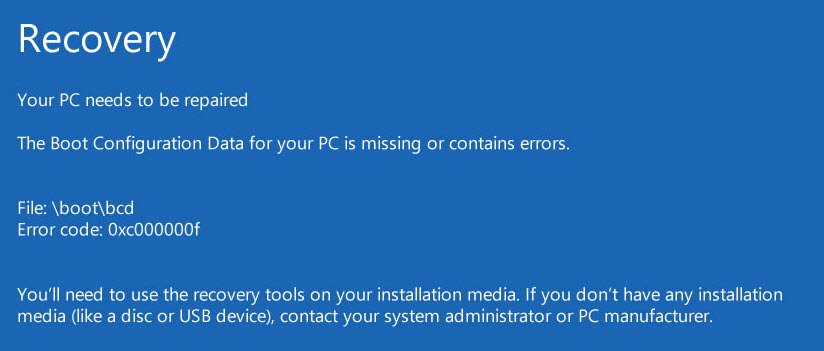
Startup Repair is a tool that fixes boot problems automatically. Insert a Windows installation disk or USB and boot from it. Choose “Repair your computer” and then “Startup Repair.” Follow on-screen instructions to scan and fix errors. This tool can solve many common startup problems without technical skills.
Advanced Troubleshooting Techniques
Advanced troubleshooting techniques help fix tricky PC startup errors. These methods dig deeper than basic checks. They target firmware, memory, and system files. This approach increases the chance of a full repair.
Start by updating critical system firmware. Then test hardware for faults. Use safe mode to isolate issues. Finally, recovery media can restore or repair damaged files.
Updating Bios Firmware
BIOS controls your PC’s hardware settings during startup. Outdated BIOS can cause error codes. Visit your motherboard maker’s website to find updates. Follow their instructions carefully to install new firmware. This can improve compatibility and fix startup problems.
Testing Ram And Hard Drives
Faulty RAM or hard drives cause many startup errors. Use tools like MemTest86 to check RAM health. For hard drives, run CHKDSK or manufacturer diagnostics. Replace any failing parts to stop errors. Healthy hardware is key for smooth startup.
Booting In Safe Mode
Safe mode loads only essential drivers and files. This helps identify software conflicts causing errors. Restart your PC and press the proper key to enter Safe Mode. Remove or update problem software found here. Safe mode often allows repair or backup before full startup.
Using Recovery Media
Recovery media helps fix severe startup issues. Create a USB or DVD recovery disk from another PC. Boot your PC using this media to access repair tools. Options include system restore, startup repair, and reinstalling Windows. Recovery media can save your data and restore functionality.

Credit: geeksoncommand.com
Preventing Future Startup Errors
Preventing future startup errors helps keep your PC running smoothly. Simple habits can reduce the risk of errors and save time. Regular care improves performance and extends your computer’s life.
Regular System Maintenance
Clean your PC from dust and debris often. Remove unnecessary files to free up space. Run disk cleanup and defragment your hard drive regularly. Check for malware with trusted antivirus software. These steps keep your system fast and stable.
Keeping Drivers Updated
Outdated drivers cause many startup problems. Update device drivers for graphics, sound, and network cards. Use official websites or trusted software to find updates. Updated drivers improve hardware compatibility and fix bugs.
Monitoring Hardware Health
Watch your PC’s temperature and power supply. Use tools to check hard drive health and memory status. Replace failing parts quickly to avoid startup issues. Healthy hardware ensures reliable performance every time you turn on your PC.
Backing Up Important Data
Save your files regularly to an external drive or cloud. Backup protects against data loss from errors or hardware failure. Create a backup plan and follow it strictly. Safe data means less stress if your PC stops working.
Credit: www.ghacks.net
Frequently Asked Questions
What Causes Pc Error Codes During Startup?
PC error codes during startup often result from hardware issues, corrupted BIOS, or faulty RAM. These codes help identify specific problems preventing boot.
How To Interpret Pc Startup Error Codes?
Each error code corresponds to a specific hardware or software fault. Use your motherboard manual or manufacturer’s website to decode these messages accurately.
Can Bios Updates Fix Startup Error Codes?
Yes, updating BIOS can resolve compatibility and hardware recognition issues that trigger startup error codes. Always follow safe update procedures.
What Steps Fix Common Pc Startup Error Codes?
Check hardware connections, test RAM, reset BIOS settings, and update drivers. These basic fixes often resolve common startup error codes.
Conclusion
Fixing PC error codes during startup is easier than it seems. Start by checking hardware connections and BIOS settings. Simple steps often solve many problems fast. Keep your system clean and updated to avoid future errors. Don’t ignore warning signs your PC shows at startup.
Regular checks help keep your computer running smoothly. Remember, patience and careful troubleshooting lead to success. Stay calm and follow the steps one by one. Your PC will boot properly again soon.