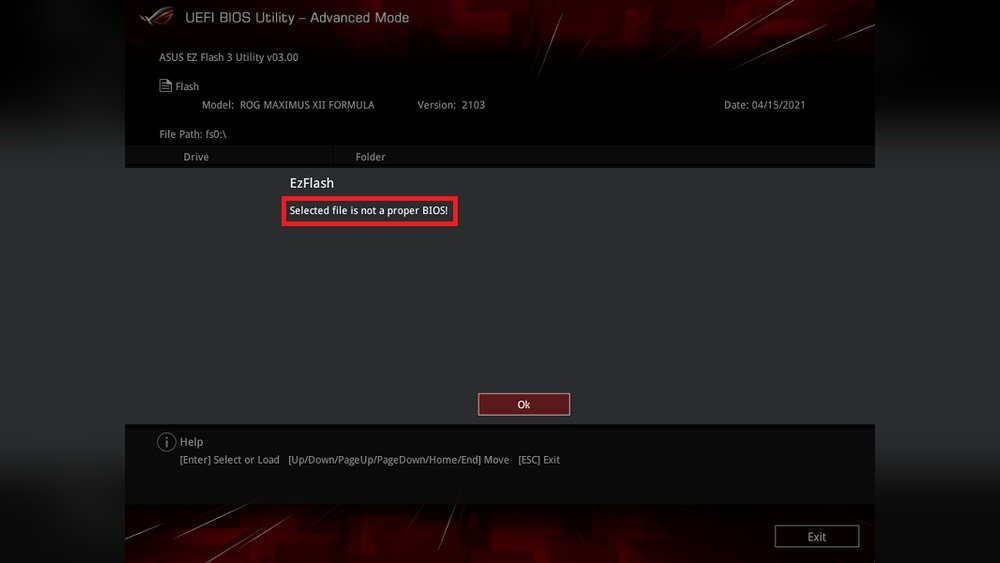
Motherboard Bios Not Updating How to Fix: Easy Steps to Solve
Is your motherboard BIOS not updating no matter what you try? This can be frustrating, especially when you need the latest features or fixes to keep your system running smoothly.
But don’t worry—you’re not alone, and there are simple steps you can take to solve this problem. You’ll discover easy-to-follow solutions that will help you fix your BIOS update issues quickly. Keep reading, and you’ll have your motherboard running like new in no time.
Credit: www.dell.com
Common Reasons Bios Fails To Update
BIOS updates are important for fixing bugs and improving hardware support. Sometimes, the update process does not work as expected. Understanding common reasons why BIOS fails to update helps in solving these problems quickly. Below are the main causes that can stop BIOS updates from completing successfully.
Incompatible Bios Version
Using the wrong BIOS version can cause the update to fail. Each motherboard model needs a specific BIOS file. Installing a version meant for another model can damage the system. Always check the motherboard model and BIOS version carefully before updating.
Power Interruptions During Update
Power loss during a BIOS update can corrupt the firmware. Even a brief power cut may stop the process. This can make the motherboard unusable. Use a stable power source or a UPS to avoid interruptions during updates.
Corrupted Bios Files
Downloading a corrupted BIOS file can cause errors during installation. This might happen due to incomplete downloads or file damage. Always download BIOS files from the official website. Verify the file integrity before starting the update.
Incorrect Update Procedure
Following wrong steps during the update can lead to failure. Each motherboard brand has specific instructions to update BIOS. Skipping or mixing steps can cause issues. Read the update guide carefully and follow it exactly.
Preparing For A Successful Bios Update
Preparing for a BIOS update is very important. A smooth update needs careful steps. These steps protect your computer from problems. Taking time to prepare helps avoid errors. Follow simple tasks before starting the update.
Checking Current Bios Version
First, find out your current BIOS version. It helps to know if an update is needed. You can check it in the BIOS setup or system information. Write down the version number for reference. This step ensures you download the right update.
Downloading The Correct Bios File
Next, get the BIOS file from your motherboard maker’s website. Use the exact model number of your motherboard. Download the file that matches your hardware and current version. Wrong files can cause serious damage. Always verify the download source is official and safe.
Ensuring Stable Power Supply
A steady power supply is key during the update. Power loss may corrupt the BIOS and stop your PC from booting. Use a laptop with a full battery or a desktop with a UPS. Do not update during storms or unstable power times. This step protects your computer’s core system.
Backing Up Important Data
Before updating, save all important files. Unexpected errors can happen during BIOS updates. Backup files to an external drive or cloud service. This keeps your data safe if the update fails. It is a simple but crucial safety step.
Step-by-step Bios Update Methods
Updating your motherboard BIOS can fix bugs and improve system stability. It can also add new features or support for new hardware. The process might seem tricky, but following clear steps makes it easier and safer.
This guide explains simple methods to update your BIOS. Choose the method that fits your situation best. Each step is designed for users with basic computer skills.
Updating Via Bios Utility
Restart your computer and enter the BIOS setup. Usually, press keys like F2, DEL, or ESC during boot. Find the BIOS update or EZ Flash option inside the BIOS menu.
Prepare the BIOS file on a USB drive in advance. Select the file from the BIOS utility and start the update. Do not turn off your PC during the update process.
Using Manufacturer’s Update Software
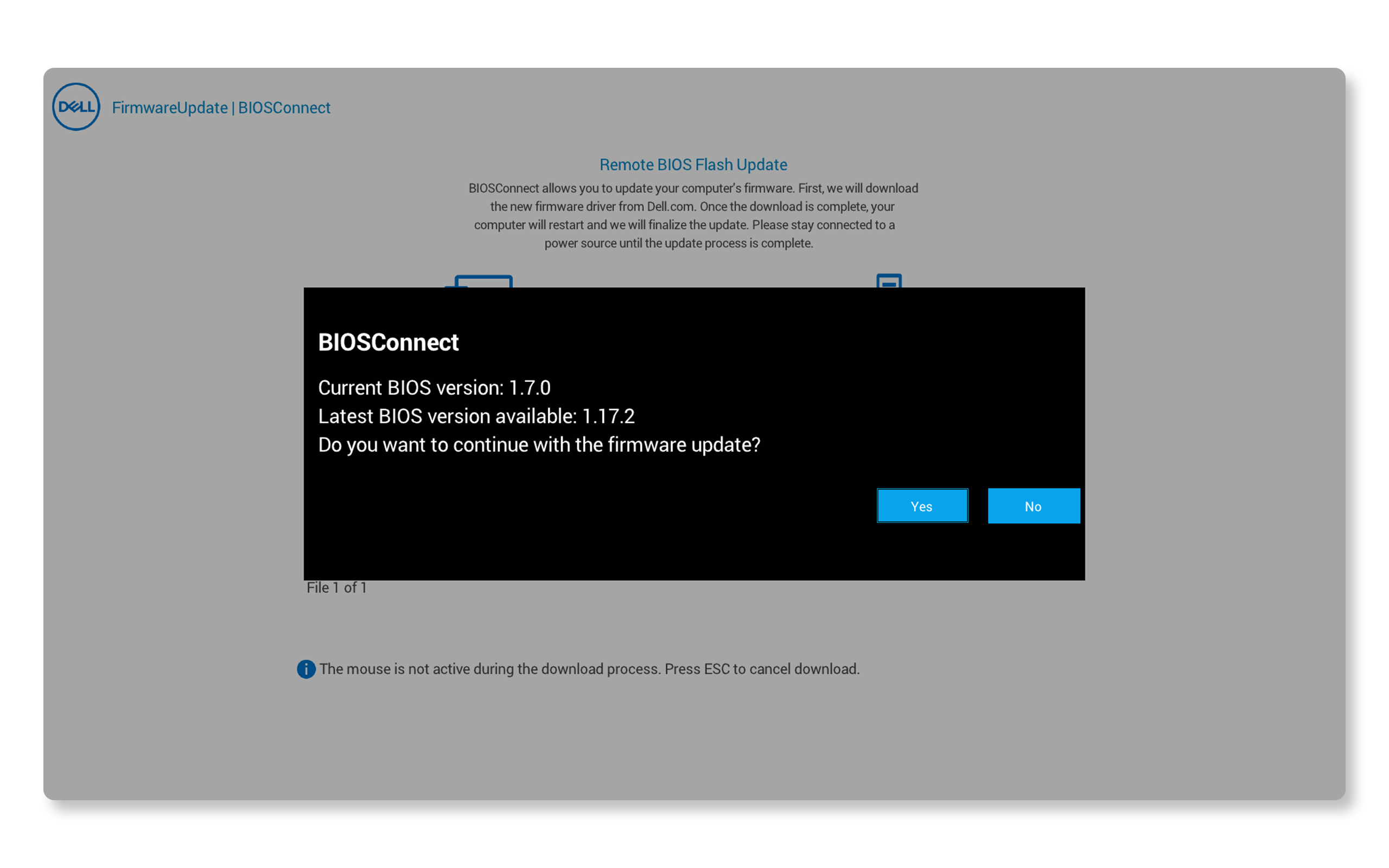
Download the official BIOS update tool from your motherboard’s website. Run the software inside your operating system. It will detect your motherboard model and current BIOS version.
The tool guides you through downloading and installing the latest BIOS. Follow on-screen instructions carefully. Make sure your computer is plugged into power to avoid shutdowns.
Flashing Bios With Usb Drive
Format a USB drive to FAT32 and copy the BIOS file onto it. Restart the PC and enter the BIOS or boot menu. Select the BIOS flash option and choose the USB drive.
The system will update BIOS using the file on the USB. Wait until the process finishes. Avoid restarting or powering off the PC during flashing.
Updating Through Windows Environment
Some motherboard brands offer BIOS update tools that run in Windows. Download the update file and utility from the official site. Run the utility and follow the instructions to update BIOS.
Close all other programs before starting. Keep your computer connected to power. Let the update finish without interruption to avoid damage.
Troubleshooting Update Failures
Updating your motherboard BIOS can sometimes fail. This causes the system to act strange or stop working. Troubleshooting these update failures helps fix the problem quickly. It also protects your computer from damage.
Follow clear steps to recover your BIOS and restore normal function. These steps are simple and safe for most users.
Recovering From A Failed Bios Update
A failed BIOS update can stop your computer from booting. To recover, try restarting the PC and entering the BIOS menu. Some motherboards have a backup BIOS that activates automatically. This feature restores the original BIOS version. Use a USB drive with the correct BIOS file if needed. This may fix the update failure.
Resetting Bios To Default Settings
Resetting BIOS settings to default can solve many issues. Enter the BIOS setup by pressing a key during startup. Find the option to load default settings and select it. Save changes and restart the computer. This clears any wrong settings causing update problems. It also helps the system run smoothly again.
Using Bios Recovery Mode
Some motherboards include a BIOS recovery mode. This mode reloads the BIOS from a USB stick or backup chip. Check your motherboard manual to see if this option exists. Follow instructions carefully to enter recovery mode. It can fix corrupted BIOS files safely. This method protects your system from permanent damage.
Seeking Professional Help
When DIY steps fail, seek expert help. Professionals have tools and skills to fix BIOS issues. They can repair or replace the BIOS chip if needed. Avoid trying risky fixes that can worsen the problem. Trust certified technicians for safe and fast repairs.
Tips To Avoid Future Bios Update Issues
Updating your motherboard BIOS can be tricky. Problems may stop your computer from working well. You want to avoid these issues next time. Follow simple steps to keep BIOS updates safe and smooth.
Taking care with BIOS updates helps your system run better. It also keeps your computer safe from errors and crashes. These tips will guide you through easy ways to avoid future update problems.
Keeping Bios Updated Regularly
Check for BIOS updates often. Visit the motherboard maker’s website. New updates fix bugs and improve performance. Don’t wait too long between updates. Regular updates keep your system stable.
Avoiding Interruptions During Update
Do not turn off your PC during an update. Use a power source you trust. Avoid updating during storms or power outages. Interruptions can cause serious damage to BIOS. Patience saves your motherboard.
Verifying Bios Update Source
Always download BIOS updates from the official site. Do not trust third-party websites. Fake files can harm your system. Check file names and versions carefully. This prevents installing wrong or harmful updates.
Maintaining System Stability
Close all programs before updating BIOS. Stop unnecessary background tasks. Run updates in safe mode if possible. A stable system ensures a successful update. Prepare your PC for the process.

Credit: www.youtube.com

Credit: www.reddit.com
Frequently Asked Questions
Why Is My Motherboard Bios Not Updating?
Your BIOS may not update due to power loss, incorrect files, or hardware issues. Check compatibility and use proper update tools to fix it.
How Can I Safely Update My Motherboard Bios?
Use the manufacturer’s official website for BIOS files. Follow their step-by-step instructions carefully to avoid errors or system damage during the update.
What To Do If Bios Update Fails Halfway?
Do not turn off your PC. Use recovery mode or BIOS flashback feature if available. Contact support if the system remains unbootable.
Can Outdated Bios Cause System Instability?
Yes, outdated BIOS can cause crashes, hardware conflicts, and performance issues. Updating BIOS often resolves these problems and improves system stability.
Conclusion
Fixing a BIOS update issue can seem tough at first. Take your time to follow each step carefully. Check your motherboard model and download the right BIOS file. Use a reliable USB drive and keep your PC powered during the update.
Remember, patience is key. With these tips, your BIOS update should complete smoothly. Keep your system healthy and avoid rushing the process. Small steps lead to success. Stay calm and your motherboard will work better soon.