Gpu Fans Not Spinning How to Fix: Easy Steps to Restore Cooling
Is your GPU fan not spinning? This issue can quickly turn your gaming or work setup into a hot mess—literally.
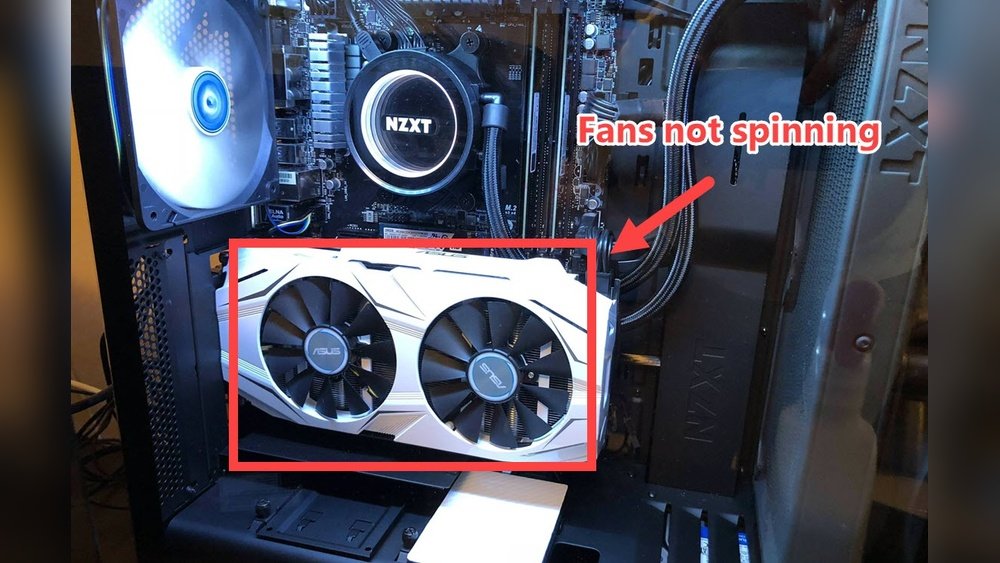
When your GPU fan stops working, your graphics card can overheat, causing crashes, slowdowns, or even permanent damage. But don’t worry, you’re not alone, and fixing this problem might be easier than you think. You’ll learn simple, step-by-step solutions to get your GPU fan spinning again and keep your system cool and running smoothly.
Keep reading—you’ll thank yourself later.
Common Causes Of Gpu Fan Issues
GPU fans that stop spinning cause overheating and performance issues. Understanding the common causes helps fix the problem fast. Many problems come from simple issues that anyone can check. Knowing these causes can save time and money on repairs.
Dust And Dirt Buildup
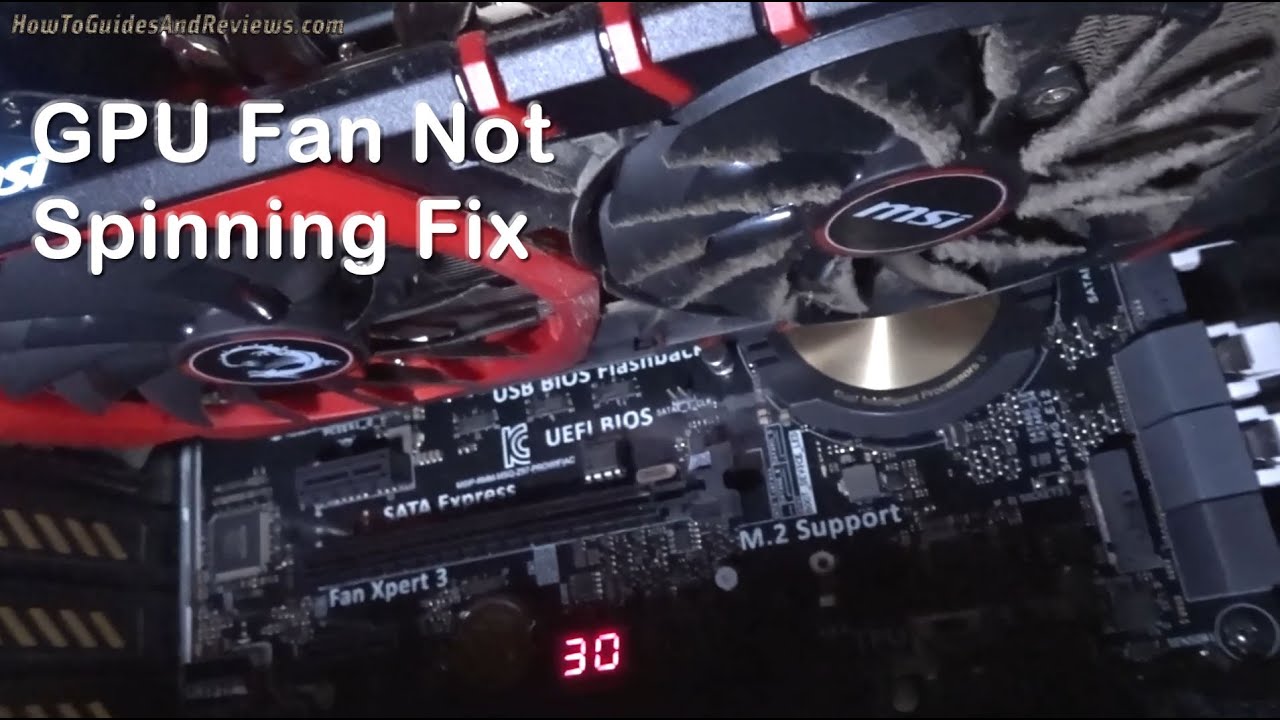
Dust and dirt block fan blades and vents. This buildup stops fans from spinning freely. Cleaning the GPU fan with compressed air clears dust. Regular cleaning keeps the fan running smoothly.
Fan Connection Problems
Loose or broken fan cables stop power from reaching the fan. Check the cable connection between the fan and the GPU board. Secure or replace loose cables to restore fan function.
Software And Driver Glitches
Old or corrupted GPU drivers can stop fan control software. Update your GPU drivers to the latest version. Restart the computer to reset fan control settings and fix glitches.
Hardware Failures
Fans can wear out or break after long use. Mechanical parts inside the fan may fail. Replace the fan if it does not spin even after cleaning and checking connections.
Credit: www.youtube.com
Checking The Fan Physically
Checking your GPU fan physically is the first step to fix fans not spinning. This helps find simple problems fast. A quick look can save time and money. Careful inspection shows if the fan has dust, dirt, or stuck parts. It also lets you see if the fan moves freely or is blocked.
Inspecting For Obstructions
Turn off your computer and open the case. Look closely at the GPU fan blades. See if any cables, screws, or dust block the fan. Small objects can stop the fan from spinning. Remove anything that looks like it might get in the way. Do not force anything, just gently clear the space around the fan.
Cleaning The Fans Safely
Dust and dirt build up on GPU fans over time. This can stop the fan from working well. Use a soft brush or compressed air to clean the fan blades. Hold the fan still while cleaning to avoid damage. Avoid using liquids or harsh tools. Clean every blade carefully to help the fan spin smoothly again.
Testing Fan Movement Manually
Try to move the fan blades with your finger. They should spin freely without much force. If the fan feels stuck or hard to turn, it might need repair or replacement. Do not push too hard; fans are delicate. Testing helps find mechanical problems early. This check confirms if the fan itself is the issue.
Verifying Fan Connections
Verifying fan connections is a crucial step when your GPU fans do not spin. Fans need proper power and a solid connection to work correctly. Loose or disconnected cables can stop the fans from running. This section explains how to check these connections carefully. Follow these steps to ensure your GPU fans get the power they need.
Examining Power Connectors
Start by checking the power connectors attached to your GPU fans. Fans usually get power from small plugs connected to the graphics card or power supply. Look for any loose or unplugged connectors. Sometimes, dust or dirt can block the connection. Clean the connectors gently if needed. Securely plug each connector to the right port.
Reseating Fan Cables
Fan cables can become loose over time or after moving your PC. Unplug the fan cables from the GPU carefully. Then, plug them back in firmly. This simple step can fix many fan problems. Make sure the cables click into place. Avoid pulling on the wires, only handle the connector parts. This keeps the cables safe and secure.
Checking Motherboard And Gpu Ports
Inspect the ports on both the GPU and motherboard where the fan cables connect. Ports can get damaged or dirty. Look for bent pins or dust buildup. Clean the ports softly with a dry brush or compressed air. Ensure the ports are not loose or broken. Proper port condition is essential for fan operation.
Updating And Configuring Software
When GPU fans stop spinning, software settings might be the cause. Updating and configuring software helps your GPU run smoothly. This section covers easy steps to fix fan issues through software adjustments. Follow each part to ensure your GPU fan works well again.
Updating Gpu Drivers
GPU drivers control your graphics card functions. Outdated drivers can cause fan problems. Visit the official website of your GPU brand. Download and install the latest driver version. Restart your computer after installation. Updated drivers can fix bugs and improve fan control.
Using Fan Control Software
Fan control software lets you adjust fan speeds manually. Popular tools include MSI Afterburner and SpeedFan. Download and install the software suitable for your GPU. Set fan speed profiles based on temperature. Increase fan speed if your GPU gets hot. This helps prevent overheating and keeps fans spinning.
Resetting Bios Settings
BIOS settings affect hardware operations, including fans. Resetting BIOS can fix misconfigurations causing fan issues. Restart your PC and enter BIOS setup by pressing the correct key (often DEL or F2). Find the option to reset to default or optimized settings. Save changes and exit. This reset can restore fan controls to normal.
Testing With External Tools
Testing your GPU with external tools helps find why the fan is not spinning. These tools check temperature and fan speed. They also test how the GPU performs under load. Testing is simple and shows clear results. It helps decide the next fix step.
Monitoring Gpu Temperature
Use software like HWMonitor or GPU-Z to see GPU temperature. Watch the temperature rise when running programs. If the GPU gets hot but the fan does not spin, the fan may be broken. Normal temperature is below 85°C during heavy use. High temperature without fan movement means a problem.
Running Stress Tests
Stress tests push the GPU to work hard. Tools like FurMark or Unigine Heaven are popular choices. These tests raise temperature quickly to check fan response. The fan should start spinning as the GPU heats up. No fan movement during stress test shows fan or sensor issues.
Using Fan Speed Utilities
Fan speed utilities let you control GPU fan directly. Programs like MSI Afterburner or SpeedFan allow manual fan control. Increase fan speed to see if the fan spins. If the fan does not respond, it might be faulty or disconnected. These utilities also show current fan speed and status.
Credit: www.wepc.com
Replacing Or Repairing The Fan
GPU fans play a vital role in keeping your graphics card cool. When the fan stops spinning, the GPU can overheat. Fixing this issue may require repairing or replacing the fan. This section explains how to decide between repair and replacement. It also guides you through choosing the right replacement fan and replacing it yourself.
When To Replace The Fan
Replace the fan if it makes strange noises or does not spin at all. Physical damage like broken blades means replacement is necessary. If cleaning and lubricating the fan does not help, replacement is the best option. A fan that causes your GPU to overheat needs immediate attention. Sometimes, the cost of repair is higher than replacement. In these cases, buy a new fan for better performance and safety.
Choosing Compatible Replacement Fans
Always select a fan that matches your GPU model. Check the fan size and connector type before purchasing. Use the manufacturer’s website or manual to find exact specs. Avoid cheap fans that may not fit or work properly. Quality fans last longer and cool your GPU effectively. Consider fan speed and noise levels for a better experience. Compatibility ensures easy installation and stable GPU operation.
Diy Fan Replacement Steps
First, turn off the computer and unplug it. Remove the GPU carefully from the motherboard. Unscrew the fan from the GPU heatsink. Disconnect the fan’s power cable gently from the GPU. Attach the new fan by connecting its power cable. Screw the new fan onto the heatsink securely. Reinstall the GPU back into the motherboard. Power on the system and check if the fan spins. This step-by-step method saves money and extends GPU life.
Preventive Maintenance Tips
Keeping your GPU fan working well is key to your computer’s health. Preventive maintenance stops many fan problems before they start. Small actions can save you from big fixes later.
Follow these simple tips to keep your GPU fan spinning smoothly and your system cool.
Regular Cleaning Schedule
Dust blocks fan blades and slows them down. Clean your GPU fan at least once a month. Use a soft brush or canned air to remove dust. Turn off your computer before cleaning. Avoid using water or wet cloths. Keeping dust away helps the fan run quietly and efficiently.
Optimizing Airflow In The Case
Good airflow keeps your GPU cool and fan active. Arrange cables neatly to avoid blocking air paths. Make sure intake and exhaust fans work well. Use extra case fans if needed for better ventilation. A cool case means less stress on the GPU fan.
Avoiding Overclocking Risks
Overclocking makes the GPU work harder and hotter. This can cause the fan to fail or wear out fast. Keep your GPU at factory settings for safe use. If overclocking, monitor temperatures closely. Use proper cooling to protect your GPU fan.

Credit: www.youtube.com
Frequently Asked Questions
Why Are My Gpu Fans Not Spinning At Startup?
GPU fans may not spin at startup due to low temperature or BIOS fan curve settings. Many GPUs keep fans off until a certain temperature is reached to reduce noise.
How Can I Fix Gpu Fans Not Spinning Issue?
Check power connections, clean dust, update GPU drivers, and adjust fan curves in software. Restart your PC to apply changes and test if fans start spinning.
Can Overheating Cause Gpu Fans To Stop Working?
Yes, overheating can damage fan motors or sensors, causing fans to fail. Regular cleaning and monitoring temperatures help prevent this issue.
Is A Faulty Gpu Fan Connector Causing Fan Failure?
A loose or damaged fan connector can stop fans from spinning. Inspect and secure the fan cable on the GPU for proper connection.
Conclusion
Gpu fans not spinning can cause serious problems. Check the power connection first. Clean dust and debris carefully. Make sure the fan can spin freely. Test with software to control fan speed. Replace the fan if it is broken. Keep your graphics card cool for better performance.
Taking quick action helps avoid damage. Stay patient and follow these simple steps. Your GPU will work properly again soon.