Can You Upgrade Pc Parts One by One: Ultimate Guide to DIY Upgrades
Thinking about upgrading your PC but worried it might be too expensive or complicated? What if you could improve your computer’s performance step by step, without replacing everything at once?
You might be surprised how upgrading your PC parts one by one can save you money and keep your system running smoothly. You’ll discover how to make smart upgrades, what parts to focus on first, and how to avoid common mistakes.
Ready to get the most out of your PC without breaking the bank? Keep reading to find out how simple and effective upgrading piece by piece can be.

Credit: www.reddit.com
Benefits Of Upgrading Pc Parts Individually
Upgrading PC parts one by one offers many benefits. It lets users improve their computer without a large upfront cost. Small upgrades keep the system fresh and running smoothly. Users gain control over which parts to enhance first. This approach suits budgets and specific needs. Here are the main benefits of upgrading PC parts individually.
Cost Efficiency
Upgrading parts individually saves money. You buy only what you need right now. It spreads expenses over time, avoiding big bills. This makes upgrading affordable for many users. Prioritize upgrades based on budget and need. No need to replace everything at once.
Improved Performance Over Time
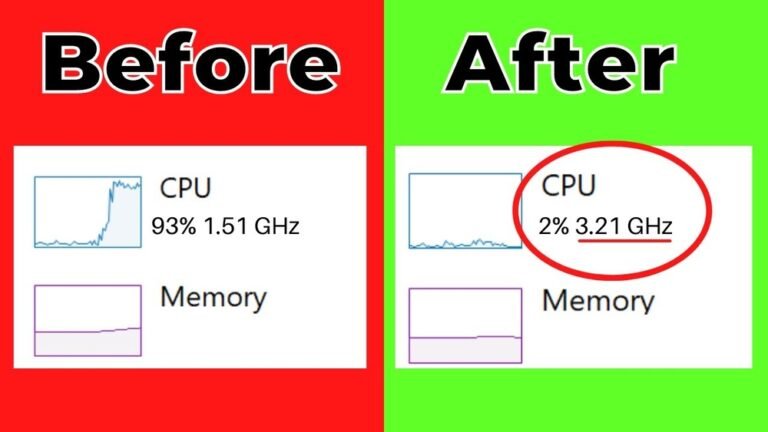
Gradual upgrades improve performance step by step. Each new part boosts the system’s speed and capability. The PC feels faster after every upgrade. You can test changes and adjust plans. Performance grows steadily without overwhelming changes.
Customization Flexibility
Individual upgrades allow full customization. Users select parts that fit their style and tasks. Want better graphics? Upgrade the GPU first. Need faster storage? Change the SSD later. This method fits unique needs and preferences. Each upgrade matches what matters most.
Reduced Downtime
Upgrading one part at a time reduces downtime. The PC stays usable between upgrades. No long breaks waiting for a full rebuild. Fix or enhance slowly without losing access. This keeps daily work and play on track.
Key Components To Upgrade First
Upgrading your PC can boost its performance and extend its life. Choosing the right parts to upgrade first makes a big difference. Focus on key components that affect speed, storage, and graphics quality.
Start with parts that give the most noticeable improvement. This approach saves money and avoids unnecessary upgrades. It also lets you upgrade piece by piece without buying a whole new system.
Graphics Card
The graphics card controls how your computer shows images and videos. A better card improves gaming, video editing, and design tasks. It handles more complex visuals and higher resolutions. Upgrading this part often brings the biggest visual boost.
Memory (ram)
RAM stores data your computer uses right now. More RAM helps your PC run many programs at once. It also speeds up tasks like browsing, editing, and gaming. Upgrading RAM is easy and can fix slow multitasking problems.
Storage Drives
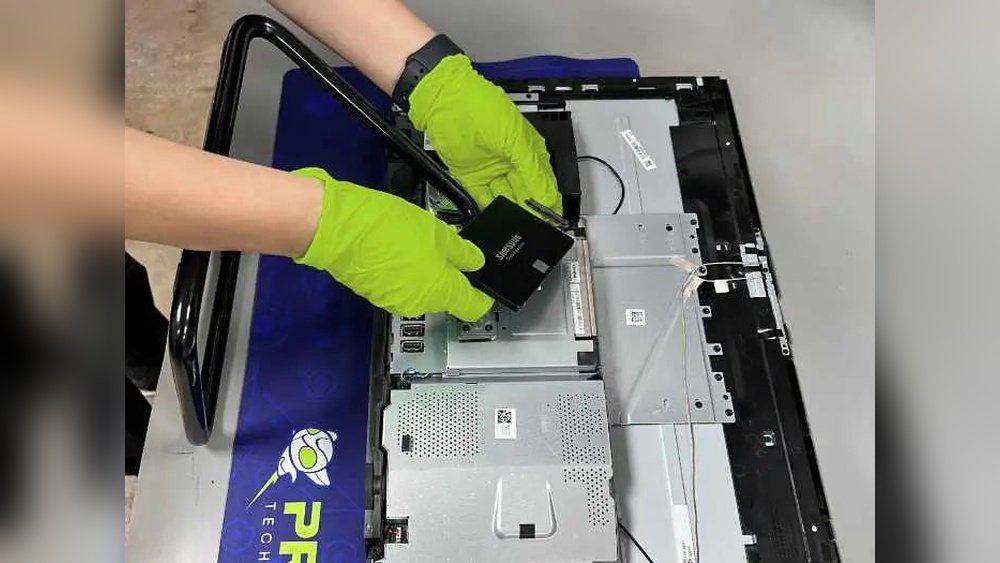
Storage holds your files and software. Replacing a hard drive with a solid-state drive (SSD) makes your PC faster. SSDs load programs and files quickly. They also improve boot times and reduce lag. Storage upgrades give a clear speed boost.
Processor (cpu)
The CPU is the brain of your computer. It processes all instructions and calculations. A faster CPU improves overall speed and responsiveness. Upgrading the CPU can be complex but offers strong performance gains. It suits users needing more power for heavy tasks.
Compatibility Considerations
Upgrading PC parts one by one can save money and extend your system’s life. Compatibility is key. Each new part must work well with existing components. Ignoring this can cause errors or poor performance. Check details carefully before buying.
Motherboard Support
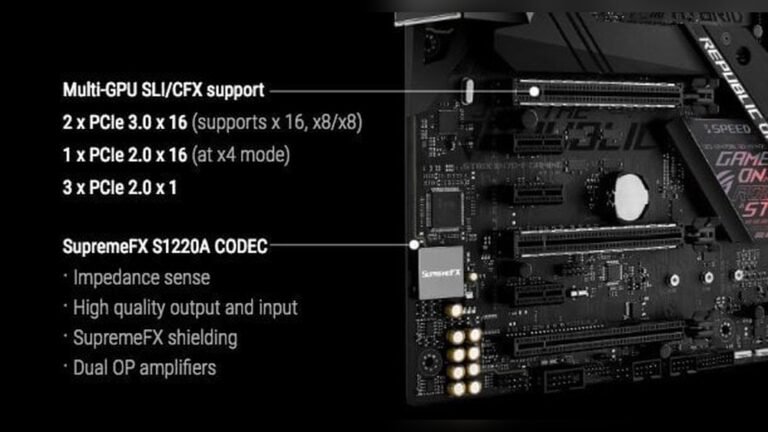
The motherboard controls which parts fit and work together. It has specific slots and sockets for CPUs, RAM, and GPUs. Make sure the new parts match these slots. Also, check the chipset and supported technologies. Some motherboards do not support the latest processors or RAM speeds.
Power Supply Requirements
New parts may need more power than older ones. The power supply unit (PSU) must provide enough wattage. Check the recommended power for each component. A weak PSU can cause crashes or stop the PC from turning on. Also, verify the correct power connectors are available.
Physical Space Constraints
Check the size of new parts before buying. Large graphics cards or coolers may not fit inside small cases. Measure the space inside your case carefully. Consider the length, height, and width of the parts. Proper airflow and cable management need enough room too.
Bios And Firmware Updates
New hardware might need updated BIOS or firmware to work. Check the motherboard manufacturer’s site for updates. Installing the latest BIOS can fix compatibility issues. Follow instructions carefully to avoid damage during updates. This step ensures smooth operation with new parts.

Credit: www.youtube.com
Step-by-step Upgrade Process
Upgrading your PC parts one by one lets you improve performance without buying a new system. This step-by-step upgrade process helps you change parts safely and correctly. Follow each step to avoid mistakes and enjoy better PC speed and power.
Planning Your Upgrade Path
Start by deciding which part needs an upgrade first. Check your computer’s current specs and compare them with new parts. Choose parts that fit your motherboard and power supply. Set a budget and order the parts needed. Planning helps avoid buying incompatible or unnecessary components.
Gathering Necessary Tools
Collect tools before starting the upgrade. A screwdriver set is essential for most parts. Have an anti-static wristband to protect components from static electricity. Keep a clean, flat workspace ready. Good tools make the process faster and safer.
Safely Removing Old Components
Turn off and unplug the PC. Press the power button after unplugging to discharge electricity. Open the case carefully. Remove cables connected to the part you want to upgrade. Unscrew and gently pull out the old component. Handle parts by edges to avoid damage.
Installing New Parts
Align the new part with the slot or bay. Insert it firmly but gently. Screw it in place if needed. Reconnect cables and power connectors properly. Double-check connections before closing the case. Correct installation prevents hardware issues.
Testing And Troubleshooting
Turn on the PC after closing the case. Listen for unusual sounds and watch for error messages. Check if the new part works as expected. Use system tools to verify performance. If problems appear, recheck connections and compatibility. Troubleshooting early avoids bigger problems.
Common Challenges And How To Avoid Them
Upgrading PC parts one by one can save money and extend your computer’s life. Yet, it comes with some challenges. Knowing these common problems helps you avoid costly mistakes and frustration. This guide covers key issues and how to handle them carefully.
Compatibility Issues
Not all parts work well together. A new CPU might not fit your motherboard. RAM speed must match motherboard support. Check the size and power needs of new parts. Use online tools or manuals to confirm compatibility. Avoid buying parts that do not fit your system.
Static Electricity Risks
Static electricity can damage sensitive PC parts. Always work on a non-carpeted floor. Use an anti-static wrist strap if possible. Touch a metal object before handling components. Keep parts in anti-static bags until use. These steps protect your parts from static harm.
Driver And Software Problems
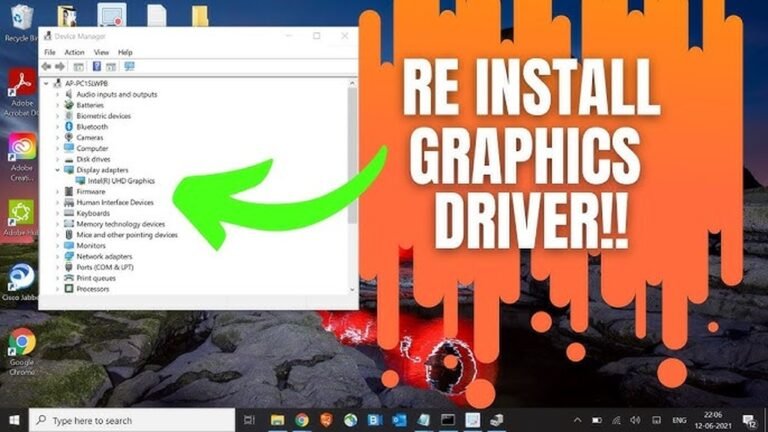
New parts need the right drivers to work well. Outdated or wrong drivers cause errors and crashes. Download drivers from the manufacturer’s website. Install software updates after every hardware change. Restart the computer to apply changes. Proper drivers ensure smooth performance.
Warranty And Return Policies
Check warranties before buying new parts. Some warranties void if you install parts yourself. Save receipts and keep original packaging. Know the return period for each component. Read store policies carefully to avoid losing money. This protects you from bad purchases.
Tips For Maximizing Upgrade Benefits
Upgrading PC parts one by one can save money and extend your computer’s life. To get the best results, follow some simple tips. These help your system run smoothly and keep up with new software.
Balancing Component Performance
Choose parts that work well together. A fast CPU with slow memory will slow down your PC. Match the speed and power of each part. This balance improves overall performance and avoids bottlenecks.
Regular Maintenance
Clean your PC regularly to remove dust and dirt. Dust clogs fans and causes overheating. Overheating can reduce the lifespan of your parts. Check cables and connections to keep everything tight and secure.
Keeping Drivers Updated
Update your device drivers often. New drivers fix bugs and improve hardware speed. Visit the official website of your hardware for the latest drivers. Updated drivers help your PC run stable and fast.
Budgeting For Future Upgrades
Plan your spending based on future needs. Save money for important parts like graphics cards or SSDs. Upgrading in steps helps manage your budget. Think about which parts will need upgrades soon to avoid surprises.
When To Consider Full System Replacement
Knowing when to replace your whole PC system can save time and money. Sometimes upgrading parts one by one is fine. Other times, a full system replacement is the smarter choice.
This section helps you understand when a full system replacement makes sense. It covers key factors to guide your decision.
Age And Limitations Of Current System
Older PCs often have outdated parts that limit upgrades. Some components may not work with new parts. Old systems can slow down even with new hardware. If your PC is over five years old, replacement might be better.
Cost Analysis
Upgrading parts can get expensive. Adding new parts one by one can cost more than a new PC. Calculate the price of all needed upgrades. Compare it with the price of a new system. Choose the option that gives better value.
Technological Advancements
New PCs come with better technology that old ones lack. Improved processors, faster memory, and better graphics appear regularly. Older systems may not support these advances. A new PC can offer features your current one cannot.
Performance Goals
Think about what you want your PC to do. Simple tasks need less powerful machines. Heavy tasks like gaming or video editing need strong systems. Upgrading parts might not reach your performance goals. A full replacement can meet higher demands better.

Credit: blog.prusa3d.com
Frequently Asked Questions
Can I Upgrade My Pc Parts One By One?
Yes, you can upgrade PC parts one by one. It allows gradual improvement and budget management. Prioritize critical components for better performance.
Which Pc Parts Should I Upgrade First?
Start with the GPU or CPU for noticeable performance gains. Then upgrade RAM or storage based on your needs. This approach balances cost and speed.
Will Upgrading One Part Affect Other Components?
Sometimes, yes. For example, a new CPU may require a compatible motherboard. Ensure parts are compatible to avoid issues.
How Often Can I Upgrade Pc Parts Individually?
You can upgrade parts anytime, depending on your budget and needs. Regular upgrades keep your system efficient and up-to-date.
Conclusion
Upgrading PC parts one by one can save money and extend your system’s life. Choose parts that fit your needs and budget. Check compatibility carefully to avoid problems. Start with the component that limits your PC’s performance most. Take time to learn about each part before buying.
Small upgrades add up over time and keep your PC running smoothly. This approach lets you improve step by step without a big upfront cost. Keep your PC balanced for the best results.