Pc Showing Blue Screen After Build Fix: Ultimate Troubleshooting Guide
You’ve just finished building your new PC, excited to see it in action. But then, the screen turns blue, and panic sets in.
A blue screen after a fresh build can feel like a nightmare, especially when you don’t know what caused it or how to fix it. Don’t worry—you’re not alone, and this problem is more common than you think. You’ll discover simple, effective solutions to get your PC back up and running smoothly.
Keep reading, because your frustration ends here.
Common Causes Of Blue Screen
Building a PC is exciting, but a blue screen can bring frustration. Blue screens often appear due to issues inside the system. Understanding common causes helps fix the problem faster. Below are typical reasons why your PC shows a blue screen after a build.
Hardware Compatibility Issues
Using parts that do not work well together can cause blue screens. Each component must match the motherboard and power supply. Incompatible hardware creates errors the system cannot handle. Check if all parts support your system before building.
Faulty Ram Or Storage Devices
Bad memory or storage can crash your PC. RAM with errors often causes system instability and blue screens. Storage devices like SSDs or HDDs may also fail and corrupt data. Test your RAM and drives with simple tools to spot problems early.
Driver Conflicts
Drivers help hardware and software communicate. Wrong or outdated drivers cause conflicts and crashes. Installing the right drivers ensures smooth operation. Always download drivers from official sources and update them regularly.
Overheating Components
Heat damages parts and forces the system to shut down. Overheating leads to blue screens to protect your PC. Check fans, cooling systems, and airflow inside the case. Keep temperatures low to avoid hardware failure.
Corrupted System Files
System files control how Windows runs. Corruption in these files causes errors and crashes. This may happen during installation or due to malware. Use built-in tools to repair system files and maintain stability.
Initial Checks After Building Pc
Building a PC is exciting, but seeing a blue screen after the build can be frustrating. Before diving into complex fixes, start with basic checks. These initial steps help spot common errors that cause blue screens. They save time and prevent damage to your new system.
Verify Hardware Installation
Check if all parts fit correctly in their slots. Make sure the RAM sticks are fully seated. The CPU should sit flat without any bent pins. A loose component often causes system errors and blue screens.
Check Cable Connections
Inspect every cable inside the case. Power cables must connect to the motherboard and GPU firmly. Data cables like SATA should attach tightly to drives. Poor connections disrupt power and data flow, triggering crashes.
Ensure Proper Cooling Setup
Cooling parts must be in the right place and working well. Fans should spin freely and point in the right direction. The CPU cooler must touch the processor with thermal paste applied. Overheating leads to blue screens and hardware damage.
Update Bios And Firmware
Old BIOS versions may not support new hardware. Visit the motherboard maker’s website to download updates. Installing the latest BIOS and firmware improves system stability. This step often fixes compatibility issues causing blue screens.
Diagnosing Blue Screen Errors
Blue screen errors can be confusing and frustrating after building a PC. Diagnosing these errors helps find the root cause fast. It narrows down hardware or software issues that cause crashes. Clear steps and tools make the process easier. Below are key methods to diagnose blue screen errors properly.
Reading Stop Codes
Stop codes are short error messages shown on the blue screen. They tell which problem caused the crash. Write down the code carefully. Search the code online to find common causes. This helps in fixing the issue quickly. Many stop codes relate to driver faults or memory problems.
Using Event Viewer
Event Viewer logs all system errors and warnings. Open it by typing “Event Viewer” in the search box. Look under “Windows Logs” and select “System” or “Application.” Find errors that happened before the blue screen appeared. These logs provide clues to the failing hardware or software.
Analyzing Minidump Files
Minidump files store detailed information about blue screen crashes. They are saved in the C:WindowsMinidump folder. Use tools like BlueScreenView or WinDbg to open these files. The analysis shows which driver or module caused the error. This step is very useful for deeper troubleshooting.

Credit: www.youtube.com
Fixing Hardware-related Issues
Hardware problems often cause blue screen errors after building a PC. Fixing these issues improves system stability. Start by testing key components. This helps find faulty parts causing crashes.
Testing Ram With Memtest86
RAM errors can trigger blue screens. Use MemTest86 to check RAM health. This free tool runs outside Windows. It tests memory for faults by running patterns. Let it run for several passes. Stop testing only if no errors show.
Replace any RAM sticks that fail tests. Even one bad module causes crashes.
Checking Storage Health
Faulty storage devices also cause blue screen errors. Check hard drives or SSDs for errors. Use tools like CrystalDiskInfo or built-in Windows utilities. Look for bad sectors or failing health status. Backup data before further testing or repairs. Replace drives with serious problems to avoid data loss.
Reseating And Testing Components
Loose or improperly installed parts cause system instability. Power off the PC and unplug it. Open the case and carefully reseat RAM, GPU, and cables. Ensure all connectors fit tightly. After reseating, test the system again. Swap components with known good ones if problems persist. This helps isolate faulty hardware quickly.
Resolving Driver Problems
Driver issues often cause the blue screen problem after building a PC. Fixing these driver problems can stop the blue screen errors. The drivers control how hardware talks to your system. Faulty or outdated drivers may cause crashes. Follow these steps to resolve driver problems safely and effectively.
Booting Into Safe Mode
Safe Mode loads Windows with only basic drivers. It helps you check if a driver is causing the issue. To enter Safe Mode, restart your PC and press the F8 key before Windows loads. Choose “Safe Mode” from the menu. In Safe Mode, you can remove or update problematic drivers without crashes.
Updating Or Rolling Back Drivers
New drivers can fix bugs and improve hardware performance. Open Device Manager to update drivers. Right-click the device and select “Update driver.” Choose to search automatically for updates. If a new driver causes the problem, roll back to the previous version. Select “Properties,” then “Driver,” and click “Roll Back Driver.”
Using Driver Verifier Tool
Driver Verifier tests driver stability on your system. Run it to find faulty drivers causing blue screens. Open Command Prompt as administrator and type “verifier.” Follow the prompts to select drivers to verify. Restart your PC for the test. If a driver fails, note its name and update or remove it.
Credit: learn.microsoft.com
System File Repair Methods
System file errors often cause blue screen issues after building a PC. Fixing these files can help stabilize your system. Several built-in tools in Windows can scan and repair damaged files. These tools improve system health and stop crashes.
Running Sfc And Dism Scans
SFC (System File Checker) scans your PC for corrupted files. It replaces broken files with healthy copies from the cache. Open Command Prompt as admin, type sfc /scannow, then press Enter. Wait for the scan to finish. It fixes many file issues automatically.
DISM (Deployment Image Servicing and Management) fixes deeper system problems. Run DISM /Online /Cleanup-Image /RestoreHealth in Command Prompt. This tool downloads clean files from Microsoft servers. Use DISM if SFC does not solve all problems.
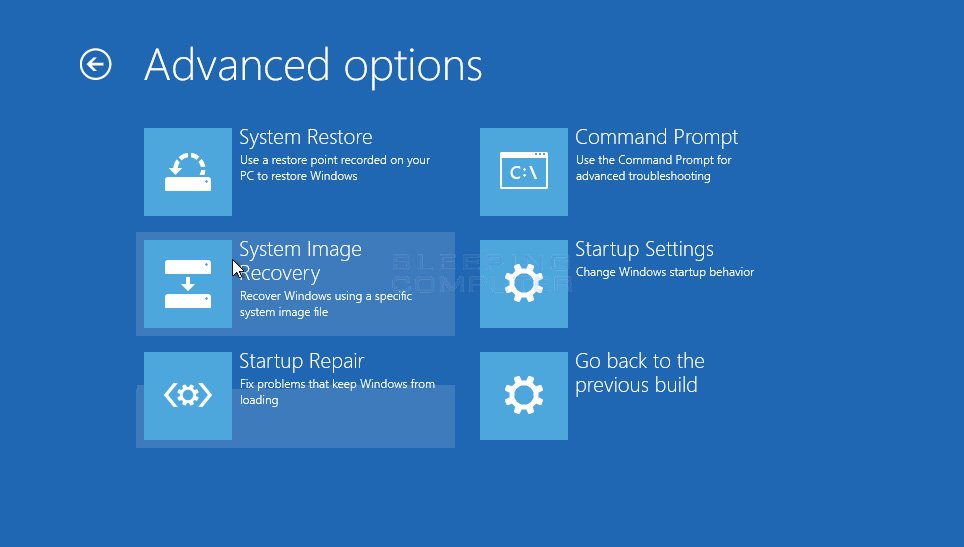
Performing System Restore
System Restore rolls your PC back to an earlier state. It removes recent changes that may cause blue screens. Search “System Restore” in the Start menu and open it. Choose a restore point before the issue began. Follow prompts to complete the process. This method does not delete personal files.
Resetting Or Reinstalling Windows
Resetting Windows reinstalls the system without removing personal data. Search “Reset this PC” and select the option. Choose to keep files or remove everything for a clean start. Follow on-screen steps to reset your PC.
Reinstalling Windows wipes everything and installs fresh. Use this if other methods fail. Backup your data before reinstalling. This provides a clean system and often fixes stubborn blue screen errors.
Preventing Future Blue Screens
Blue screens can stop your PC from working properly. Preventing these errors helps keep your system stable and safe. Simple steps can protect your computer from future crashes. Keeping your PC in good shape avoids many common problems. Here are some key ways to prevent blue screens.
Regular System Updates
Keep your operating system updated. Updates fix bugs and improve security. They also add support for new hardware. Install updates as soon as they become available. This helps prevent conflicts that cause blue screens.
Proper Overclocking Practices
Overclocking can boost performance but increases risk. Use safe settings and increase speeds slowly. Test stability after each change. Avoid pushing your hardware beyond its limits. Proper cooling is essential during overclocking.
Maintaining Clean Hardware
Dust and dirt can cause overheating and hardware failure. Clean your PC regularly, especially fans and vents. Use compressed air to remove dust safely. Clean hardware runs cooler and lasts longer. This reduces blue screen risks.
Monitoring System Temperatures
High temperatures can cause system crashes and blue screens. Use software tools to check CPU and GPU temperatures. Keep your system cool with proper airflow and fans. Stop your PC if temperatures get too high. Staying cool keeps your PC stable and error-free.
Credit: healthit.com.au
Frequently Asked Questions
Why Does My Pc Show Blue Screen After New Build?
A blue screen often indicates hardware or driver issues. Check component compatibility and update all drivers. Ensure proper installation to avoid errors causing the blue screen.
How Can I Fix Blue Screen After Pc Build?
Start by updating BIOS and drivers. Run memory tests and check hardware connections. Remove recently added components to isolate the cause and resolve the blue screen issue.
What Common Hardware Causes Blue Screens Post Build?
Faulty RAM, incompatible CPU, or loose cables often cause blue screens. Also, check the GPU and power supply for errors after building a PC.
Can Outdated Drivers Cause Blue Screen After Build?
Yes, outdated or incompatible drivers frequently trigger blue screens. Always install the latest drivers from manufacturer websites after building your PC.
Conclusion
Fixing a blue screen after building a PC takes patience and care. Check all hardware connections and update drivers. Test your memory and storage for errors. Keep your system cool to avoid overheating problems. Small steps can stop blue screen errors from returning.
Stay calm and follow troubleshooting guides carefully. Your PC will run smoothly with time and effort. Don’t rush; each fix brings you closer to a stable build. Keep learning and improving your computer skills.