Pc Not Booting After Ram Installation Fix: Easy Solutions to Try Now
Is your PC refusing to boot after you installed new RAM? That sudden freeze can be frustrating, especially when you expect your computer to run faster and smoother.
But don’t worry—you’re not alone, and this problem is fixable. You’ll discover simple, clear steps to get your PC back up and running quickly. Keep reading, because the solution might be easier than you think, and you’ll soon enjoy the performance boost you were aiming for.

Credit: www.youtube.com
Common Causes Of Boot Issues After Ram Installation
PC not booting after RAM installation is a common problem many users face. Several reasons can cause this issue. Identifying the cause helps fix it quickly. Below are common causes of boot problems after adding new RAM.
Incorrect Ram Seating
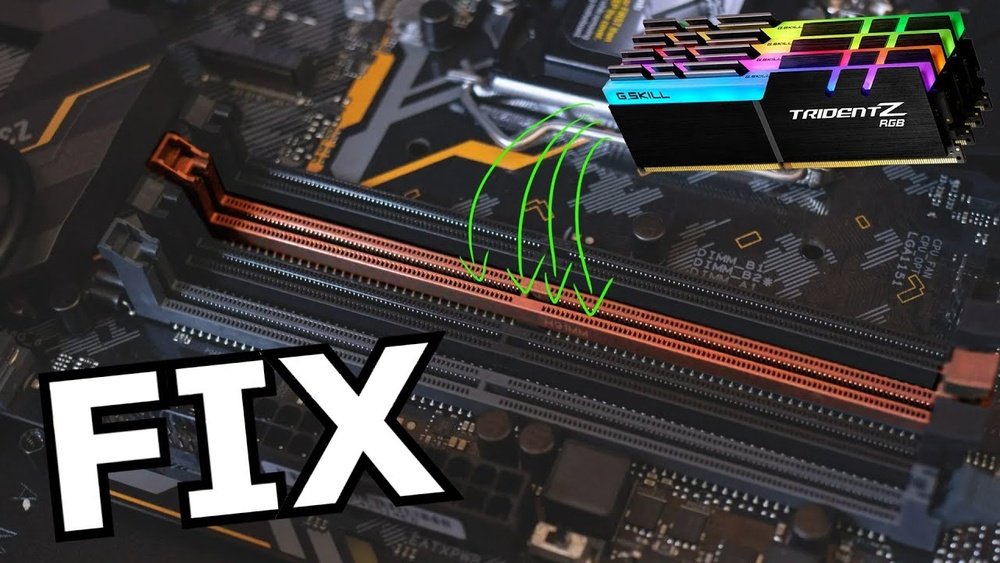
RAM must be properly seated in its slot. Even slight misalignment can stop the PC from booting. Press the RAM firmly until it clicks into place. Check both ends of the RAM stick to ensure it fits well.
Incompatible Ram Modules
Not all RAM sticks work with every motherboard. Different speeds, sizes, and types can cause conflicts. Use RAM that matches your motherboard’s specifications. Mixing different RAM brands or models can also cause boot issues.
Faulty Ram Slots
Sometimes the RAM slot on the motherboard is damaged. Try inserting the RAM into a different slot to test. Dust or debris inside the slot can also block the connection. Clean the slot gently before placing the RAM.
Bios Compatibility Problems
Older BIOS versions might not support new RAM modules. Updating the BIOS can fix this issue. Check your motherboard’s website for BIOS updates. Follow instructions carefully to avoid further problems.
Step-by-step Troubleshooting Guide
When your PC does not start after installing new RAM, follow this step-by-step guide. It helps to find the cause and fix the problem. Each step is simple and clear, so you can try it yourself.
Take your time and follow each step carefully. This way, you avoid damage and can spot the issue quickly. Let’s begin with the basics.
Power Off And Disconnect
Turn off your PC completely. Unplug the power cable from the wall socket. Remove all other cables and devices. This prevents any electrical damage or shorts. Wait a few minutes before moving on.
Reseat The Ram Modules
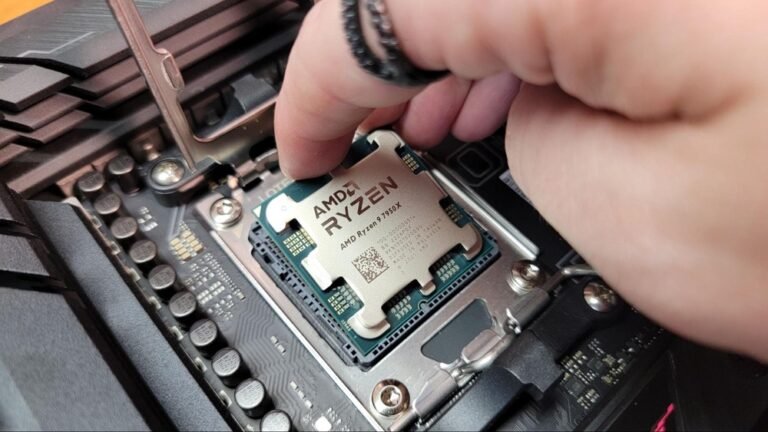
Open your PC case carefully. Find the RAM sticks on the motherboard. Push the clips at each end to release them. Remove the RAM sticks gently. Clean the slots with a soft brush or compressed air. Reinsert the RAM sticks firmly until the clips click back in place.
Test Ram One Stick At A Time
Remove all RAM sticks except one. Try to start the PC with only one stick installed. If it boots, turn off the PC and switch the stick. Test each stick one by one. This helps find faulty RAM or a bad slot on the motherboard.
Clear Cmos Settings
Locate the CMOS battery on the motherboard. Carefully remove the battery for about five minutes. Put the battery back in the same way. This clears the motherboard settings and may fix boot problems. Check your PC manual if you need help.
Update Bios Firmware
Visit the motherboard manufacturer’s website. Download the latest BIOS version for your model. Follow the instructions to update BIOS carefully. A new BIOS can improve hardware compatibility. This step can fix issues caused by new RAM.
Tools And Techniques For Diagnosing Ram Problems
Diagnosing RAM problems needs the right tools and techniques. These help find out why the PC does not boot after RAM installation. Understanding these methods saves time and effort. It also prevents damage to the computer.
Below are common tools and ways to check RAM issues. Each one gives clues to the root of the problem.
Using A Post Card
A POST card plugs into the motherboard’s PCI slot. It shows codes during the boot process. These codes tell what part fails in the startup. If RAM has issues, the card will display specific error codes. This method helps find hardware problems quickly. It is useful when the screen stays black.
Running Memory Diagnostics
Memory diagnostics are software tests for RAM health. Windows has a built-in tool called Windows Memory Diagnostic. It scans RAM for errors and reports them. Other tools like MemTest86 also check memory thoroughly. Running these tests can confirm if RAM sticks are faulty. It takes time but gives clear results.
Checking For Beep Codes
Motherboards use beep codes to signal errors. When RAM fails, the PC may beep in patterns. These beeps differ by motherboard brand. Listening to these sounds helps identify memory problems fast. Keep a manual or guide to know what each beep means. This technique works even if there is no display on the monitor.

Credit: metadictory.com
Preventive Tips For Smooth Ram Installation
Installing RAM in your PC can improve its speed and performance. Taking some preventive steps can help you avoid boot issues after installation. These tips make the process simple and safe. Follow them to keep your PC running smoothly.
Choosing Compatible Ram
Choose RAM that matches your motherboard’s specifications. Check the type, speed, and size supported by your system. Using incompatible RAM can stop your PC from booting. Always read your motherboard manual before buying RAM.
Proper Handling And Installation
Handle RAM modules with care to avoid damage. Touch the edges only and avoid static electricity. Insert RAM firmly into the slot until it clicks. Do not force it, as this can break pins or slots. Make sure your PC is off and unplugged during installation.
Verifying System Requirements
Check your system’s BIOS version and update if needed. Verify your operating system supports the new RAM size. Ensure your power supply can handle any extra load. Confirm these details before starting the installation process.
When To Seek Professional Help
Sometimes fixing a PC that won’t boot after RAM installation can be tricky. Simple steps may not solve the issue. Knowing when to seek professional help saves time and prevents damage. Experts have tools and skills to diagnose deeper problems. They can check hardware and software settings carefully. Below are signs that show it’s time to call a technician.
Persistent Boot Failures
Repeated attempts to start the PC fail. You try different RAM sticks and slots. The screen stays black or shows error messages. No change happens after basic troubleshooting. This may mean the problem is beyond simple fixes. Professionals can run detailed tests to find the cause.
Potential Hardware Damage
Unusual sounds or smells come from your PC. Sparks or overheating occur during boot attempts. Physical damage may have happened during RAM installation. Faulty RAM or motherboard issues need expert care. Handling these problems without skills can cause more damage.
Complex Bios Configurations
Sometimes BIOS settings block the PC from starting. Changing RAM may require BIOS updates or adjustments. Incorrect BIOS setup can stop the system from booting. Experts know how to safely update and configure BIOS. They avoid risks that could make the PC unusable.

Credit: superuser.com
Frequently Asked Questions
Why Is My Pc Not Booting After Ram Installation?
Your PC might not boot due to improperly seated RAM or incompatible modules. Check if the RAM sticks are fully inserted and compatible with your motherboard. Also, reset the BIOS or clear CMOS to resolve detection issues.
How Do I Check If Ram Is Installed Correctly?
Turn off your PC and open the case. Ensure each RAM stick clicks firmly into the slot. The retaining clips should lock in place. Restart the PC and listen for beep codes or watch for BIOS recognition.
Can Faulty Ram Cause Booting Problems?
Yes, faulty RAM can prevent your PC from booting. It may cause system freezes or error beeps. Testing RAM with tools like MemTest86 can help identify defects and confirm if replacement is needed.
What Steps Fix Boot Issues After Adding Ram?
First, reseat the RAM sticks properly. Clear CMOS by removing the battery or using the jumper. Test each RAM stick individually to find faulty ones. Update BIOS to support new RAM if needed.
Conclusion
Fixing a PC that won’t boot after RAM installation is simple. Check the RAM slots and ensure they are clean. Make sure the RAM sticks fit firmly and correctly. Try reseating or swapping the RAM modules if needed. Clear the CMOS to reset settings.
These steps usually solve the problem fast. A careful approach saves time and stress. Keep patience and follow each step slowly. Your PC will start working again soon.