Pc Lagging Despite Good Hardware Fix: Ultimate Solutions Revealed
Is your PC lagging even though you have good hardware? It’s frustrating when your powerful computer feels slow and unresponsive.
You might wonder why your investment isn’t paying off. The good news is, you don’t have to live with this problem. There are simple fixes that can bring your PC back to life and make it run smoothly again. Keep reading, and you’ll learn exactly what’s holding your system back and how to solve it fast.
Your PC deserves to perform at its best—and you deserve to enjoy it without the lag.
Common Causes Of Pc Lag
PC lag can be frustrating, especially with good hardware inside. Many users expect smooth performance but face slowdowns. The issue often lies beyond the physical parts. Software and system settings can cause delays and stutters. Identifying common causes helps fix lag and improves speed.
Here are some frequent reasons your PC may lag despite strong hardware.
Software Conflicts
Different programs may clash and slow down your system. Running many apps at once can create conflicts. Some software uses too much memory or CPU, causing delays. Outdated or buggy software also affects performance. Removing or updating problematic apps can reduce lag.
Background Processes
Many tasks run quietly behind the scenes. These background processes consume resources without your knowledge. Automatic updates, file indexing, or antivirus scans may slow your PC. Checking and managing these processes frees up power. Use task manager to stop unnecessary activities.
Driver Issues
Drivers help hardware and software communicate well. Old or corrupted drivers cause errors and lag. Graphics, sound, and chipset drivers must be current. Installing the latest drivers often fixes slowdowns. Regular updates keep your system stable and fast.
Thermal Throttling
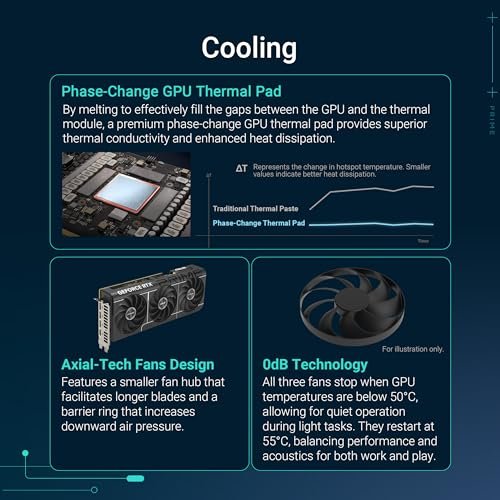
Heat can reduce your PC’s speed to protect parts. When components get too hot, they slow down. Dust buildup and poor cooling cause overheating. Check fans and clean vents to improve airflow. Keeping your PC cool helps maintain steady performance.
Credit: www.reddit.com
Checking System Performance
Checking your system performance helps find the cause of PC lag. Even good hardware can slow down if something runs wrong inside. Watching how your computer uses its resources gives clear clues. This process helps fix lag and improve speed.
Using Task Manager
Task Manager shows active programs and processes. It lists which apps use the most CPU, memory, and disk space. You can open it by pressing Ctrl + Shift + Esc. Look for any program using too much power. Ending heavy tasks can boost performance quickly.
Monitoring Resource Usage
Resource monitoring tools track CPU, RAM, and disk use over time. They help spot spikes or constant high use. These tools reveal if a background app drains resources silently. Keeping usage balanced prevents lag and freezes.
Benchmarking Tools
Benchmark software tests your PC’s speed and power. They compare your hardware to standard scores. This shows if your system works as expected or lags behind. Running benchmarks helps find weak spots that need fixing.
Optimizing Software Settings
Optimizing software settings can help fix PC lag even with good hardware. Many times, slowdowns happen because of how the system runs programs and uses resources. Adjusting these settings can improve speed and responsiveness without extra cost.
Disabling Startup Programs
Many programs start automatically when Windows boots. These programs use memory and slow down the PC. Disable unnecessary startup programs to free up resources. Open Task Manager, go to the Startup tab, and turn off programs you do not need right away.
Adjusting Visual Effects
Windows uses visual effects like animations and shadows. These effects look nice but use CPU and memory. Adjust settings for better performance by choosing “Adjust for best performance” in System Properties. This change reduces resource use and speeds up the PC.
Managing Background Services
Background services run tasks without your knowledge. Some are important, but others are not needed all the time. Use the Services app to stop or disable services that slow the system. Be careful to keep essential services running to avoid issues.
Updating And Fixing Drivers
Updating and fixing drivers plays a key role in solving PC lag issues despite good hardware. Drivers help your operating system communicate with hardware parts. Outdated or faulty drivers cause slowdowns and errors. Keeping drivers current ensures smooth PC performance and fewer crashes. Fixing driver problems often restores speed and stability quickly.
Identifying Outdated Drivers
Start by checking which drivers need updates. Use Device Manager on Windows to see driver status. Yellow warning signs show faulty or missing drivers. You can also use third-party software to scan for outdated drivers. Note the device names and driver versions. This helps you find the right updates fast.
Using Official Driver Tools
Download drivers only from official sources. Visit the hardware maker’s website for latest drivers. Many brands offer automatic update tools for their devices. These tools scan your PC and install correct drivers. Avoid random download sites to prevent malware and errors. Official tools keep your system safe and reliable.
Rolling Back Problematic Updates
Sometimes new drivers cause issues instead of fixing them. Windows lets you roll back to a previous driver version. Open Device Manager, find the device, and choose Roll Back Driver. This restores the older, stable driver quickly. It helps if lag or crashes start after an update. Testing different versions can find the best driver for your PC.
Improving Hardware Performance
Improving hardware performance can solve many PC lag problems. Even good hardware needs care to work well. Small fixes can make your computer faster and more reliable. Let’s explore simple ways to boost your PC’s hardware performance.
Cleaning Dust And Improving Cooling
Dust blocks air flow inside your PC. It makes parts hotter and slower. Open your computer case carefully. Use a soft brush or compressed air to remove dust. Keep fans clean and working well. Good cooling helps your PC run at top speed. Check if fans spin freely and replace broken ones.
Checking Ram And Storage Health
RAM and storage affect how fast your PC works. Use tools to check their health. Bad RAM can cause lag and crashes. Storage drives, like SSDs or HDDs, slow down if full or damaged. Delete unneeded files and run disk checks regularly. Replace faulty RAM or old drives to improve speed.
Upgrading Firmware And Bios
Firmware and BIOS control your hardware settings. Outdated versions can cause performance issues. Visit your motherboard’s website to find updates. Follow instructions carefully to install updates safely. Updated firmware can fix bugs and improve hardware stability. It helps your PC run smoother and faster.

Credit: www.reddit.com
Removing Malware And Viruses
Malware and viruses can slow down even the best computers. These harmful programs run in the background. They use up resources and cause lag. Removing them is key to fixing performance issues. Scanning and cleaning your PC helps it run smoothly again.
Running Full System Scans
Start with a full system scan using trusted antivirus software. This scan checks every file and program on your PC. It finds hidden malware that may cause lag. The process can take some time but is very important. Regular full scans keep your computer safe and fast.
Using Malware Removal Tools
Specialized malware removal tools target specific threats. These tools remove viruses, spyware, and adware effectively. Download tools from reliable sources only. Run these tools after your antivirus scan. They catch threats that antivirus programs might miss.
Preventive Security Tips
Keep your antivirus software updated. Updates include new virus definitions and fixes. Avoid clicking unknown links or downloading suspicious files. Use a strong password and change it regularly. Enable firewalls to block unauthorized access. These steps prevent malware infections and keep your PC fast.
Resetting And Reinstalling Windows
Resetting and reinstalling Windows can fix many PC lag problems. It removes software issues that slow down your computer. This process gives your PC a fresh start without old errors. It helps if your hardware is good but your PC still runs slow. Follow the steps below to reset or reinstall Windows safely.
When To Reset The Os
Reset your operating system if your PC is slow or crashes often. Try other fixes first, like updating drivers or scanning for malware. Resetting works best when software errors cause lag. It can also help if your PC has many unwanted programs. Choose to reset when your system feels cluttered or unstable.
Backing Up Important Data
Always back up your important files before resetting Windows. Copy documents, pictures, and videos to an external drive or cloud storage. Check twice to avoid losing anything important. Backups protect your data during the reset or reinstall process. Prepare your files so you can restore them later without stress.
Clean Installation Steps
Start by creating a Windows installation USB drive. Use the official Microsoft Media Creation Tool for this. Insert the USB and restart your PC. Enter BIOS or boot menu to boot from the USB drive. Follow the on-screen prompts to install Windows. Choose “Custom Install” to remove old files completely. Format your system drive for a fresh start. After installation, reinstall your apps and restore your backed-up files.
Credit: www.pandasecurity.com
Advanced Troubleshooting Tips
Advanced troubleshooting helps solve PC lag issues beyond basic fixes. It digs deeper into system problems that simple checks miss.
This section covers three key methods to find hidden causes of lag. These tips guide you through detailed steps for better results.
Checking Event Viewer Logs
Event Viewer records system errors and warnings. It can reveal software conflicts or hardware faults causing lag.
Open Event Viewer and look for critical errors. Focus on recent entries during lag spikes. Note down any recurring issues.
These logs help identify drivers or programs that crash often. Fix or update them to improve PC speed.
Using Safe Mode
Safe Mode starts Windows with minimal drivers and programs. It helps check if third-party apps cause lag.
Restart your PC and enter Safe Mode by pressing the right key. Observe if the lag persists.
No lag in Safe Mode means software or drivers slow your PC. Remove or update these to fix the problem.
Consulting Expert Forums
Online forums have many users sharing similar PC issues. Experts offer advice based on real experience.
Search your lag symptoms on trusted tech forums. Read solutions that worked for others with good hardware.
Post your problem with detailed info for personalized help. This can uncover fixes not found in guides.
Frequently Asked Questions
Why Is My Pc Lagging Despite Good Hardware?
PC lag can result from software issues, outdated drivers, or malware. Good hardware alone doesn’t guarantee smooth performance. Background processes and insufficient RAM also cause lag. Regular maintenance and updates help fix these issues.
How To Fix Pc Lag Without Upgrading Hardware?
Close unnecessary background apps, update drivers, and scan for malware. Disable startup programs and clean temporary files. Adjust visual effects for better performance. These steps can significantly reduce lag without new hardware.
Can Outdated Drivers Cause Pc Lag?
Yes, outdated drivers can cause slow performance and lag. Drivers connect hardware with software efficiently. Regularly updating them ensures compatibility and smooth operation. Always download drivers from official sources.
Does Malware Affect Pc Performance Even With Good Hardware?
Malware consumes resources and slows down your PC. It can cause lag regardless of hardware quality. Running a reliable antivirus scan and removing threats improves speed and stability.
Conclusion
A PC can lag even with strong hardware. Software issues often cause slowdowns. Cleaning up files and closing extra programs helps. Checking for viruses keeps the system safe. Updating drivers improves device performance. Sometimes, a simple restart fixes many problems.
Regular maintenance keeps your PC running smoothly. Small steps can make a big difference. Stay patient and try these fixes one by one. Your PC will feel faster and more responsive soon.