How to Unpark Cpu Cores: Boost Performance Instantly
Are you noticing your computer slowing down when you need it the most? Your CPU cores might be parked, holding back your system’s full power without you even realizing it.
Unparking your CPU cores can unlock hidden speed and boost your computer’s performance instantly. You’ll discover simple, step-by-step methods to unpark your CPU cores and make your system run smoother and faster. Keep reading to learn how a small change can make a big difference for your PC.

Credit: community.spiceworks.com
What Cpu Core Parking Means
CPU core parking is a power-saving feature found in many modern processors. It allows the operating system to turn off some CPU cores when the computer does not need full power. This helps reduce energy use and heat. The parked cores stay inactive until the system demands more processing power. Understanding CPU core parking helps you decide if you want to unpark them for better performance.
Why Cpu Cores Get Parked
CPU cores get parked to save energy and extend battery life in laptops. The operating system monitors how much work the CPU is doing. If the workload is low, it parks some cores to reduce power use. This also helps lower the temperature inside the computer. Parked cores can quickly become active again when needed.
Impact On System Performance
Parked CPU cores can slow down tasks that need more processing power. Some programs run better with all cores active. Gaming, video editing, and heavy multitasking may feel less smooth. Unparking cores can improve speed but may increase power use and heat. Balancing performance and energy saving is important for your device.
Credit: coderbag.com
Benefits Of Unparking Cpu Cores
Unparking CPU cores can improve your computer’s overall performance. It allows all cores to work together without limits. This helps the system run faster and smoother. Many users notice better speed and multitasking after unparking cores.
Improved Speed And Responsiveness
Unparking CPU cores lets the processor use all its power. This makes programs open and run faster. Your system reacts quicker to commands. Tasks that need heavy processing finish sooner. The computer feels more alive and less sluggish.
Better Multitasking Capabilities
More active cores mean the CPU handles many tasks at once. Running multiple apps becomes easier and smoother. You can switch between programs without delays. Background processes run without slowing down the main tasks. This helps boost productivity and user experience.
Methods To Unpark Cpu Cores
Unparking CPU cores can improve your computer’s speed and performance. Some CPUs park cores to save energy. Unparking makes all cores active. This helps in running heavy programs smoothly. There are several ways to unpark CPU cores. Choose the method that suits your skill level and needs.
Using Third-party Software
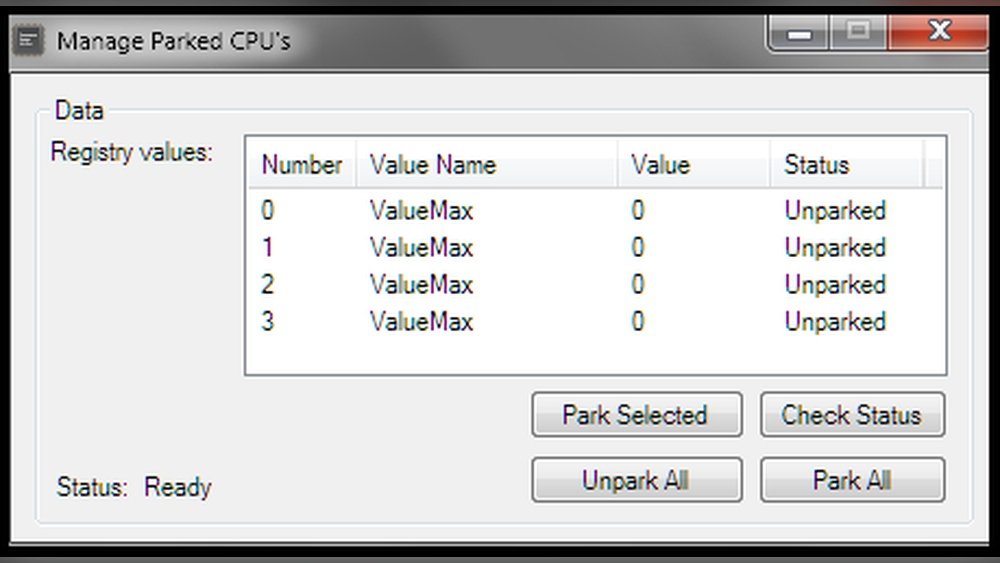
Third-party tools offer a simple way to unpark CPU cores. These programs usually have user-friendly interfaces. They scan your system and display parked cores. You can unpark them with just a few clicks. This method is fast and requires little technical knowledge. Make sure to download software from trusted sources only.
Manual Registry Tweaks
You can unpark cores by editing the Windows registry. This method is for advanced users. Open the Registry Editor and navigate to the CPU parking keys. Change the values to disable core parking. Be careful when editing the registry. A small mistake can cause system problems. Always back up your registry before making changes.
Adjusting Power Plan Settings
Power settings affect CPU core parking. Access the Control Panel and open Power Options. Choose your active power plan and click on “Change plan settings.” Then select “Change advanced power settings.” Look for the Processor power management section. Set the minimum processor state to 100%. This stops Windows from parking cores to save power.
Step-by-step Cpu Core Unparking Guide
Unparking CPU cores can improve your computer’s speed and efficiency. This guide shows clear steps to unpark cores safely. Follow the instructions carefully to avoid problems. The process is simple and does not need special skills.
Preparing Your System
First, back up important files to avoid data loss. Close all running programs to prevent interruptions. Make sure your Windows is updated for best results. Disable any antivirus temporarily, as it may block changes. Restart your computer before starting the unparking process.
Using Core Parking Software
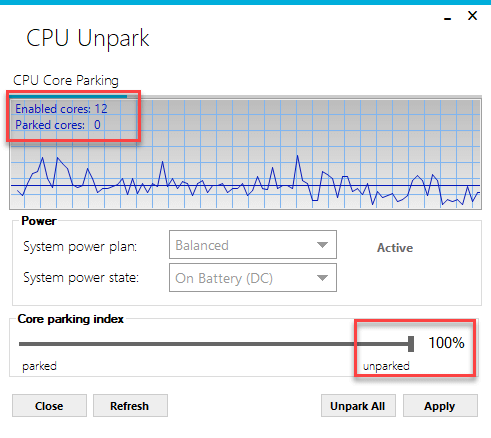
Download a trusted core parking tool from a reliable website. Install the software by following the on-screen instructions. Open the program and find the CPU core settings. Select the option to unpark all cores or adjust manually. Save changes and exit the software. Restart your computer to apply the new settings.
Verifying Changes
Check your CPU core status using the core parking software. Use Task Manager to see active cores during high usage. Run a simple stress test to confirm all cores work. Monitor system temperature to avoid overheating. If cores remain parked, repeat the steps or try another tool.
Risks And Considerations
Unparking CPU cores can improve your computer’s performance. But it is not always safe or necessary. Knowing the risks helps you decide if you should unpark cores or not.
This section covers important points about heat, power use, and when not to unpark cores. Keeping these in mind avoids damage and other problems.
Potential Heat And Power Usage Increase
Unparking cores makes the CPU work harder. This raises the temperature inside your computer. More heat can cause parts to wear out faster.
The CPU also uses more power. This leads to higher electricity bills. Your laptop battery will drain more quickly.
Cooling systems might not handle extra heat well. Overheating can cause your computer to slow down or shut off.
When Not To Unpark Cores
Do not unpark cores on old or weak computers. They may overheat or become unstable. This can cause crashes or data loss.
If your computer runs cool and fast, do not change core settings. Unparking cores may not give you a big speed boost.
Also avoid unparking cores on laptops with limited cooling. This can shorten battery life and damage hardware.
Optimizing Performance After Unparking
Optimizing performance after unparking CPU cores is essential. Unparking allows all cores to run at full speed. This boosts your computer’s ability to handle tasks faster. But it can also increase heat and power use. Careful monitoring and balance keep your system stable and efficient.
Monitoring Cpu Temperatures
Check CPU temperatures regularly after unparking cores. High temperatures can cause damage or slow down your PC. Use simple tools to track core heat levels. Keep temperatures under safe limits to avoid problems. Cooling systems might need adjustment to handle extra heat.
Balancing Performance And Efficiency
Running all cores at full speed uses more power. This can reduce battery life on laptops and increase electricity costs. Find a good balance between speed and energy use. Adjust settings to match your tasks and needs. Sometimes, not all cores need to be fully active.

Credit: www.youtube.com
Frequently Asked Questions
What Does It Mean To Unpark Cpu Cores?
Unparking CPU cores means enabling inactive cores to improve performance. It helps your system use all available processing power efficiently, especially during heavy tasks or gaming.
Why Should I Unpark Cpu Cores On My Pc?
Unparking CPU cores can enhance multitasking and speed up demanding applications. It prevents your processor from limiting core usage, thus boosting overall system responsiveness.
How Can I Check If My Cpu Cores Are Parked?
You can use tools like CPU-Z or Windows PowerShell commands to see core status. These utilities show which cores are active or parked on your system.
Is Unparking Cpu Cores Safe For My Computer?
Yes, it is generally safe if done correctly. It only changes core usage settings without harming hardware, but avoid aggressive settings that may cause overheating.
Conclusion
Unparking CPU cores can improve your computer’s speed and performance. It lets your system use all its power efficiently. The process is simple and safe when done carefully. Remember to follow the steps clearly to avoid problems. Regular users may notice smoother multitasking and faster app responses.
Keep your drivers updated for best results. Try this method to get the most from your CPU. Small changes can lead to better computing experiences. Give it a try and see the difference yourself.