

Is your PC running slower than you expected? It’s frustrating when your computer feels sluggish, making simple tasks take forever.
You might wonder why your powerful machine isn’t living up to its potential. The good news is, you don’t have to accept poor performance as the norm. You’ll discover easy and effective fixes to boost your PC’s speed and get it working like new again.
Keep reading, and take control of your computer’s performance today!
Common Causes Of Slow Pc
Many people face slow PC problems. The causes are often simple but can be hard to spot. Identifying these causes helps fix the issue faster. Common reasons include hardware limits, software bugs, too many background tasks, and malware.
Hardware Limitations
Old or weak hardware slows down your PC. Limited RAM makes multitasking hard. A slow hard drive delays file access. The processor speed affects overall performance. Upgrading hardware can boost speed a lot.
Software Issues
Outdated software can cause slowdowns. Corrupted files may crash or freeze programs. Too many startup programs delay boot time. Updates often fix bugs and improve speed. Clean installations clear hidden problems.
Background Processes
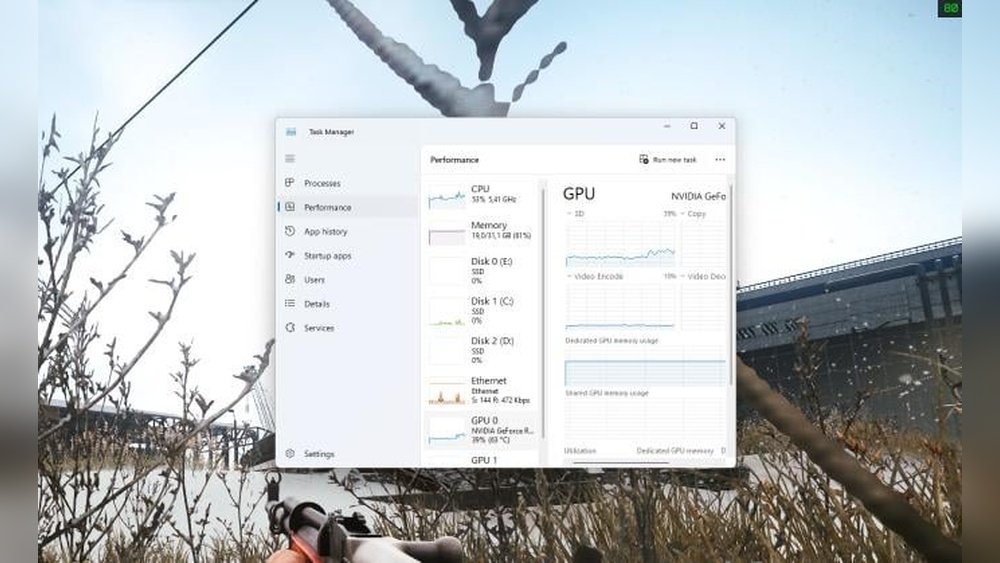
Many apps run unseen in the background. These use CPU and memory without your notice. Background updates or scans slow your PC. Stopping unneeded tasks frees up resources. Check task manager to find heavy processes.
Malware And Viruses
Malware harms your PC’s performance. Viruses use resources and cause errors. They may steal data or damage files. Running antivirus scans removes threats. Keeping security software updated protects your PC.
Quick Fixes To Boost Speed
Slow PC performance can be frustrating. Many common issues have simple solutions. Quick fixes can help your computer run faster right away. These easy steps do not need expert skills or special tools. Try these tips to improve your PC speed today.
Restart And Update
Restarting your PC clears memory and stops stuck programs. This simple action often fixes slowdowns. Always keep your system updated. Updates fix bugs and improve performance. Check for updates regularly to keep your PC running smoothly.
Disk Cleanup
Old files and junk data slow down your hard drive. Use Disk Cleanup to remove temporary files and system clutter. This frees up space and helps your PC work faster. Running Disk Cleanup takes only a few minutes but gives good results.
Manage Startup Programs
Many programs start automatically with your PC. Too many startup apps slow down boot time. Disable unnecessary programs in the startup menu. This makes your computer start faster and improves overall speed. Review your startup list regularly to keep it lean.
Optimizing Hardware Components
Optimizing hardware components can greatly improve your PC’s performance. Many times, slow computers are caused by outdated or weak hardware. Small changes can make your system faster and more reliable. Focus on key parts that affect speed and stability.
Upgrade Ram
RAM helps your computer handle multiple tasks. More RAM means better multitasking and less slow down. Check your current RAM size and see if you can add more. Upgrading RAM is often simple and affordable. It improves performance in games, apps, and browsing.
Switch To Ssd
Old hard drives slow down your system. SSDs are faster and more reliable than traditional drives. They make your PC start up and load programs quickly. Switching to an SSD reduces waiting time and boosts responsiveness. This upgrade gives your computer a fresh speed boost.
Check For Overheating
Overheating can cause your PC to slow down or shut off. Dust and poor airflow block cooling fans. Clean inside your computer and ensure fans work well. Use a cooling pad for laptops or add extra fans for desktops. Keeping your PC cool helps maintain steady performance.

Credit: www.pcgamer.com
Software Tweaks For Better Performance
Software changes can help your PC run faster and smoother. Many small fixes improve how your computer works without buying new parts. Simple tweaks can reduce slowdowns and make your system more responsive.
These steps focus on software settings that affect speed and performance. You can try each one to see better results. They are easy and safe to do, even for beginners.
Adjust Visual Effects
Windows uses many visual effects that look nice but use extra power. Turning off some effects can speed up your PC. Go to System Properties, then Performance Settings. Choose “Adjust for best performance” or select which effects to disable. This reduces the load on your processor and memory.
Update Drivers
Drivers connect your hardware to Windows. Outdated drivers can cause slowdowns and errors. Check for new driver updates from your device maker’s website. Use Device Manager to find driver versions. Keeping drivers current helps your PC run smoothly and fixes bugs.
Optimize Power Settings
Power plans control how your PC uses energy. Balanced or power saver modes can reduce speed. Select High Performance mode in Control Panel under Power Options. This lets your CPU run at full speed. It uses more energy but improves overall performance.
Advanced Maintenance Tips
Advanced maintenance can help fix slow PC performance. These steps go beyond simple cleaning. They target hidden issues inside your system. Follow these tips to keep your PC running smoothly and fast.
Defragment Hard Drive
Over time, files get scattered on your hard drive. This makes your PC work harder to find data. Defragmenting rearranges files for faster access. Use the built-in defragment tool in Windows. Run it once a month to improve speed. Do not defragment solid-state drives (SSDs). SSDs work differently and do not need defragmentation.
Scan For Malware
Malware can slow down your PC without warning. It runs in the background, using your system’s power. Use trusted antivirus software to scan your computer. Remove any threats found during the scan. Schedule regular scans to keep malware away. Keep your antivirus software updated for best protection.
Clean Registry Safely
The Windows registry stores important system settings. Over time, it fills with errors and outdated entries. Cleaning the registry can boost performance. Use a trusted registry cleaner tool. Always back up your registry before making changes. Avoid manual editing unless you are experienced. A clean registry helps your PC run smoother and faster.

Credit: www.reddit.com
Using Performance Monitoring Tools
Monitoring your PC’s performance helps find why it runs slow. Tools that track CPU, memory, and disk use show where problems lie. These tools guide you to fix issues and improve speed. Start checking with built-in options, then try extra apps for deeper views.
Task Manager Insights
Task Manager shows which programs use most resources. Press Ctrl + Shift + Esc to open it quickly. Look at CPU, memory, and disk columns. High usage means those apps slow your PC. End tasks that use too much, but save your work first. Check startup tab to stop programs that auto-run and slow boot.
Third-party Optimization Apps
Third-party tools offer more details and fixes. Apps like CCleaner or Advanced SystemCare scan for junk files and errors. They clear cache, clean registry, and manage startup apps. Use these apps carefully and avoid unknown software. Choose trusted programs to keep your PC safe. Run scans regularly to keep performance steady.
When To Consider A Fresh Install
Sometimes, a PC’s performance stays poor despite many fixes. A fresh install of the operating system can clear issues deeply hidden in the system. This process wipes out all software problems and gives your PC a new start. It is a strong step that can solve many performance troubles.
Signs You Need Reinstallation
Your PC crashes often or shows many error messages. Programs run slowly or freeze without clear cause. You see lots of pop-ups or strange toolbars in your browser. Antivirus scans find many viruses or malware that keep coming back. Updates fail repeatedly or the system won’t start properly. These are strong signs your PC needs a clean reinstall.
Backup And Preparation Tips
Save all important files before reinstalling. Use an external drive or cloud storage for backups. Write down all software keys and passwords you will need later. Have your PC’s installation media or recovery disk ready. Disconnect all unnecessary devices to avoid confusion during setup. Follow the reinstall steps carefully to prevent data loss.
Credit: www.tomshardware.com
Frequently Asked Questions
Why Is My Pc Performance Worse Than Expected?
PC performance can drop due to outdated drivers, malware, or insufficient RAM. Background apps also consume resources, slowing your system. Regular updates and scans help maintain optimal speed and performance.
How Can I Fix Slow Pc Performance Quickly?
Close unnecessary programs and disable startup apps. Update your operating system and drivers. Run antivirus scans and clean temporary files to improve speed instantly.
Does Upgrading Hardware Improve Pc Speed Significantly?
Yes, upgrading RAM or switching to an SSD greatly enhances performance. Newer CPUs and GPUs also boost speed for demanding tasks and games.
Can Malware Cause Poor Pc Performance?
Absolutely. Malware uses system resources and slows down your PC. Running regular antivirus scans and removing threats is essential to restore performance.
Conclusion
Fixing PC performance issues takes patience and simple steps. Clean your system regularly and update software. Remove unnecessary programs and check for viruses. Adjust startup apps to speed up boot time. Keep your hardware in good shape too. Small changes can make a big difference.
Stay consistent with maintenance to avoid slowdowns. Your PC will run smoother and faster again. Don’t give up; better performance is possible.
