Gpu Not Detected in Pc How to Fix: Easy Steps to Solve Fast
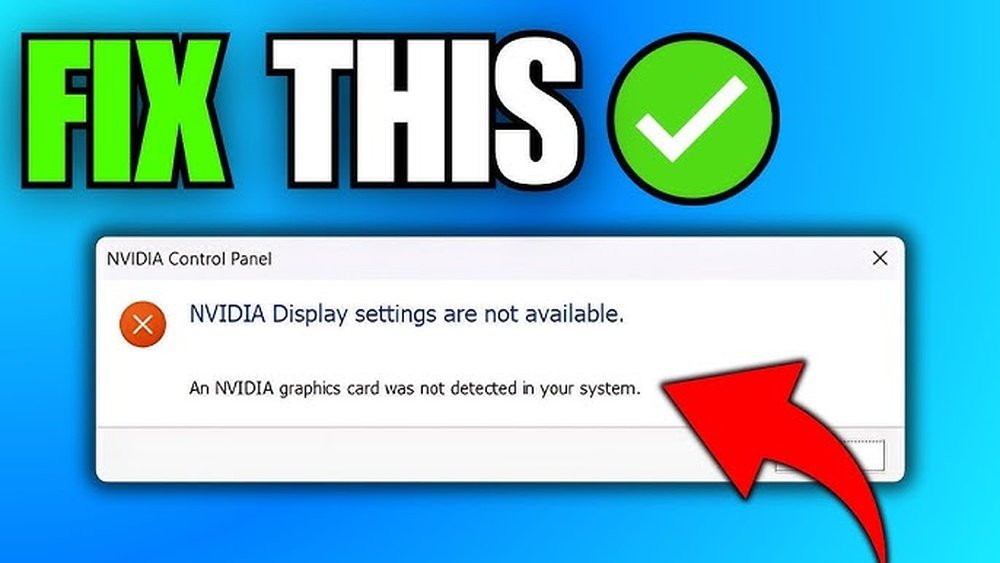
Is your PC suddenly acting like it doesn’t recognize your graphics card? Seeing “GPU not detected” can be frustrating and confusing, especially when you rely on your computer for work or gaming.
But don’t worry—this problem is more common than you think, and there are clear steps you can take to fix it. You’ll discover simple, effective solutions to get your GPU back up and running. Keep reading, and you’ll be able to solve this issue quickly, without needing to be a tech expert.

Credit: www.reddit.com
Check Physical Connections
Checking the physical connections is the first step in fixing a GPU not detected issue. Loose or improper connections can stop your PC from recognizing the graphics card. It is important to carefully examine how the GPU is seated and powered.
Inspect Gpu Seating
Turn off your PC and unplug it. Open the case and find the GPU. Make sure the GPU is firmly and evenly seated in the PCIe slot. Sometimes, a card might look inserted but is not fully connected. Press down gently but firmly to secure the GPU in place.
Verify Power Supply Cables
Check the power cables connected to the GPU. Some graphics cards need extra power from the PSU. Look for 6-pin or 8-pin connectors plugged into the GPU. Make sure the cables are not loose or damaged. A missing or loose power cable can cause detection problems.
Examine Pcie Slot
Inspect the PCIe slot on the motherboard where the GPU sits. Dust or debris can block connections. Use a soft brush or compressed air to clean the slot. Also, check for any visible damage or bent pins. A faulty slot can prevent the GPU from being detected.

Credit: www.youtube.com
Update Or Reinstall Drivers
Updating or reinstalling your GPU drivers can solve many detection problems. Drivers help your PC talk to the graphics card. Old or broken drivers stop this communication. Fixing them often brings your GPU back to life.
Uninstall Old Gpu Drivers
Start by removing old drivers. This clears conflicts and errors. Use the Device Manager on your PC. Find the Display Adapters section. Right-click your GPU and select “Uninstall device.” Check the box to delete driver software. Restart your computer after uninstalling.
Download Latest Drivers
Get the newest drivers from the GPU maker’s website. Choose the exact model of your graphics card. Pick the driver that matches your Windows version. Download the file and run the installer. Follow the on-screen steps carefully. Restart your PC to finish installation.
Use Driver Installation Tools
Driver tools help update your GPU easily. They scan your system for missing drivers. Popular tools include NVIDIA GeForce Experience and AMD Radeon Software. These apps download and install drivers automatically. They also optimize settings for your GPU. Use these tools for smooth and safe updates.
Adjust Bios Settings
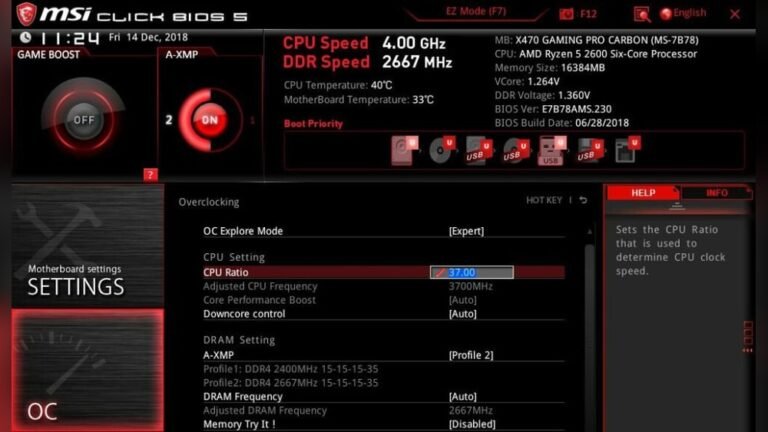
Adjusting BIOS settings can help your PC detect the GPU properly. The BIOS controls hardware settings at a basic level. Sometimes, the graphics card stays disabled here. Changing some options can fix the “GPU not detected” issue quickly.
Enable Discrete Graphics
Discrete graphics means your separate graphics card, not the built-in one. BIOS might default to integrated graphics. You need to find the setting called “Primary Display” or “Graphics Adapter.”
Change it to “PCIe” or “Discrete” to turn on the GPU. Save and exit BIOS. This tells your PC to use the dedicated GPU for display.
Reset Bios To Defaults
Wrong BIOS settings can block GPU detection. Resetting BIOS brings settings back to factory state. This can clear conflicts or wrong options.
Enter BIOS and select “Load Setup Defaults” or “Reset to Default.” Save changes and restart the PC. This simple step often solves hardware detection problems.
Update Bios Firmware
Old BIOS versions may not support new GPUs well. Updating BIOS firmware improves hardware compatibility. Check your motherboard’s website for the latest BIOS update.
Follow instructions carefully to avoid problems. A fresh BIOS version can fix GPU detection bugs. Keep the PC plugged in during the update for safety.
Check Device Manager
Checking the Device Manager is a key step to fix the “GPU Not Detected” issue. This tool shows all hardware connected to your PC. It helps find problems with your graphics card.
Device Manager lists devices with errors or missing drivers. You can spot unknown devices here. It also lets you update or reinstall drivers easily. This can solve many GPU detection problems.
Identify Unknown Devices
Open Device Manager and look for any devices marked with a yellow triangle. These are unknown or problematic devices. Your missing GPU may appear here. Right-click and check properties for more details. This helps confirm if the GPU is detected but not recognized.
Resolve Driver Conflicts
Driver conflicts cause hardware to stop working properly. In Device Manager, find the GPU under Display Adapters. Right-click and choose Update Driver. If that fails, uninstall the driver and restart your PC. This removes corrupted or conflicting drivers. Then, install the correct driver from your GPU maker’s website.
Scan For Hardware Changes
Sometimes, Device Manager does not detect new hardware automatically. Click on “Action” in the top menu. Select “Scan for hardware changes.” This forces your PC to look for new devices. It can help detect your GPU if it is physically installed. After scanning, check if the GPU appears in the list.
Test With Another Pc Or Gpu
Testing your GPU with another PC or using a different GPU in your computer helps find the real problem. This step shows if the issue is with the GPU or your PC. It saves time and money by avoiding unnecessary repairs or replacements.
Swap Gpus
Take the GPU out of your PC carefully. Put another GPU into your PC to see if it works. If the new GPU is detected, your old GPU might be faulty. If the new GPU is not detected, the problem could be in your PC’s hardware or settings.
Try Different Pcie Slots
Remove the GPU and place it in another PCIe slot on your motherboard. Some slots may not work properly or might be disabled. Testing different slots helps find if the slot causes the problem. Make sure the PC is off and unplugged when changing slots.
Use External Gpu Testing Tools
External tools can test GPU health outside your PC. Tools like GPU diagnostic cards show if the GPU has errors. These tools help check power and connections too. Using them gives clear data about your GPU’s condition.
Power Supply And Hardware Issues
Power supply and hardware problems often cause GPU detection issues. The computer needs enough power to run the graphics card. Hardware faults can stop the GPU from working correctly. Checking these parts helps find the real problem fast.
Simple tests can reveal power or hardware damage. Fixing these can make the GPU show up again. Start by checking the power supply and physical condition of the GPU.
Verify Psu Capacity
The power supply unit (PSU) must provide enough wattage. Each GPU needs a minimum power level. If the PSU is too weak, the GPU may not work. Check the PSU label for its wattage. Compare this with your GPU’s requirements. Use an online tool or manual to confirm. Replace the PSU if it cannot support the GPU.
Check For Overheating
Overheating can cause the GPU to stop working. Dust buildup blocks airflow and raises temperatures. Clean the GPU and case fans regularly. Use software to monitor GPU temperature. If it runs too hot, improve cooling or replace fans. Avoid running heavy programs during overheating.
Inspect For Physical Damage
Physical damage can prevent the GPU from being detected. Look for broken or bent pins on the GPU slot. Check the GPU for cracks or burned areas. Loose cables or connectors cause connection issues. Secure all power and data cables firmly. Replace damaged parts to restore GPU function.
Software And System Fixes
Software and system issues often cause the GPU not to be detected by your PC. Fixing these problems can bring your graphics card back to life without any hardware changes. Start by checking your system’s software and settings carefully. Here are simple steps to follow that might solve the problem quickly.
Run System Updates
Updating your operating system can fix many hardware recognition problems. System updates include important drivers and patches. These updates help your PC communicate well with the GPU. Go to your PC’s settings and check for updates. Install all available updates and restart your computer. This process often clears bugs that stop the GPU from showing up.
Perform System Restore
System Restore lets you go back to a previous point when the GPU was working. This step undoes recent changes that may have caused the issue. Open the System Restore tool from your control panel. Pick a restore point before the problem started. Follow the instructions and wait for your PC to restart. This method can solve software conflicts affecting the GPU.
Check For Malware
Malware can block hardware devices like your GPU from working. Running a full malware scan helps find and remove harmful programs. Use trusted antivirus software to scan your entire system. Remove any threats the scan finds. After cleaning, restart your PC and check if the GPU is detected. Keeping your system clean helps maintain good hardware function.

Credit: www.lxpert.com
Frequently Asked Questions
Why Is My Gpu Not Detected On Pc?
Your GPU might not be detected due to loose connections, outdated drivers, or BIOS settings. Check the hardware, update drivers, and verify BIOS configurations to fix this issue effectively.
How To Update Gpu Drivers For Detection?
Visit the GPU manufacturer’s website to download the latest drivers. Install them properly, then restart your PC to ensure the GPU is detected.
Can Bios Settings Cause Gpu Detection Issues?
Yes, incorrect BIOS settings can prevent GPU detection. Reset BIOS to default or enable PCIe settings to resolve detection problems.
How To Check If Gpu Is Properly Seated?
Turn off your PC and open the case. Press down gently on the GPU to ensure it’s firmly seated in the PCIe slot.
Conclusion
A GPU not detected can stop your PC from working well. Check the hardware connections first. Update or reinstall your graphics drivers next. Restart your computer after each step. Try these simple fixes to solve the problem fast. If problems continue, consider seeking help from a professional.
Keeping your PC’s GPU working right improves overall performance and enjoyment. Stay patient and follow the steps carefully. Your PC will thank you with better speed and visuals.