How to Identify Pc Parts Inside a Desktop: Easy Step-by-Step Guide
Have you ever opened your desktop and stared inside, unsure of what each part does or even what it’s called? Knowing how to identify PC parts inside your desktop can save you time, money, and frustration.
Whether you want to upgrade your system, fix a problem, or just understand your computer better, this guide is made for you. By the end, you’ll feel confident recognizing each component and knowing exactly how it fits into your PC’s puzzle.
Ready to unlock the secrets inside your desktop? Let’s dive in!
Preparing To Open Your Desktop
Opening your desktop is the first step to identify its parts. Preparing well makes this task easy and safe. This guide helps you get ready to open your desktop without trouble.
Gathering Tools
Collect simple tools before you start. A Phillips-head screwdriver is the most common tool needed. Keep a small container for screws to avoid losing them. Avoid using strong magnets near your desktop parts.
Ensuring Safety
Turn off your computer and unplug all cables. Touch a metal surface to remove static electricity from your body. Static can harm delicate computer parts. Work on a clean, flat surface with good light.
Locating The Case Screws
Most desktops have screws at the back holding the case. Look for screws along the edges or near the panel. Some cases use thumb screws you can remove by hand. Keep track of all screws before opening the case.

Credit: www.youtube.com
Opening The Desktop Case
Opening the desktop case is the first step to identifying the parts inside. It allows you to see all the components clearly. This process requires care and attention to avoid damage. Knowing how to open the case safely helps you explore your PC’s hardware.
Removing Side Panels
Most desktop cases have side panels held by screws or clips. Locate the screws at the back of the case. Use a screwdriver to remove them carefully. Slide the panel backward or lift it off. Keep the screws in a safe place to avoid losing them. Some cases have thumbscrews that you can remove without tools.
Handling Internal Components Carefully
Inside, components are delicate and sensitive to static electricity. Touch a metal part of the case to discharge static before touching parts. Avoid touching circuit boards or connectors directly. Hold components by their edges. Work slowly and gently to prevent damage. Keep your workspace clean and dry to protect the parts.
Identifying The Motherboard
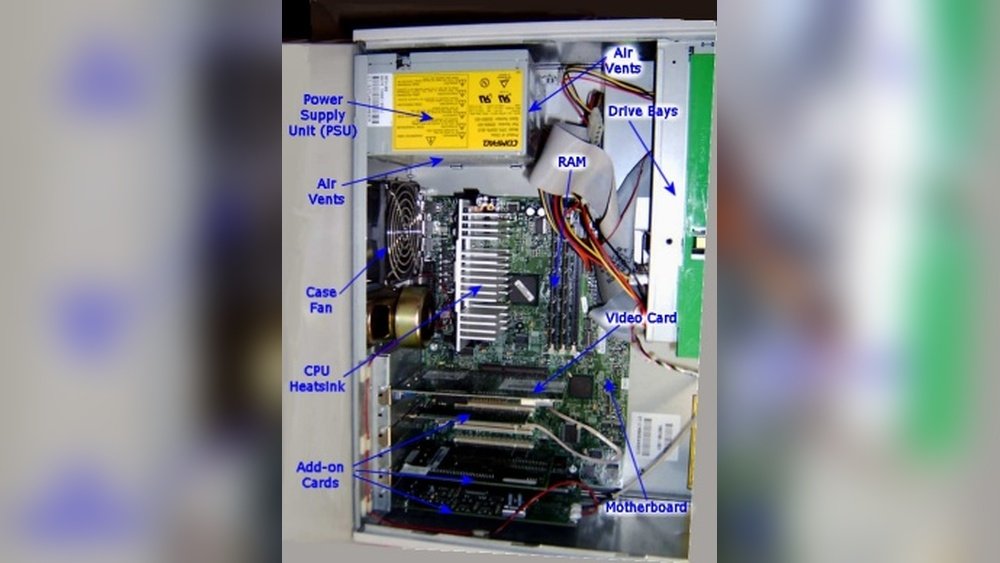
The motherboard is the heart of any desktop computer. It connects all parts and allows them to work together. Identifying the motherboard helps you understand your PC better. It also guides you when upgrading or fixing your computer.
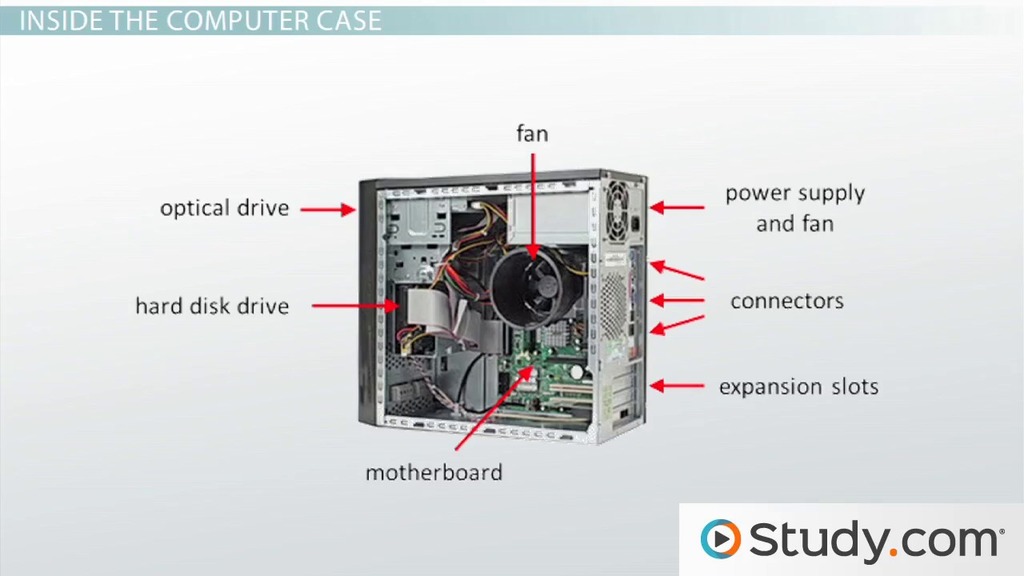
Inside the desktop case, the motherboard lies flat against the side. It holds many important components and slots for other parts. Knowing what it looks like and where to find key features makes it easier to identify.
Recognizing The Main Circuit Board
The motherboard is the largest circuit board inside the case. It usually covers most of the side panel area. Look for a big flat board with many small chips and circuits on it. It is often green, brown, or blue in color.
You will see many wires and cables attached to it. The power cable from the power supply connects here. Several slots and sockets for memory, processor, and cards are fixed on the board.
Locating Key Features
Start by finding the CPU socket. It is a square or rectangular area where the processor fits. Near the CPU, you will see one or more long slots for RAM sticks. These slots are narrow and usually placed side by side.
Look for expansion slots like PCI or PCIe. These are used for graphics cards or other add-ons. Also, check for ports like USB, audio, and Ethernet at the edge of the board. These connect to the outside world.
Finding The Processor (cpu)
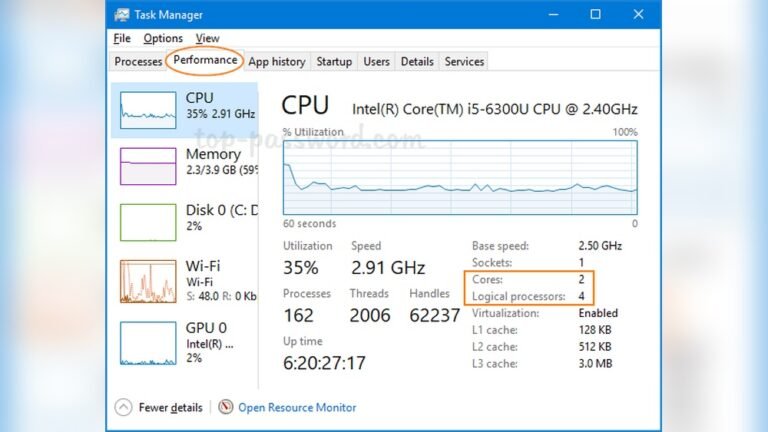
The processor, or CPU, is the brain of your computer. It handles all the instructions and processes data. Finding the CPU inside a desktop helps understand how your computer works. It also helps when upgrading or fixing your PC.
Spotting The Cpu Socket
The CPU sits in a special slot called the socket on the motherboard. This socket is usually square and has many tiny holes or pins. It is often near the center of the motherboard. You might see a metal lever or latch holding the CPU in place. The CPU itself is hidden under the cooling system, so you may not see it directly at first.
Identifying The Cooling System
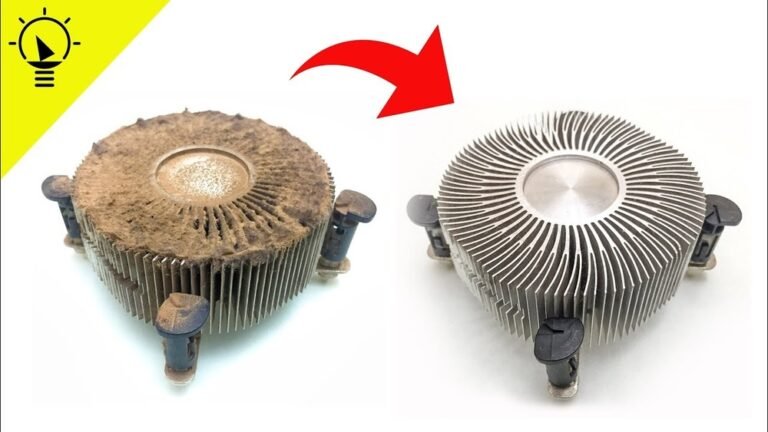
The CPU needs cooling to stop it from overheating. Most desktops have a fan or a heat sink on top of the CPU. The fan is a small spinning device with blades. The heat sink looks like a metal block with fins. These parts sit directly over the CPU socket. Removing the cooling system carefully reveals the processor beneath.
Locating The Ram Modules
Finding the RAM modules inside a desktop is easier than it seems. These parts are key for your computer’s speed. Knowing how to spot them helps with upgrades and repairs. The RAM sits on the motherboard and looks like small circuit boards. Each module fits into a slot designed just for it. Identifying these slots and the RAM types is the first step in recognizing your memory setup.
Identifying Memory Slots
Memory slots are long and thin. They run parallel to each other on the motherboard. Usually, they have small clips at each end to hold the RAM in place. The slots may be black, white, or another color. This color difference can help in placing RAM correctly. The number of slots varies by motherboard model. Most desktops have two to four slots for RAM modules.
Recognizing Different Ram Types
RAM modules come in different types and sizes. The most common type is DDR, with versions like DDR3 and DDR4. Each type has a different number of pins and a unique notch position. This design prevents wrong installation. DDR4 is the newest and fastest type found in most desktops today. Older desktops might have DDR3 or DDR2, which are slower. Check the label on the RAM module for type details and speed.
Spotting The Storage Drives
Storage drives hold all your files, programs, and the operating system. Spotting these drives inside a desktop helps you understand your computer better. It also makes upgrades and repairs easier. Storage drives mainly come in two types: HDDs and SSDs. Each type looks different and works differently.
Distinguishing Hdds And Ssds
Hard Disk Drives (HDDs) are larger and heavier. They have spinning disks inside and make a soft noise when running. HDDs usually have a metal casing with visible screws. Their connectors are wider and often have multiple pins.
Solid State Drives (SSDs) are smaller and lighter. They have no moving parts and make no noise. SSDs look like a thin rectangle or a small card. Many SSDs connect with a flat cable or slot, like M.2 or SATA.
Locating Drive Bays And Connectors
Drive bays are the places where storage drives fit inside the case. They come in different sizes for HDDs and SSDs. HDD bays are larger and often found in the lower front area. SSD bays are smaller and may be near the motherboard or mounted on brackets.
Connectors link the drives to the motherboard and power supply. SATA connectors are common for both HDDs and some SSDs. They have a thin, flat shape. M.2 connectors are smaller and found on the motherboard for certain SSDs. Power cables usually have a wider, thicker connector.
Identifying The Power Supply Unit
The Power Supply Unit (PSU) is a key part inside a desktop computer. It gives power to all other parts. Knowing how to find and recognize the PSU helps with repairs or upgrades. This section explains how to spot the PSU and understand its cables.
Recognizing The Psu Location
The PSU usually sits at the top or bottom back of the computer case. It is a metal box with a fan on one side. The fan helps cool the unit during operation. You can see a power plug socket on the outside of the case where the power cable connects. Inside, the PSU has many cables coming out from it.
Understanding Power Cables
Power cables from the PSU connect to different parts of the computer. There are thick cables for the motherboard and thinner ones for drives. One main cable is the 24-pin connector for the motherboard. Others include 4 or 8-pin connectors for the CPU. SATA power cables supply hard drives and SSDs. Recognizing these cables helps identify the PSU’s role in powering the system.
Finding The Graphics Card
Finding the graphics card inside a desktop helps you understand your computer’s power. The graphics card controls images and videos on your screen. It is a separate part inside the case, often easy to spot. Knowing its location helps with upgrades or repairs. Two main clues lead you to the graphics card: the PCIe slots and video output ports.
Recognizing Pcie Slots
The graphics card connects to the motherboard through a PCIe slot. These slots are long and narrow. They usually sit near the bottom half of the motherboard. The PCIe slot for the graphics card is often the largest one. It is longer than other slots for sound or network cards. The card fits firmly into this slot. Its edge with gold contacts slides into the slot. The card stands upright, held by screws to the case.
Spotting Video Output Ports
The graphics card has video output ports on the back of the desktop. These ports link your monitor to the computer. Common ports include HDMI, DisplayPort, DVI, and VGA. They come in different shapes and sizes. The presence of multiple ports often means a dedicated graphics card. These ports are grouped together on a metal bracket. This bracket is fixed to the case near the PCIe slot. If you see these ports, you have found the graphics card.
Other Internal Components
Inside a desktop, many parts work together to keep it running well. Some parts are easy to spot. Others need a closer look. These other internal parts help the computer work better and stay cool. Knowing how to find them helps you understand your PC.
Locating The Optical Drive
The optical drive reads CDs and DVDs. It looks like a thin box with a tray or slot. Usually, it sits near the front of the case. You can see a button on the front to open the tray. Some newer desktops may not have one. If your desktop has it, it connects to the motherboard with a cable.
Spotting Expansion Cards
Expansion cards add new features to your desktop. Common cards include graphics cards and sound cards. They fit into slots on the motherboard. These slots are long and horizontal. The cards often have fans or metal brackets on one side. Look near the back of the desktop for their ports. They can have HDMI, USB, or other connectors.
Identifying Cooling Fans
Cooling fans keep your computer parts from getting too hot. They are round and have blades that spin. Fans can be on the case, the CPU, or the power supply. Case fans often sit on the sides or back. The CPU fan sits on top of the processor. Power supply fans are inside the power unit. Proper cooling helps your PC last longer.
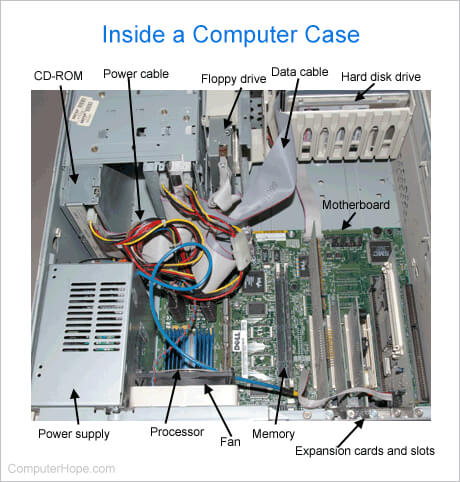
Credit: www.computerhope.com
Reassembling The Desktop
Reassembling the desktop is the final step after identifying and checking all PC parts. This process ensures your computer works correctly. Handle each component carefully to avoid damage. Follow the right order to avoid missing any step.
Securing The Side Panels
Start by placing the side panels back on the desktop case. Align the panels with the screw holes on the frame. Use screws to fasten the panels tightly. Do not overtighten screws to prevent damage. Make sure the panels fit snugly and do not move.
Connecting External Peripherals
Plug in the keyboard, mouse, and monitor cables first. Connect the power cable to the desktop’s power supply. Attach any other devices like printers or speakers next. Check all connections are secure and fit properly. Power on the computer to test if peripherals work well.
Credit: study.com
Frequently Asked Questions
What Are The Main Pc Parts Inside A Desktop?
The main PC parts include the motherboard, CPU, RAM, power supply, hard drive, and graphics card. Each component has a specific role in the computer’s functioning and performance.
How Can I Identify The Cpu Inside My Desktop?
The CPU is usually located under a large heat sink or fan on the motherboard. It is the central processing unit that handles all instructions and computing tasks.
Where Is The Ram Located In A Desktop Pc?
RAM modules are installed in long, thin slots on the motherboard. They are easily recognizable by their rectangular shape and multiple small memory chips.
How Do I Find The Graphics Card Inside The Desktop?
The graphics card is attached to the motherboard’s PCIe slot. It often has one or more fans and ports for connecting monitors.
Conclusion
Identifying PC parts inside a desktop is easier than it seems. Each component has a clear role and look. Knowing their names helps you understand your computer better. You can spot the motherboard, CPU, RAM, and storage quickly. This knowledge saves time and helps with upgrades or repairs.
Take your time, and don’t rush the process. Soon, you will feel more confident opening and exploring any desktop. Keep practicing, and these parts will become familiar friends.