How to Maximize Cpu: Boost Performance with Simple Tips
Are you frustrated by your computer running slow or not keeping up with your tasks? Your CPU is the heart of your system, and getting the most out of it can make a huge difference.
Imagine speeding up your work, gaming, or streaming without buying new hardware. You’ll discover simple, effective ways to maximize your CPU’s performance. Keep reading to unlock your computer’s full potential and experience smoother, faster computing right now.
Identify Cpu Bottlenecks
Identifying CPU bottlenecks is essential for improving your computer’s speed and performance. Bottlenecks happen when the CPU cannot keep up with tasks, causing slowdowns. Finding these issues helps you know what to fix or upgrade. This section explains how to spot common CPU problems.
Monitor Cpu Usage
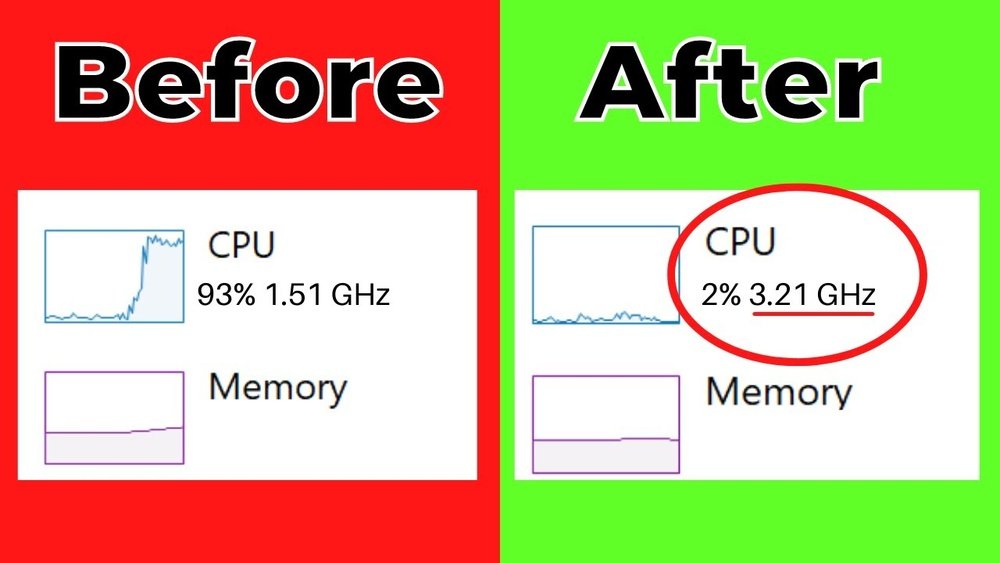
Start by watching your CPU usage. Use tools like Task Manager on Windows or Activity Monitor on Mac. Check how much of the CPU is busy during normal work. High usage near 100% often signals a bottleneck. Notice if usage spikes during certain tasks or stays high all the time.
Check Background Processes
Background processes can use CPU power without you realizing it. Open your system’s process list and see what runs in the background. Some apps or services may be using too much CPU. Close or disable unnecessary programs to free up CPU resources. This step can quickly improve your computer’s speed.
Analyze Thermal Throttling
Heat affects CPU performance. When the CPU gets too hot, it slows down to cool off. This is called thermal throttling. Use temperature monitoring tools to check your CPU’s heat levels. Clean dust from fans and vents to improve cooling. Good airflow helps prevent throttling and keeps your CPU running fast.
Optimize System Settings
Optimizing system settings helps your CPU run efficiently. It reduces slowdowns and keeps your computer responsive. Small tweaks in settings can make a big difference in CPU performance.
Adjust Power Options
Set your power plan to High Performance. This stops your CPU from slowing down to save energy. On Windows, go to Control Panel > Power Options. Choose High Performance to boost CPU speed. This setting uses more power but improves performance.
Update Drivers And Bios
Old drivers can limit your CPU’s potential. Check for updates from your computer or motherboard maker. BIOS updates improve hardware communication. Visit the official website to download updates. Keep drivers and BIOS current for smooth CPU function.
Configure Startup Programs
Too many programs starting with Windows slow your CPU. Open Task Manager and select Startup tab. Disable programs you do not need right away. This frees CPU resources and speeds up boot time. Managing startup apps helps your CPU focus on important tasks.
Enhance Cooling Solutions
Enhancing cooling solutions is key to maximizing your CPU’s performance. A cooler CPU runs faster and lasts longer. Heat slows down your processor and can cause crashes. Proper cooling keeps your system stable and efficient. Focus on three main areas to improve cooling: cleaning dust, using quality thermal paste, and improving case airflow.
Clean Dust And Debris
Dust blocks airflow and traps heat inside your PC. Clean your CPU fan and heatsink regularly. Use compressed air to blow out dust from vents and fans. Avoid using a vacuum, as it can damage components. Keeping your PC dust-free helps maintain proper cooling and performance.
Use Quality Thermal Paste
Thermal paste transfers heat from the CPU to the cooler. Old or low-quality paste reduces cooling efficiency. Remove old paste with isopropyl alcohol before applying new paste. Apply a thin, even layer to ensure good contact. Good thermal paste lowers temperatures and improves CPU speed.
Improve Case Airflow
Good airflow moves hot air out and brings cool air in. Arrange cables neatly to avoid blocking fans. Add extra case fans if needed for better ventilation. Make sure intake and exhaust fans work well together. Better airflow means your CPU stays cool under load.
Apply Software Tweaks
Applying software tweaks helps your CPU work better without buying new hardware. Small changes in settings can free up CPU power. These tweaks make your system run faster and smoother. Focus on what you can control inside your computer’s software.
Disable Unnecessary Services
Many services run in the background and use CPU. Some services are not needed for daily tasks. Turn off services you do not use. This reduces CPU load and improves speed. Check the list of running services and disable safely.
Manage Virtual Memory
Virtual memory acts like extra RAM using your hard drive. Poor virtual memory settings can slow down your CPU. Adjust virtual memory size for better performance. Set it to a fixed size based on your RAM amount. This reduces CPU work handling memory.
Use Lightweight Applications
Heavy apps use more CPU power and slow down your system. Choose lightweight apps with fewer features but fast performance. Simple apps save CPU and make tasks quicker. Look for apps designed for low CPU usage and minimal background activity.
Overclock Cpu Safely
Overclocking your CPU can boost your computer’s speed. It pushes the processor beyond its normal limits. This can improve performance for tasks like gaming and video editing. But overclocking brings risks. It can cause overheating or damage if done wrong. Follow safe steps to protect your hardware and get the best results.
Understand Overclocking Basics
Overclocking means raising your CPU’s clock speed. This makes the processor run faster. Every CPU has a base speed and a maximum safe speed. Know your CPU model and its limits before starting. Check your motherboard’s support for overclocking features. Understand terms like voltage, multiplier, and base clock.
Use Reliable Tools
Use trusted software for overclocking. Tools like CPU-Z and MSI Afterburner help adjust settings safely. They show real-time data about speed and voltage. Avoid random or unknown programs. They may harm your computer or give wrong info. Always download tools from official sites.
Monitor Stability And Temperatures
Test your system after each change. Run stress tests to check if the CPU is stable. Watch for crashes or errors during tests. Keep an eye on temperatures. Use programs like HWMonitor to track heat levels. Stop overclocking if the CPU gets too hot. Proper cooling is important to avoid damage.

Credit: softwareg.com.au
Upgrade Hardware Components
Upgrading your hardware components can greatly improve your CPU performance. Better hardware helps your computer run faster and handle more tasks. This section explains simple hardware upgrades to boost your CPU efficiency.
Choose Compatible Cpus
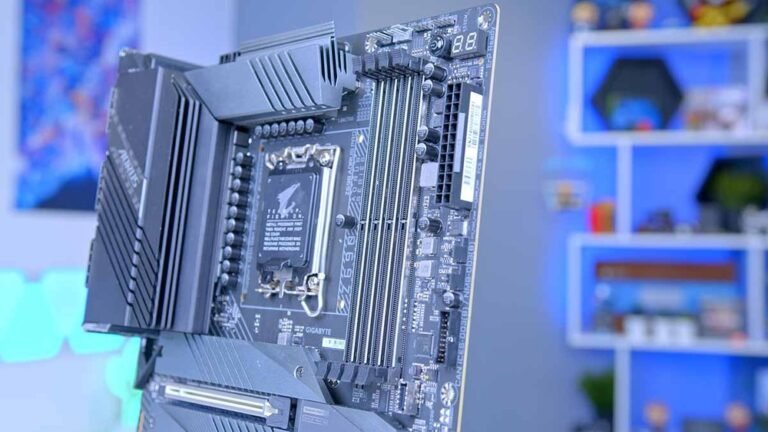
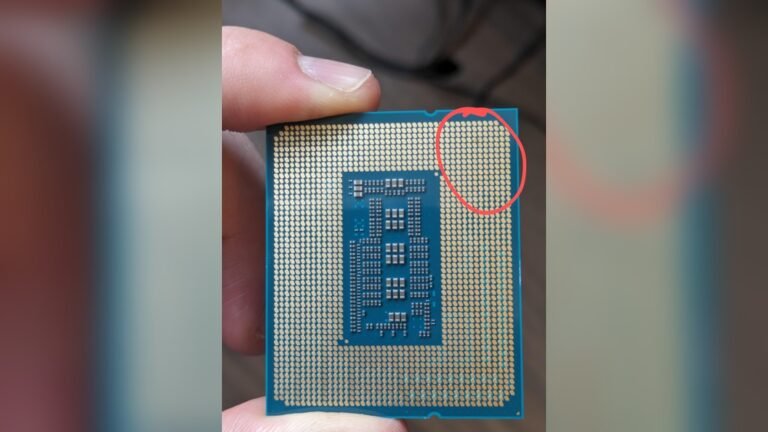
Start with selecting a CPU that fits your motherboard. Check your motherboard’s socket type and chipset. A compatible CPU avoids issues and ensures smooth operation. Look for CPUs with higher clock speeds and more cores. These CPUs process tasks faster and improve multitasking.
Increase Ram Capacity
Adding more RAM helps your CPU work better. RAM stores data for quick access, reducing CPU waiting times. More RAM means your system can run more programs simultaneously. Choose RAM that matches your motherboard’s specifications. Ensure the RAM speed is supported by your system.
Switch To Ssd Storage
Replace your old hard drive with a solid-state drive (SSD). SSDs read and write data faster than traditional drives. This reduces load times and speeds up your CPU’s access to files. SSDs also use less power and are more reliable. Your overall computer speed will improve noticeably.
Maintain Regular System Care
Maintaining regular system care is vital for maximizing your CPU’s performance. A well-cared-for system runs smoothly, handles tasks faster, and avoids crashes. Simple habits keep your computer healthy and efficient over time.
Regular care helps prevent slowdowns caused by clutter and outdated software. It also protects your system from harmful threats. Taking small steps daily can lead to big improvements in CPU performance.
Perform Routine Updates
Keep your operating system and software up to date. Updates fix bugs and improve system stability. They also optimize CPU use by enhancing performance. Set your system to update automatically if possible.
Run Antivirus Scans
Viruses and malware slow down your CPU by using resources. Run antivirus scans regularly to detect and remove threats. Clean systems allow the CPU to focus on important tasks. Choose a reliable antivirus tool and scan weekly.
Clean System Registry
The system registry stores important settings for your computer. Over time, it collects invalid or broken entries. These entries can cause errors and slow the CPU. Use trusted tools to clean the registry safely and improve speed.
Credit: learn.microsoft.com

Credit: www.youtube.com
Frequently Asked Questions
How Can I Improve Cpu Performance Easily?
To improve CPU performance, close unnecessary apps and background processes. Regularly update your software and drivers. Use cooling solutions to prevent overheating and consider upgrading your CPU if needed.
What Software Helps Maximize Cpu Usage?
CPU monitoring and optimization tools like Task Manager, MSI Afterburner, and CPU-Z help track and enhance CPU usage efficiently. These tools allow you to manage processes and monitor temperature.
Does Overclocking Maximize Cpu Speed Safely?
Overclocking boosts CPU speed by increasing clock rates. It can improve performance but may cause overheating and reduce CPU lifespan if not done carefully with proper cooling.
How Does Cooling Affect Cpu Efficiency?
Proper cooling prevents CPU overheating, which can cause throttling and slow performance. Use quality fans, thermal paste, or liquid cooling to maintain optimal CPU temperatures for consistent speed.
Conclusion
Maximizing your CPU helps your computer run faster and smoother. Keep your system clean and close unused programs. Regular updates improve performance and fix bugs. Adjust settings for better speed without overheating. Small steps make a big difference in daily use.
Try these tips to get the most from your CPU. Stay patient and consistent for best results. Your computer will thank you with better speed.