

Choosing the right CPU for your computer is only half the battle. If your motherboard isn’t compatible, your powerful new processor won’t work at all.
You might feel overwhelmed by all the technical details, but knowing how to check compatibility is easier than you think. You’ll discover simple steps to make sure your motherboard and CPU are a perfect match. Keep reading, and you’ll avoid costly mistakes and build a system that runs smoothly from day one.
Check Cpu Socket Type
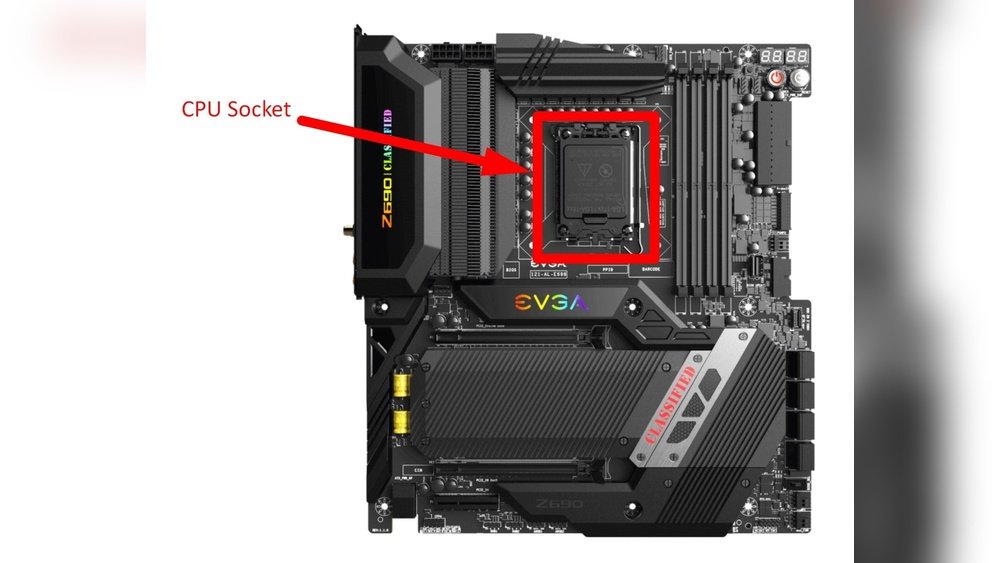
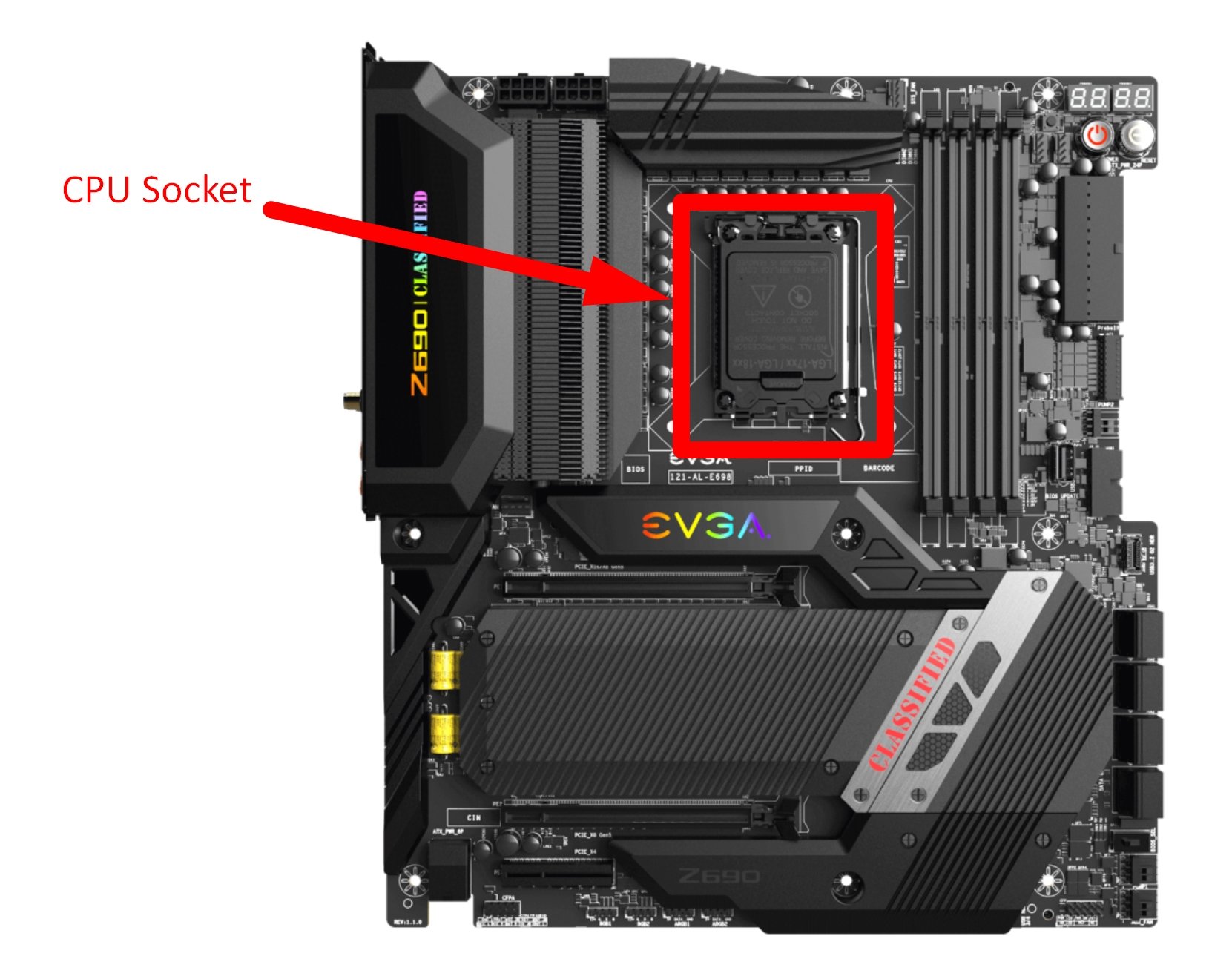
Checking the CPU socket type is a key step in choosing a compatible motherboard. The socket is where the CPU fits on the motherboard. It must match perfectly for the computer to work.
Every CPU has a specific socket type. Motherboards also come with sockets that fit certain CPUs. Knowing this helps avoid buying parts that do not fit.
Identify Cpu Socket Model
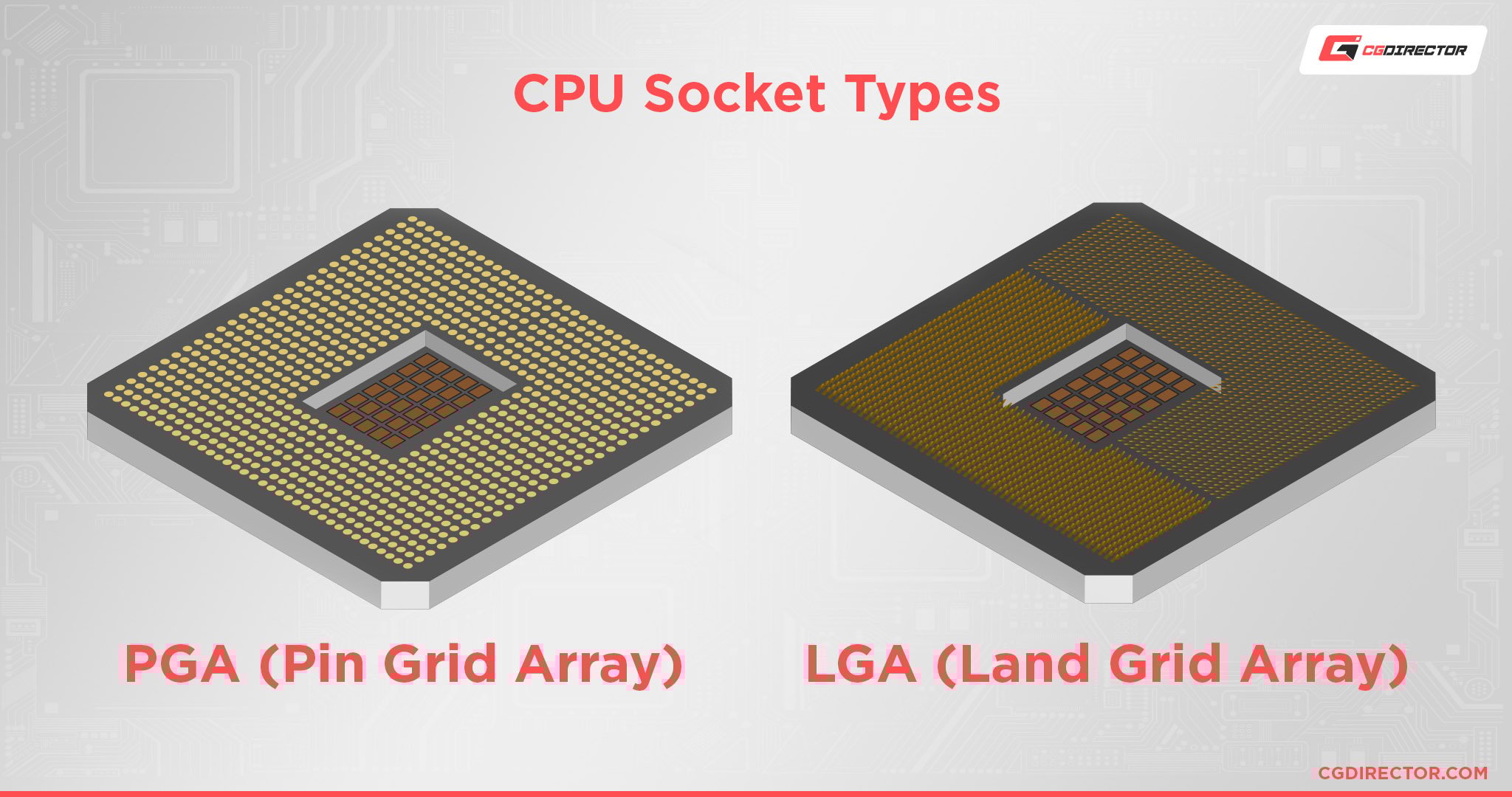
First, find out the exact socket model of your CPU. This information is in the CPU’s specifications. You can find it on the box or the manufacturer’s website. Common socket types include LGA 1200, AM4, and LGA 1700. Write down the socket model to compare with motherboards.
Match Motherboard Socket
Next, check the motherboard’s socket type. Look at the product details or manual. The motherboard socket must be the same as the CPU socket. For example, a CPU with AM4 socket fits only AM4 motherboards. Mismatched sockets mean the CPU will not fit or work.
Matching sockets ensures the CPU connects correctly. It also means better performance and fewer issues. Always double-check this before buying parts.
Credit: www.cgdirector.com
Review Chipset Compatibility
The chipset is a key part of the motherboard. It controls how the CPU and other parts work together. Knowing if the chipset matches your CPU is important. It helps avoid problems with performance or stability.
Check the chipset before buying a CPU or motherboard. This step saves time and money. It ensures your system runs smoothly and lasts longer.
Understand Chipset Role
The chipset acts like a traffic controller. It manages data flow between the CPU, memory, and devices. Each chipset supports certain CPU models and features. Some chipsets allow overclocking, while others do not.
Chipsets also define which ports and slots you can use. They affect how fast your storage and graphics work. Knowing the chipset’s role helps pick compatible parts for your build.
Compare Supported Cpus
Each chipset supports specific CPU families and generations. Check the motherboard’s official website for a list of supported CPUs. Match the CPU model with this list to avoid issues.
Newer CPUs may not work on older chipsets. Older CPUs might not fully use new chipset features. Comparing supported CPUs ensures your CPU and motherboard work well together.
Verify Bios Support
Verifying BIOS support is a key step in checking CPU and motherboard compatibility. The BIOS controls how hardware works together. Without proper BIOS support, your CPU might not function correctly or at all.
BIOS updates often add support for new CPUs. Manufacturers release these updates after new processors launch. Checking and updating the BIOS ensures your motherboard can handle the CPU you want to use.
Check Bios Version
Find the current BIOS version on your motherboard. Restart your computer and enter the BIOS setup. The version number usually appears on the main screen or under system information.
Compare this version with the CPU support list on the motherboard maker’s website. This list shows which BIOS versions support specific CPUs. This step helps avoid compatibility issues before installation.
Update Bios If Needed
Download the latest BIOS update from the motherboard manufacturer’s site. Follow their instructions carefully to update the BIOS. Updating requires caution to prevent system problems.
Use a USB drive or built-in update tool if available. After the update, check the BIOS version again. This confirms your motherboard now supports your chosen CPU.

Credit: www.youtube.com
Consider Power Requirements
Choosing a motherboard that matches your CPU’s power needs is essential. The CPU needs stable and enough power to work well. A motherboard that cannot supply proper power may cause errors or reduce performance. Checking power components helps avoid these problems.
Power delivery quality affects your system’s stability and lifespan. It also impacts how well the CPU runs under load. This section explains how to assess power parts on a motherboard.
Examine Vrm Quality
VRM stands for Voltage Regulator Module. It controls and cleans the power sent to the CPU. Good VRMs keep voltage steady and avoid drops or spikes. Low-quality VRMs can cause crashes or damage the CPU.
Look for motherboards with strong VRMs if your CPU uses more power. High-end CPUs need VRMs with many phases and good cooling. Check reviews or specs to find VRM details.
Evaluate Power Delivery
Power delivery includes VRMs, capacitors, and chokes. These parts work together to supply energy to the CPU. Quality components last longer and provide stable power.
Check the motherboard’s power connectors. Most CPUs need an 8-pin or 4+4 pin connector. Some high-power CPUs may require extra power connectors. Make sure your power supply matches these needs.
Good power delivery reduces system crashes and helps with overclocking. It keeps your PC running smoothly under heavy tasks.
Look At Ram Compatibility
Checking RAM compatibility is an important step in choosing the right motherboard and CPU. RAM affects how fast your computer runs and how many tasks it can handle at once. Both the motherboard and CPU have limits on the type and amount of RAM they support. Understanding these limits helps avoid problems and ensures smooth performance.
Match Ram Type And Speed
Motherboards support specific RAM types like DDR4 or DDR5. The CPU also works best with certain RAM speeds. Using the wrong type or speed can cause errors or slow down your system. Check the motherboard manual to find supported RAM types and speeds. Compare this with your CPU specifications. Choose RAM that fits both to get the best performance.
Confirm Maximum Ram Capacity
Each motherboard has a maximum RAM capacity. The CPU also has limits on how much RAM it can use. Installing more RAM than supported will not work properly. Look at the motherboard specifications for maximum RAM size. Then check the CPU details for its maximum RAM capacity. Use the lower number as your limit to ensure compatibility.
Assess Physical Size And Form Factor
Assessing the physical size and form factor of your motherboard is essential before buying a CPU. The motherboard must fit inside your computer case and support your CPU’s socket type. Understanding these details helps avoid compatibility issues and makes building your PC easier.
Motherboard Form Factors
Motherboards come in various sizes called form factors. The most common types include ATX, Micro-ATX, and Mini-ITX. ATX boards are large and offer many slots for expansion. Micro-ATX boards are smaller and have fewer slots. Mini-ITX boards are the smallest and fit compact cases.
Choosing the right form factor depends on your space needs and the number of components. Ensure the motherboard size matches your build plan. Each form factor has a specific layout that affects how parts fit inside.
Case Compatibility
Your computer case must support the motherboard’s form factor. A large ATX motherboard won’t fit in a small Mini-ITX case. Check your case specifications for supported motherboard sizes. This information is usually listed on the case packaging or website.
Make sure the case has enough room for the motherboard and other parts. Also, check space for cooling systems and cables. Proper fit prevents damage and keeps your PC running well.
Check Manufacturer Support
Checking the manufacturer support is key to know if a motherboard fits a CPU. Manufacturers provide clear details about which CPUs work with their motherboards. This saves time and avoids buying parts that do not match.
Use Compatibility Lists
Many motherboard makers publish compatibility lists on their websites. These lists show all CPUs tested and approved for each motherboard model. Find your motherboard model, then see the supported CPUs. This helps pick the right CPU without guesswork.
Consult Official Documentation
Official manuals and product pages also show compatibility info. They explain supported CPU socket types and chipset details. Check the documentation for your motherboard to confirm CPU support. This ensures a smooth build and better system stability.
Explore Additional Features
Exploring additional features helps you choose the right motherboard for your CPU. These features affect your computer’s performance and future upgrades. Knowing about expansion slots and connectivity options ensures your system meets your needs.
Expansion Slots
Expansion slots let you add extra parts to your computer. Common types include PCIe slots for graphics cards and storage devices. Check how many slots the motherboard has. Also, see what version they support. A newer PCIe version offers faster speeds. Make sure slots match your current or planned upgrades. This keeps your system flexible for future parts.
Connectivity Options
Connectivity options determine what devices your motherboard can link to. Look for USB ports, Ethernet jacks, and audio outputs. Different USB types offer different speeds. USB 3.0 is faster than USB 2.0. Check if the motherboard supports Wi-Fi or Bluetooth. These features help connect wireless devices easily. Also, see if it has HDMI or DisplayPort for monitors. Good connectivity makes your system more useful and easy to use.
Credit: www.przewozcm.eu
Frequently Asked Questions
How Do I Check Cpu Socket Compatibility With Motherboard?
To check compatibility, identify your CPU socket type and match it with the motherboard socket. Use manufacturer specs to confirm compatibility before purchase.
Can Bios Version Affect Motherboard And Cpu Compatibility?
Yes, outdated BIOS can cause incompatibility. Updating BIOS ensures the motherboard supports the CPU’s features and improves system stability.
What Role Does Chipset Play In Cpu Compatibility?
The chipset controls communication between CPU and components. Ensure the motherboard chipset supports your CPU model for optimal performance.
How To Confirm Motherboard Supports Cpu’s Power Requirements?
Check the motherboard’s VRM design and power phase count. A robust VRM ensures stable power delivery to high-performance CPUs.
Conclusion
Choosing the right motherboard for your CPU matters a lot. Check the socket type first. Match the chipset with your processor for best results. Remember to verify BIOS support and power needs. Confirm RAM compatibility too. These steps help avoid hardware problems later.
A good match ensures your PC runs smoothly. Take time to compare specs carefully. This way, you build a computer that works well and lasts long. Simple checks save time and money. Stay confident in your choices.
