How Can I Test My Gpu: Easy Steps to Ensure Peak Performance
Are you worried that your GPU might not be working as well as it should? Whether your games are lagging or your graphics look off, knowing how to test your GPU can save you time and money.
You’ll discover simple and effective ways to check your graphics card’s health and performance. By the end, you’ll have the confidence to spot problems early and keep your system running smoothly. Ready to find out how? Let’s dive in!
Signs Of Gpu Issues
Knowing the signs of GPU issues helps you test your graphics card early. Catching problems fast can stop bigger damage. Watch your computer’s behavior closely. Some signs clearly point to GPU trouble.
Visual Artifacts
Visual artifacts are strange images on your screen. Lines, dots, or colors that don’t belong. These glitches show during games or videos. They mean your GPU struggles to display graphics correctly. Artifacts often signal overheating or hardware faults.
System Crashes
Sudden system crashes or blue screens can link to GPU problems. Your computer might freeze or restart without warning. These crashes happen more during heavy tasks. Faulty drivers or damaged GPUs cause this behavior.
Performance Drops
Notice slower frame rates or lag in games. Your GPU might slow down due to errors or heat. Performance drops reduce smoothness and enjoyment. Monitoring frame rates helps spot GPU weakness early.

Credit: www.reddit.com
Preparing Your System
Preparing your system is a key step before testing your GPU. It helps ensure accurate results. A clean and updated system runs tests smoothly. Follow simple steps to get your computer ready.
These steps also help protect your hardware from damage. Plus, they make sure the GPU is the main focus during tests.
Update Drivers
Drivers control how your GPU works with the system. Old or missing drivers can cause errors. Visit the GPU maker’s website to download the latest version. Install it and restart your computer. Updated drivers improve performance and stability during tests.
Clean Hardware
Dust and dirt can block cooling fans and vents. This causes the GPU to overheat and underperform. Turn off your computer and unplug it. Use compressed air to blow dust from the GPU and case. Keep the area around your PC clean too. Good airflow keeps your GPU cool and safe.
Close Background Apps
Background apps use system resources like CPU and memory. This can slow down GPU tests and give wrong results. Check your task manager and close programs you don’t need. Disable automatic updates or scans before testing. This frees up power for the GPU to work fully.
Benchmarking Tools
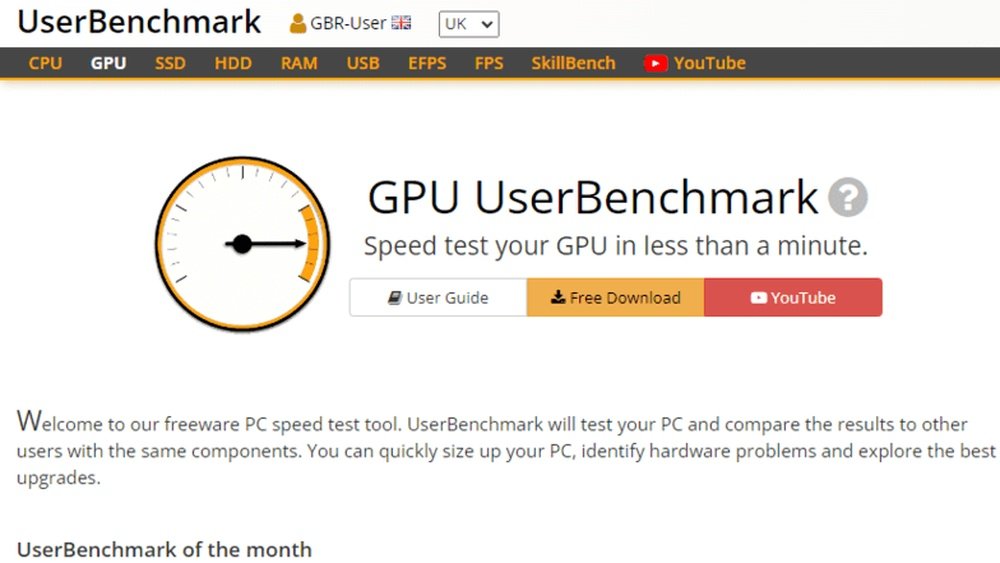
Benchmarking tools help check how well your GPU performs. These tools run tests that stress the graphics card. They show the speed and power of your GPU. This helps you know if your GPU works as it should. You also compare your GPU with others using these tools.
Popular Software Options
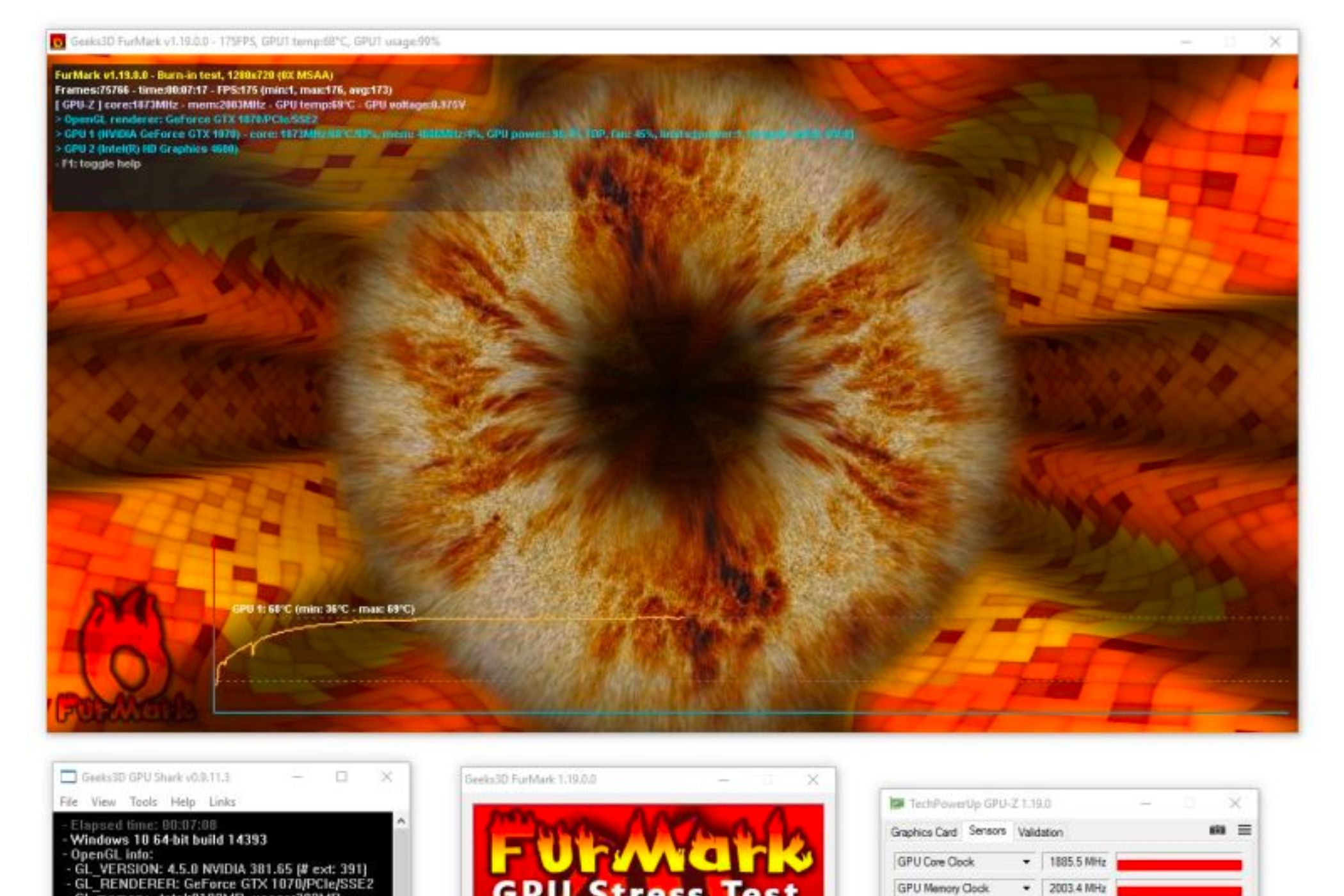
Several apps test GPU speed and quality. 3DMark is famous for gaming performance tests. Heaven Benchmark stresses the GPU with detailed 3D scenes. FurMark pushes the graphics card to its limits. MSI Afterburner tracks GPU temperature and usage. These apps give different views of GPU health and strength.
How To Run Benchmarks
First, download and install the benchmarking tool. Close all other programs to avoid interference. Open the app and select the test type. Start the benchmark and let it complete fully. Watch the GPU temperature to prevent overheating. Save or note down the results for later use. Run tests a few times for consistent data.
Interpreting Results
Look at the score or frame rate after testing. Higher numbers mean better GPU performance. Check temperature readings to see if your GPU stays cool. Compare your scores with similar GPUs online. Low scores may suggest issues or old hardware. Use the results to decide on upgrades or tweaks.
Stress Testing Your Gpu
Stress testing your GPU helps check its stability and performance under heavy load. It shows how well your graphics card handles intense tasks. This test can reveal problems like overheating or crashes. Stress tests push your GPU to its limits safely. They help ensure your system runs smoothly during games or creative work.
Recommended Stress Tests
Popular stress test tools include FurMark, Unigine Heaven, and 3DMark. FurMark creates a heavy workload that heats up your GPU quickly. Unigine Heaven tests graphics performance with detailed visuals. 3DMark offers various tests for different GPU strengths. Choose a tool that matches your GPU and needs.
Monitoring Temperatures
Keep an eye on GPU temperatures during stress tests. Use software like MSI Afterburner or HWMonitor. Ideal GPU temperature stays below 85°C. High temperatures can cause damage or reduce lifespan. Stop the test if your GPU gets too hot.
Safe Testing Practices
Run stress tests in a well-ventilated area. Avoid testing for too long; 10 to 15 minutes is enough. Save your work before starting tests to prevent data loss. Watch for system crashes or graphical glitches. Stop testing if you notice any problems.
Diagnosing Performance Issues
Diagnosing performance issues with your GPU helps find the root cause of slowdowns. It ensures your graphics card runs at its best. Problems can come from different areas. Checking each part carefully can save time and money.
Identifying Bottlenecks
Bottlenecks happen when one part limits the whole system. Your CPU or RAM might slow down the GPU. Use monitoring software to check usage levels. If the GPU is underused but the CPU is maxed, the CPU is the bottleneck. Fixing this may mean upgrading the CPU or adjusting settings.
Checking Thermal Throttling
Thermal throttling occurs when the GPU gets too hot. To protect itself, it lowers its speed. This causes poor performance and stuttering. Use temperature monitoring tools to watch the GPU heat. Clean dust from fans and heatsinks. Improve case airflow or apply fresh thermal paste if needed.
Driver Conflicts
Old or corrupted drivers can cause GPU issues. Conflicts may lead to crashes or low frame rates. Always download drivers from the official website. Use tools to fully remove old drivers before installing new ones. Keep drivers updated for best stability and performance.
Optimizing Gpu Performance
Optimizing GPU performance is key to getting the best from your graphics card. Proper tweaks can improve speed and stability. It also helps in running games and applications smoothly.
Small changes can make a big difference. Understanding how to adjust settings, overclock safely, and maintain cooling keeps your GPU in top shape. These steps ensure long-term performance without damage.
Adjusting Settings
Start by opening your GPU control panel. Lowering graphics quality slightly can boost frame rates. Disable unnecessary effects like shadows or motion blur. Set resolution to match your monitor for best clarity and speed. Update drivers regularly to improve compatibility and fix bugs.
Overclocking Basics
Overclocking means increasing GPU speed beyond factory settings. It can improve performance but adds heat and power use. Use reliable software to raise clock speed slowly. Test stability after each step with stress tests. Stop if you see crashes or artifacts. Do not exceed recommended voltage limits to avoid damage.
Maintaining Cooling
Good cooling prevents overheating and slowdowns. Clean dust from fans and vents often. Use a quality thermal paste between GPU chip and cooler. Make sure your PC case has good airflow. Consider adding extra fans if temperatures stay high. Keep the environment cool and avoid blocking vents.
When To Seek Professional Help
Knowing when to seek professional help for your GPU saves time and stress. Testing your GPU at home works for many issues. Some problems need expert diagnosis and repair. Experts have tools and knowledge to find hidden faults. They can prevent damage and data loss. Professional help ensures your GPU gets the right care.
Persistent Problems
Some GPU issues keep coming back despite your fixes. Crashes, freezes, or strange noises may not go away. These persistent problems suggest deeper hardware or software faults. Professionals can run detailed tests you cannot do. They check for overheating, bad memory, and driver conflicts. Persistent issues need expert review to avoid bigger damage.
Hardware Replacement Options
When tests show a broken GPU part, replacement might be needed. Professionals know which parts fit your GPU model. They offer repair or full replacement based on damage. Using original parts keeps your GPU safe and reliable. Experts also install parts carefully to avoid errors. Choosing professional help means your GPU lasts longer.
Credit: www.sietesetenta.com.ar

Credit: unix.stackexchange.com
Frequently Asked Questions
How Do I Check If My Gpu Is Working Properly?
You can test your GPU by running benchmark software like 3DMark or FurMark. These tools stress your GPU and reveal performance or stability issues quickly.
What Software Can I Use To Test Gpu Performance?
Popular GPU testing software includes 3DMark, FurMark, and Unigine Heaven. They provide detailed performance metrics and identify potential hardware problems.
How Can I Monitor Gpu Temperature During Tests?
Use tools like MSI Afterburner or GPU-Z to track GPU temperature in real-time. Monitoring temperature helps prevent overheating and ensures stable GPU operation.
Can I Test My Gpu Without Specialized Software?
Yes, you can run graphics-intensive games or applications to observe performance and stability. However, dedicated benchmarking tools offer more precise test results.
Conclusion
Testing your GPU helps ensure it runs smoothly and stays reliable. Simple tools and steps can reveal its true performance. Regular checks catch problems early, saving time and money. Keep your drivers updated and monitor temperatures often. A healthy GPU means better graphics and fewer crashes.
Start testing today to enjoy a smoother computer experience.