Can You Add Vram to Gpu: Expert Tips to Boost Performance
Are you wondering if you can add more VRAM to your GPU to boost gaming or graphic performance? You’re not alone.
Many people ask this because they want smoother gameplay or faster rendering without buying a whole new graphics card. But before you dive into upgrades, it’s important to know what’s really possible and what isn’t. Keep reading to find out if you can actually increase your GPU’s VRAM and what alternatives might work better for your needs.
Vram And Gpu Basics
Understanding VRAM and GPU basics helps you grasp how graphics work in computers. VRAM and GPU work closely to show images and videos on your screen. Knowing their roles can help you understand if you can add more VRAM to your GPU.
VRAM stands for Video Random Access Memory. It stores image data that the GPU uses for display. The GPU, or Graphics Processing Unit, processes this data to create visuals.
What Vram Does
VRAM holds the information needed for images, textures, and videos. It quickly provides data to the GPU for smooth rendering. The more VRAM your GPU has, the more detailed images it can handle. VRAM helps reduce lag and improves visual quality.
How Vram Affects Performance
VRAM size directly impacts how well your GPU performs. Low VRAM can cause slow image loading and lower frame rates. High VRAM allows higher resolutions and better graphics settings. VRAM works with GPU speed to deliver good performance in games and software.

Credit: www.youtube.com
Can Vram Be Upgraded?
Can VRAM be upgraded? Many people ask this question when their computer struggles with graphics-heavy tasks. VRAM, or Video RAM, is a special type of memory used by your graphics card. It stores images and textures your GPU needs quickly. Unlike regular system RAM, VRAM is built into the graphics card itself. This design makes upgrading VRAM tricky and often not possible.
Understanding why VRAM upgrades are difficult requires knowing the differences between VRAM and system RAM. It also needs a look at how GPUs are built. Let’s explore these ideas to see why VRAM cannot be easily increased.
Differences Between Vram And System Ram
VRAM is memory dedicated only to the graphics card. It handles image data like textures, shadows, and colors. This memory type is very fast and close to the GPU chip.
System RAM is the main memory for your whole computer. It stores data for all programs and processes. Unlike VRAM, system RAM is slower but larger in size.
VRAM and system RAM serve different purposes. VRAM focuses on graphics, while system RAM supports all tasks. Because they work differently, you cannot swap or add VRAM like system RAM.
Gpu Architecture Limitations
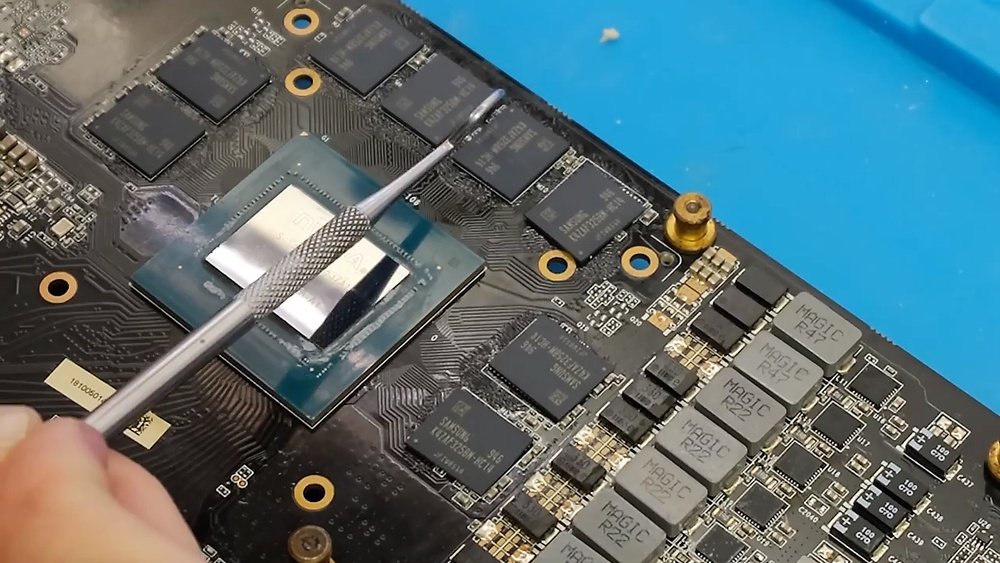
Graphics cards are built with fixed VRAM chips soldered onto the board. This design means VRAM is not removable or replaceable by users.
The GPU and VRAM work closely together. The card’s design limits the VRAM size it can support. Adding more VRAM would require redesigning the entire card.
Some laptops share system RAM as VRAM, but this is slower. Desktop GPUs rely on their own VRAM for better performance. Changing VRAM size needs hardware changes, not software updates.
Alternatives To Adding Vram
Increasing VRAM on a GPU is not possible in most cases. VRAM is built into the graphics card and cannot be changed or added later. Still, there are ways to improve your system’s graphics performance without upgrading VRAM directly. These methods can help you get better results from your current setup.
Upgrading The Entire Gpu
One clear way to get more VRAM is by buying a new graphics card. New GPUs often come with more VRAM and better technology. This upgrade improves overall performance and supports newer games and software. It may cost more but provides a lasting solution for better graphics.
Using Shared Memory
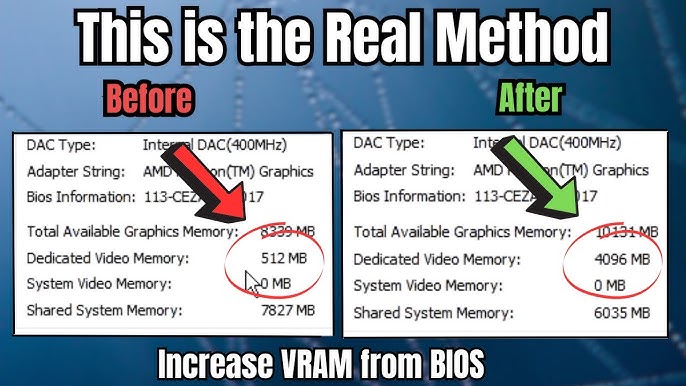
Some systems use shared memory between the CPU and GPU. This means the GPU can borrow part of the system’s RAM when VRAM runs low. It is slower than dedicated VRAM but helps in some situations. You can check your system settings to see if shared memory is enabled and adjust the amount used.
Optimizing Software Settings
Adjusting game or program settings can reduce VRAM usage. Lowering texture quality, resolution, or effects reduces the load on your GPU. This helps software run smoother without needing extra VRAM. It is an easy way to improve performance without hardware changes.
Expert Tips For Boosting Gpu Performance
Boosting your GPU performance can enhance your computer’s speed and graphics quality. Small changes make a big difference. These expert tips help you improve your GPU safely and effectively.
Follow these simple steps to get better results without risking damage.
Overclocking Safely
Overclocking means running your GPU faster than its basic speed. This can improve performance but may cause heat and damage. Start with small speed increases. Test your GPU for stability after each step. Use reliable software designed for overclocking. Watch temperatures closely and stop if it gets too hot. Keep your system stable to avoid crashes.
Keeping Drivers Updated
GPU drivers control how your hardware works with software. Updated drivers fix bugs and improve speed. Check for new driver versions regularly. Install updates from the official GPU maker’s website. Updated drivers can also add support for new games and apps. This simple step helps your GPU run smoothly.
Improving Cooling Solutions
Cooling keeps your GPU from overheating. Overheating lowers performance and shortens GPU life. Clean dust from fans and vents often. Use extra fans or better cooling systems if needed. Good airflow inside your computer case helps a lot. Cooler GPUs can run faster and last longer.
When To Consider A New Gpu
Deciding when to get a new GPU can be tough. Your current GPU might feel slow or outdated. Sometimes, adding VRAM is not possible or does not fix performance issues. Knowing when to replace your GPU saves time and money. It also helps keep your computer running smoothly.
Signs Your Gpu Needs Replacement
Your computer shows glitches or crashes during games or videos. Frame rates drop, causing choppy or laggy graphics. New software or games do not run well on your current GPU. Your GPU overheats often or runs very hot. You notice poor image quality or strange colors. The GPU is several years old and cannot support new features.
Budgeting For An Upgrade
Set a clear budget before choosing a new GPU. Compare prices and features to find the best value. Consider how much performance boost you need. Think about future needs, not just today’s games or tasks. Don’t overspend on features you won’t use. Look for deals or sales to save money. Balance price with quality for a smart purchase.

Credit: softwareg.com.au
Credit: www.youtube.com
Frequently Asked Questions
Can You Upgrade Vram On A Gpu?
No, VRAM is fixed on a GPU and cannot be upgraded. It is soldered directly to the graphics card’s PCB. To get more VRAM, you must buy a new GPU with higher memory capacity.
Does Adding Vram Improve Gaming Performance?
Increasing VRAM alone does not boost performance. VRAM helps with texture storage and resolution handling. A balanced GPU with sufficient VRAM offers better gaming experience, but just adding VRAM is not possible or effective.
Can System Ram Be Used As Vram?
Some integrated GPUs share system RAM as VRAM. However, this is slower and less efficient than dedicated VRAM on a discrete GPU. System RAM cannot replace or increase dedicated VRAM on a graphics card.
Why Is Vram Important For A Gpu?
VRAM stores textures, frame buffers, and shaders for rendering images. It affects graphics quality and resolution capabilities. More VRAM helps with higher resolutions and complex textures but must match the GPU’s processing power.
Conclusion
Adding VRAM to a GPU is not possible in most cases. VRAM comes built into the graphics card hardware. Upgrading VRAM means buying a new GPU with more memory. You can improve performance by optimizing settings or upgrading other parts.
Understanding your GPU’s limits helps avoid frustration. Always check your system needs before making changes. This keeps your computer running smoothly and efficiently.