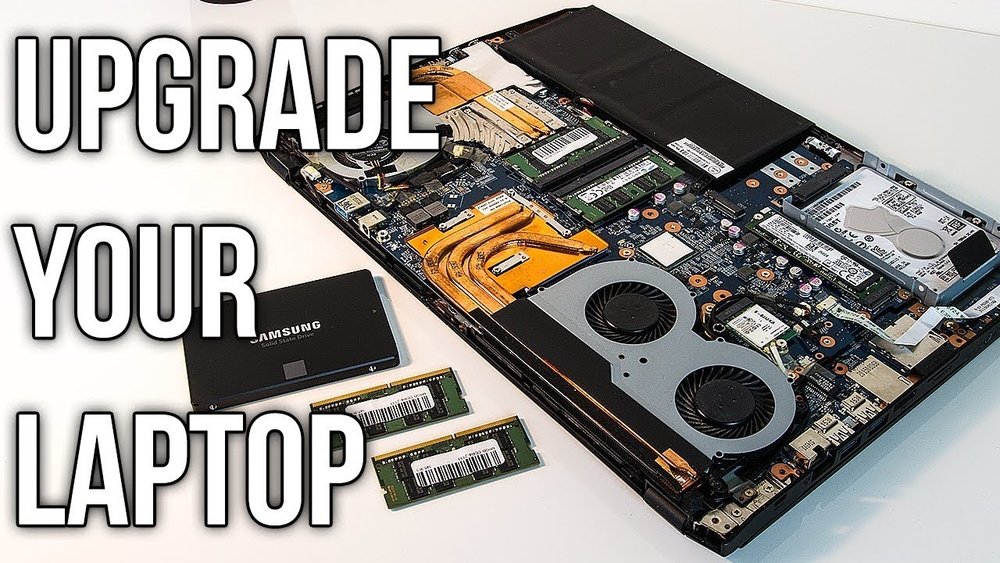
Can You Upgrade Gpu on Laptop: Ultimate Guide to Boost Performance
Have you ever wondered if you can boost your laptop’s gaming or design power by upgrading its GPU? If your laptop feels slow during graphic-heavy tasks, you might be itching for a way to make it faster without buying a new one.
The idea of swapping out your laptop’s graphics card sounds simple, but is it really possible? You’ll discover the truth about upgrading your laptop’s GPU, what challenges you might face, and the best options available to give your machine a fresh burst of speed.
Keep reading—your next level of performance could be just a few steps away.
Laptop Gpu Upgrade Basics
Upgrading a laptop’s GPU is a topic many users ask about. It can improve graphics and speed for tasks like gaming and design. Knowing the basics helps in deciding if an upgrade is possible and worth it. Let’s explore the types of laptop GPUs and the benefits of upgrading.
Types Of Laptop Gpus
Laptop GPUs come in two main types. Some are built into the CPU, called integrated GPUs. Others are separate parts, called dedicated GPUs. Each type works differently and affects upgrade options. Integrated GPUs share memory with the CPU. Dedicated GPUs have their own memory and power.
Integrated Vs Dedicated Gpus
Integrated GPUs save battery and reduce heat. They are enough for basic tasks like web browsing and video watching. Dedicated GPUs offer better performance for games and creative work. They handle graphics faster and support higher resolutions. Most laptops with dedicated GPUs have limited upgrade paths.
Benefits Of Upgrading Gpu
Upgrading a laptop GPU can boost graphics quality and speed. It helps run newer games and software smoothly. A better GPU improves video editing and 3D rendering. It can extend the laptop’s life by meeting current software needs. Upgrades may also increase resale value.
Credit: www.liftingitalia.com
Compatibility Factors
Upgrading a GPU on a laptop is not simple. Many factors affect compatibility. These factors decide if a new GPU can work well with your laptop. Understanding these is key before making changes.
Checking Laptop Model Support
Not all laptops support GPU upgrades. Some models have GPUs soldered to the motherboard. Others allow swapping with specific GPU modules. Check your laptop’s manual or website for upgrade options. Forums and user reviews can also help.
Gpu Interface Types
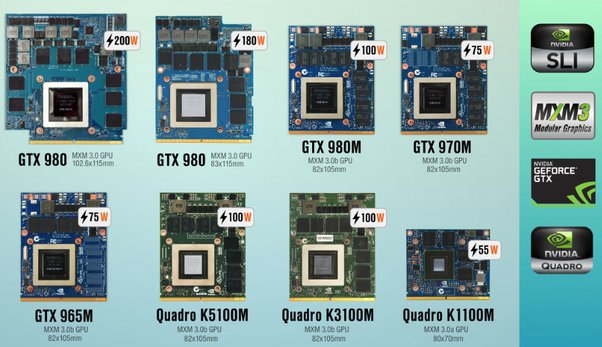
Laptops use different interfaces for GPUs. MXM (Mobile PCI Express Module) is common for some gaming laptops. Most laptops have integrated GPUs that cannot be replaced. Ensure the new GPU matches your laptop’s interface type. Otherwise, it won’t fit or connect properly.
Power And Cooling Requirements
New GPUs need adequate power and cooling. Laptop power supplies have limits. A stronger GPU may require more power than your laptop provides. Cooling is important too. Higher performance GPUs produce more heat. Check if your laptop’s cooling system can handle the upgrade.
Upgrade Options
Upgrading a laptop’s GPU is a common question for gamers and professionals. Laptop GPUs are often fixed, but some options exist. These options vary by laptop model and budget. Understanding these upgrade paths helps you choose the best one.
External Gpu Enclosures
External GPU enclosures connect a desktop graphics card to a laptop. They use a high-speed port like Thunderbolt 3 or 4. This setup boosts graphics power without opening the laptop. It works well for gaming and design work. The downside: extra cost and less portability.
Swappable Gpu Modules
Some laptops offer swappable GPU modules. These are small cards that fit into a special slot. You can replace the GPU like changing RAM or storage. This option is rare and mainly found in gaming laptops. It provides a good balance of power and upgradeability.
Replacing Built-in Gpus
Built-in GPUs are soldered to the motherboard. Replacing them means opening the laptop and desoldering the chip. This process is complex and risky. It requires expert skills and special tools. Most users avoid this due to high difficulty and cost.
Step-by-step Upgrade Process
Upgrading the GPU on a laptop can improve graphics performance significantly. The process involves several careful steps to avoid damage. Follow each step closely for best results.
Preparing Your Laptop
Turn off the laptop and unplug all cables. Remove the battery if possible. Find a clean, static-free workspace. Gather the necessary tools: small screwdrivers and an anti-static wrist strap. Check your laptop’s manual for GPU compatibility and location.
Removing Old Gpu
Open the laptop’s back panel by unscrewing the screws. Gently lift the panel to expose the internal parts. Locate the GPU, usually near the cooling fan. Unscrew and disconnect the GPU carefully. Handle the GPU by its edges to avoid damage.
Installing New Gpu
Align the new GPU with the slot properly. Insert it gently without forcing it in. Screw the GPU securely but do not overtighten. Reconnect any cables or cooling components removed earlier. Close the back panel and screw it tightly.
Driver Installation And Configuration
Power on the laptop and boot into the operating system. Download the latest drivers from the GPU manufacturer’s website. Install the drivers by following the on-screen instructions. Restart the laptop to complete the installation. Adjust graphics settings for optimal performance.
Performance Gains And Expectations
Upgrading a laptop’s GPU can offer some performance gains, but the results vary. Understanding what to expect helps in making a smart decision. Laptop GPUs are often limited by hardware design and cooling systems. Still, some upgrades can provide noticeable boosts.
Real-world Performance Improvements
Upgrading the GPU can improve gaming and creative work. Games run smoother with higher frame rates. Video editing and 3D rendering become faster. The difference depends on the original GPU and the new one. Older laptops may see bigger gains. Newer models might show smaller improvements.
Benchmark Comparisons
Benchmarks measure GPU performance in tests and games. Comparing old and new GPUs shows the potential gain. Some upgrades double the frame rate in popular games. Others offer only 10-20% better results. Look for benchmarks that match your laptop’s specs. Real tests give a clearer picture than marketing claims.
Limitations To Consider
Laptop GPUs are often soldered to the motherboard. This makes upgrades difficult or impossible. Some models use MXM modules, which are easier to swap. Cooling limits can reduce the new GPU’s speed. Power supply constraints also affect performance. Upgrading may void your laptop warranty.
Credit: rog.asus.com
Potential Risks And Challenges
Upgrading a laptop GPU may seem like a good idea for better performance. Yet, it carries many risks and challenges. These issues can affect your laptop’s function and your overall experience. Understanding these risks helps you make a smart choice.
Warranty And Support Issues
Changing the GPU often voids the laptop’s warranty. Manufacturers usually do not support hardware changes. This means no help if your laptop breaks after the upgrade. Repairs might become expensive and complicated. Always check your warranty terms before making changes.
Hardware Compatibility Risks
Laptop GPUs are often built into the motherboard. Finding a compatible new GPU is very hard. Even if you find one, it may not fit or work well. The laptop’s BIOS might not recognize the new hardware. This can cause crashes or failure to start. Compatibility is a major challenge for upgrades.
Thermal And Power Concerns
New GPUs may need more power than your laptop can provide. This can lead to overheating and damage. Laptops have limited cooling systems designed for specific parts. Extra heat can reduce performance or harm other components. Power supply limits also stop some upgrades from working properly.
Alternative Ways To Boost Gpu Performance
Upgrading a laptop GPU is often not possible or very limited. Still, there are ways to improve your laptop’s graphics performance. These methods do not need new hardware inside the laptop. They help games and apps run smoother and look better.
These tips work well for gamers, designers, and anyone needing better graphics without buying a new laptop. Let’s explore three practical ways to boost your GPU performance.
Optimizing Software Settings
Adjusting your software can make a big difference. Lower game graphics settings like resolution and detail levels. Close background apps to free up memory and CPU power. Update your GPU drivers regularly for better compatibility and performance. Use built-in tools like Windows Game Mode to prioritize gaming tasks. These small changes help your GPU work more efficiently.
Upgrading Other Components
Improving parts besides the GPU can help graphics performance. Adding more RAM lets your laptop handle more data quickly. Switching to a faster SSD reduces load times in games and apps. A better cooling system stops your laptop from overheating and slowing down. These upgrades support your GPU and improve overall speed.
Using Cloud Gaming Services
Cloud gaming lets you play games on powerful remote servers. The heavy graphics work happens online, not on your laptop. You only need a good internet connection to stream games smoothly. This option works for laptops with weak GPUs or older hardware. It gives access to high-end games without expensive upgrades.

Credit: www.youtube.com
Frequently Asked Questions
Can I Upgrade The Gpu On Any Laptop Model?
Most laptops do not support GPU upgrades due to integrated designs. Only a few models with modular GPUs allow upgrades. Check your laptop’s specifications and manufacturer guidelines to confirm compatibility before attempting any upgrade.
What Are The Benefits Of Upgrading A Laptop Gpu?
Upgrading your laptop GPU improves gaming, video editing, and graphic performance. It enhances frame rates, rendering speed, and overall visual experience. However, laptop GPU upgrades are limited and often expensive compared to desktop GPUs.
How Much Does A Laptop Gpu Upgrade Typically Cost?
Laptop GPU upgrades can range from $200 to $800 depending on the GPU model and labor costs. Custom or modular laptops might have higher prices due to specialized components and installation complexity.
Is It Safer To Upgrade Gpu Or Buy A New Laptop?
Buying a new laptop is generally safer and more cost-effective than upgrading the GPU. Upgrades risk hardware damage and compatibility issues. New laptops offer better performance and warranty coverage for your investment.
Conclusion
Upgrading a laptop GPU is often tricky and limited. Most laptops have built-in graphics that cannot be changed. Some high-end models allow external GPU use, but they need extra gear. Consider your laptop’s design before planning an upgrade. Sometimes, buying a new laptop with a better GPU makes more sense.
Always check compatibility and costs carefully. Remember, a GPU upgrade is not always the best or easiest option. Choose what fits your needs and budget best.


