

Are you worried your computer is running slower than usual? Or maybe you want to make sure your CPU is working properly before you start a big project.
Knowing how to check your CPU status can save you time, prevent crashes, and keep your system healthy. You’ll learn simple and effective ways to monitor your CPU’s performance. By the end, you’ll feel confident in spotting problems early and keeping your computer running smoothly.
Ready to take control of your CPU’s health? Let’s dive in!
:max_bytes(150000):strip_icc()/AA-3-CheckCPUUsageinWindows11-annotated-643c382be09f4cdbb511284cd2e872de.jpg)
Credit: www.lifewire.com
Signs Of Cpu Issues
Signs of CPU issues can affect your computer’s overall performance. Detecting these signs early helps avoid serious problems. The CPU is the brain of your computer. When it struggles, the whole system slows down or acts strange.
Common Performance Problems
Your computer might run slow or freeze often. Programs take longer to open. Sometimes, the mouse pointer lags or stutters. These are common signs the CPU may be struggling. Simple tasks feel harder, and multitasking becomes difficult. The CPU might not handle normal workloads well.
Overheating Symptoms
The CPU gets hot while working. You may hear loud fan noise. The computer case feels warm or hot. Overheating can cause the system to slow down. It also risks damaging the CPU over time. Watch out for sudden temperature spikes or heat warnings.
Unexpected Shutdowns
The computer turns off without warning. This can happen during startup or use. Unexpected shutdowns often point to CPU problems. It may be overheating or failing to manage power. Frequent shutdowns can cause data loss and hardware damage.
Credit: www.atlantic.net
Using Built-in Tools
Checking your CPU status is important to keep your computer running smoothly. Built-in tools in your operating system give clear information about CPU usage and health. These tools do not need extra downloads and work well for basic monitoring. Understanding how to use them helps you spot problems early and improve performance.
Task Manager Overview
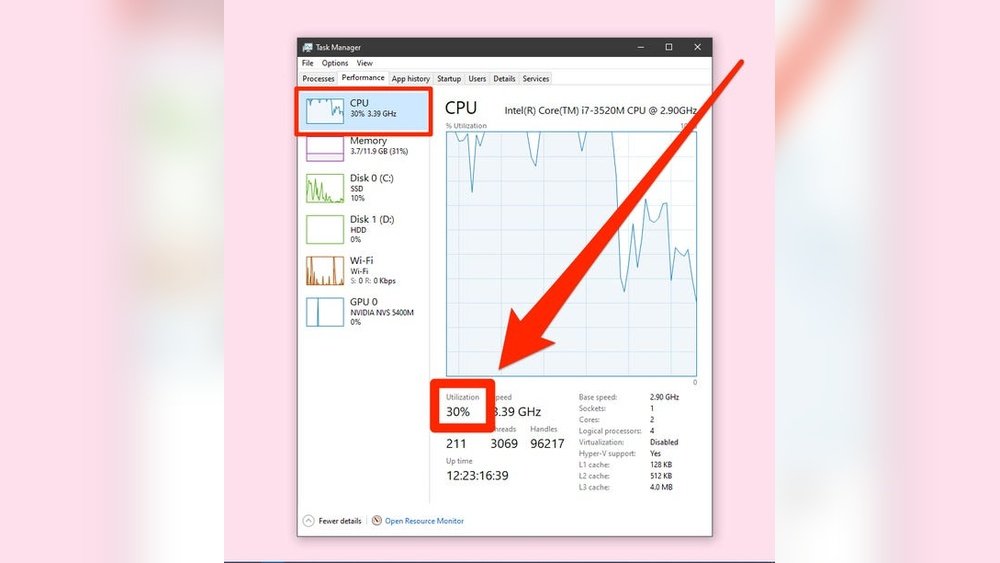
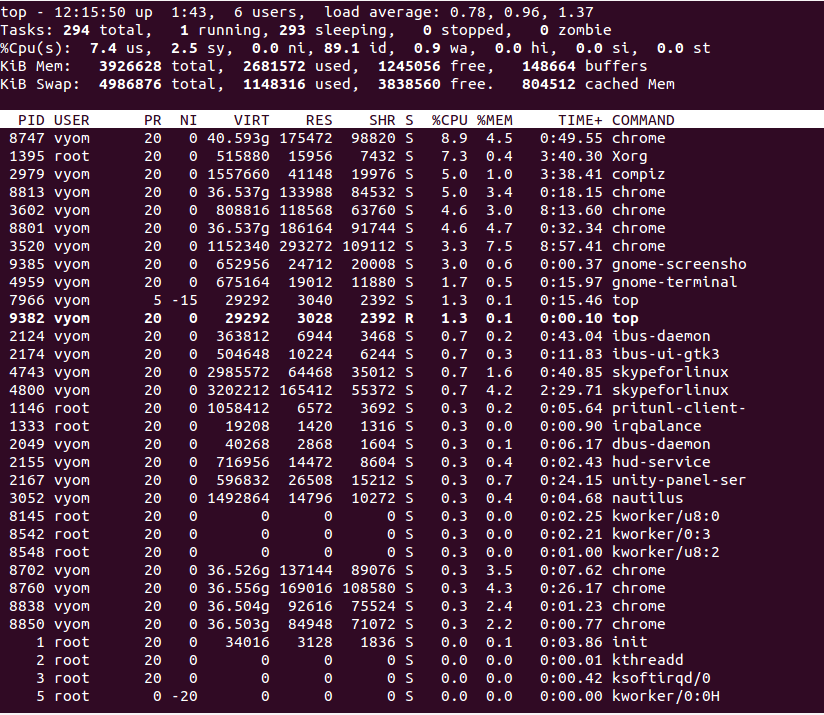
Task Manager shows real-time CPU usage. Open it by pressing Ctrl + Shift + Esc. The “Performance” tab displays CPU speed, usage, and core activity. You can see how many processes use the CPU and identify if any are slowing down your system.
Resource Monitor Insights
Resource Monitor offers detailed CPU data. Access it from Task Manager under the “Performance” tab. It breaks down CPU use by service and process. This helps find which programs demand most CPU power. You can also check CPU frequency and interrupts here.
Bios And Uefi Access
The BIOS or UEFI interface shows hardware status before Windows loads. Restart your computer and press the setup key (often F2 or Delete). Inside, check CPU temperature and clock settings. This view confirms if the CPU runs correctly at a basic level.
Third-party Software Options
Third-party software offers a simple way to check your CPU status. These tools provide detailed information about your processor’s performance. They show real-time data and help detect problems early. Using such apps can keep your computer running smoothly and safely.
Popular Cpu Monitoring Apps
Several apps are popular for CPU monitoring. Core Temp shows temperature and load clearly. HWMonitor tracks temperature, voltage, and fan speeds. CPU-Z provides detailed info about CPU specs. MSI Afterburner is good for gamers, showing real-time CPU and GPU stats. Choose one that fits your needs and skill level.
Installation And Setup Tips
Download apps only from official websites. Avoid third-party download sites to prevent malware. Run the installer and follow the on-screen steps. After installation, open the app and allow necessary permissions. Set the app to start with Windows for constant monitoring. Check the settings for alerts on high temperatures or usage.
Interpreting The Data
CPU temperature under 70°C is usually safe. High temperatures can cause slowdowns or damage. CPU load shows how much work the processor is doing. A load near 100% means heavy use. Watch voltage levels to ensure stability. Sudden spikes or drops might signal issues. Regular checks help keep your CPU healthy and efficient.
Checking Cpu Temperature
Checking CPU temperature is important for your computer’s health. The CPU works hard and gets hot. Watching its temperature helps stop damage and keeps it fast. You can check it easily with the right tools.
Why Temperature Matters
High CPU temperature can cause your computer to slow down. Too much heat can damage the CPU over time. It may also cause sudden shutdowns to protect itself. Keeping the temperature low helps your computer run smoothly and last longer.
Tools To Monitor Heat
Several free tools show your CPU temperature. Programs like HWMonitor and Core Temp are easy to use. They display real-time temperature readings. You can also find built-in options in your computer’s BIOS. These tools help you watch your CPU’s heat anytime.
Safe Temperature Ranges
Most CPUs work well between 30°C and 60°C. Temperatures above 80°C are risky and can cause damage. Avoid letting your CPU stay hot for long periods. Proper cooling, like fans or heat sinks, helps keep temperatures safe.
Performing Cpu Stress Tests
Performing CPU stress tests helps check how your processor handles heavy loads. It pushes the CPU to its limits to reveal any weaknesses. Stress testing can prevent crashes and overheating by showing potential problems early.
Purpose Of Stress Testing
Stress tests show how stable your CPU is under pressure. They help find hardware faults or cooling issues. Testing can improve your system’s reliability and performance. It also confirms if your cooling system works well during high use.
Recommended Testing Tools
Several tools make CPU stress testing easy and safe. Prime95 is popular for heavy CPU load testing. AIDA64 offers detailed stress tests and system monitoring. IntelBurnTest is good for quick and intense testing. Use software that matches your CPU brand for best results.
Analyzing Test Results
Check temperatures and CPU usage during the test. High temperatures may mean poor cooling or dust buildup. Watch for errors or crashes, which indicate instability. A stable test means your CPU can handle heavy tasks well. Repeat tests to confirm consistent results.
Maintaining Cpu Health
Maintaining CPU health is key to keeping your computer fast and reliable. A healthy CPU prevents crashes and slows down less. Simple care habits can extend your processor’s life and improve performance.
Cleaning And Cooling Tips
Dust blocks air vents and slows down cooling. Use a soft brush or compressed air to clear dust from fans and vents. Keep your computer in a cool, dry place. Avoid placing it on soft surfaces like beds or carpets. These can block airflow and cause overheating. Overheating reduces CPU lifespan and causes errors.
Updating Drivers And Bios
Drivers control how your CPU works with other parts. Old drivers cause slowdowns and errors. Check for updates on your computer or motherboard maker’s website. BIOS updates improve CPU stability and fix bugs. Follow instructions carefully when updating BIOS to avoid damage.
Avoiding Common Mistakes
Do not ignore warning signs like frequent crashes or slowdowns. Avoid running too many programs at once. This stresses the CPU and makes it heat up. Do not overclock your CPU unless you understand risks. Overclocking can cause overheating and damage. Regularly monitor your CPU status to catch problems early.
Credit: nektony.com
Frequently Asked Questions
How Can I Check My Cpu Status On Windows?
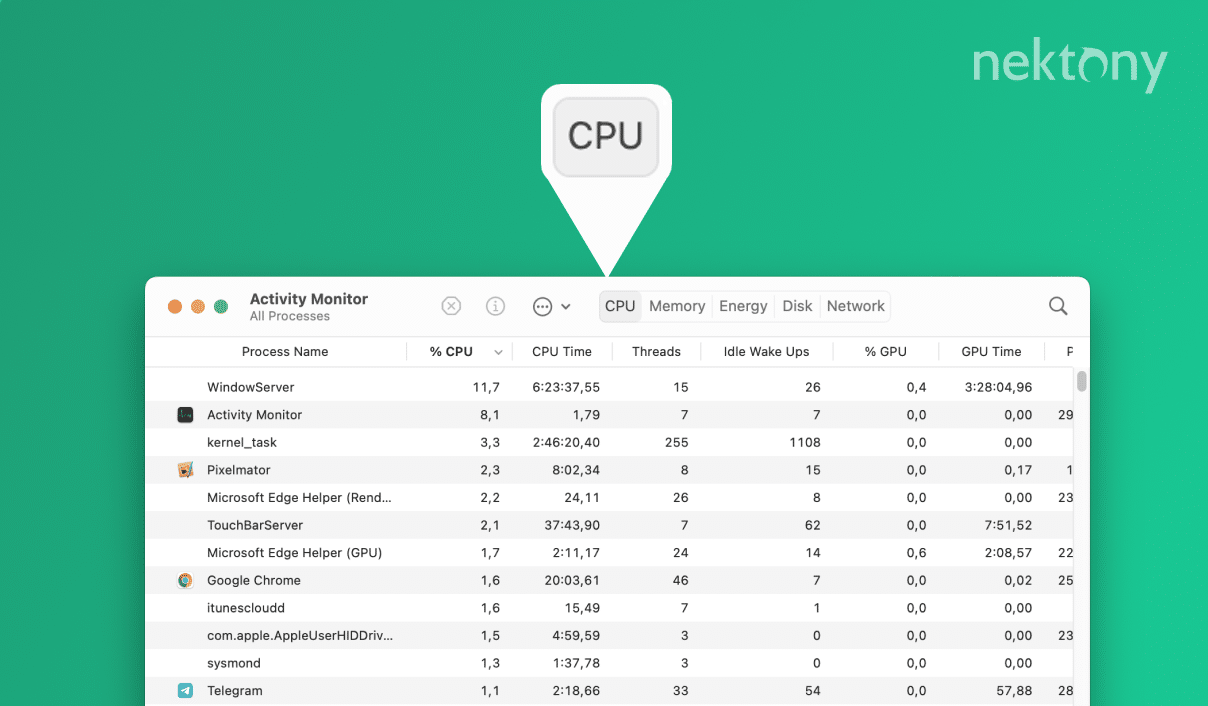
You can check CPU status via Task Manager. Press Ctrl + Shift + Esc, then go to the Performance tab. Here, you’ll see CPU usage, speed, and cores information in real-time.
What Tools Help Monitor Cpu Health Effectively?
Popular CPU monitoring tools include HWMonitor, Core Temp, and CPU-Z. These provide temperature, usage, and voltage details, helping you assess CPU health accurately and prevent overheating.
Why Is Monitoring Cpu Status Important?
Monitoring CPU status helps identify performance bottlenecks and overheating. It ensures your system runs smoothly and prevents hardware damage by alerting you to abnormal CPU activity.
How Often Should I Check My Cpu Status?
Check your CPU status regularly, especially during heavy use or gaming. Routine checks help detect issues early and maintain optimal performance and longevity of your CPU.
Conclusion
Checking your CPU status helps keep your computer running smoothly. You can spot problems early and fix them quickly. Use simple tools to monitor temperature, speed, and usage. Regular checks prevent crashes and slowdowns. Remember to keep your system clean and updated.
Stay aware of your CPU’s health for better performance every day. It’s easy and worth the effort. Start checking today to avoid future issues. Your computer will thank you.
