Does Hardware Accelerated Gpu Scheduling Work: Boost Performance Now
Are you curious if Hardware Accelerated GPU Scheduling really makes a difference for your computer? You’ve probably heard mixed opinions and wonder if it’s worth turning on.
This feature promises smoother performance and lower latency, but does it actually deliver? You’ll discover what Hardware Accelerated GPU Scheduling is, how it affects your system, and whether it can boost your gaming or work experience. Keep reading to find out if enabling this feature is the right move for you.
Credit: gamersnexus.net
What Is Hardware Accelerated Gpu Scheduling
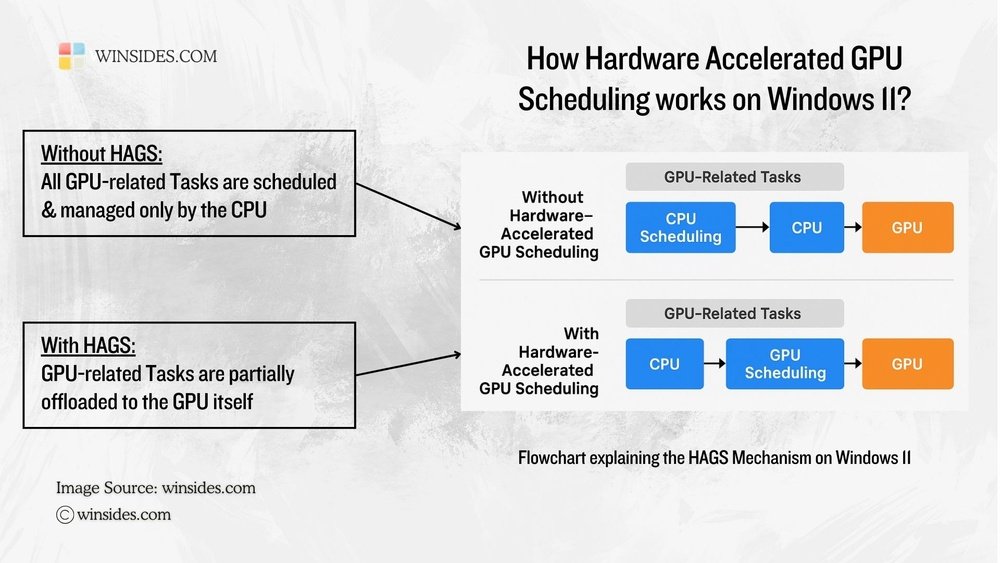
Hardware Accelerated GPU Scheduling is a feature designed to improve how your computer handles graphics tasks. It allows the graphics processing unit (GPU) to manage its own memory and workload more efficiently. This can lead to smoother performance and less lag during gaming or heavy graphic use.
The feature shifts some control from the CPU to the GPU. This reduces delays and helps the GPU respond faster to commands. It is available on newer Windows versions and supported by modern GPUs.
What Hardware Accelerated Gpu Scheduling Does
This technology changes how the system schedules graphics work. Instead of the CPU managing all GPU tasks, the GPU takes on more responsibility. This can decrease latency and improve frame rates in games and applications.
How It Works
GPU scheduling works by letting the GPU control its own memory and task queue. This reduces the back-and-forth communication between the CPU and GPU. The GPU can then prioritize and manage its tasks more quickly.
System Requirements
To use this feature, your PC needs Windows 10 May 2020 update or later. Your graphics card must support it, usually newer NVIDIA and AMD GPUs. You also need the latest graphics drivers installed.
Benefits Of Hardware Accelerated Gpu Scheduling
It can reduce input lag and improve game smoothness. It also helps in multitasking by freeing up CPU resources. Some users see better performance in video editing and 3D rendering tasks.
Possible Limitations
The improvements depend on your hardware and software setup. Not all games or apps benefit equally. Sometimes, it may cause minor glitches or no noticeable change at all.
Credit: maxcloudon.com
How Gpu Scheduling Impacts Performance
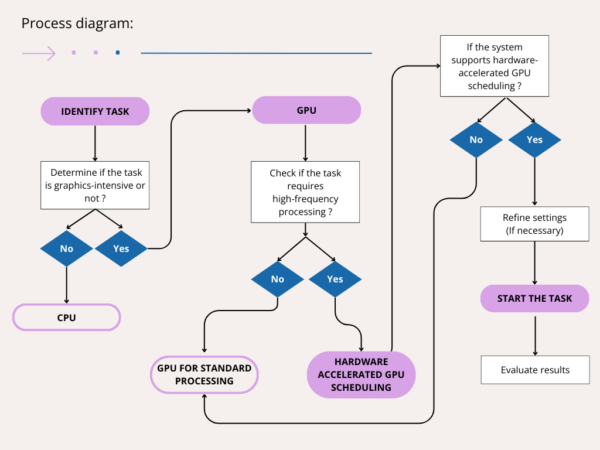
GPU scheduling controls how tasks are sent to the graphics card. It decides the order and timing of these tasks. This can affect how fast and smooth your computer runs games and apps.
Good scheduling helps the GPU work without pauses. Poor scheduling can cause delays and stuttering. The way tasks are managed impacts overall system speed and responsiveness.
Improved Task Management
Hardware accelerated GPU scheduling lets the GPU handle task timing. This reduces the load on the CPU. The GPU can start new tasks faster and more efficiently.
This leads to fewer interruptions during processing. Tasks get completed without waiting in long queues. Resulting in smoother graphics and faster frame rates.
Reduced Latency And Input Lag
Lower latency means faster response from your system. Hardware scheduling cuts the delay between input and on-screen action. This helps in games and fast-moving apps.
Input lag drops because the GPU processes commands quicker. The experience feels more natural and less frustrating for users.
Better Multi-tasking Performance
GPU scheduling improves handling of many tasks at once. It balances workloads between CPU and GPU more effectively. This keeps your system stable during heavy use.
Running multiple apps or games becomes smoother. The GPU can switch tasks quickly without slowing down.
Enabling Hardware Accelerated Gpu Scheduling
Enabling Hardware Accelerated GPU Scheduling can improve your computer’s performance. This feature lets the GPU handle scheduling tasks, reducing delays and improving smoothness. Activating it is simple but requires checking your system first.
System Requirements
Your PC must run Windows 10 version 2004 or later. The GPU driver must support this feature too. Most modern NVIDIA and AMD drivers include support. Make sure your graphics card is compatible. Older hardware may not work with this setting.
Step-by-step Activation
Open the Start menu and click Settings. Go to System, then select Display. Scroll down and click Graphics settings. Find Hardware-accelerated GPU scheduling and toggle it On. Restart your computer to apply the change. This lets Windows and your GPU work more efficiently together.

Credit: www.reddit.com
Performance Gains And Benchmarks
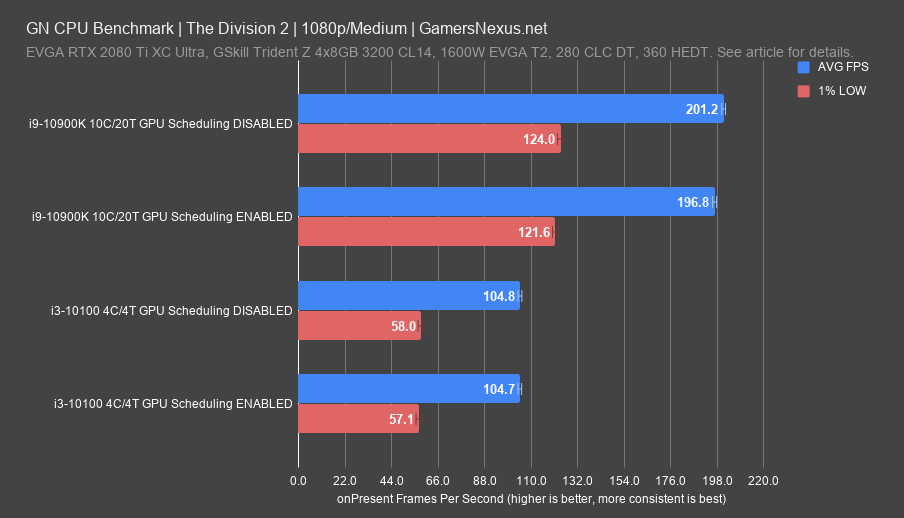
Hardware Accelerated GPU Scheduling (HAGS) aims to reduce latency and improve performance by letting the GPU manage its own memory. This feature promises smoother graphics and faster processing. Testing HAGS shows mixed results depending on the use case and system setup. Some users see small boosts, while others notice little change.
Benchmarks help reveal where HAGS performs best. They measure frame rates, latency, and overall responsiveness. These tests highlight the impact on gaming and professional software, the two main areas where GPU power matters most.
Gaming Performance
Games often demand high frame rates and low delay. Benchmarks show HAGS can slightly increase frames per second (FPS) in some titles. Popular games like Call of Duty and Fortnite show gains of 1-5 FPS on average. Latency improvements help reduce input lag, making controls feel tighter.
Not all games benefit equally. Some see no change or small drops in performance. The effect depends on the GPU, driver version, and game engine. Older systems may not gain much. Newer GPUs with updated drivers perform better with HAGS.
Professional Applications
Software for 3D modeling, video editing, and data analysis also uses GPU power. Tests reveal HAGS can improve rendering times and responsiveness in some cases. Programs like Adobe Premiere Pro and Blender show minor speed increases.
In heavy workloads, HAGS helps by reducing bottlenecks in GPU memory handling. This leads to smoother previews and faster exports. For most professional users, the improvements are subtle but beneficial over long sessions.
Potential Drawbacks And Issues
Hardware Accelerated GPU Scheduling promises better performance by shifting some tasks to the GPU. This feature helps the GPU manage its own memory and processing more efficiently. Despite its benefits, several potential drawbacks and issues can affect user experience. These problems may impact system compatibility and overall stability.
Compatibility Concerns
Not all hardware supports Hardware Accelerated GPU Scheduling. Older GPUs might not function well or at all with this feature. Some drivers may lack proper updates to handle this scheduling method. Using incompatible hardware can cause crashes or poor performance. Software and games also need to support this feature for best results. Without full support, users might not see any improvement.
Stability Problems
Enabling GPU scheduling can sometimes cause system instability. Users report random crashes, freezes, or screen flickering. These issues often result from driver conflicts or bugs. Early implementations had more stability problems than recent updates. Stability depends on the combination of hardware, drivers, and software. Testing this feature on your system first is wise to avoid disruptions.
Tips To Maximize Gpu Scheduling Benefits
Maximizing the benefits of Hardware Accelerated GPU Scheduling helps improve your PC’s performance. Small changes can lead to smoother graphics and faster response times. Follow these tips to get the most from your GPU scheduling settings.
Each step focuses on making the GPU work efficiently with your system. This helps reduce lag and boosts overall speed in games and apps.
Enable Hardware Accelerated Gpu Scheduling In Windows
Turn on GPU scheduling through Windows settings for better task handling. Go to Display settings, then Graphics settings, and activate the option. This lets your GPU manage its memory directly, reducing delays.
Keep Gpu Drivers Updated
Install the latest drivers from your GPU maker. Updated drivers fix bugs and improve compatibility with new features. Check for updates regularly to maintain optimal performance.
Close Unnecessary Background Applications
Shut down apps not in use to free GPU resources. Background programs can slow down GPU scheduling and cause stutter. A clean system gives your GPU more power for important tasks.
Adjust Power Settings For Maximum Performance
Set your PC’s power plan to High Performance mode. This prevents the system from limiting GPU speed to save energy. Consistent power helps the GPU run smoothly and respond quickly.
Monitor Gpu Usage And Temperatures
Use monitoring tools to check GPU load and heat levels. High temperatures can reduce performance and cause throttling. Keep your system cool to support steady GPU scheduling.
Future Of Gpu Scheduling Technology
The future of GPU scheduling technology looks promising. Developers work hard to make GPUs faster and more efficient. New techniques aim to reduce lag and improve power use. These improvements help both gamers and professionals.
Hardware accelerated GPU scheduling is just the start. New methods will make the GPU handle tasks smarter. This means better performance and smoother experiences.
Advances In Hardware And Software Integration
Future GPUs will combine hardware and software more closely. This helps the GPU decide which tasks to run first. The result is faster response times and less waiting.
Artificial Intelligence In Scheduling
AI may guide GPU task management soon. It can learn which processes need priority. This smart scheduling reduces delays and uses power wisely.
Improved Support For Multi-tasking
Upcoming GPU schedulers will handle multiple tasks better. Running games, video, and apps together will be smoother. This helps users do more at once without slowdowns.
Energy Efficiency And Heat Management
Better scheduling can lower energy use. GPUs will use power only when needed. This keeps devices cooler and saves battery life.
Frequently Asked Questions
What Is Hardware Accelerated Gpu Scheduling?
Hardware Accelerated GPU Scheduling lets your GPU manage its memory directly. This reduces latency and can improve gaming and application performance on supported systems.
Does Gpu Scheduling Improve Gaming Performance?
Yes, it can enhance gaming by reducing latency and increasing frame stability. However, the impact varies depending on hardware and game optimization.
How To Enable Hardware Accelerated Gpu Scheduling?
Go to Windows Settings > System > Display > Graphics settings. Toggle the Hardware Accelerated GPU Scheduling option on, then restart your PC.
Are There Any Downsides To Using Gpu Scheduling?
Some users may experience instability or minor glitches. It’s best to test performance on your system before keeping it enabled permanently.
Conclusion
Hardware Accelerated GPU Scheduling can help improve performance in some cases. It reduces the load on your CPU by letting the GPU manage tasks. This can lead to smoother gameplay and faster video processing. But results may vary depending on your hardware and drivers.
Testing it yourself is the best way to see its effects. Keep your system updated for the best experience. Overall, it is a useful feature to try for better graphics handling. Simple and quick to enable, it might enhance your PC’s speed.