Can a Laptop Gpu Be Upgraded: Ultimate Guide to Boost Performance
Have you ever wondered if you can boost your laptop’s gaming or creative power without buying a whole new machine? Upgrading a laptop GPU sounds like a dream come true, but is it really possible?
If you’ve been frustrated by slow graphics or lagging visuals, you’re not alone—and the answer might surprise you. Keep reading to discover what you need to know before making any changes to your laptop’s graphics card. Your next upgrade could be closer than you think.
Credit: www.sietesetenta.com.ar
Laptop Gpu Upgrade Basics
Upgrading a laptop GPU is not the same as upgrading a desktop PC. Laptop GPUs have different designs and connections. Understanding these basics helps to know if an upgrade is possible.
This section explains how laptop GPUs differ from desktops. It covers the types of GPU connections found in laptops. It also explains the difference between soldered and modular GPUs.
How Laptop Gpus Differ
Laptop GPUs are smaller and use less power than desktop GPUs. They are built to fit inside thin and light laptops. This means they often have lower performance. Cooling is also limited, which affects GPU size and speed.
Laptop GPUs are often integrated or use shared memory. This saves space and battery life but reduces graphics power. Desktop GPUs have dedicated memory and better cooling options.
Types Of Laptop Gpu Connections
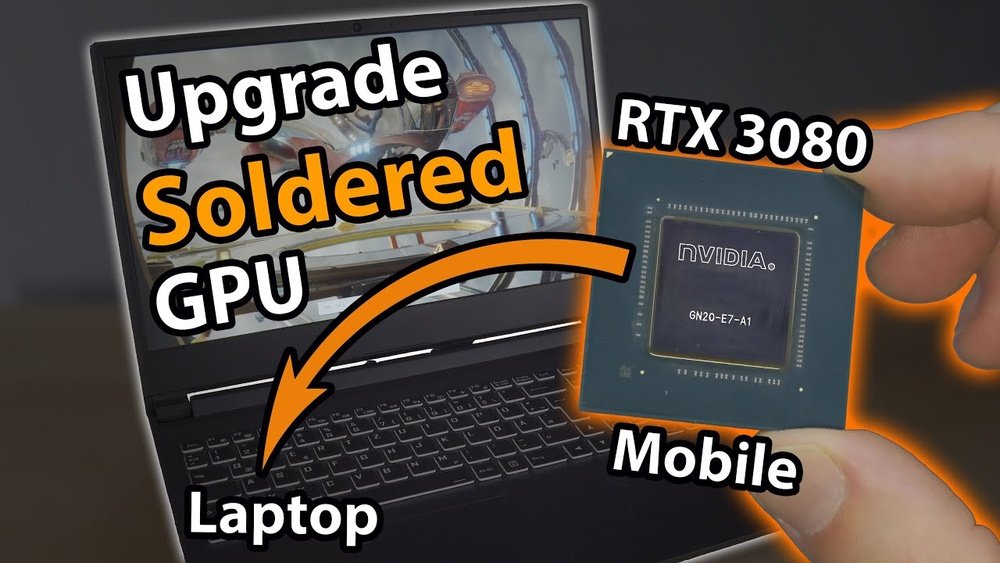
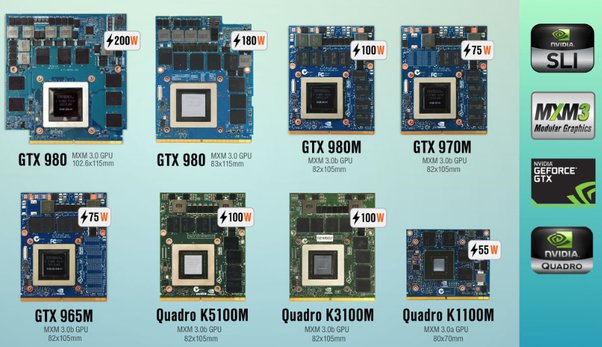
Most laptop GPUs are soldered directly to the motherboard. This means they cannot be removed or replaced easily. Some high-end gaming or workstation laptops use a modular design.
Modular GPUs connect via special slots or connectors. These allow the GPU to be swapped out or upgraded. These connections are rare and only found in certain laptop models.
Soldered Vs. Modular Gpus
Soldered GPUs are fixed to the laptop’s motherboard. Upgrading them is usually impossible without replacing the whole motherboard. This makes upgrades costly and complex.
Modular GPUs can be removed and replaced like desktop cards. This gives more flexibility for upgrades. Few laptops support this, mostly expensive or custom models.
Knowing if your laptop has a soldered or modular GPU is key. It determines if upgrading the GPU is an option.
Signs You Need A Gpu Upgrade
Knowing when to upgrade your laptop GPU can save you time and frustration. Some clear signs show your current GPU may no longer meet your needs. These signs often affect your laptop’s speed, graphics quality, and overall performance.
Performance Bottlenecks
Slow video playback and laggy apps hint at GPU limits. Your laptop might struggle with tasks it handled easily before. Programs that require strong graphics will run poorly. Frame rates drop during games or video editing. This slowdown points to a weak or outdated GPU.
Gaming And Creative Work Limits
New games may not run smoothly or look good. You see low resolution or reduced detail settings. Creative software like photo or video editors works slower. Rendering takes much longer than before. These issues show your GPU can’t handle modern demands.
Thermal And Power Constraints
Your laptop heats up quickly under heavy use. Fans run loudly and often to cool down the GPU. Battery life drops faster during graphic tasks. These signs mean your GPU uses too much power or generates excess heat. Upgrading can improve energy use and keep your laptop cooler.
Upgrade Options For Laptop Gpus
Upgrading a laptop GPU can be tricky because most laptops have their graphics chips soldered to the motherboard. This means changing the built-in GPU is usually not possible. Still, there are a few ways to improve graphics performance or add a better GPU to your laptop.
These upgrade options vary in cost, ease, and effectiveness. Some methods are simple and external, while others depend on the laptop’s design. Understanding these choices helps you pick the best way to boost your laptop’s graphics power.
External Gpu (egpu) Solutions
External GPUs connect to a laptop via a special port like Thunderbolt 3. They house a desktop-grade graphics card inside a separate box. This setup greatly improves graphics performance for gaming or design.
eGPUs need a compatible laptop and good connection ports. They also require extra space and power. Still, this option lets you use strong desktop GPUs without opening your laptop.
Swapping Modular Gpus
Some high-end laptops have modular GPUs. These can be removed and replaced with a better model. This design is rare and mostly found in gaming or professional laptops.
Swapping a modular GPU is simpler than other upgrades. But finding compatible parts can be hard. Also, this upgrade may void your warranty or need expert help.
Upgrading Other Components For Boost
Improving components like RAM and storage helps overall performance. Faster RAM and SSDs can reduce slowdowns in games and apps. These upgrades indirectly improve graphics experience.
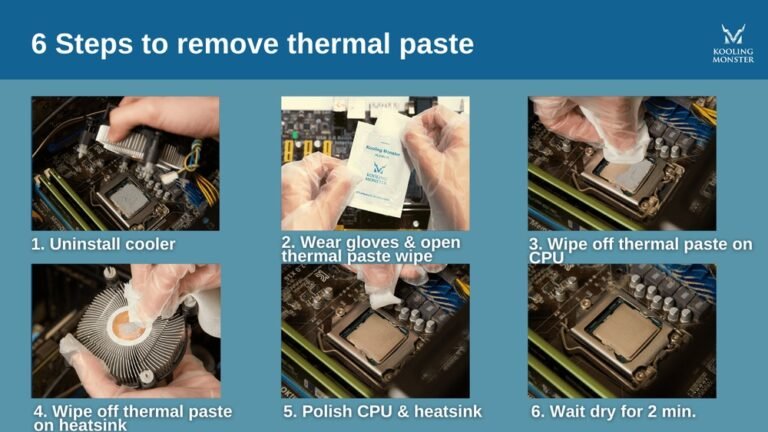
Better cooling solutions can also help GPUs run faster and last longer. Clean fans and cooling pads keep temperatures low during heavy use.

Credit: www.pwmachineservices.com
Choosing The Right Gpu Upgrade
Choosing the right GPU upgrade for your laptop can be tricky. Not all GPUs fit all laptops. It needs careful thought about your laptop’s design and your needs. This guide helps you pick a GPU that fits well and works smoothly.
Compatibility Checks
First, check if the new GPU fits your laptop’s hardware. Most laptops have GPUs soldered to the motherboard. Only some models allow GPU swaps or upgrades. Look up your laptop model’s manual or official website for upgrade options. Also, check the GPU slot type and size. The new GPU must match these to fit properly.
Power And Cooling Requirements
Upgrading to a stronger GPU can increase power use. Your laptop’s power supply must handle the new GPU’s needs. Cooling is also important. Powerful GPUs create more heat. Ensure your laptop’s cooling system can keep the new GPU cool. Overheating can damage parts and slow performance.
Budget Considerations
GPU upgrades can be costly. Set a clear budget before buying. Compare prices of compatible GPUs. Consider the cost of installation, if needed. Sometimes, a new laptop may be more cost-effective than a costly GPU upgrade. Balance your needs and budget carefully.
Step-by-step Gpu Upgrade Process
Upgrading a laptop GPU is a complex but possible task. It requires careful steps and the right tools. This section breaks down the GPU upgrade process. Follow each step to avoid damage and improve performance safely.
Preparing Your Laptop
First, back up all important files. Power off the laptop and unplug it. Remove the battery if possible to avoid electric shock. Clean the workspace and gather necessary tools. Check the laptop’s manual for GPU upgrade options. Note the model and size of your current GPU. This information helps find a compatible replacement.
Installing An Egpu Setup
External GPUs (eGPUs) connect through Thunderbolt or USB-C ports. Buy a compatible eGPU enclosure and a desktop GPU. Connect the GPU to the enclosure. Plug the enclosure into your laptop’s port. Install the necessary drivers from the GPU manufacturer’s website. Restart your laptop to activate the eGPU. This method avoids opening the laptop case.
Replacing A Modular Gpu
Not all laptops have modular GPUs. Check if your laptop’s GPU can be removed. Remove the back panel carefully using a screwdriver. Locate the GPU and unplug any connected cables. Unscrew the GPU from its slot gently. Insert the new GPU into the slot firmly. Screw it back and reconnect cables. Replace the back panel and power on the laptop. Install drivers for the new GPU to work properly.
Potential Risks And Challenges
Upgrading a laptop GPU can seem appealing to boost performance. Yet, it carries risks and challenges that many overlook. Understanding these issues helps avoid costly mistakes and frustration. The process is often complicated and not always rewarding.
Warranty And Support Issues
Opening your laptop may void its warranty. Manufacturers often do not cover damages from upgrades. Repair or replacement costs then fall on you. Support from the brand might stop after upgrades. This leaves you without official help if problems arise.
Technical Difficulties
Laptop GPUs are usually soldered to the motherboard. This design makes swapping parts nearly impossible. Some models use integrated graphics with no separate GPU slot. Cooling systems may not handle a more powerful GPU. Upgrading could cause overheating or hardware failure.
Performance Expectations
Even if upgraded, performance gains might be small. Bottlenecks from other parts, like CPU or RAM, limit results. The new GPU may not fit or work correctly. Power supply and drivers may not support the upgrade. Expecting desktop-level boost in a laptop is unrealistic.
Alternative Ways To Boost Laptop Performance
Upgrading a laptop GPU is often not possible. Still, many ways exist to improve laptop speed and power. These methods help your device run smoother and last longer. Small changes can make a big difference.
Focus on parts and settings that you can change easily. This approach saves money and boosts your laptop’s daily use. Here are some simple steps to improve performance.
Upgrading Ram And Storage
Adding more RAM helps your laptop handle more tasks. It stops slowdowns when many programs run at once. Switching to a solid-state drive (SSD) makes your system start faster. Programs open quicker with an SSD. Both upgrades give your laptop a fresh feel.
Optimizing Software Settings
Adjusting settings can speed up your laptop. Close unused apps to free memory. Turn off startup programs that slow boot time. Use lightweight software versions when possible. Keeping your operating system updated fixes bugs and improves efficiency.
Regular Maintenance Tips
Clean your laptop’s vents and fans to stop overheating. Dust buildup can slow performance and damage parts. Run antivirus scans to keep malware away. Delete unnecessary files and apps to save space. Regular restarts help clear temporary system issues.

Credit: www.youtube.com
Frequently Asked Questions
Can I Upgrade My Laptop Gpu Easily?
Most laptops have soldered GPUs, making upgrades difficult. Only some models with MXM slots allow GPU upgrades. Check your laptop’s specifications before attempting an upgrade.
Does Upgrading Laptop Gpu Improve Gaming Performance?
Yes, upgrading to a better GPU can boost gaming performance. However, compatibility and power supply must support the new GPU for optimal results.
Are External Gpu Enclosures A Good Alternative?
External GPU enclosures connect via Thunderbolt ports and offer GPU upgrades. They improve graphics performance without opening the laptop but can be costly.
What Risks Come With Upgrading Laptop Gpus?
Upgrading laptop GPUs risks hardware damage, warranty void, and overheating. Ensure professional help and proper compatibility to minimize these issues.
Conclusion
Upgrading a laptop GPU is usually very hard. Most laptops have fixed graphics cards. Some high-end models allow upgrades, but they are rare. External GPU docks offer a possible alternative. Still, they need extra space and money. Consider your laptop’s design before trying to change the GPU.
Often, buying a new laptop with a better GPU is easier. Knowing these facts helps you make smart choices. Choose the best option that fits your needs and budget.