Can I Upgrade the Gpu in My Laptop: Ultimate Guide & Tips
Are you wondering if you can upgrade the GPU in your laptop to boost its performance? You’re not alone.
Many laptop users want better graphics for gaming, video editing, or just smoother everyday use. But before you dive in, it’s important to know if your laptop even allows a GPU upgrade. You’ll discover the truth about laptop GPU upgrades, what options you have, and how to make the best choice for your needs.
Keep reading to unlock the secrets behind upgrading your laptop’s graphics power.
Credit: kaz-metiz.com
Laptop Gpu Basics
Laptop GPUs are important parts of your computer. They handle images, videos, and games. Knowing the basics helps you decide about upgrades. This section explains key points about laptop GPUs.
Integrated Vs Dedicated Gpus
Integrated GPUs share memory with the CPU. They use less power and create less heat. Most basic laptops have integrated GPUs. Dedicated GPUs have their own memory and power. They deliver better graphics and speed. Gaming and design laptops usually have dedicated GPUs.
Gpu Role In Performance
The GPU processes graphics and visual data. It affects gaming, video editing, and 3D work. A strong GPU makes visuals smooth and clear. It helps your laptop run apps faster. A weak GPU may cause lag and poor image quality.
Upgrade Possibilities
Upgrading the GPU in a laptop depends on the laptop’s design and hardware. Some laptops allow GPU upgrades, while others do not. Understanding the upgrade possibilities helps you decide the best path for better graphics performance.
Soldered Vs Modular Gpus
Most laptops have GPUs soldered directly to the motherboard. This design makes upgrading nearly impossible. The GPU is fixed and cannot be removed or replaced.
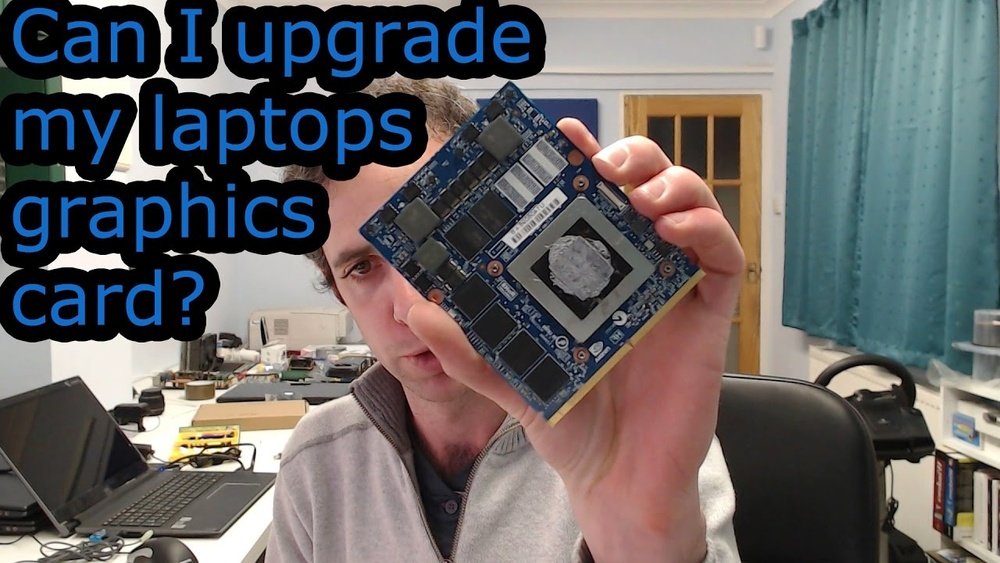
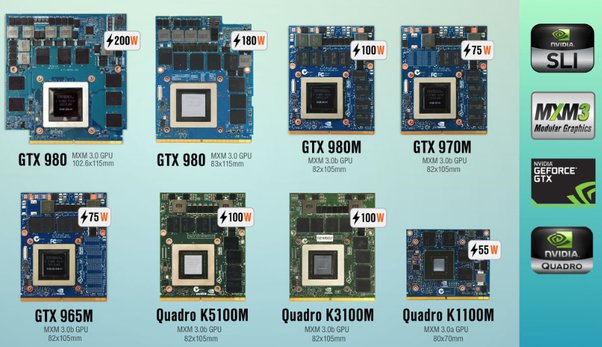
Some high-end gaming or professional laptops use modular GPUs. These GPUs are on separate cards that you can swap out. Modular GPUs offer more flexibility but are rare and expensive.
External Gpu Options
External GPUs connect to laptops via ports like Thunderbolt 3 or USB-C. They offer a way to boost graphics power without opening your laptop.
External GPUs come as separate devices with their own power and cooling. They work well for gaming, 3D work, or video editing. The connection speed may limit performance compared to internal GPUs.
Checking Compatibility
Upgrading a laptop’s GPU is not as simple as it sounds. Many parts must match for an upgrade to work. Checking compatibility is the first step. It helps avoid buying parts that do not fit or work. Two key areas to check are the motherboard and BIOS limits, plus the power and cooling needs.
Motherboard And Bios Limits
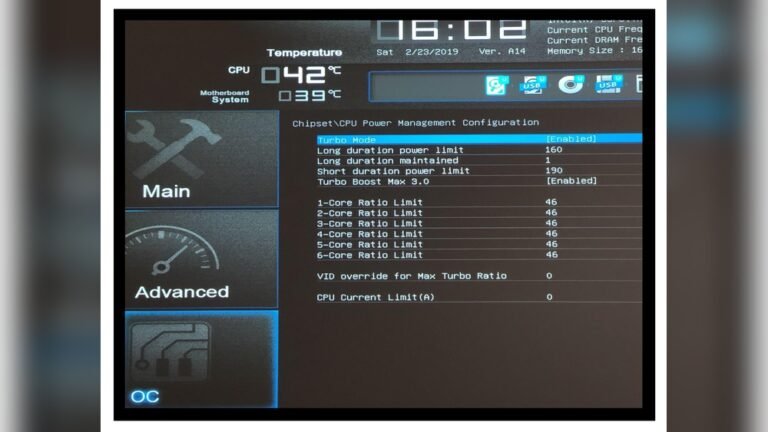
The motherboard controls which GPU your laptop can use. It has a slot for the GPU, but not all GPUs fit every slot. The BIOS also plays a role. It must recognize and support the new GPU. If the BIOS does not support the GPU, the laptop may not start. Some laptops lock the BIOS to work only with original parts. Upgrading might need a BIOS update or patch. This is risky and not always possible. Check your laptop model’s specs to see if the motherboard and BIOS allow a GPU change.
Power And Cooling Requirements
GPUs need power to run. Laptops have limited power supply capacity. A more powerful GPU might need more electricity than your laptop can give. Cooling is also important. Strong GPUs produce more heat. Your laptop’s cooling system must handle this extra heat. Otherwise, the laptop may overheat and slow down. Check your laptop’s power output and cooling design. Compare them with the new GPU’s needs. This step helps avoid damage and poor performance after the upgrade.
Upgrade Methods
Upgrading the GPU in a laptop can improve graphics and gaming performance. There are two main methods to upgrade the GPU. Each method has its own benefits and challenges. Understanding these methods helps you choose the best option for your needs.
Replacing Internal Gpu
Most laptops have GPUs soldered onto the motherboard. This means the internal GPU cannot be removed or replaced easily. Only some high-end gaming laptops allow GPU swaps. Replacing the internal GPU requires technical skills and special tools. It often involves opening the laptop and removing many components. This method is not practical for most users due to the risk and cost involved.
Using An Egpu Enclosure
An external GPU, or eGPU, connects to your laptop through a Thunderbolt port. This lets you use a desktop GPU with your laptop. eGPU enclosures house the desktop GPU and supply power. This method boosts graphics power without opening your laptop. It is easier and safer than replacing internal parts. The main downside is the extra cost of the enclosure and GPU. Also, not all laptops support eGPUs.
Benefits Of Upgrading
Upgrading the GPU in your laptop can bring several clear benefits. It boosts your laptop’s ability to handle demanding tasks. This upgrade can make your device more useful for gaming and creative work. It also helps extend the laptop’s life by keeping it up-to-date with software needs.
Improved Gaming Performance
A better GPU means games run smoother and look better. You can enjoy higher frame rates and sharper images. This reduces lag and makes gameplay more enjoyable. Older laptops often struggle with new game titles. Upgrading the GPU can fix this problem and improve the overall gaming experience.
Enhanced Creative Workflows
Creative tasks like video editing or 3D rendering demand strong graphics power. A new GPU speeds up these processes. You can edit videos faster and see changes in real time. It also helps run creative software without crashes or slowdowns. This makes your work more efficient and less frustrating.
Potential Risks
Upgrading the GPU in a laptop carries some risks. These risks can affect your device’s performance and support. Understanding these risks helps you decide wisely.
Warranty Voids
Many laptop manufacturers do not allow hardware changes. Opening the laptop to upgrade the GPU can void the warranty. Without a warranty, repairs may cost you a lot. Manufacturers may refuse service if they find unauthorized upgrades. This risk makes it important to check your warranty terms first.
Hardware Damage
Laptop components are delicate and closely packed. Removing or adding a GPU can cause physical damage. You might damage connectors, the motherboard, or other parts. Improper installation can lead to overheating or poor performance. A small mistake may ruin your laptop permanently. Care and skill are needed to avoid hardware damage.
Cost Considerations
Upgrading a laptop GPU involves several costs. These expenses can affect your decision to upgrade or explore other options. Understanding the cost factors helps you plan better and avoid surprises.
Price Of Gpu Upgrades
GPU upgrades for laptops are often expensive. Unlike desktop GPUs, laptop GPUs are usually built into the motherboard. This makes direct upgrades rare and costly. External GPU units exist but add more expense. These units need special docks and power supplies. Prices can range from a few hundred to over a thousand dollars. Installation costs may also increase the total price. Consider if the performance gain justifies the high cost.
Alternative Options
Alternative options can save money and improve performance. Using an external GPU dock offers a flexible solution. These docks connect via Thunderbolt ports and support desktop GPUs. Another choice is upgrading your entire laptop. New models often provide better GPUs and other hardware. This option may be more cost-effective in the long term. Optimizing software and settings also helps boost graphics performance without extra cost.

Credit: www.youtube.com
Tips For A Smooth Upgrade
Upgrading the GPU in your laptop can boost performance and extend its life. Careful steps help avoid damage and ensure success. Follow these tips for a smooth upgrade process.
Research And Planning
Check if your laptop supports GPU upgrades. Many laptops have soldered GPUs, which cannot be replaced. Look for models with modular or MXM GPUs for easier swaps.
Find the exact GPU model compatible with your laptop. Use the laptop’s manual or official website for specs. Confirm the new GPU fits power and cooling limits.
Prepare tools and workspace. Use an anti-static mat and screwdriver set. Back up your data before starting any hardware changes.
Professional Assistance
Consider expert help for tricky upgrades. Professional technicians have the right tools and experience. They reduce risks of damage or voiding your warranty.
Find a trusted service center or technician. Read reviews and ask for quotes before committing. A skilled professional can save time and headaches.
Credit: rog.asus.com
Frequently Asked Questions
Can I Replace My Laptop Gpu Myself?
Most laptops have GPUs soldered to the motherboard, making replacement difficult. Only a few models with MXM modules allow GPU swaps. Professional help is recommended to avoid damage and compatibility issues.
What Laptops Support Gpu Upgrades?
High-end gaming or workstation laptops with MXM slots support GPU upgrades. Most consumer laptops lack this feature. Check your laptop’s specifications or manufacturer details to confirm GPU upgrade options.
Will Upgrading My Laptop Gpu Improve Gaming?
Yes, upgrading to a better GPU can boost gaming performance. However, this depends on your laptop’s compatibility and cooling system. Ensure your laptop can handle the new GPU before upgrading.
Are External Gpu Docks A Good Alternative?
External GPU docks connect via Thunderbolt and offer GPU upgrades without internal changes. They improve graphics performance but are costly and less portable. Ideal for stationary setups needing extra GPU power.
Conclusion
Upgrading a laptop’s GPU is often hard or impossible. Most laptops have fixed graphics cards. Some gaming laptops allow GPU changes, but they are rare. External GPU options exist but need extra gear and expense. Check your laptop’s manual and specs first.
Consider whether upgrading fits your budget and needs. Sometimes, buying a new laptop is easier and better. Choose wisely to enjoy smooth graphics and good performance. Your laptop’s design limits upgrade choices. Think about what works best for you.