Can I Replace Gpu in Laptop: Ultimate Guide to Upgrade Success
Are you wondering if you can replace the GPU in your laptop? Maybe your laptop’s graphics are slowing down, or you want better performance for gaming or work.
The idea of upgrading your laptop’s GPU sounds great, but is it really possible? You’ll discover the truth about laptop GPU upgrades, what’s involved, and whether it’s the right move for you. Keep reading to find out how to get the most out of your laptop’s graphics power.
Credit: breezeresidency.com
Laptop Gpu Basics
Understanding the basics of a laptop GPU helps in knowing if you can replace it. The GPU, or graphics processing unit, handles images and videos on your screen. It affects gaming, video editing, and even everyday tasks.
Many people ask about upgrading their laptop GPU. Knowing the types of GPUs and their roles in performance is important before deciding.
Types Of Laptop Gpus
Laptop GPUs come in two main types: integrated and dedicated. Integrated GPUs are built into the laptop’s CPU. They share memory with the main system. Dedicated GPUs have their own memory and power. They are separate chips inside the laptop.
Integrated Vs Dedicated Gpus
Integrated GPUs use less power and create less heat. They work well for simple tasks like web browsing and office work. Dedicated GPUs offer more power for games and heavy software. They need more battery and cooling. Most gaming and professional laptops have dedicated GPUs.
Gpu Role In Performance
The GPU processes graphics and helps run software smoothly. A stronger GPU means better visuals and faster rendering. It reduces lag in games and video tasks. The CPU handles general tasks, but the GPU focuses on graphics. Both work together for a good laptop experience.

Credit: www.youtube.com
Can You Replace A Laptop Gpu?
Replacing a laptop GPU is a question many users ask. Unlike desktop PCs, laptops have a compact design. This design limits the parts you can swap or upgrade. Knowing whether you can replace the GPU depends on several factors. Let’s explore these factors to understand better.
Soldered Vs Modular Gpus
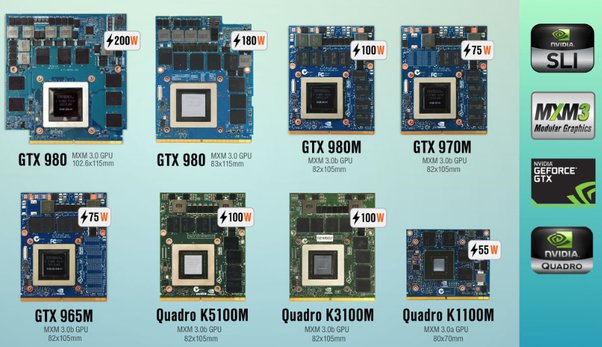
Most laptops have soldered GPUs. This means the GPU chip is glued directly to the motherboard. It cannot be removed or replaced without special tools and skills. Some high-end gaming or workstation laptops use modular GPUs. These GPUs come in a separate slot. Users can unplug and upgrade these GPUs more easily. Still, modular GPUs in laptops are rare.
Common Laptop Designs
Laptop designs vary by brand and model. Thin and light laptops usually have soldered GPUs to save space. Gaming laptops often use modular GPUs for better performance. Some models use external GPUs connected via Thunderbolt ports. This option adds power but is not a direct GPU replacement inside the laptop.
Manufacturer Limitations
Manufacturers set strict rules on laptop upgrades. Most do not support GPU replacement or upgrades. Warranty may void if you try to replace the GPU. Some brands offer upgradeable parts like RAM or storage only. Always check the manual or support site. This helps avoid damage and extra costs.
Signs You Need A Gpu Upgrade
Knowing the signs that your laptop’s GPU needs an upgrade can save you time and frustration. A weak GPU can slow your work or play. Watch for clear signs to decide if it’s time for a change. These signals will help you understand your laptop’s limits.
Performance Bottlenecks
Slow graphics or stuttering in videos shows a bottleneck. Programs take longer to load or run poorly. Frame rates drop during games or heavy tasks. This means your GPU cannot keep up. Upgrading helps improve speed and smoothness.
Gaming And Creative Needs
New games demand stronger graphics power. Creative software like video editors needs a faster GPU. If you want better visuals or faster rendering, an upgrade is key. Your current GPU may not support new features or resolutions.
Thermal And Power Considerations
Overheating or loud fans suggest GPU strain. High temperatures can damage your laptop over time. Power issues might cause crashes or shutdowns. A better GPU can run cooler and use energy more efficiently. This keeps your laptop safer and more stable.
Options For Gpu Upgrades
Upgrading the GPU in a laptop is not simple. Most laptops do not allow changing the internal graphics card. Still, some options let you boost your laptop’s graphics power. These options vary in cost, performance, and ease of use. Understanding these choices helps you pick the best one for your needs.
Here are some common ways to upgrade your laptop’s GPU.
External Gpu (egpu) Solutions
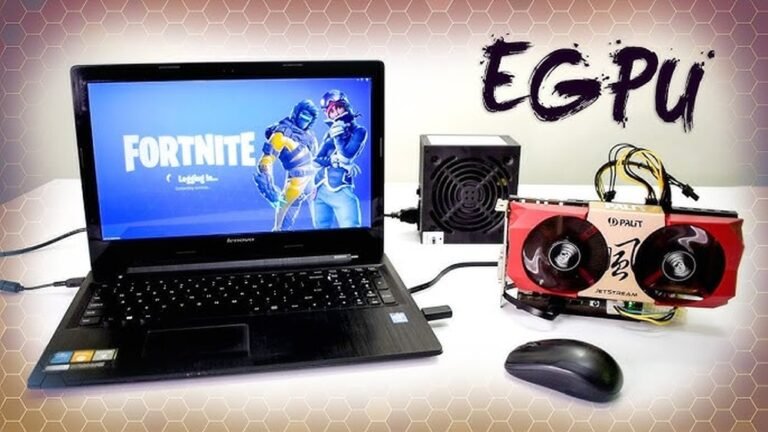
An external GPU is a separate device that connects to your laptop. It uses a fast port like Thunderbolt 3 or 4. This setup adds a powerful desktop graphics card to your laptop. It improves gaming and graphics tasks significantly. However, eGPUs can be expensive and need extra space.
Upgrading Modular Gpus
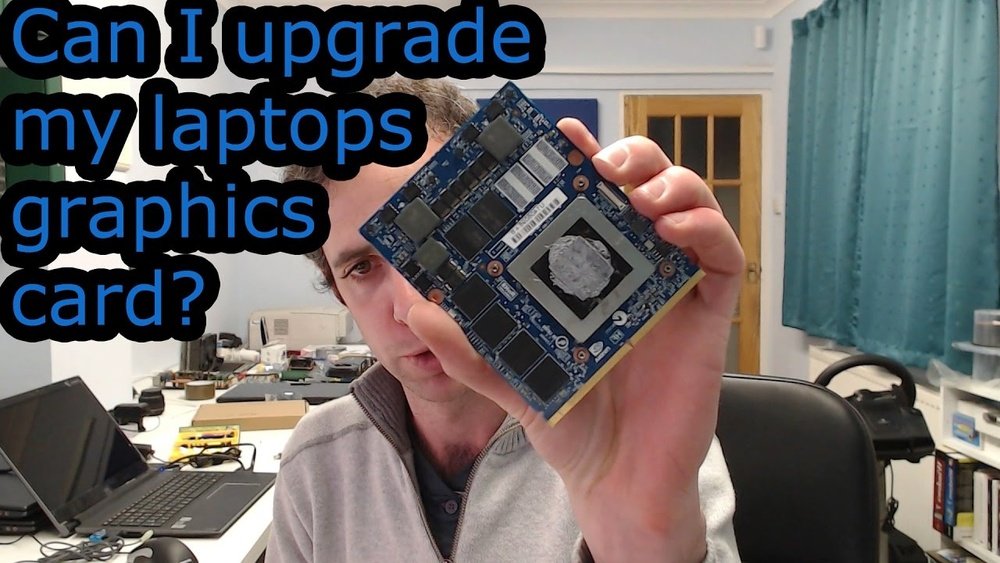
Some laptops have modular GPUs designed for swapping. These models let you replace the GPU inside the laptop. This option is rare and mostly found in high-end or gaming laptops. It requires technical skills and careful handling. The upgrade cost varies depending on the new GPU model.
Using Docking Stations
Docking stations can expand your laptop’s connectivity. Certain docks support external GPUs or extra ports. They provide a way to connect multiple devices, including GPUs. This option offers flexibility without opening your laptop. Performance depends on the dock’s compatibility and connection speed.
Steps To Upgrade Your Laptop Gpu
Upgrading a laptop GPU can improve performance and extend the device’s life. The process needs care and attention. Follow these clear steps to ensure a smooth upgrade.
Checking Compatibility
Not all laptops allow GPU upgrades. Check if your laptop has a removable GPU. Look at the model and specifications. Find a compatible GPU that fits your system. This step avoids damage and wasted effort.
Backing Up Data
Save all important files before starting. Use an external drive or cloud storage. Backing up protects your data if something goes wrong. It gives peace of mind during the upgrade.
Disassembly Tips
Turn off the laptop and unplug it. Remove the battery if possible. Use a screwdriver to open the back panel carefully. Keep screws safe and organized. Avoid touching other parts inside the laptop.
Installing The New Gpu
Locate the old GPU and gently remove it. Insert the new GPU firmly in the slot. Make sure it fits well without forcing. Reattach any screws or clips holding the GPU in place.
Driver Installation And Testing
Turn on the laptop and install the latest GPU drivers. Use the official website for driver downloads. Restart the laptop after installation. Run a test to check if the new GPU works correctly.
Risks And Challenges
Replacing a GPU in a laptop is not an easy task. It comes with many risks and challenges. Many people do not realize how complicated and risky this process can be.
Understanding these risks helps you decide if it is worth trying. Some problems might cost more than the benefits of a new GPU.
Warranty Issues
Opening your laptop can void its warranty. Manufacturers often seal the GPU area. Breaking the seal means you lose official support. Repairs or replacements will cost you. This risk may outweigh the benefit of upgrading.
Potential Hardware Damage
Laptops have compact and delicate parts. Removing or replacing the GPU needs skill. A small mistake can damage the motherboard or other components. Overheating might happen if the new GPU does not fit well. Damage can make your laptop unusable.
Performance Gains Vs Costs
Not all GPU replacements bring big improvements. Some laptops limit GPU power due to cooling or power supply. The cost of a new GPU and repair tools may be high. Sometimes, buying a new laptop is cheaper and better. Think about the real gains before starting.
Alternatives To Replacing Gpu
Replacing a GPU in a laptop is often difficult or impossible. Many laptops have GPUs soldered to the motherboard. This limits your options for upgrading graphics power. Still, you can improve performance by other means. These alternatives can help you get better results without changing the GPU.
Optimizing Existing Hardware
Clean your laptop’s cooling system regularly. Dust blocks airflow and causes overheating. Overheating slows down the GPU and CPU. Use software tools to update drivers. Updated drivers improve performance and fix bugs. Close unused apps to free up memory. This helps your laptop run games or programs smoother.
Upgrading Other Components
Increase your laptop’s RAM if possible. More RAM helps with multitasking and gaming. Replace your hard drive with an SSD. An SSD speeds up loading times and system responsiveness. Both upgrades improve overall performance without changing the GPU.
Considering A New Laptop
Sometimes, upgrading parts is not enough. A new laptop with a better GPU might be the best choice. Look for laptops with dedicated graphics cards. This ensures better gaming and graphic work. Choose a laptop that fits your budget and needs.

Credit: aquisefaladesantos.com.br
Frequently Asked Questions
Can I Upgrade The Gpu In My Laptop?
Most laptops have GPUs soldered to the motherboard, making upgrades impossible. Only some gaming or workstation laptops with MXM slots allow GPU replacement.
How To Check If My Laptop Gpu Is Replaceable?
Check your laptop’s manual or manufacturer website for GPU upgrade options. You can also open the laptop to see if the GPU is modular or soldered.
What Are Risks Of Replacing A Laptop Gpu?
Replacing a laptop GPU risks damaging delicate components, voiding warranty, and may cause overheating or incompatibility issues. Professional help is recommended.
Are External Gpus A Better Alternative For Laptops?
Yes, external GPUs (eGPUs) connect via Thunderbolt 3 or USB-C, boosting graphics power without internal replacement. They are safer and easier for most users.
Conclusion
Replacing a GPU in a laptop is usually very hard. Most laptops have GPUs built into the motherboard. Only some gaming or high-end models allow GPU upgrades. It takes special tools and skills to try it. Often, buying a new laptop is easier and safer.
Always check your laptop’s manual before attempting any changes. Think about your needs and budget first. A better GPU can improve speed and graphics. But upgrading may not be worth the cost or effort. Choose the best option for your situation.