Can I Upgrade My Gpu Laptop: Essential Tips You Must Know
Are you wondering if you can upgrade your GPU laptop to boost gaming, design, or video editing performance? You’re not alone.
Many laptop users ask this question when their system starts feeling slow or outdated. The good news is, understanding whether your laptop’s graphics card can be upgraded could save you money and improve your experience. You’ll discover the key facts about GPU upgrades for laptops, what’s possible, and what’s not—so you can make the best choice for your needs.
Keep reading to find out if your laptop is ready for a powerful graphics boost.
Laptop Gpu Upgrade Basics
Upgrading a laptop GPU can improve graphics performance for games, videos, and design work. Not all laptops allow GPU upgrades. Understanding how laptop GPUs work and the upgrade options helps make better decisions.
This section explains the basics of laptop GPU upgrades. Learn how laptop GPUs differ from desktop ones. See common laptop GPU types. Discover upgrade possibilities based on your laptop model.
How Laptop Gpus Differ From Desktops
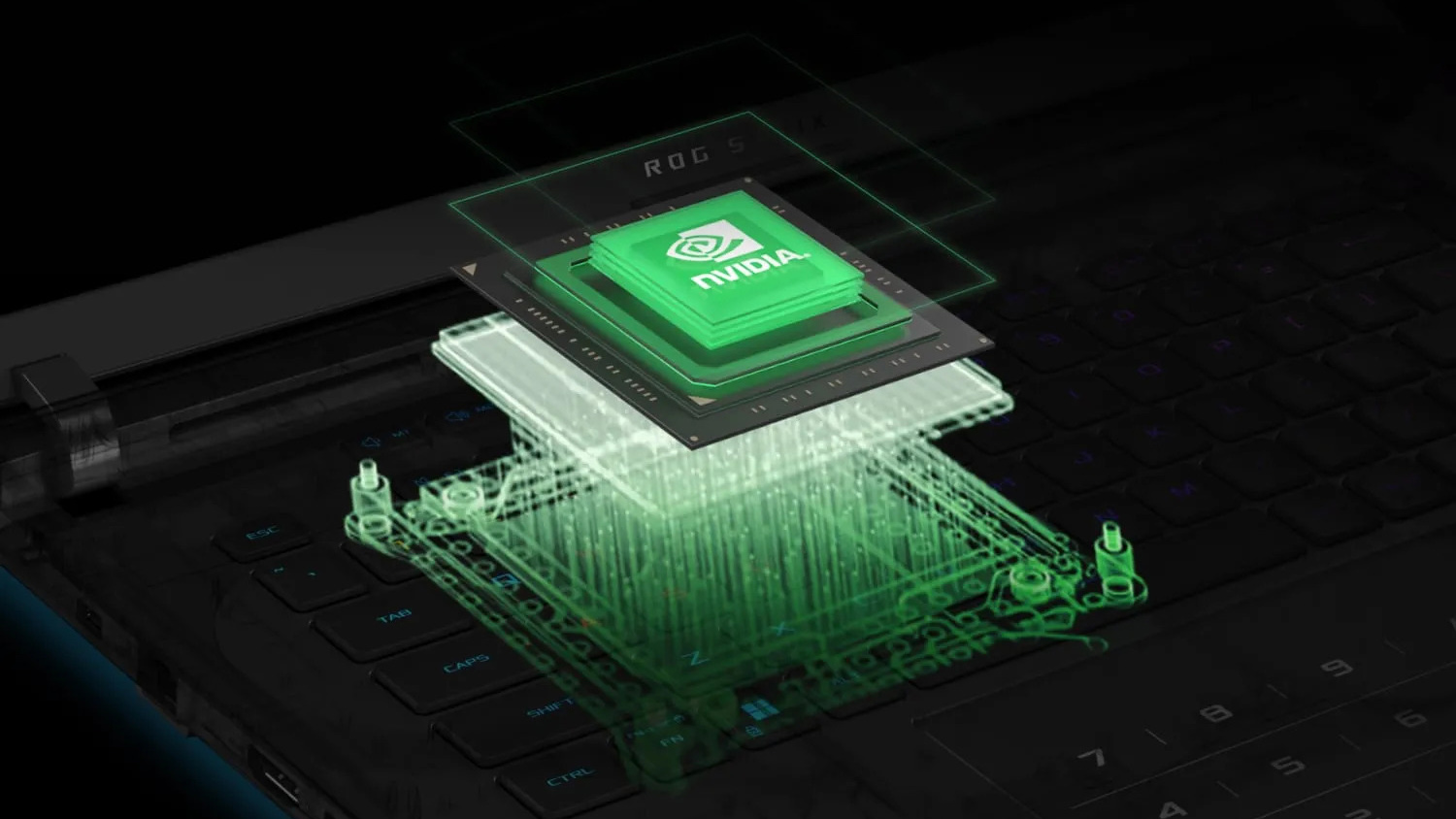
Laptop GPUs are usually smaller and use less power than desktop GPUs. They generate less heat to fit inside slim laptop cases. Most laptop GPUs are soldered directly to the motherboard. This design saves space but limits upgrade options.
Desktop GPUs are larger and often come as separate cards. They can be swapped or upgraded easily. Laptop GPUs often share memory with the CPU, unlike desktop GPUs with dedicated memory. These differences affect upgrade possibilities.
Common Laptop Gpu Types
Laptop GPUs come in two main types: integrated and dedicated. Integrated GPUs are built into the CPU. They use the laptop’s main memory and offer basic graphics power. Dedicated GPUs are separate chips with their own memory. They provide better performance for games and creative software.
Popular dedicated laptop GPUs come from NVIDIA and AMD. Models vary by performance and power use. Knowing your GPU type helps determine upgrade options and performance gains.
Upgrade Possibilities By Laptop Model
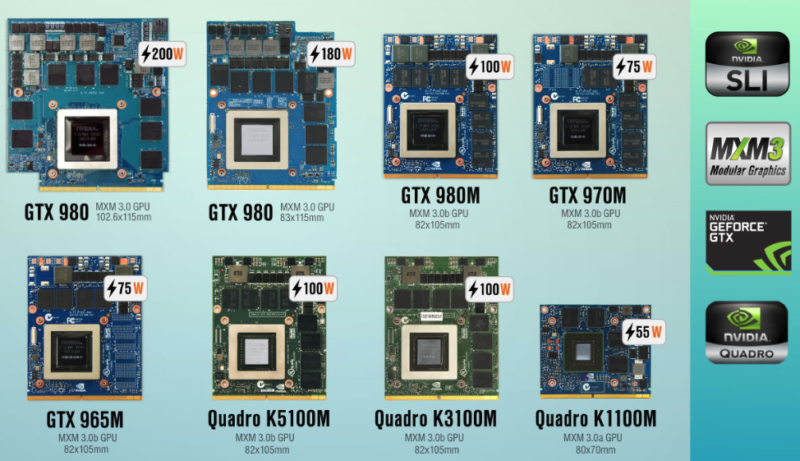
Most laptops do not support GPU upgrades. Integrated and soldered GPUs cannot be replaced. Some gaming and workstation laptops offer modular GPUs. These use special slots to swap or upgrade the GPU.
Check your laptop’s manual or support site to see if GPU upgrades are possible. External GPU enclosures connect via Thunderbolt ports. They offer an alternative way to boost graphics without opening the laptop.
Upgrade options depend heavily on your laptop’s design and ports. Research before buying or upgrading to avoid compatibility issues.
Credit: rog.asus.com
Checking Upgrade Compatibility
Checking upgrade compatibility is the first step before changing your laptop’s GPU. Not all laptops support new GPUs. Some parts inside your laptop limit your options. Knowing these limits saves time and money. It also helps you avoid damage to your laptop.
Identifying Your Current Gpu
Start by finding out which GPU your laptop has now. You can do this through your system settings or device manager. Note the exact model and manufacturer. This info helps find a matching or better GPU. It also shows if your laptop uses integrated or dedicated graphics.
Motherboard And Bios Limitations
The motherboard controls which GPUs your laptop can use. Some motherboards only support specific GPU models or sizes. BIOS settings may also block new GPUs. Updating BIOS can help but is risky. Check your laptop’s manual or support site for details.
Power Supply And Cooling Constraints
GPUs need power and cooling to work well. Laptop power supplies have limits on how much energy they provide. A stronger GPU might need more power than your laptop can give. Cooling is also important. A hotter GPU needs better fans or heat sinks. Without this, your laptop can overheat or shut down.
Alternative Gpu Upgrade Options
Upgrading the GPU in a laptop is often tricky. Many laptops have GPUs soldered onto the motherboard. This design stops simple GPU swaps. Still, some options exist to boost your graphics power without opening the laptop case.
These alternative GPU upgrade methods can improve performance. They fit different budgets and technical skills. Explore these solutions to enhance your laptop’s gaming or creative tasks.
External Gpu (egpu) Solutions
External GPUs connect to your laptop through Thunderbolt 3 or 4 ports. They use an external box that holds a desktop graphics card. This method adds strong GPU power without changing your laptop.
eGPUs work best with laptops that support Thunderbolt. They can run games and apps faster. The setup requires extra cost and a compatible port. Still, it offers a simple way to boost graphics.
Replacing The Entire Laptop
Sometimes, replacing the laptop is the best upgrade. New laptops often come with better GPUs built-in. This option suits users needing big performance gains.
Buying a new laptop means better CPU and GPU together. It also avoids compatibility problems with old hardware. Choose this if your current laptop is too old or slow.
Optimizing Existing Hardware
You can improve your current GPU’s performance by optimizing settings. Update your graphics drivers regularly. Adjust game or app settings for better speed.
Clean your laptop’s vents to prevent overheating. Cooling helps the GPU run smoothly. Lower screen resolution or turn off extra effects to increase frame rates.
Credit: www.liftingitalia.com
Step-by-step Upgrade Process
Upgrading the GPU in a laptop can improve its graphics performance. This process needs care and the right steps. Follow the steps below for a smooth upgrade.
Backing Up Important Data
Start by saving all your files and settings. Use an external drive or cloud storage. This keeps your data safe if something goes wrong. Do not skip this step.
Selecting A Compatible Gpu
Check your laptop’s model and GPU compatibility. Not all GPUs fit in every laptop. Look for GPUs that match your laptop’s size and power limits. Use the laptop manual or manufacturer’s website for info.
Installation Tips And Tools
Gather small screwdrivers and anti-static tools. Turn off the laptop and unplug it. Remove the back cover carefully. Handle parts gently to avoid damage. Install the new GPU and secure it properly. Reassemble and power on the laptop. Test the new GPU works well.
Potential Risks And Challenges
Upgrading the GPU in a laptop can seem like a good idea. It promises better graphics and faster performance. But this task comes with several risks and challenges. Understanding these issues helps avoid costly mistakes and frustration.
Warranty Voiding Issues
Many laptops have strict warranty rules. Opening the laptop or changing parts often voids the warranty. This means no free repairs or support from the manufacturer. Repair costs will fall on you if something goes wrong. Always check your warranty terms before attempting any upgrades.
Hardware Damage Risks
Laptop GPUs are usually soldered to the motherboard. Removing or replacing them needs special tools and skills. Mistakes can damage the motherboard or other parts. Even static electricity can harm delicate components. The risk of permanent damage is high without proper experience.
Driver And Software Compatibility
New GPUs may not work well with existing drivers. Laptop systems have custom software for their original parts. Installing a different GPU can cause crashes or slow performance. Finding compatible drivers can be difficult or impossible. This can leave your laptop unstable or unusable.
Performance Gains And Expectations
Upgrading the GPU in a laptop can bring clear performance improvements. It changes how fast your laptop runs games and software. Expect better visuals and smoother gameplay. Productivity tasks like video editing also become easier. Still, the actual gains depend on the new GPU and your laptop’s design. Let’s explore what you can expect after an upgrade.
Benchmarking Before And After
Benchmarking measures your laptop’s speed and power. Run tests before the upgrade to see your current scores. After installing the new GPU, run the same tests again. Compare the results to know the real improvement. This shows how much faster your laptop can handle graphics tasks. Benchmarking helps set clear expectations for performance gains.
Gaming And Productivity Improvements
A better GPU means games run at higher settings. You get smoother frame rates and sharper images. For video editing or 3D design, tasks finish faster. Your laptop handles bigger files and complex projects well. Notice less lag and quicker rendering times. These improvements boost both fun and work experiences.
Longevity Of Upgraded Gpus
New GPUs extend your laptop’s useful life. They stay relevant longer with better tech. This means fewer upgrades needed in the near future. Yet, laptop cooling and power limits affect GPU lifespan. Proper care keeps the GPU running well for years. Think of the upgrade as a way to delay buying a new laptop.

Credit: www.youtube.com
Frequently Asked Questions
Can I Upgrade The Gpu In My Laptop?
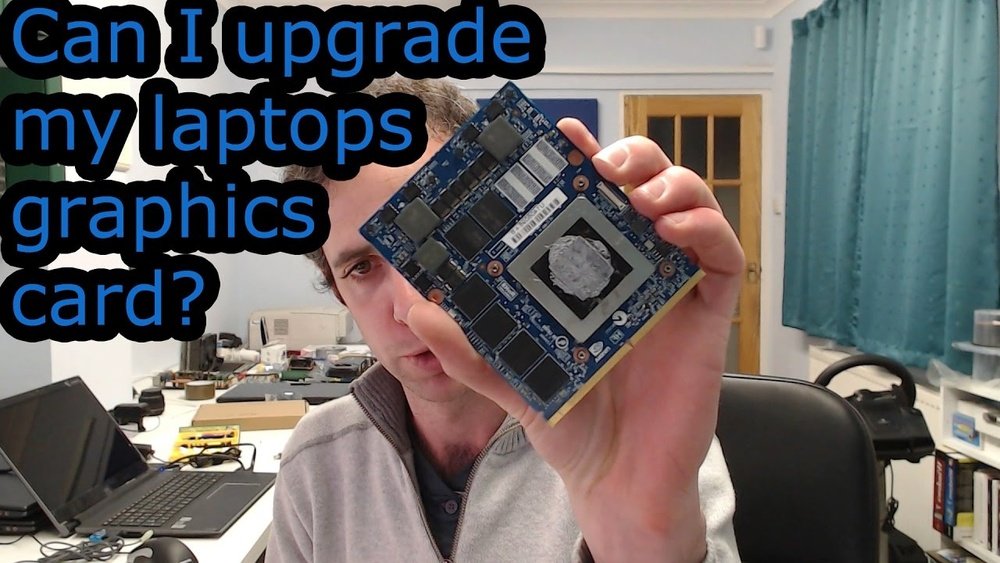
Most laptops have integrated or soldered GPUs, making upgrades difficult or impossible. Only some gaming or workstation laptops with MXM modules allow GPU upgrades.
What Laptops Support Gpu Upgrades?
Laptops with MXM (Mobile PCI Express Module) GPU slots support upgrades. These are rare and mainly found in high-end gaming or professional laptops.
How Do I Check If My Laptop Gpu Is Upgradeable?
Check your laptop’s manual or manufacturer website for GPU upgrade options. You can also open the laptop to see if it uses an MXM module.
Are External Gpus A Good Alternative?
Yes, external GPUs (eGPUs) connect via Thunderbolt ports. They boost graphics performance without opening your laptop, but require compatible ports and can be costly.
Conclusion
Upgrading a GPU in a laptop is not always simple or possible. Many laptops have built-in graphics that cannot be changed. Some models allow external GPUs, but these need extra equipment and cost. Consider your laptop’s design before deciding. Sometimes, buying a new laptop with a better GPU is easier.
Knowing your options helps you make the right choice. Choose what fits your needs and budget best.