Can I Upgrade My Laptop Gpu: Expert Tips to Boost Performance
Are you wondering if you can upgrade your laptop GPU to boost your gaming, video editing, or design work? You’re not alone.
Many people ask this because a better GPU means smoother graphics and faster performance. But is it really possible to swap out your laptop’s graphics card like you would on a desktop? You’ll discover the truth about laptop GPU upgrades, what options you have, and the best ways to improve your laptop’s graphics power without breaking the bank.
Keep reading—you might be surprised by what you can do!
Laptop Gpu Upgrade Basics
Upgrading a laptop GPU often feels like a puzzle. Many users wonder if it is even possible. The answer depends on several factors. Understanding laptop GPU upgrade basics helps you know your options. This knowledge saves time and avoids mistakes.
Knowing the types of laptop GPUs is the first step. It shows what kind of GPU your laptop has. Next, learning the difference between integrated and dedicated GPUs explains upgrade limits. Finally, clearing up common upgrade myths stops confusion.
Types Of Laptop Gpus
Laptop GPUs come in two main types: integrated and dedicated. Integrated GPUs share memory with the CPU. They are built into the processor or motherboard. Dedicated GPUs have their own memory and chip. They are separate from the CPU. Dedicated GPUs are usually faster and better for gaming or heavy tasks.
Integrated Vs Dedicated Gpus
Integrated GPUs are hard to upgrade. They are part of the laptop’s main board. You cannot swap them out easily. Dedicated GPUs may be removable in some laptops. Gaming or workstation laptops sometimes allow GPU upgrades. Most everyday laptops do not support this. Check your laptop’s design before planning an upgrade.
Common Upgrade Myths
Many believe all laptops can have their GPU upgraded. This is not true. Most laptops have GPUs soldered to the motherboard. Another myth is that external GPU enclosures work for all laptops. They need specific ports and support. Some think a simple software update can boost GPU power. Software cannot change hardware limits. Knowing facts prevents wasted effort and money.

Credit: www.youtube.com
Checking Upgrade Compatibility
Checking upgrade compatibility is the first step to improve your laptop’s graphics power. Many laptops have limits on what parts you can change. Knowing these limits saves time and money. It helps you find the right GPU that fits your laptop perfectly.
Identifying Your Laptop Model
Find your laptop’s exact model number. This is often on a sticker under the laptop or in the system settings. The model number helps you search for upgrade guides and compatible parts. Without the right model, you might buy a GPU that does not fit.
Gpu Slot Types And Sizes
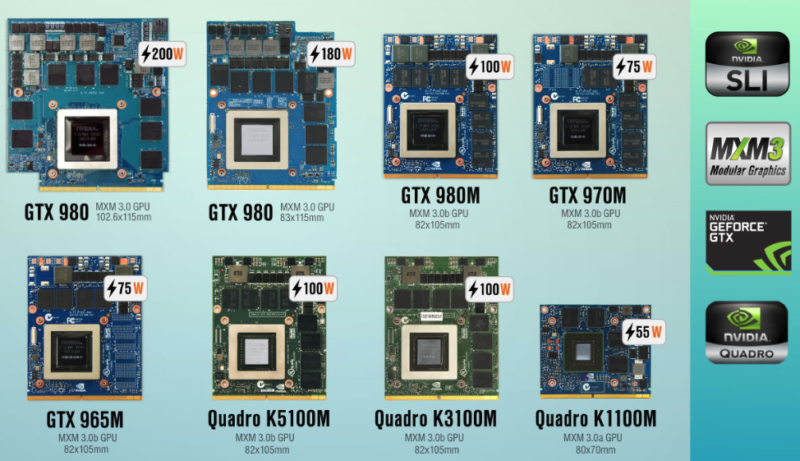
Check what kind of GPU slot your laptop has. Most laptops use MXM slots for GPUs, but many do not have any upgrade slots. Some GPUs are soldered directly to the motherboard. Also, measure the space inside your laptop. The new GPU must fit the slot and the space available.
Bios And Firmware Constraints
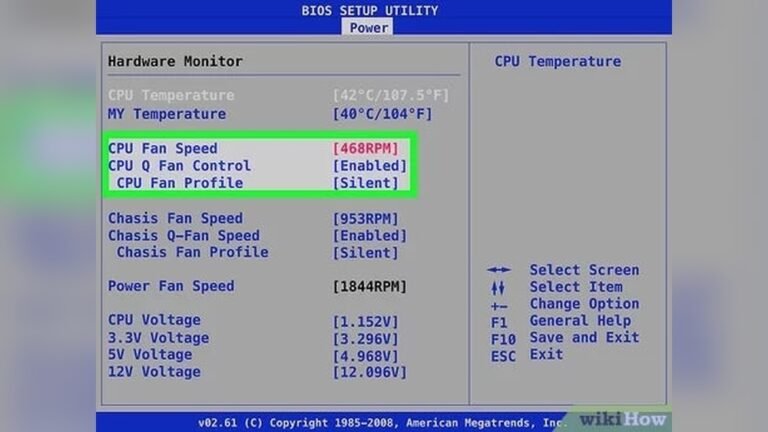
Some laptops have BIOS locks that block new GPUs. The firmware might only support specific GPU models. Updating BIOS can sometimes help, but it is risky and not always possible. Confirm that your laptop’s BIOS supports the GPU before buying.
Upgrade Options For Laptops
Upgrading a laptop’s GPU can be tricky. Laptop designs limit how much you can improve graphics power. Still, some options exist. These options depend on your laptop model and budget. Understanding these choices helps in making the right decision.
Mxm Gpu Modules
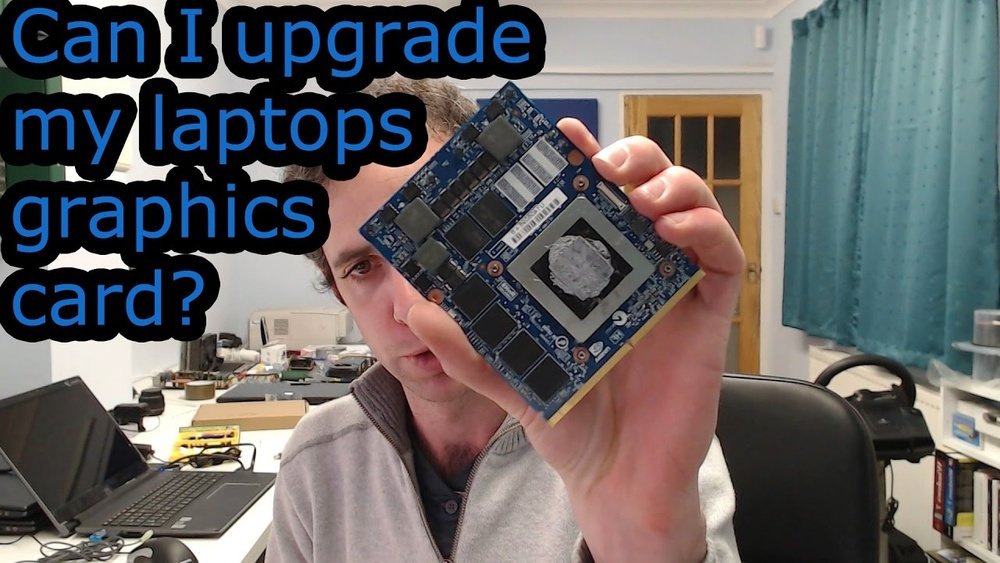
MXM stands for Mobile PCI Express Module. It is a small card with a GPU. Some high-end laptops support MXM modules. You can replace the old GPU with a better one. This upgrade needs technical skills and the right tools. MXM modules are not common in most laptops.
External Gpu Enclosures
External GPU enclosures connect to laptops via Thunderbolt ports. They hold a desktop-grade graphics card. This setup boosts your laptop’s gaming or design power. The downside is the extra cost and carrying a bulky device. Not all laptops support these enclosures.
Upgrading Ram And Cpu For Gpu Support
Improving RAM and CPU can help your GPU perform better. More RAM allows smoother multitasking and graphics handling. A faster CPU reduces bottlenecks in graphics processing. These upgrades support but do not replace a GPU upgrade. Check your laptop’s upgrade limits before buying parts.
Credit: www.liftingitalia.com
Step-by-step Upgrade Process
Upgrading your laptop’s GPU can boost its graphics power. The process needs care and clear steps. Follow this guide to upgrade safely and correctly.
Preparing Your Laptop
Turn off your laptop and unplug it from power. Remove the battery if possible. Find a clean, static-free workspace. Gather tools like a small screwdriver and anti-static wristband. Read your laptop’s manual for specific GPU details.
Removing The Old Gpu
Open the laptop’s back panel carefully. Locate the GPU; it may have a heat sink attached. Unscrew the GPU mounting screws gently. Disconnect any cables linked to the GPU. Remove the GPU by sliding or lifting it out slowly.
Installing The New Gpu
Align the new GPU with the slot correctly. Insert the GPU firmly but gently into place. Screw the GPU back in securely. Reconnect any cables you removed earlier. Replace the heat sink if you took it off.
Driver Installation And Configuration
Turn on your laptop after closing the panel. Download the latest GPU drivers from the manufacturer’s website. Install the drivers by following the on-screen instructions. Restart your laptop to apply changes. Check the GPU settings for optimal performance.
Performance Boost Tips
Boosting your laptop GPU performance can improve gaming and graphic tasks. Small changes help your laptop run smoother and faster. Focus on settings, cooling, and safe overclocking to get the best results.
Optimizing Gpu Settings
Adjust GPU settings in your control panel to improve speed. Lower graphic quality can increase frame rates. Turning off unnecessary effects helps your GPU focus on important tasks. Keep drivers updated to fix bugs and improve performance. Use power-saving modes only when needed to avoid slowing down.
Cooling Solutions For Better Performance
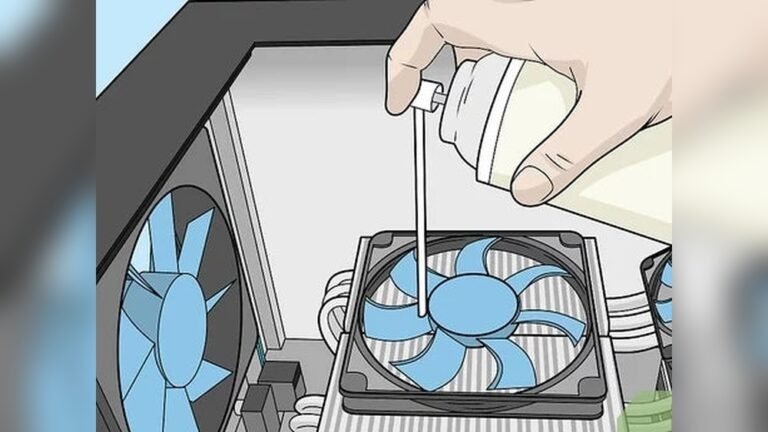
Heat slows down your GPU. Clean air vents regularly to remove dust. Use a cooling pad to reduce temperature. Place your laptop on a hard, flat surface for better airflow. Avoid using your laptop on soft surfaces like beds or couches.
Overclocking Safely
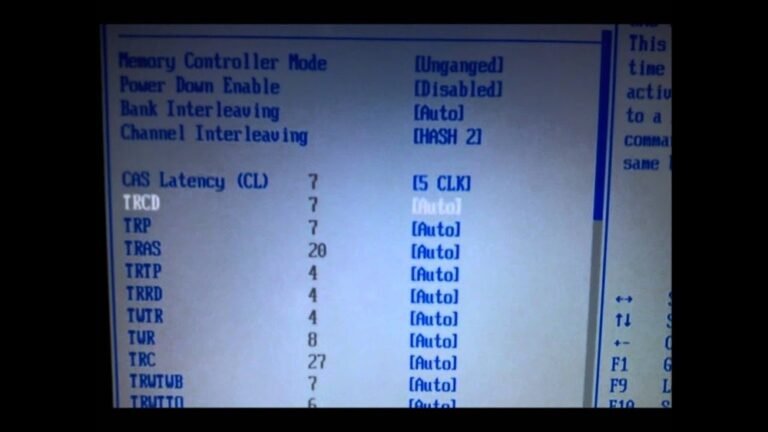
Overclocking can boost GPU speed but risks damage. Increase clock speeds in small steps. Watch temperature closely to avoid overheating. Use software tools designed for your laptop model. Stop overclocking if your laptop crashes or shows errors.
Potential Risks And Limitations
Upgrading a laptop GPU may sound like a good idea. It promises better graphics and faster performance. But there are risks and limits to consider. These can affect your laptop’s safety and function. Knowing these risks helps you make a smart choice.
Warranty Issues
Changing your laptop’s GPU often breaks the warranty terms. Manufacturers may refuse to fix problems. This means you pay for repairs yourself. Sometimes, even opening the laptop case can void the warranty. Checking the warranty rules first is important.
Power And Heat Challenges
New GPUs may need more power than your laptop can give. This causes system instability or crashes. Extra heat from a stronger GPU can harm internal parts. Laptops have limited cooling systems. Overheating can reduce the laptop’s life and slow it down.
Compatibility Pitfalls
Not all GPUs fit every laptop model. Physical size and connection types may differ. Some laptops have GPUs soldered to the motherboard. This means no option to upgrade. Drivers and software may not support a new GPU. Compatibility checks can save frustration and money.
Alternatives To Gpu Upgrades
Upgrading a laptop’s GPU can be tricky or impossible. Many laptops have GPUs soldered to the motherboard. This limits upgrade options. Thankfully, alternatives exist for better graphics performance. These options suit different budgets and needs. They keep your laptop useful for gaming or graphic work.
Using Cloud Gaming Services
Cloud gaming lets you play games on powerful servers. Your laptop only needs to stream the video. This reduces the need for a strong GPU. Services like NVIDIA GeForce Now and Xbox Cloud Gaming help with this. You get good graphics without hardware changes. A fast internet connection is essential. It’s a simple way to enjoy new games on old laptops.
Buying A New Gaming Laptop
Sometimes, buying a new laptop is the best choice. New laptops come with updated GPUs and CPUs. They offer better performance and longer support. Choose one that fits your budget and gaming needs. This option avoids compatibility problems. Plus, new laptops have improved cooling and battery life. It gives a fresh start for gaming or work tasks.
External Gpu As A Long-term Solution
External GPUs (eGPUs) connect to laptops via Thunderbolt ports. They add desktop-level graphics power to your system. eGPUs allow you to use full-sized desktop graphics cards. This boosts gaming and creative app performance. It works well for laptops with weak or no upgrade options. eGPUs are more expensive but offer flexibility. You keep your laptop and upgrade graphics externally.
Credit: rog.asus.com
Frequently Asked Questions
Can I Upgrade The Gpu In My Laptop?
Most laptops have integrated or soldered GPUs, making upgrades difficult. Only some models with MXM slots allow GPU swaps. Always check your laptop’s specifications before attempting an upgrade.
What Laptops Support Gpu Upgrades?
High-end gaming or workstation laptops sometimes support GPU upgrades. These models usually feature modular MXM GPU cards. Consumer and ultrabook laptops generally do not support GPU upgrades.
How Much Does A Laptop Gpu Upgrade Cost?
Laptop GPU upgrades can cost between $200 to $700, depending on the GPU model. Additional costs may include professional installation fees. Budget accordingly before upgrading.
Will Upgrading My Laptop Gpu Improve Gaming Performance?
Yes, upgrading to a better GPU can boost gaming performance. However, CPU and thermal limits may restrict the full potential of the new GPU.
Conclusion
Upgrading a laptop GPU is not always easy or possible. Many laptops have fixed graphics cards. Some models allow upgrades but need technical skills. Check your laptop’s manual or support page first. Consider costs and benefits before deciding. Sometimes buying a new laptop is better.
Keep your needs and budget in mind. Choose the best option for your situation. Your laptop’s performance depends on many parts, not just the GPU. Think carefully and plan well before making changes.