Can I Upgrade Laptop Gpu: Ultimate Guide to Boost Performance
Have you ever wondered if you can upgrade your laptop GPU to boost gaming or design performance? You’re not alone.
Many people want to make their laptops faster without buying a new one. But is it really possible to swap out your laptop’s graphics card like you do with a desktop? You’ll discover the truth about laptop GPU upgrades, what options you have, and how to make the best choice for your needs.
Keep reading to find out if upgrading your laptop’s GPU is the right move for you.
Credit: rog.asus.com
Laptop Gpu Upgrade Basics
Upgrading a laptop GPU is not as simple as upgrading a desktop. Many laptops have fixed graphics cards that cannot be swapped out. Understanding the basics helps you know what is possible for your laptop. This section explains key points about laptop GPUs and upgrade options.
Laptop Vs Desktop Gpus
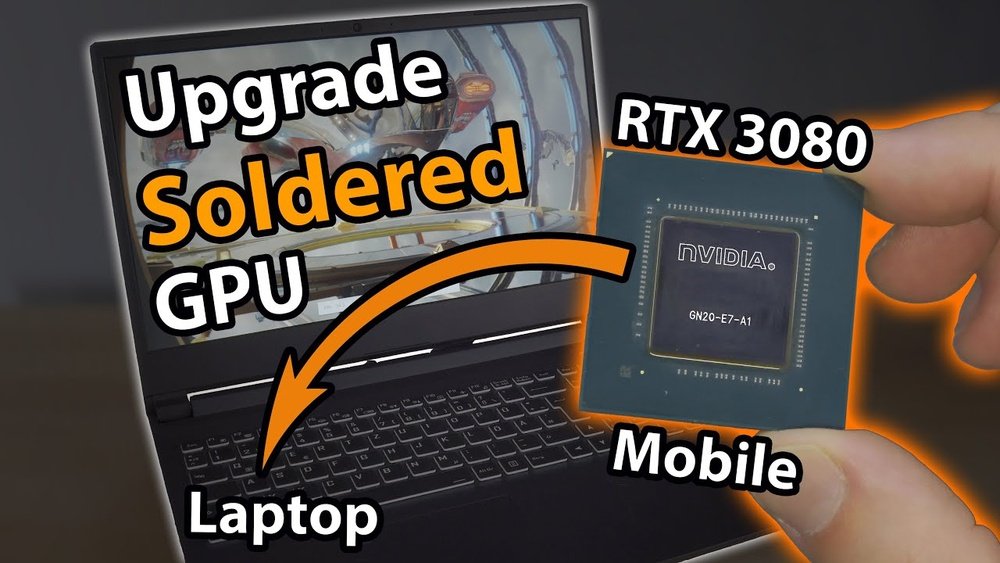
Laptop GPUs are smaller and use less power than desktop GPUs. They are designed to fit inside tight spaces and keep the laptop cool. Desktop GPUs are larger and more powerful. They can be easily removed and replaced. Laptop GPUs often come soldered onto the motherboard. This makes upgrading very hard or impossible in most cases.
Types Of Laptop Gpus
There are two main types of laptop GPUs: integrated and dedicated. Integrated GPUs share system memory and are built into the CPU. They are less powerful but save battery life. Dedicated GPUs have their own memory and offer better performance. Gaming laptops usually have dedicated GPUs. Some laptops allow external GPU use with special docks.
Integrated Vs Dedicated Gpus
Integrated GPUs are good for everyday tasks like browsing and watching videos. They cannot handle heavy gaming or video editing well. Dedicated GPUs are made for demanding tasks and games. They provide faster graphics and smoother performance. Upgrading integrated GPUs is not possible. Dedicated GPUs may be upgradable only in rare, high-end laptops.
Signs You Need A Gpu Upgrade
Knowing when to upgrade your laptop GPU can save you time and improve your computer’s performance. Certain signs show that your graphics card no longer meets your needs. Recognizing these signs helps you decide if an upgrade is necessary.
Performance Bottlenecks
Your laptop runs slower than usual during graphic tasks. Video playback stutters or lags. Programs take longer to load images or videos. These are common signs of a GPU struggling to keep up. A weak GPU limits your laptop’s overall speed. Upgrading can remove these bottlenecks.
Gaming And Creative Work Demands
You want to play newer games smoothly. Your video editing or 3D modeling software runs poorly. The GPU can’t handle high settings or complex tasks. Graphics appear choppy or pixelated. This means your current GPU is outdated for your needs. A better GPU supports higher resolutions and faster rendering.
Compatibility Issues With Software
New apps require more graphic power than your GPU offers. Software updates ask for newer GPU features. Your laptop shows error messages about graphics support. Some programs might not open or crash frequently. These are clear signs your GPU is not compatible with current software. Upgrading your GPU improves compatibility and stability.
Checking Laptop Compatibility
Checking laptop compatibility is the first step before upgrading your GPU. Many laptops have strict limits on what parts you can change. Not all laptops allow GPU upgrades. You must know your laptop’s hardware rules to avoid problems.
Understanding compatibility helps save time and money. It also prevents damage to your laptop. Let’s explore key areas to check for compatibility.
Motherboard And Gpu Interface
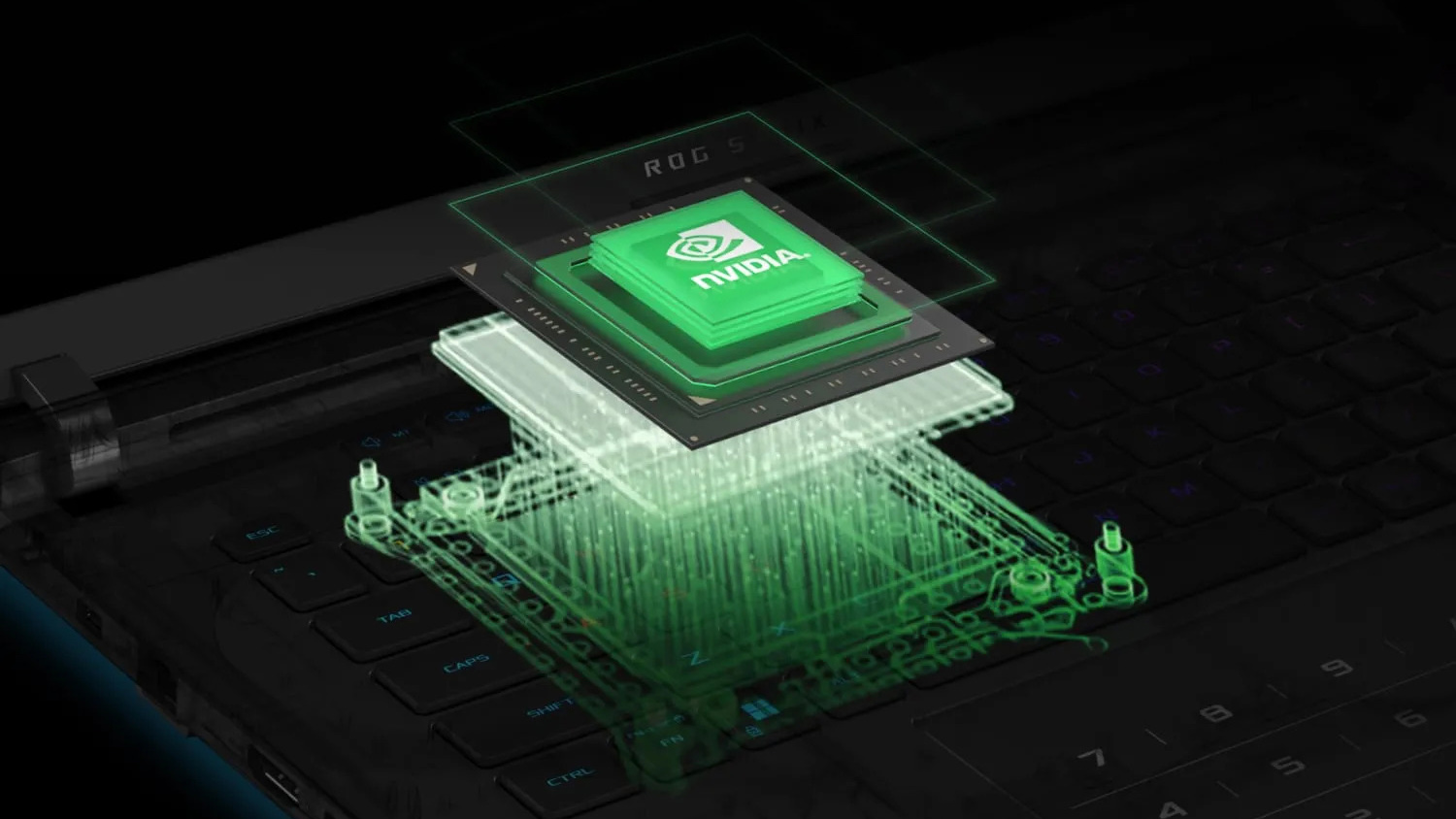
The motherboard connects all parts of your laptop. The GPU must match the motherboard’s interface. Most laptops use a soldered GPU, meaning it is fixed. Some gaming laptops have MXM slots for GPU upgrades. Check your laptop’s manual or support site. Look for terms like “MXM slot” or “dedicated GPU slot.” Without the right interface, you cannot upgrade the GPU.
Power Supply Limitations
Laptop power supplies have limits. A new GPU may need more power than your laptop can provide. The battery and charger must support the new GPU’s power needs. Overloading power can cause shutdowns or damage. Check your laptop’s power rating and compare it with the new GPU. Choose a GPU that fits within your power limits.
Physical Space And Cooling
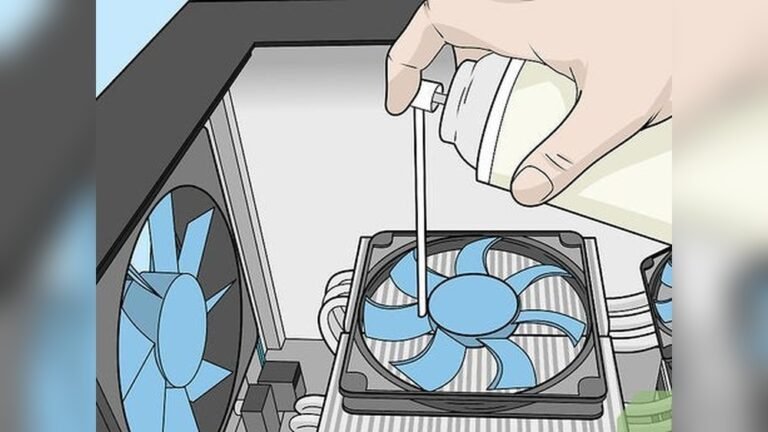
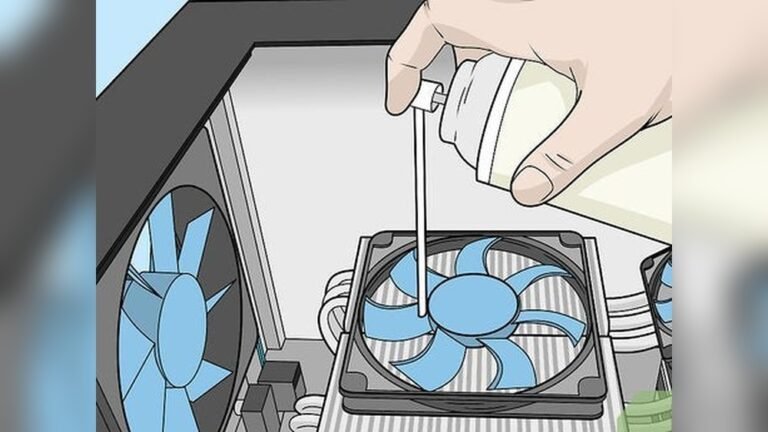
Inside your laptop, space is tight. A new GPU might not fit in the available space. Cooling is also critical. GPUs generate heat, and your laptop must cool it well. Poor cooling can cause overheating and reduce performance. Measure the space inside your laptop if possible. Check if your cooling system can handle a stronger GPU.
Credit: www.youtube.com
Upgrade Options For Laptop Gpus
Upgrading a laptop GPU is not as simple as upgrading a desktop card. Laptop components are often smaller and more integrated. Still, some options allow you to improve your laptop’s graphics power. Understanding these methods helps you choose the best path for your needs and budget.
Mxm Gpu Modules
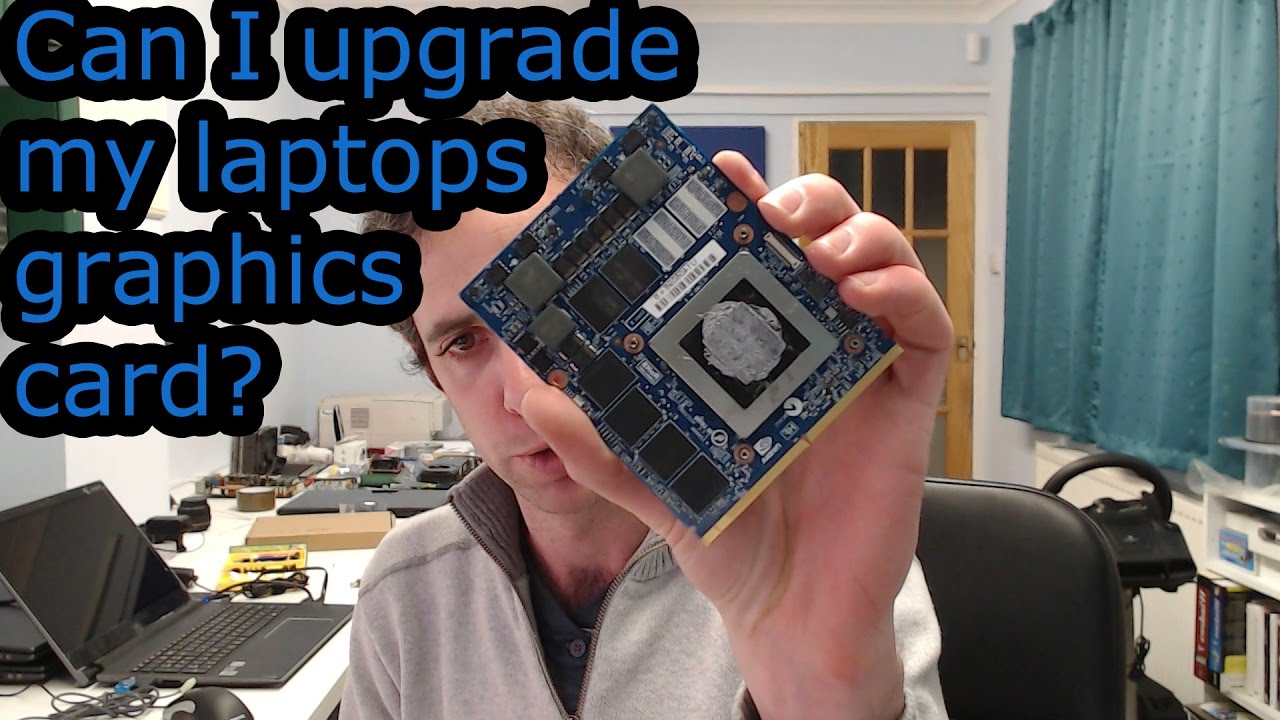
MXM modules are special graphics cards made for some laptops. They look like small, removable cards inside the laptop. Only certain models support MXM modules. Replacing the GPU means opening the laptop and swapping the module. This option is rare and often expensive. Compatibility and cooling are important factors.
External Gpu (egpu) Solutions
External GPUs connect to your laptop through a port. Most use Thunderbolt 3 or 4 connections. The external box holds a desktop-style graphics card. This method boosts graphics power without opening the laptop. It needs extra space and a power source. eGPUs work well for gaming and heavy graphics tasks.
Upgrading Integrated Graphics
Integrated graphics are built into the laptop’s processor. They share memory with the CPU. You cannot swap these GPUs like a card. Upgrading means changing the whole processor or laptop. Some newer laptops have better integrated graphics for light gaming and media. This is the least flexible upgrade option.
Step-by-step Gpu Upgrade Process
Upgrading a laptop GPU can improve graphics and boost performance. The process needs care and attention. Follow these steps to upgrade your laptop GPU safely and correctly.
Preparing Your Laptop
Turn off your laptop and unplug all cables. Remove the battery if possible. Use a clean, flat surface with good lighting. Gather tools like a screwdriver and an anti-static wristband. Read your laptop’s manual to find the GPU location.
Removing The Old Gpu
Open the laptop’s back panel carefully. Locate the GPU and its cooling system. Unscrew and disconnect the fan and heat sink. Gently remove the old GPU from its slot. Avoid touching other components inside the laptop.
Installing The New Gpu
Insert the new GPU into the same slot. Make sure it fits securely without force. Reattach the heat sink and fan. Tighten screws firmly but do not over-tighten. Close the back panel and reinsert the battery.
Driver Installation And Configuration
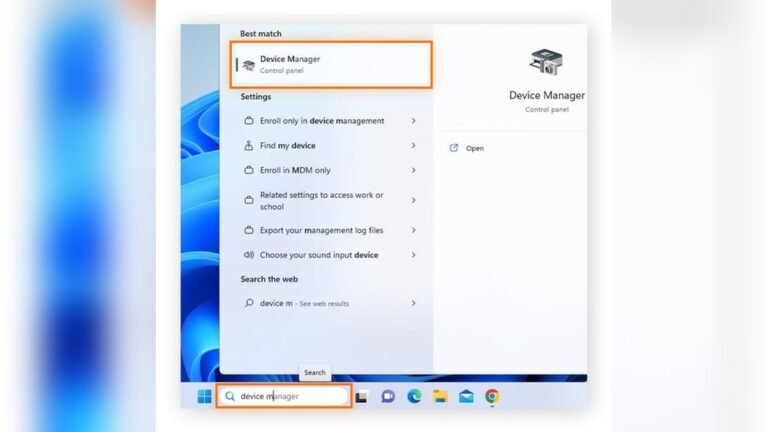
Power on your laptop and connect to the internet. Download the latest GPU drivers from the manufacturer’s website. Install the drivers following on-screen instructions. Restart your laptop to apply changes. Adjust graphics settings for optimal performance.
Using External Gpus
Using external GPUs (eGPUs) is a popular way to boost a laptop’s graphics power. It lets you connect a desktop-style graphics card to your laptop. This method is helpful if your laptop has weak or no upgradeable internal GPU. eGPUs work well for gaming, video editing, and 3D design tasks.
Choosing The Right Egpu Enclosure
Pick an eGPU enclosure that fits your budget and needs. The enclosure holds the graphics card and supplies power. Check for good cooling and enough space for your GPU. Some enclosures come with extra USB ports or Ethernet connections. Make sure it supports the card size and power requirements.
Connecting Via Thunderbolt Or Usb-c
Most eGPUs connect using Thunderbolt 3 or Thunderbolt 4 ports. These ports offer high speed and low latency. USB-C ports without Thunderbolt usually do not work well with eGPUs. Use a short, quality cable for best connection. Your laptop must support eGPU use through its ports.
Performance Expectations
Expect some performance loss compared to desktop GPUs. The connection speed limits data transfer between laptop and eGPU. Still, the boost is large compared to built-in laptop GPUs. Games and apps run smoother and faster with an eGPU. Performance depends on your laptop’s CPU and the GPU used.
Potential Risks And Challenges
Upgrading a laptop GPU is not as simple as desktop upgrades. Several risks and challenges come with this process. Understanding these issues helps avoid problems and costly mistakes.
Warranty And Support Issues
Changing your laptop’s GPU often voids the warranty. Manufacturers may refuse to fix your laptop after unauthorized changes. Support from the company might stop completely. This means you must cover repair costs yourself. Always check warranty terms before upgrading.
Thermal Management
Laptop cooling systems are designed for specific parts. A new GPU may produce more heat than the old one. This can cause overheating and damage internal parts. Poor cooling also reduces the laptop’s performance. Upgrading without improving cooling is risky.
Compatibility And Stability Problems
Not all GPUs fit inside every laptop. Physical space and power limits may block the upgrade. Drivers for new GPUs might not work well with your system. This can cause crashes or display errors. Ensuring full compatibility is difficult and vital.

Credit: www.reddit.com
Alternatives To Gpu Upgrades
Upgrading a laptop GPU is often tough or not possible. Many laptops have GPUs built into the motherboard or soldered in place. This makes direct upgrades expensive or impossible. Luckily, there are other ways to improve your laptop’s graphics performance or overall speed.
These alternatives can help you get better results without changing the GPU. You can tweak software, boost other parts, or consider a new laptop.
Optimizing Software Settings
Adjusting your software settings can improve graphics without hardware changes. Lower game or app resolution to reduce GPU load. Turn off or reduce special effects and shadows. Update your graphics drivers for better performance and stability. Close unnecessary programs to free up system resources. These simple steps can make your laptop run smoother.
Upgrading Other Components
Improving other laptop parts can help overall speed and gaming. Increase your RAM to allow better multitasking and faster loading. Swap your hard drive for a solid-state drive (SSD) to speed up data access. A faster processor can also improve performance in some cases. These upgrades may not boost graphics directly but can help the system run better.
Buying A New Laptop
Sometimes, the best option is a new laptop with a better GPU. New models come with more powerful and energy-efficient graphics cards. Look for laptops designed for gaming or creative work. This choice ensures future-proof performance. It may cost more but saves time and frustration in the long run.
Frequently Asked Questions
Can I Upgrade The Gpu In Any Laptop?
Most laptops have GPUs soldered to the motherboard, making upgrades impossible. Only some gaming or workstation laptops with MXM modules allow GPU swaps.
How To Check If My Laptop Gpu Is Upgradeable?
Check your laptop’s manual or manufacturer website. Look for MXM slot presence or GPU replacement options in service guides.
What Are Alternatives If Laptop Gpu Upgrade Is Not Possible?
Use external GPU (eGPU) enclosures via Thunderbolt ports. Upgrading RAM or storage can also boost overall laptop performance.
Does Upgrading Laptop Gpu Improve Gaming Performance?
Yes, upgrading to a better GPU boosts gaming graphics and frame rates significantly, provided the laptop supports the new GPU.
Conclusion
Upgrading a laptop GPU is not always simple or possible. Many laptops have fixed graphics cards that cannot be changed. Some models allow external GPUs with special docks. Check your laptop’s compatibility before buying new parts. Consider costs and benefits carefully.
Sometimes buying a new laptop is easier and cheaper. Knowing your laptop’s limits helps make better decisions. Choose the option that fits your needs and budget best.